
The Pre-Orders extension by Atomic Addons takes orders for products and variations before they are released. Orders wait in a Pre-ordered status with their stock set aside and move on by themselves at release, paid at checkout or on release. This guide covers the settings, pre-order products, releasing and what customers see.
Enable the Pre-Orders Extension
 (Open the full-size image in a new tab)
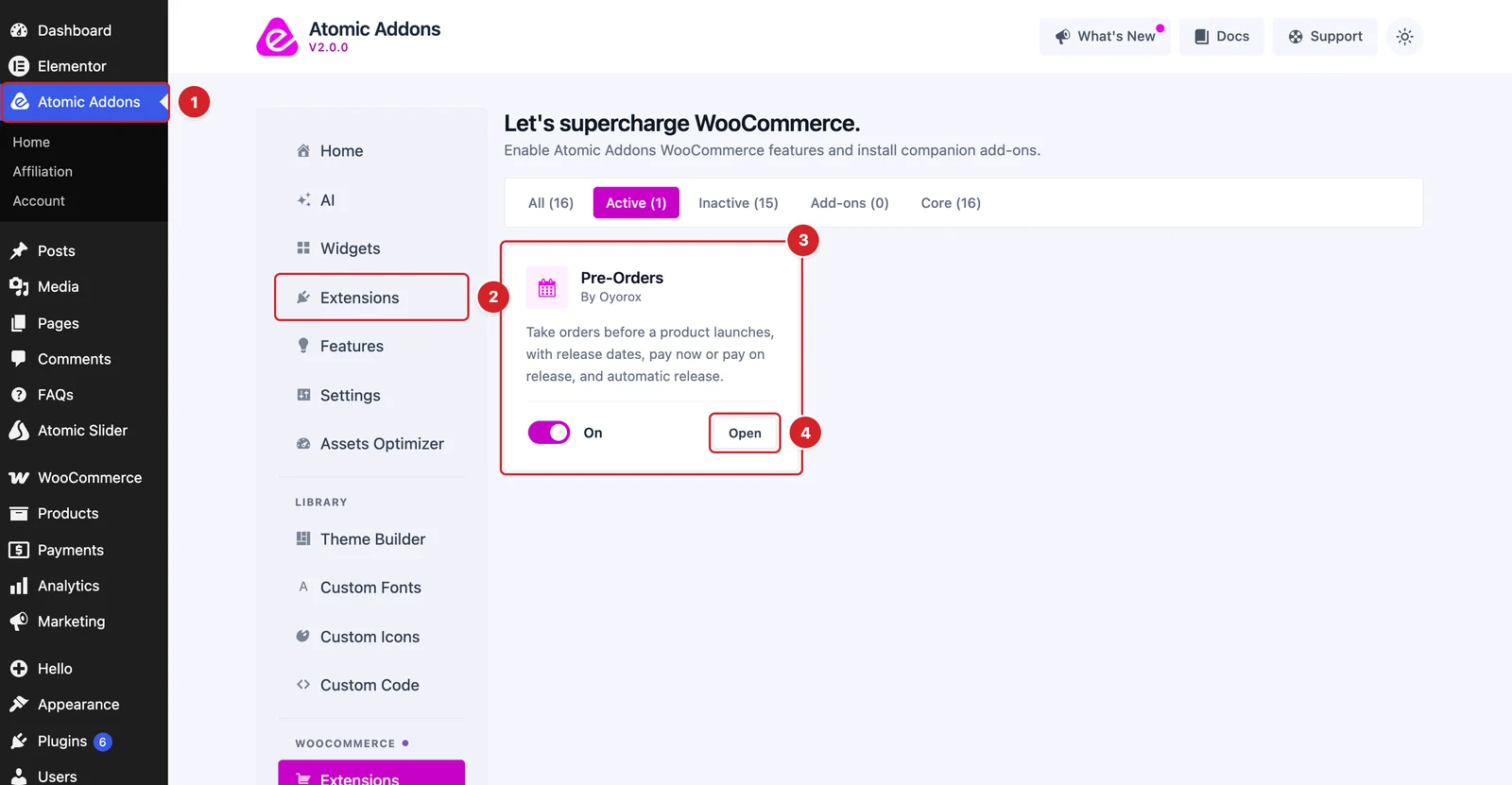
WooCommerce must be installed and active. Then switch the extension on from the Atomic Addons dashboard:
- 1
Go to WordPress Dashboard → Atomic Addons.
- 2
Under WooCommerce, click Extensions.
- 3
Find the Pre-Orders card and turn its switch On.
- 4
Click Open to open the extension's settings.
Choose When Customers Pay
 (Open the full-size image in a new tab)
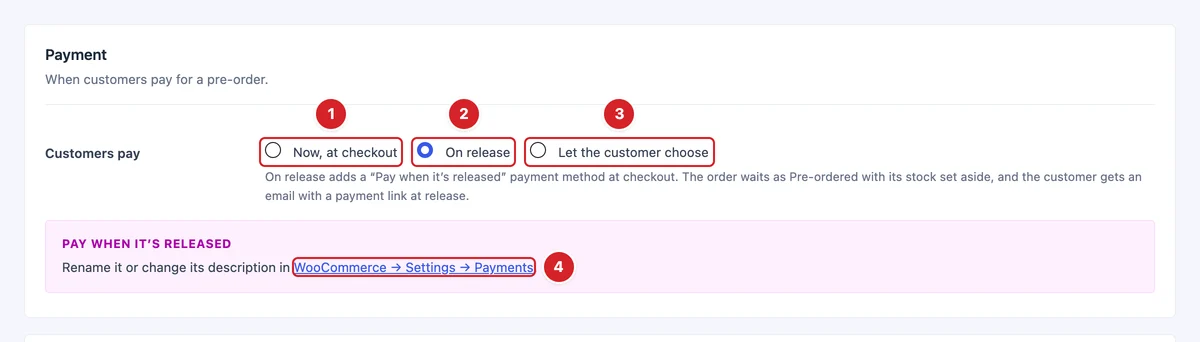
The Payment card sets Customers pay:
- 1
Now, at checkout: The default. The paid order waits as Pre-ordered until release.
- 2
On release: Carts with a pre-order get only the “Pay when it’s released” method. Nothing is charged until release, when the customer is emailed a link to pay.
- 3
Let the customer choose: “Pay when it’s released” is offered next to your other payment methods.
- 4
WooCommerce → Settings → Payments: Rename the pay-later method or change its description there.
The pay-later method works on the classic checkout and the Checkout block, and only for carts that hold a pre-order.
Set Up the Product Page and Shop
 (Open the full-size image in a new tab)
Messages can use {date} and {time}, in your site's date format and timezone.
- 1
Button text: Replaces “Add to cart” on pre-order products. “Pre-order now” by default.
- 2
Message with a release date: Replaces the stock line on the product page. “Available on {date}” by default.
- 3
Message without a date: Used for products with no release date yet. “Coming soon” by default.
- 4
Show the message in product lists: Adds the message under the price on the shop, category and search pages. On by default.
- 5
Sell when out of stock: Keeps taking pre-orders after stock runs out, until release or the pre-order limit. On by default.
Set Up the Cart
 (Open the full-size image in a new tab)
- 1
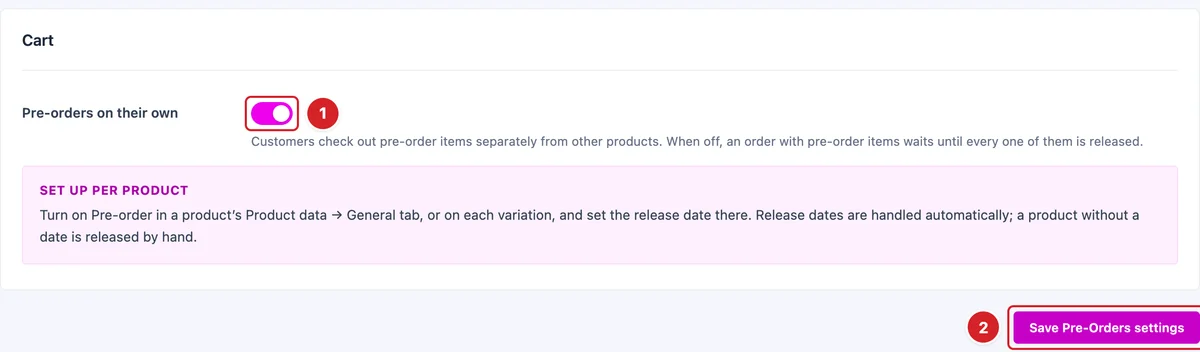
Pre-orders on their own: On by default: pre-orders can't share a cart with other products. When off, a mixed order waits until every pre-order item in it is released.
- 2
Save Pre-Orders settings: Click to save your changes.
Set Up a Pre-Order Product
 (Open the full-size image in a new tab)
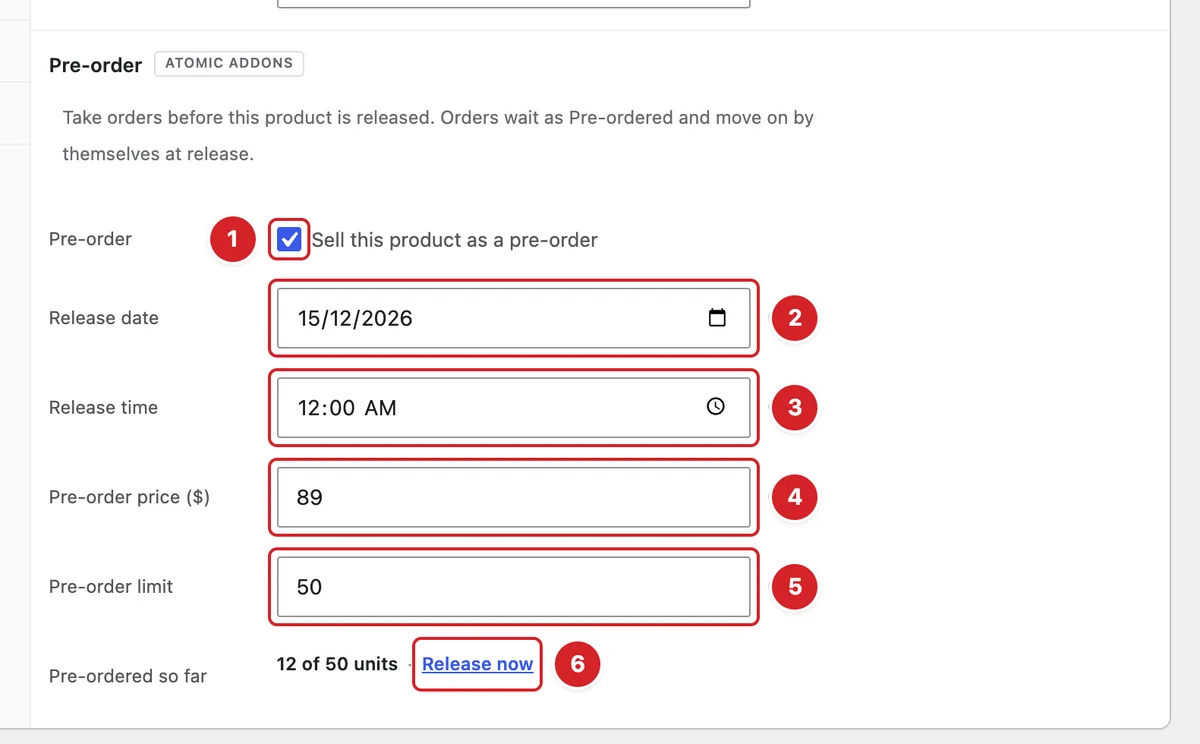
Edit a simple product and open Product data → General. In the Pre-order section:
- 1
Pre-order: Tick Sell this product as a pre-order to show the other fields.
- 2
Release date: Leave it empty if there's no date yet: the product shows “Coming soon” and you release it by hand.
- 3
Release time: In your site's timezone. Empty means midnight.
- 4
Pre-order price: Charged until release. Empty uses the normal price; a lower price shows as a sale.
- 5
Pre-order limit: The most units you'll take; empty means no limit. When it's reached, the product shows “Pre-orders are full”.
- 6
Release now: Next to Pre-ordered so far. Ends the pre-order now and moves its waiting orders on.
Click Update to save. Unticking Pre-order and saving releases the product too.
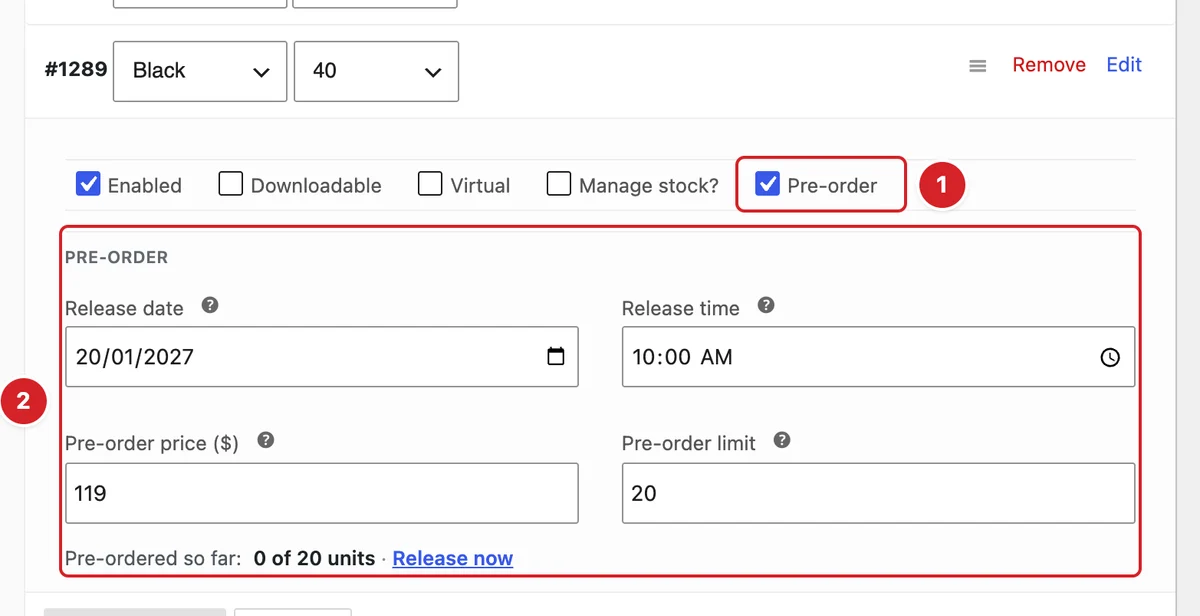 (Open the full-size image in a new tab)
For a variable product, open Variations and expand a variation:
- 1
Pre-order: Tick it next to Enabled, Downloadable and Virtual.
- 2
Pre-order fields: The same four fields and Release now, for this variation only.
Only simple products and variations can be pre-orders.
How Releasing Works
Each release runs at its release time, backed by an hourly check. The product goes back to its normal price and its waiting orders move on:
- Paid orders move to Processing (Completed when nothing needs shipping).
- “Pay when it's released” orders move to Pending payment, keeping their stock, and the customer gets a link to pay.
- Products without a date are released only by hand.
The Pre-ordered status works with HPOS and classic order storage. Customers get two emails, editable under WooCommerce → Settings → Emails:
- Pre-order confirmed — when the order is placed, with the expected date.
- Pre-order available — at release, with the payment link when it's needed.
Released pay-on-release orders are never cancelled automatically: they wait in Pending payment until paid or cancelled by you.
In On release mode, express payment buttons from other payment plugins aren't hidden, so customers can still pay up front.
A Role Based Pricing price takes priority over the pre-order price.
What Customers See
On the product page, the button and stock line change as set above; for a variable product, when the customer picks a pre-order variation. In product lists the message sits under the price (for a variable product, only when every variation shares one release date). Atomic Addons product widgets have their own Pre-order Date switch for it.
The cart, checkout and mini cart add a Pre-order: Available on … line to each pre-order item, and the order received page says when it's expected.
Final Preview
 (Open the full-size image in a new tab)
A pre-order product released on December 15, 2026 with a pre-order price of $89, shown as a sale, and the Pre-order now button.
All done! You have successfully set up the Pre-Orders extension on your store.
Thanks for being with us.
Can't find what you need?
Our support team can help with setup questions and anything the docs don't cover yet.