
The Product Related widget by Atomic Addons shows products related to the one being viewed, so shoppers find more to buy. WooCommerce picks them: products that share a category or a tag with it. Each card has the image, name, rating, price and add to cart button. You choose how many appear, in how many columns and in what order. This guide covers adding the widget, its settings, which products appear and the style settings.
Enable the Product Related Widget
Product Related is a Pro widget and needs Atomic Addons Pro and WooCommerce. Switch it on from the plugin dashboard:
- 1
Go to WordPress Dashboard → Atomic Addons.
- 2
Click the Widgets tab.
- 3
Search for Product Related. You can also open the WooCommerce category.
- 4
Turn the Product Related widget on.
- 5
Click Save Settings.
Add the Product Related Widget
The widget belongs in a Theme Builder template for products, usually at the bottom, under the Product Tabs widget:
- 1
Go to WordPress Dashboard → Atomic Addons → Theme Builder.
- 2
Click Add New and choose the Single Product card.
- 3
Give the template a name and open it in Elementor. Its display condition is already set to WooCommerce → Product, so it applies as soon as you publish it.
- 4
In the widget panel, search for Product Related and drag it into the template. The widget sits in the Atomic Addons Pro (Single) category.
- 5
Design it with the controls below, then click Publish.
In the editor the template previews a sample product: the one picked under Builder Settings → Builder Post in the template's page settings (click Apply & Preview), or your newest product if none is picked. On your store, each product page shows the products related to it; anywhere else the widget uses your newest product. The widget appears in the panel only while you edit a Theme Builder template, a saved Elementor template or a product.
Related Products
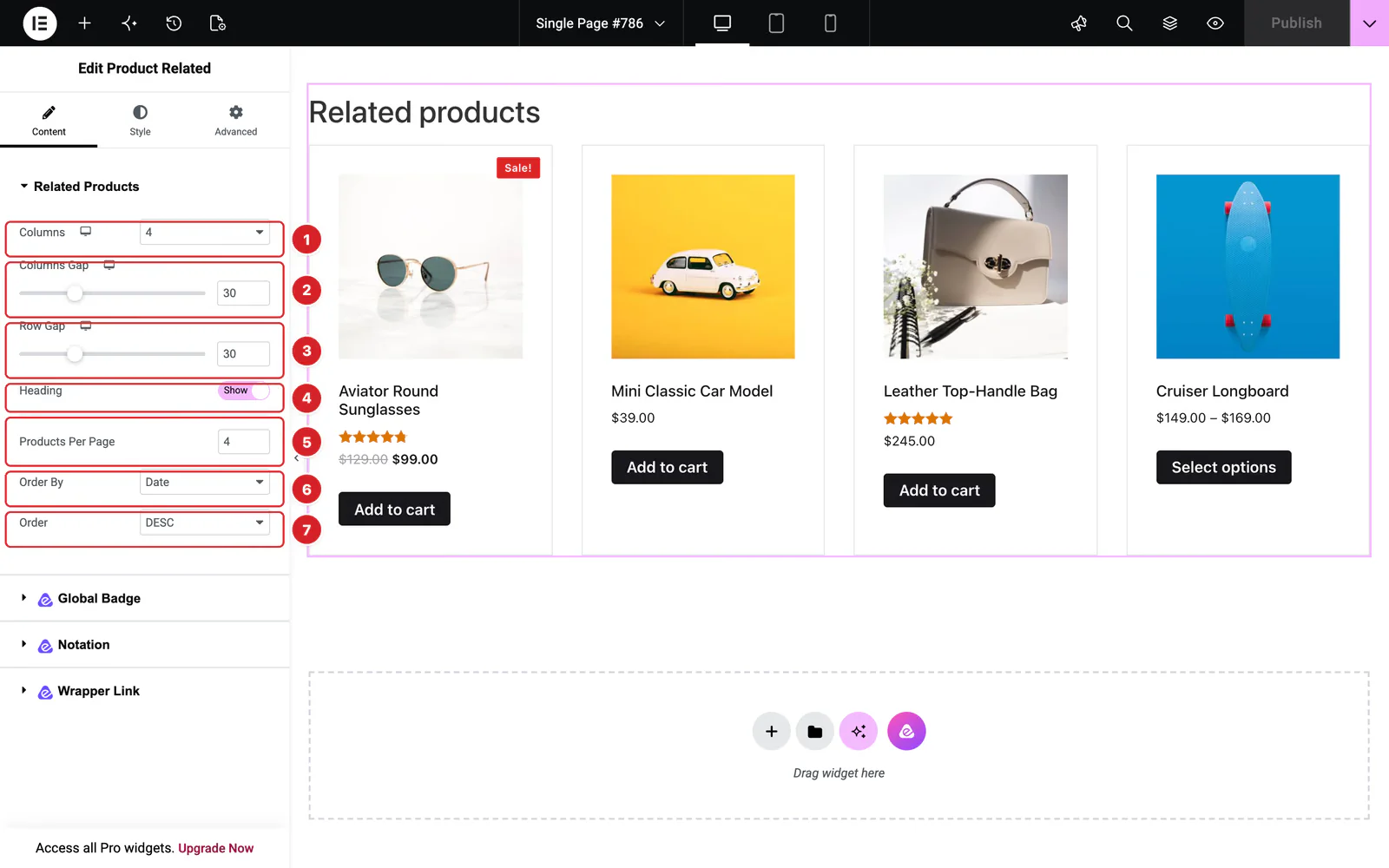 (Open the full-size image in a new tab)
Open the widget and go to Content → Related Products:
- 1
Columns: 1 to 6 columns: 4 by default, 2 on tablets and 1 on phones. Use the device icon to change them per device.
- 2
Columns Gap: The space between columns, 30px by default.
- 3
Row Gap: The space between rows, 30px by default.
- 4
Heading: Show or hide WooCommerce's “Related products” heading above the cards. It is on by default.
- 5
Products Per Page: How many related products to show, 4 by default. There is no pagination, so this is the total.
- 6
Order By: Date (the default), Title, Price, Popularity (total sales), Rating (average rating), Random or Menu Order.
- 7
Order: DESC, the default, puts the newest, most expensive, best-selling or best-rated product first; ASC reverses it.
Which Products Appear
 (Open the full-size image in a new tab)
- WooCommerce relates published products that share a category or a tag with the product being viewed. A shared tag, such as “bestseller”, relates products from different categories.
- The product itself and its Upsells (set under Linked Products when you edit a product) are left out, and so are products hidden from the catalog, and out-of-stock products when your store hides them.
- When more products match than Products Per Page allows, WooCommerce picks that many at random, so the selection can change from one visit to the next. Order By then sorts the products picked.
- A product with nothing in common with other products has no related products. The widget then shows nothing on the store, and the editor shows “No related products found for this product.”
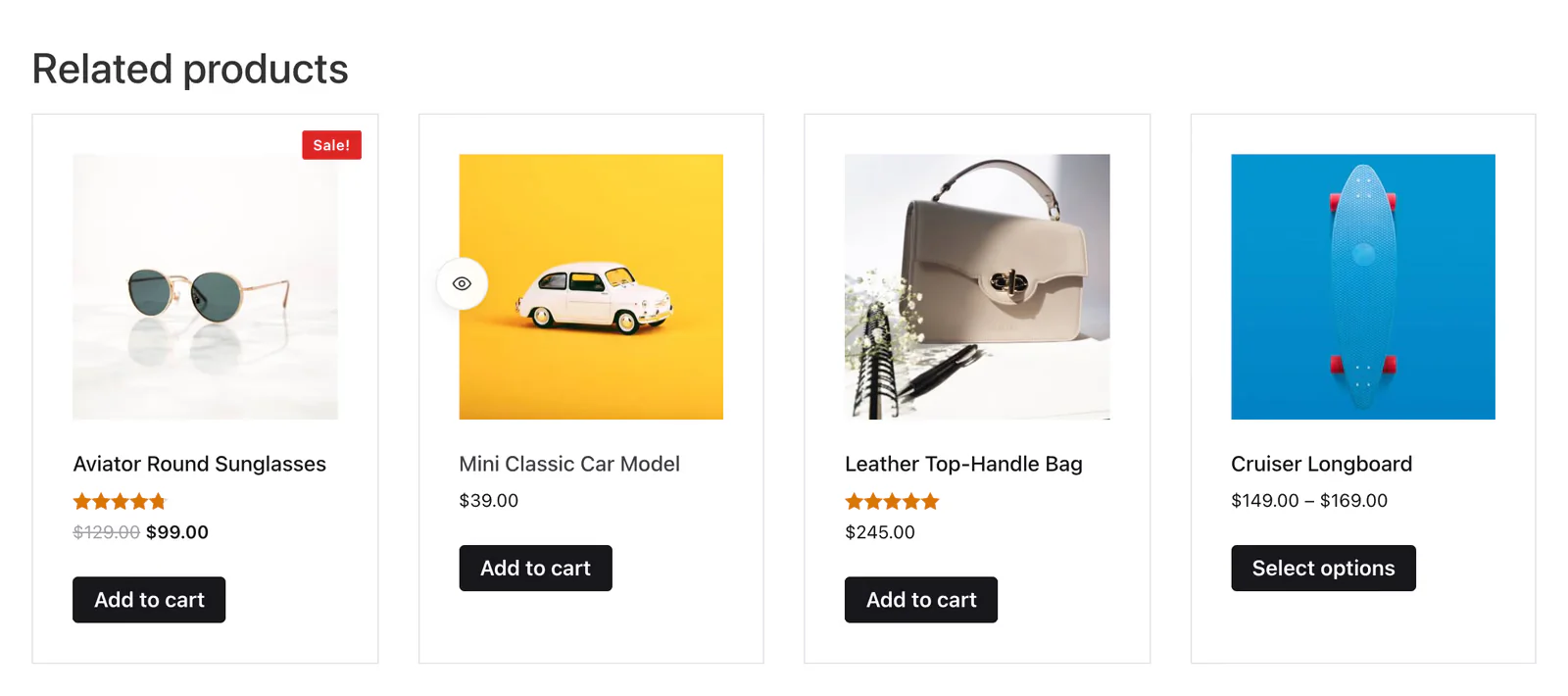
Each card is WooCommerce's own product card: the image, the name, the stars for products with reviews, the price with the old price struck through during a sale, a Sale! badge, and the button WooCommerce uses for the product type, such as Add to cart or Select options. The buttons that the Product Wishlist, Product Compare and Quick View extensions add to product cards appear here too while those extensions are on.
Style the Related Products
Everything below is on the Style tab.
- Heading — Alignment, Color, Typography and Margin of the heading. Shown while Heading is on.
- Items — the card's Border, Border Radius, Padding, Box Shadow and text Alignment, with a Hover state for the border color and shadow.
- Image — Background, Image Border, Border Radius, Padding and Box Shadow, in Normal and Hover states.
- Title — Color, Hover Color, Margin and Typography of the product names.
- Rating — the Color of empty stars and the Active Color of filled ones.
- Price — Regular Color for the struck-through old price, Sale Color for the current price of every product, Margin and Typography.
- Add To Cart — the button in Normal and Hover states: Color, Background Color, Border, Border Radius, Padding, Margin and Typography.
- Sale Flash — a Sale Flash switch that shows or hides the Sale! badges (on by default), then Text Color, Background Color, Typography, Border Radius, Width, Height, Position (left or right corner) and Distance from the corner.
Can't find what you need?
Our support team can help with setup questions and anything the docs don't cover yet.