
The Sub Category widget by Atomic Addons gives shoppers a quick way into the depth of your catalog. It shows a card for each top-level WooCommerce category that has subcategories: a small image slider that cycles through the category's thumbnail and its subcategories' thumbnails, the category name, a link to each subcategory and an “All …” link to the category itself. This guide covers adding the widget, choosing the categories and the image slider.
Enable the Sub Category Widget
Sub Category is a Pro widget and needs Atomic Addons Pro and WooCommerce. Switch it on from the plugin dashboard:
- 1
Go to WordPress Dashboard → Atomic Addons.
- 2
Click the Widgets tab.
- 3
Search for Sub Category. You can also open the WooCommerce category.
- 4
Turn the Sub Category widget on.
- 5
Click Save Settings.
Add the Sub Category Widget
Sub Category works on any page:
- 1
Open the page in Elementor (Edit with Elementor).
- 2
In the widget panel, search for Sub Category. The widget sits in the Atomic Addons Pro category.
- 3
Drag it into the page and set it up with the controls below.
- 4
Click Publish (or Update).
The widget needs categories with subcategories: create them under Products → Categories by choosing a Parent category. A top-level category without subcategories gets no card, so on a store without any the widget stays empty.
Layout
 (Open the full-size image in a new tab)
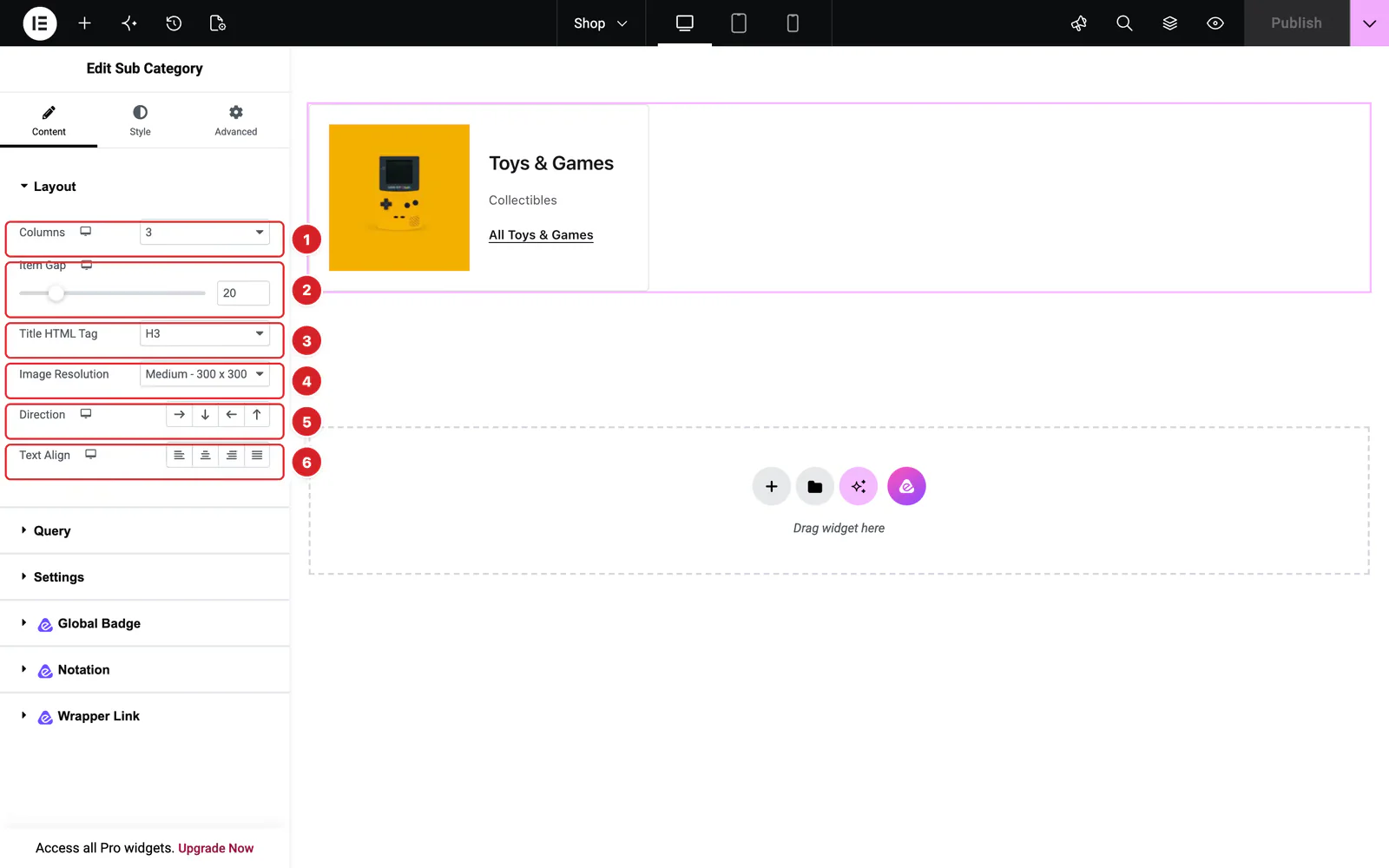
Open the widget and go to Content → Layout:
- 1
Columns: 1 to 6 columns of cards: 3 by default, 2 on tablets and 1 on phones.
- 2
Item Gap: The space between cards, 20px by default.
- 3
Title HTML Tag: The category name's markup: H1 to H6, div, span or p. H3 by default.
- 4
Image Resolution: Which image size WordPress serves for the thumbnails, Medium by default.
- 5
Direction: Where the image sits in the card: beside the text (Row - horizontal, the default look), above it (Column - vertical), or the same two reversed.
- 6
Text Align: Left, center, right or justified text.
In the screenshot the store has one category with a subcategory, Toys & Games with Collectibles, so the widget shows one card. The card's image cycles between the Toys & Games thumbnail and the Collectibles thumbnail.
Query
Content → Query chooses which top-level categories get a card. The widget always looks at all your categories and keeps the top-level ones that have subcategories:
- Include — show cards only for the Categories you pick. The list offers top-level categories only.
- Exclude — leave out the categories you pick.
- Order By — Name (the default), Count or Slug. It orders the cards and the subcategory links in each card.
- Order — DESC, the default, puts names from Z to A, or the largest counts first; ASC reverses it.
- Hide Empty — leaves out categories with no products, and subcategories with no products in each card. On by default.
The widget doesn't follow the category being viewed. In a Products Archive template it shows the same cards on every category page; it doesn't switch to the subcategories of the category a shopper is browsing.
Settings
 (Open the full-size image in a new tab)
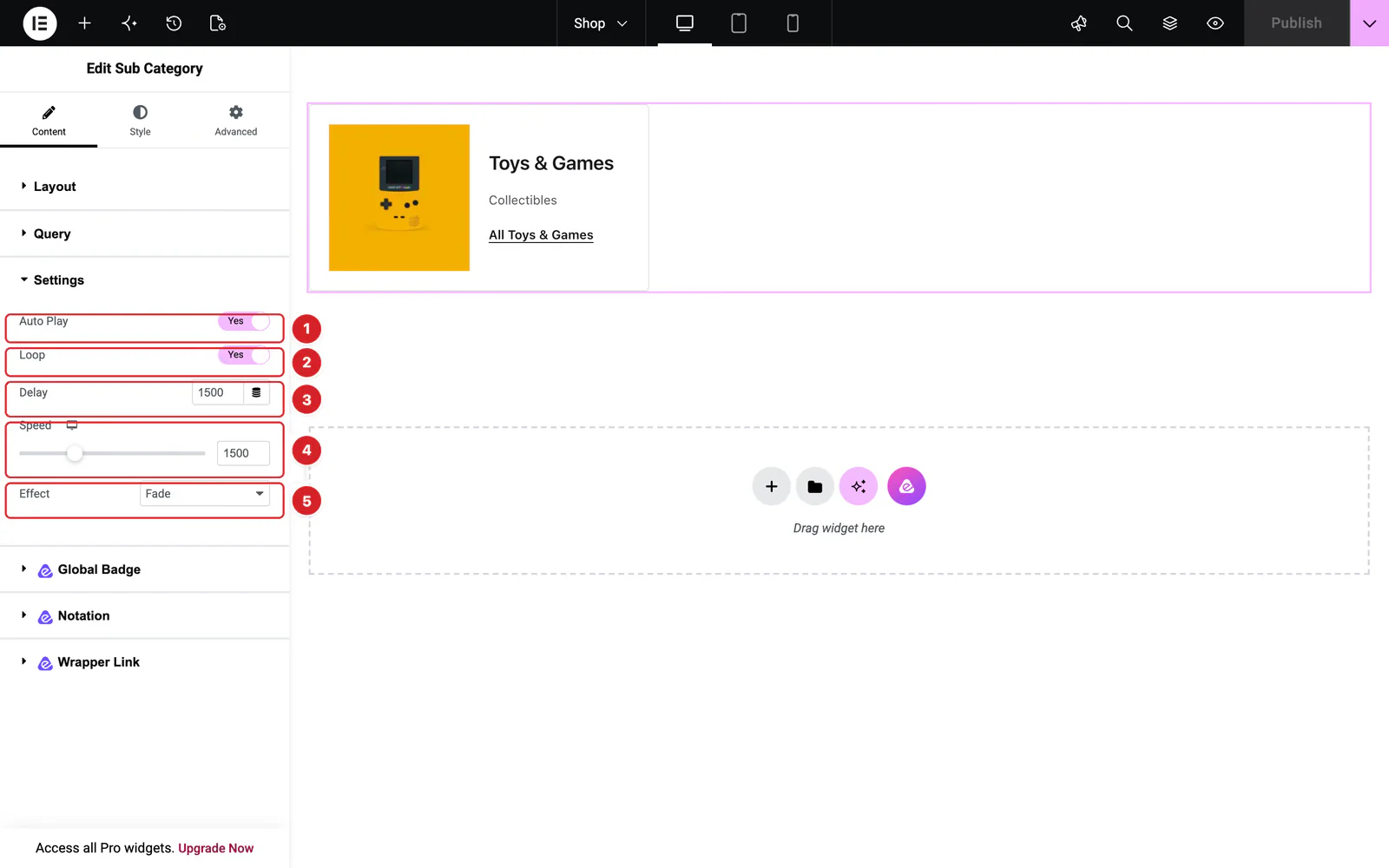
Content → Settings controls the image slider in each card:
- 1
Auto Play: Changes the image on its own. On by default. Each card waits a little longer than the one before it, so the cards don't change in step.
- 2
Loop: Starts over after the last image. On by default.
- 3
Delay: The pause between images, 1500 ms by default.
- 4
Speed: How long each change takes, 1500 ms by default.
- 5
Effect: Fade (the default), Slide or Creative, which adds Creative Effect with five 3D presets.
The first image is the category's own thumbnail, followed by each subcategory's. Categories without a thumbnail are skipped; if none of them has one, the card shows a placeholder image.
Style the Sub Category
Everything below is on the Style tab.
- Item — the card in Normal and Hover states: background, border, radius, padding, margin, Space Between (the gap between image and text) and box shadow.
- Image — the slider's Height and Width, its border and radius. With a width set and a column direction, Alignment places the image left, center or right.
- Title — the category name's color, margin and typography.
- Sub Category — the subcategory links: Color, Hover Color, margin and typography.
- Read More — the “All …” link: Color, Hover Color, margin and typography.
Can't find what you need?
Our support team can help with setup questions and anything the docs don't cover yet.