
The Checkout Page widget by Atomic Addons lays the WooCommerce checkout out in two columns and lets you style every part of it in Elementor: the billing and shipping forms on one side, and the order summary and payment methods on the other. This guide covers adding the widget and the style sections you can change.
Enable the Checkout Page Widget
Checkout Page is a Pro widget and needs Atomic Addons Pro and WooCommerce. Switch it on from the plugin dashboard:
- 1
Go to WordPress Dashboard → Atomic Addons.
- 2
Click the Widgets tab.
- 3
Search for Checkout Page. You can also open the WooCommerce category.
- 4
Turn the Checkout Page widget on.
- 5
Click Save Settings.
Add the Checkout Page Widget
 (Open the full-size image in a new tab)
The usual home for the widget is a Theme Builder template, which replaces the whole checkout page:
- 1
Go to WordPress Dashboard → Atomic Addons → Theme Builder.
- 2
Click Add New and choose the Checkout Page card.
- 3
Give the template a name and open it in Elementor. Its display condition is already set to WooCommerce → Checkout Page, so it applies as soon as you publish it.
- 4
In the widget panel, search for Checkout Page and drag it into the template. The widget sits in the Atomic Addons Pro category.
- 5
Design it with the controls below, then click Publish.
You can also drag the widget onto the page you have set as the checkout in WooCommerce → Settings → Advanced.
 (Open the full-size image in a new tab)
What the Widget Shows
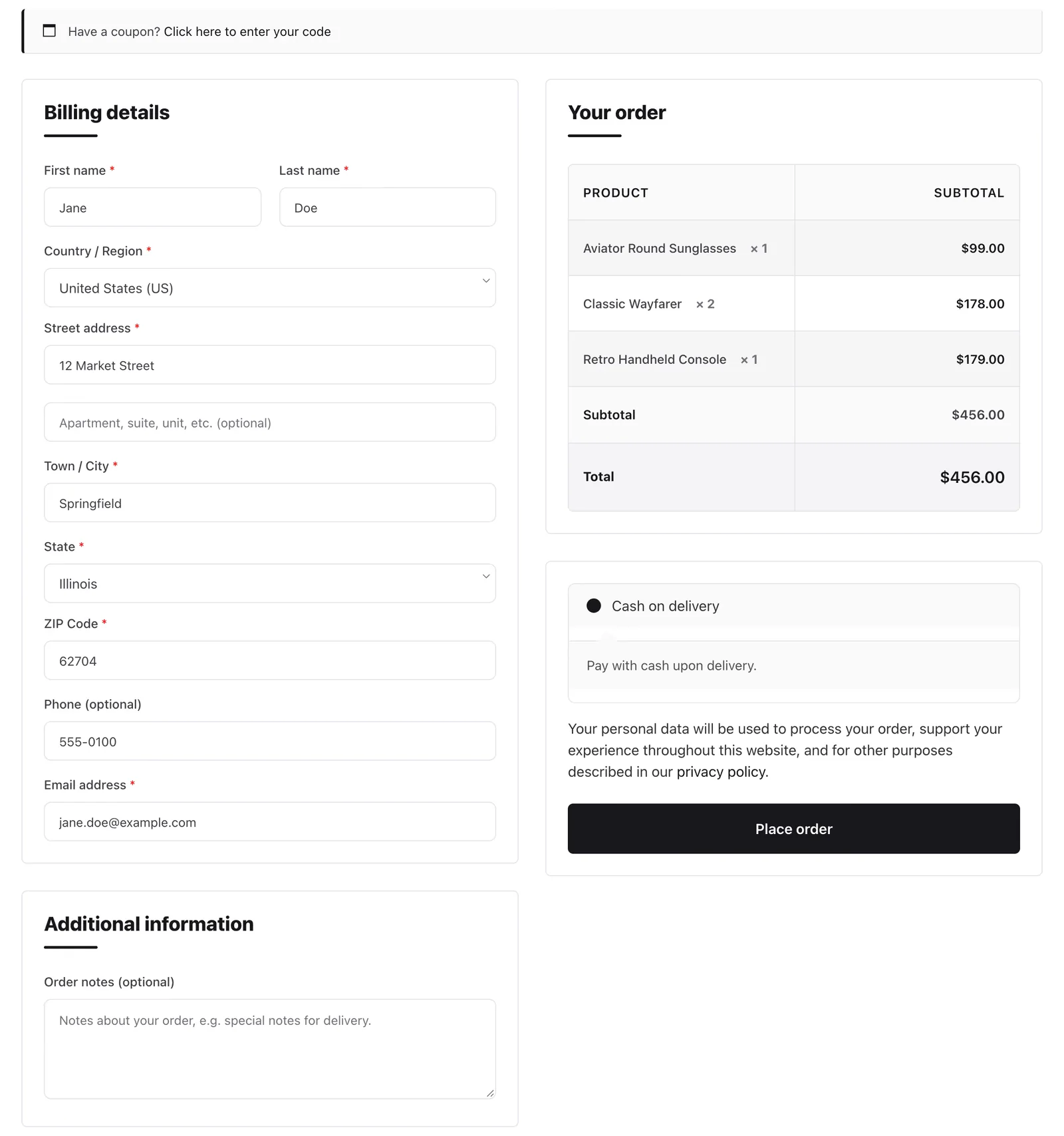
The widget has no Content settings: it shows exactly what WooCommerce would show on checkout, in this order.
- Customer details — the billing form, followed by the shipping form and order notes when your store collects them. They are shown or hidden by your WooCommerce and checkout field settings, and by the Checkout Field Editor extension if it is on.
- Order review — the table of products, with subtotal, shipping and total.
- Payment methods — every enabled gateway and the Place order button.
The coupon field, notices and any fields or messages added by other WooCommerce plugins appear in their usual places too.
Payment-return pages are not drawn by the widget. When a customer lands on WooCommerce's pay-for-order page or the order-received page, WooCommerce prints its own page for that step. Design the confirmation with the Thank You Page widget.
Style the Checkout Page
All of the widget's controls are on the Style tab.
Container
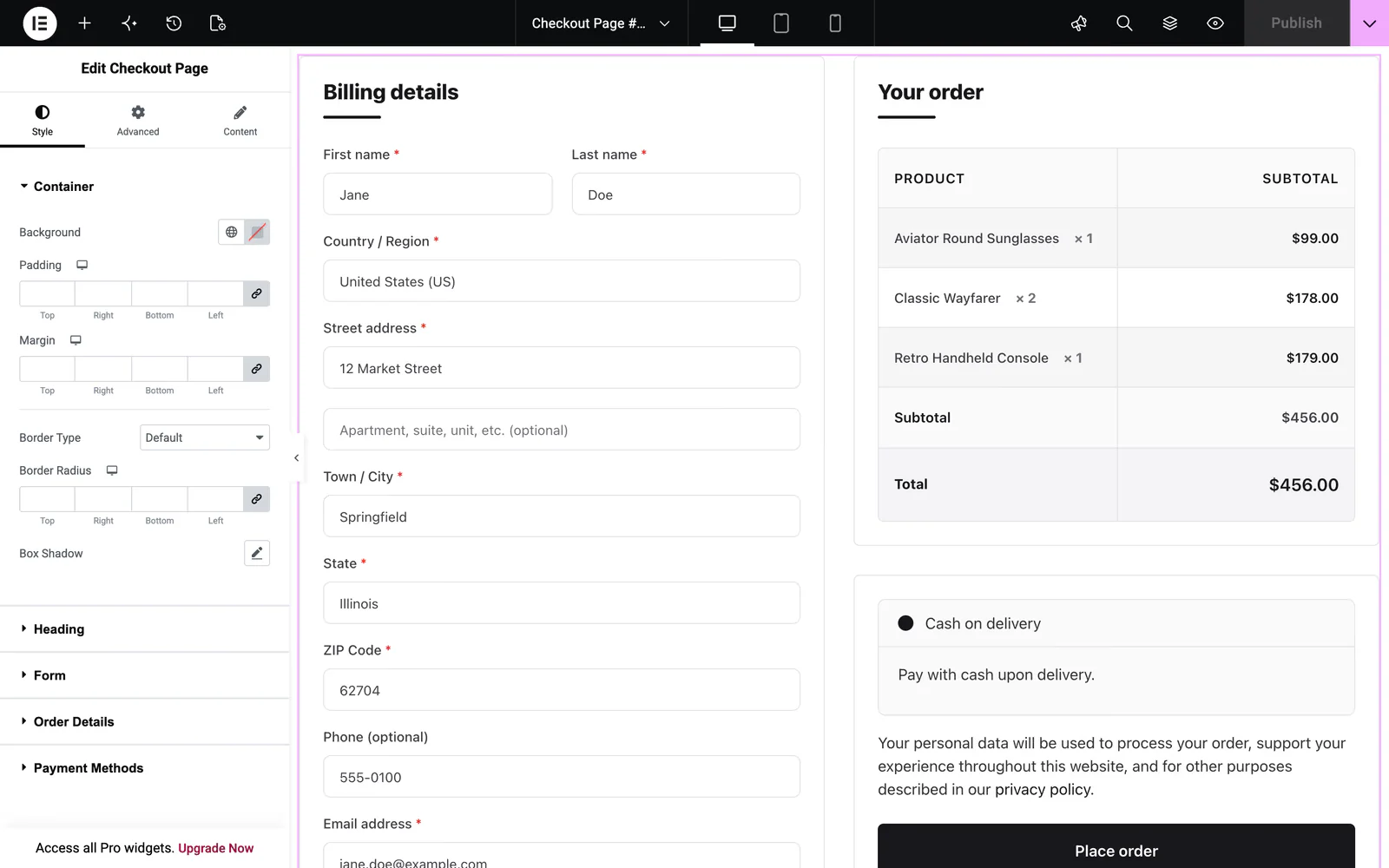
The boxes around the customer details and the order summary: Background, Padding, Margin, Border, Border Radius and Box Shadow.
Heading
The titles above each block, such as Billing details and Your order: Color, Border Color, Typography and Bottom Spacing.
Form
The checkout fields. The Label group sets the color, the color of the required-field asterisk, spacing and typography. The Input group sets the placeholder color, background, padding, margin, border and radius, and has a Focus state with its own border color and background.
Order Details
The order review table, split into three parts: the Header row (text color, background, padding, typography), the Body rows (price color, row padding, typography) and the Footer rows (subtotal and total backgrounds, padding, typography). A Border control sets the table's lines.
Payment Methods
The Content group styles the text, links and link hover color of each method's description. The method list sets the checked color, label color, background, padding, margin, border, radius and spacing. The Button group styles Place order in Normal and Hover states.
Can't find what you need?
Our support team can help with setup questions and anything the docs don't cover yet.