
The Checkout Field Editor extension by Atomic Addons lets you change the WooCommerce checkout form without code: rename fields, change placeholders, reorder them, switch off the ones you don't need and add your own. This guide covers editing the built-in fields, adding custom fields and where their values appear.
Enable the Checkout Field Editor Extension
 (Open the full-size image in a new tab)
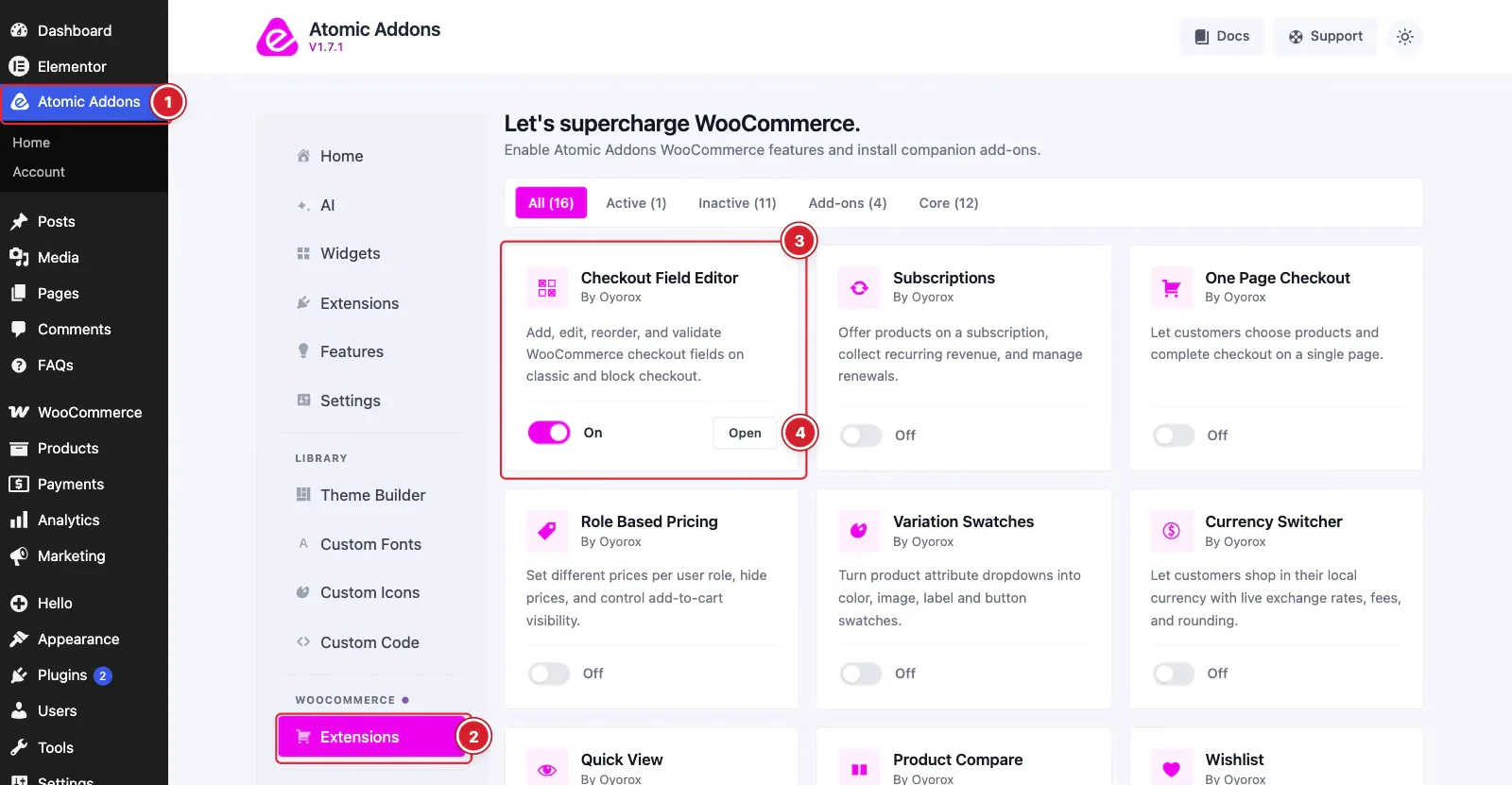
WooCommerce must be installed and active. Then switch the extension on from the Atomic Addons dashboard:
- 1
Go to WordPress Dashboard → Atomic Addons.
- 2
Under WooCommerce, click Extensions.
- 3
Find the Checkout Field Editor card and turn its switch On.
- 4
Click Open to open the extension's settings.
Edit the Checkout Fields
 (Open the full-size image in a new tab)
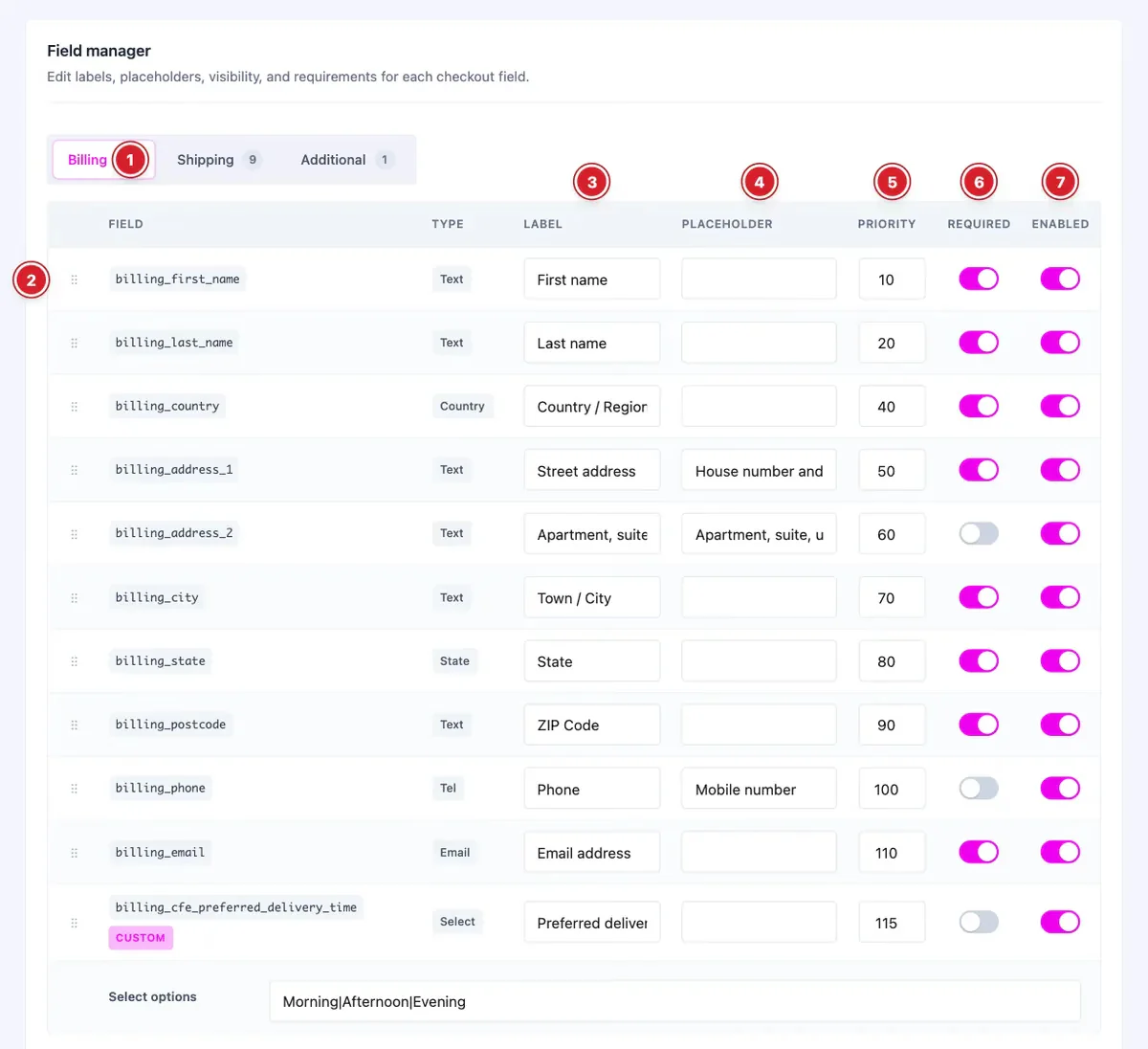
The field manager lists every field of the selected section:
- 1
Billing / Shipping / Additional: Switch between the billing fields, the shipping fields and the additional fields (order notes).
- 2
Drag to reorder: Drag a row by its handle to move the field. The priorities are renumbered for you.
- 3
Label: The field's label on the checkout.
- 4
Placeholder: The hint text shown inside the empty field.
- 5
Priority: The field's position: lower numbers come first.
- 6
Required: Makes a custom field mandatory.
- 7
Enabled: Switch off to remove the field from the checkout.
Each section is saved on its own, so click Save checkout fields before switching to another tab — unsaved changes are lost when you switch. A field's type can't be changed after it's created.
Add a Custom Field
 (Open the full-size image in a new tab)
- 8
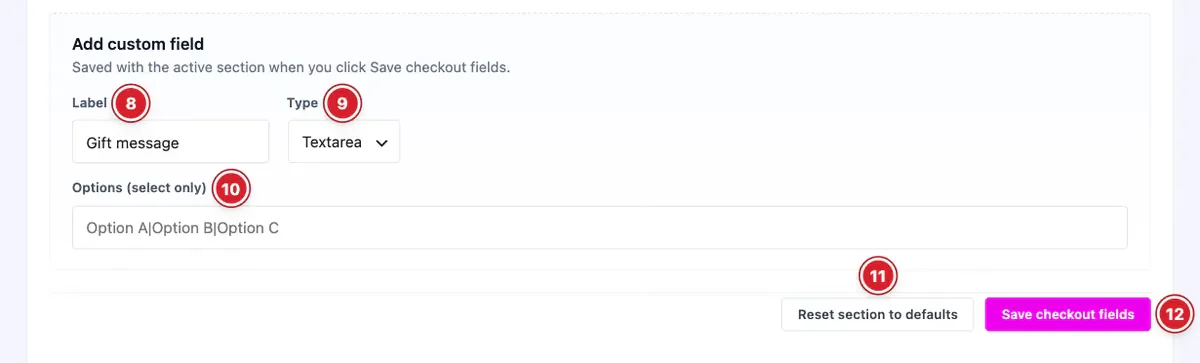
Label: The new field's label.
- 9
Type: Text, Textarea, Email, Phone, Number, URL, Select or Checkbox.
- 10
Options (select only): For a Select field, the choices separated by a vertical bar, for example Morning|Afternoon|Evening.
- 11
Reset section to defaults: Restores WooCommerce's fields for this section and removes its custom fields.
- 12
Save checkout fields: Saves the section, including the new field.
A new field is added to the section you have open. It starts enabled, optional and with priority 50; change that in the table after saving. To remove a custom field later, switch off its Enabled toggle.
Where the Values Appear
- Custom field values are saved with the order.
- They are listed under Additional information on the order confirmation page and in My Account → View order.
- They are included in the order emails.
- Changes to billing and shipping fields also apply to the address forms in My Account.
On WooCommerce's block-based Checkout (WooCommerce 8.8 or later), the Billing section's settings apply to the address form, which serves both billing and shipping. Custom fields there support Text, Select and Checkbox, and other types show as text fields. Placeholders and the Shipping and Additional sections apply to the classic checkout.
Final Preview
 (Open the full-size image in a new tab)
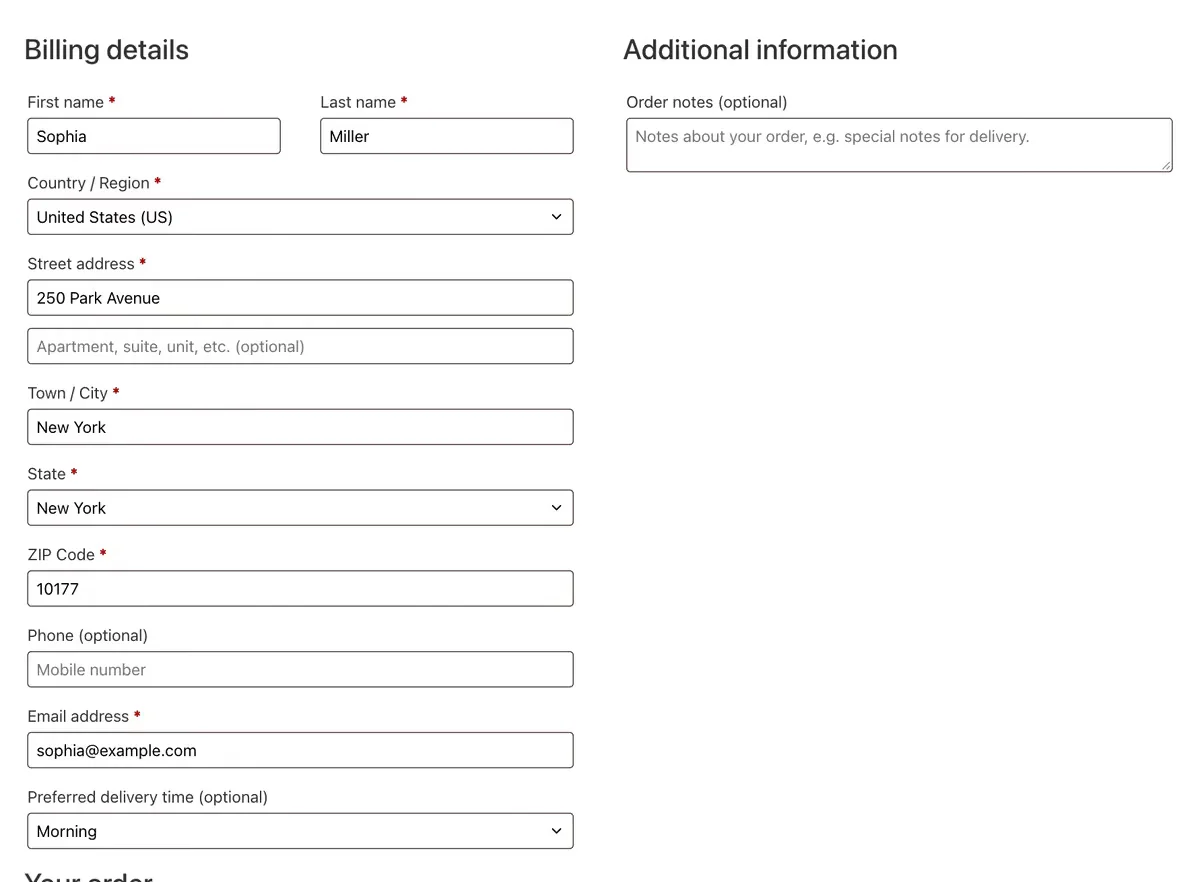
The checkout shows your labels and order, without the fields you switched off, and with your custom fields in place.
All done! You have successfully set up the Checkout Field Editor extension on your store.
Thanks for being with us.
Can't find what you need?
Our support team can help with setup questions and anything the docs don't cover yet.