
The Subscriptions extension by Atomic Addons sells simple and variable products on a repeating schedule — every week, month or year. Customers pay for the first order at checkout. After that, the extension creates a renewal order whenever a payment is due and emails the customer an invoice to pay it, and customers can follow and cancel their subscriptions from My Account. This guide covers the settings, setting up a subscription product and what your customers see.
Enable the Subscriptions Extension
 (Open the full-size image in a new tab)
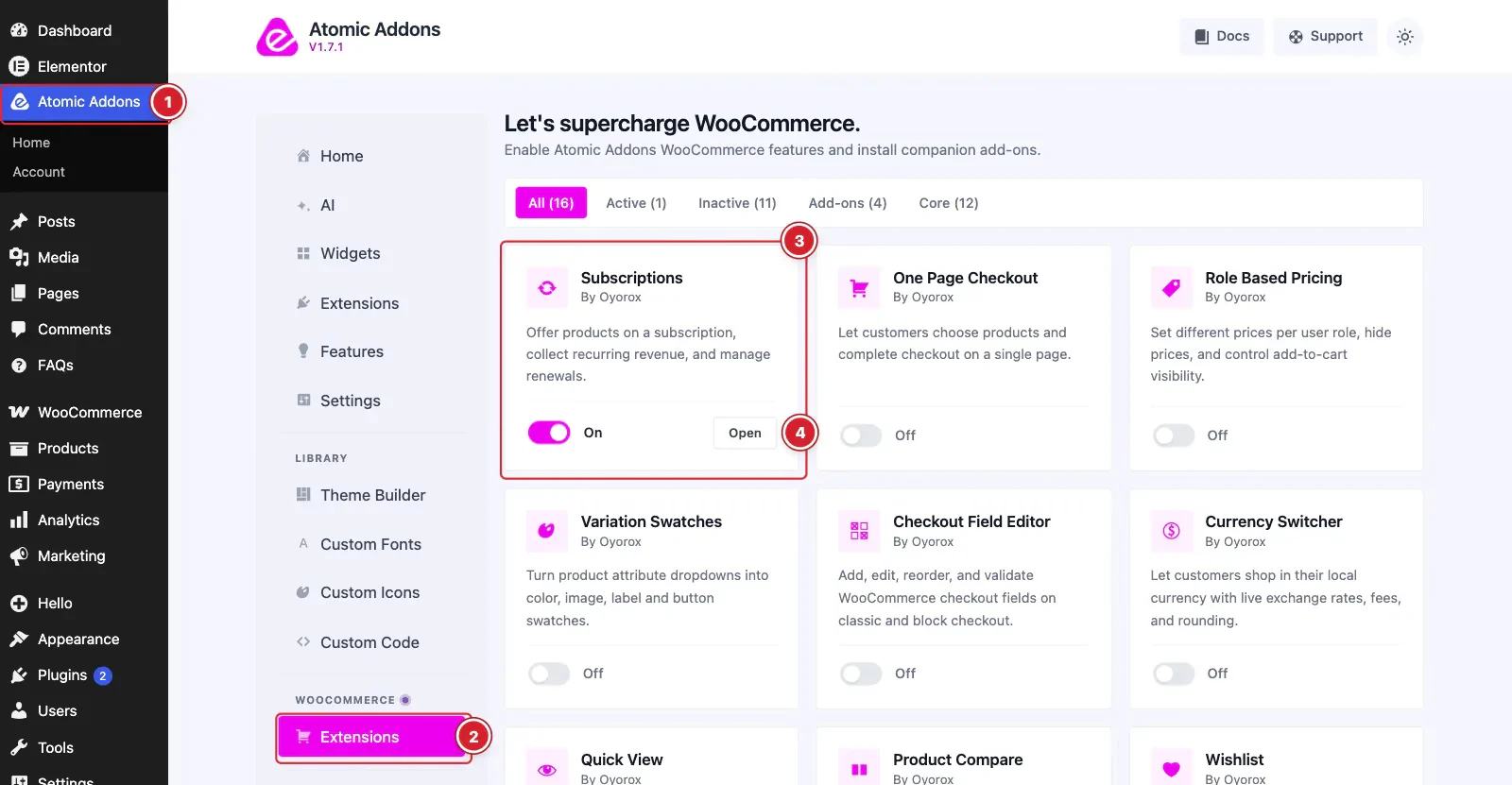
WooCommerce must be installed and active. Then switch the extension on from the Atomic Addons dashboard:
- 1
Go to WordPress Dashboard → Atomic Addons.
- 2
Under WooCommerce, click Extensions.
- 3
Find the Subscriptions card and turn its switch On.
- 4
Click Open to open the extension's settings.
Set Up the Storefront and Records
 (Open the full-size image in a new tab)
- 1
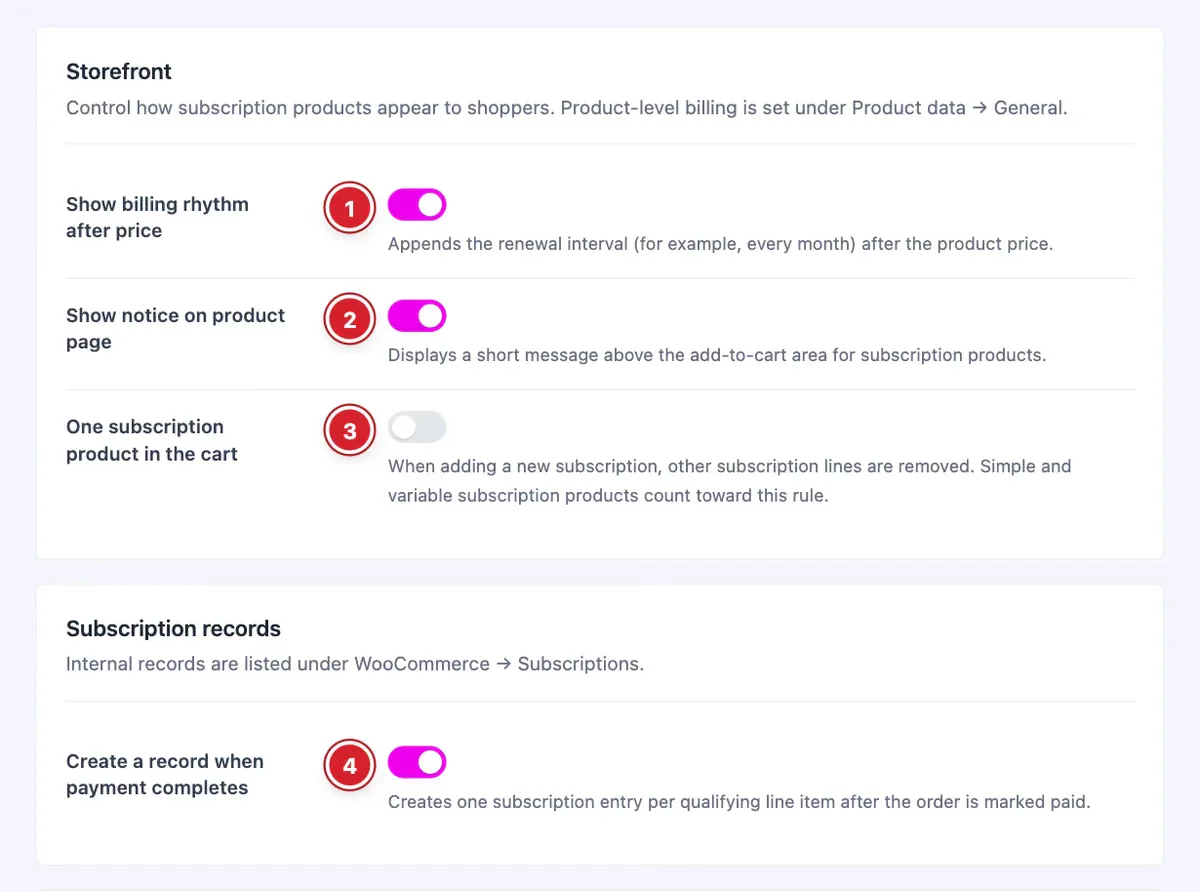
Show billing rhythm after price: Adds the billing interval after the price, for example “$19.00 every month”.
- 2
Show notice on product page: Shows a short message above the add-to-cart button that explains the billing, including any free trial.
- 3
One subscription product in the cart: Keeps one subscription per order. Adding another subscription removes the previous one from the cart.
- 4
Create a record when payment completes: Creates a subscription record for each subscription item once the order is paid or reaches Processing or Completed. Records are listed under WooCommerce → Subscriptions.
Configure Renewals and the Customer Account
 (Open the full-size image in a new tab)
- 5
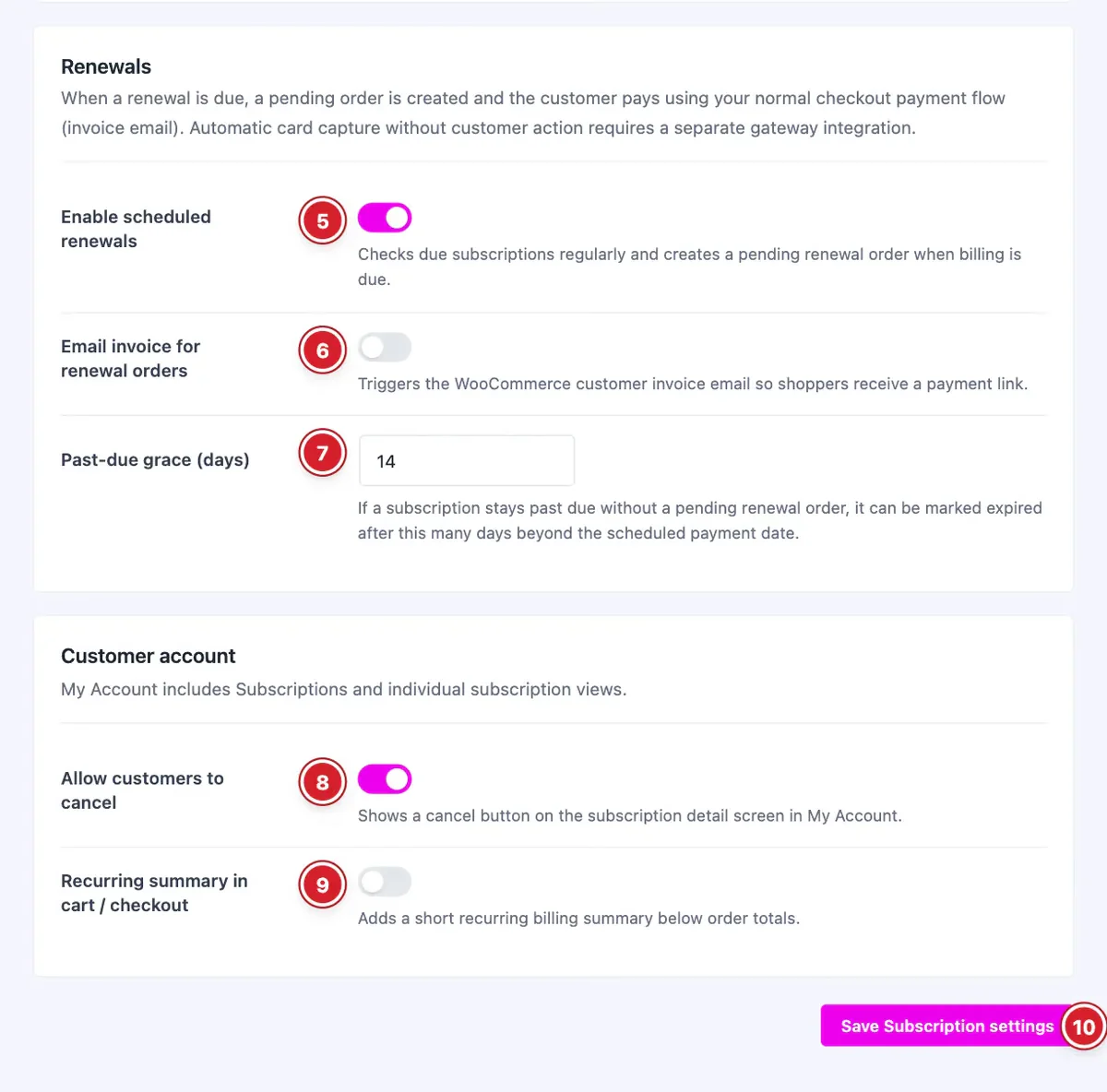
Enable scheduled renewals: Checks for due subscriptions every 15 minutes and creates a pending renewal order when a payment is due.
- 6
Email invoice for renewal orders: Sends WooCommerce's customer invoice email for each renewal order, with a link to pay it.
- 7
Past-due grace (days): How many days an unpaid renewal may stay open past its due date before the subscription expires. The default is 14.
- 8
Allow customers to cancel: Adds a Cancel subscription button to each subscription's page in My Account.
- 9
Recurring summary in cart / checkout: Adds a Recurring summary below the order totals with the renewal amount and schedule.
- 10
Save Subscription settings: Click to save your changes.
Customers pay each renewal themselves, through your normal checkout payment methods, from the invoice email. The extension does not charge saved cards automatically. Renewals run on WP-Cron, so on a site with little traffic, set up a real server cron job to keep them on time.
Create a Subscription Product
 (Open the full-size image in a new tab)
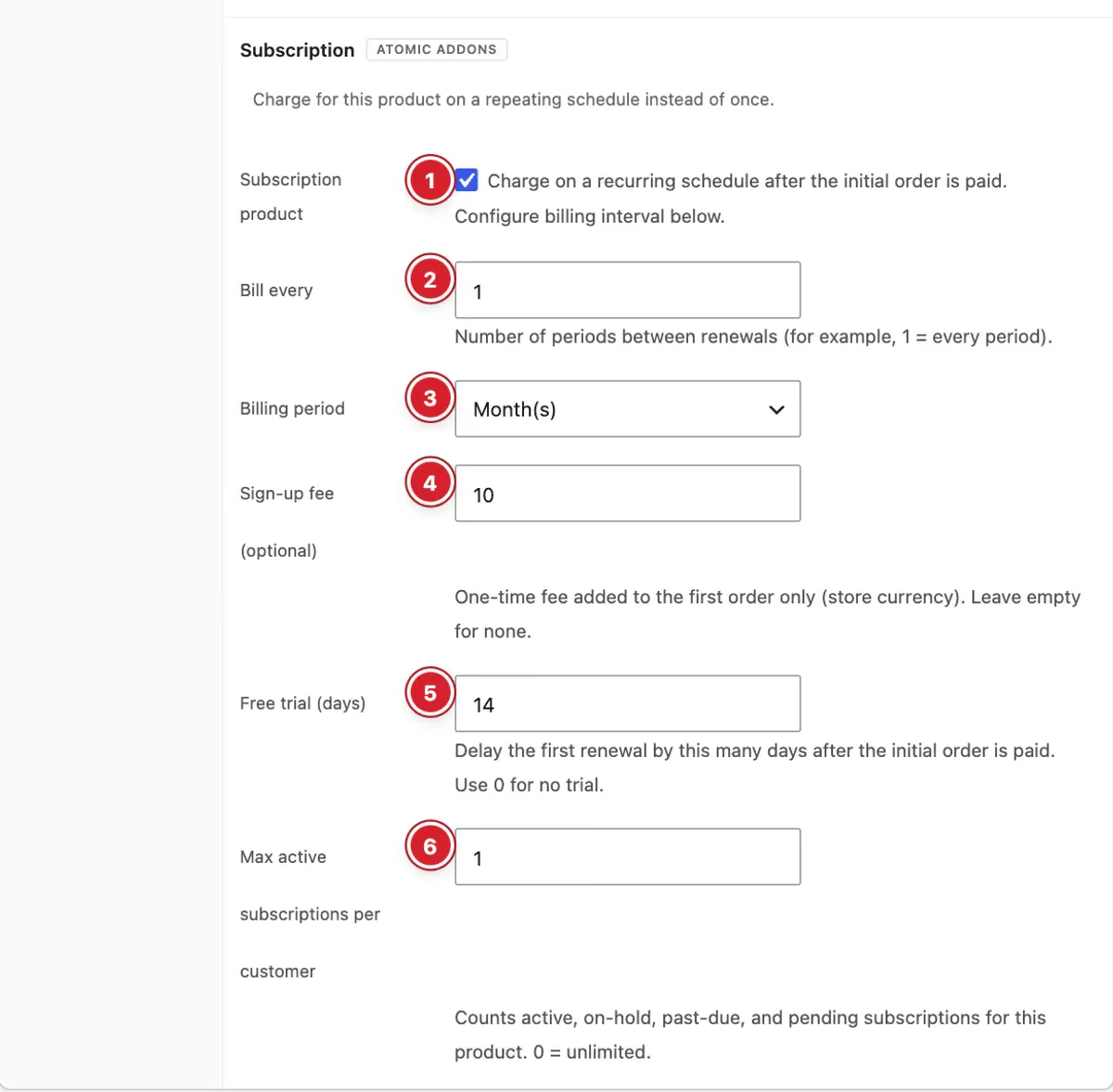
Edit a simple or variable product and open Product data → General. In the Subscription section:
- 1
Subscription product: Tick to sell this product as a subscription. The other fields appear once it's ticked.
- 2
Bill every: How many billing periods pass between payments: 1 bills every period, 3 every third period.
- 3
Billing period: Day(s), Week(s), Month(s) or Year(s).
- 4
Sign-up fee (optional): A one-time fee added to the first order only. Leave it empty for none.
- 5
Free trial (days): Moves the first renewal this many days later. The first order is still paid at checkout.
- 6
Max active subscriptions per customer: How many active subscriptions to this product one customer may hold. 0 means unlimited.
Update the product to save. Variations use the subscription settings of their parent product, and a subscription runs until it is cancelled or expires.
What Customers See
 (Open the full-size image in a new tab)
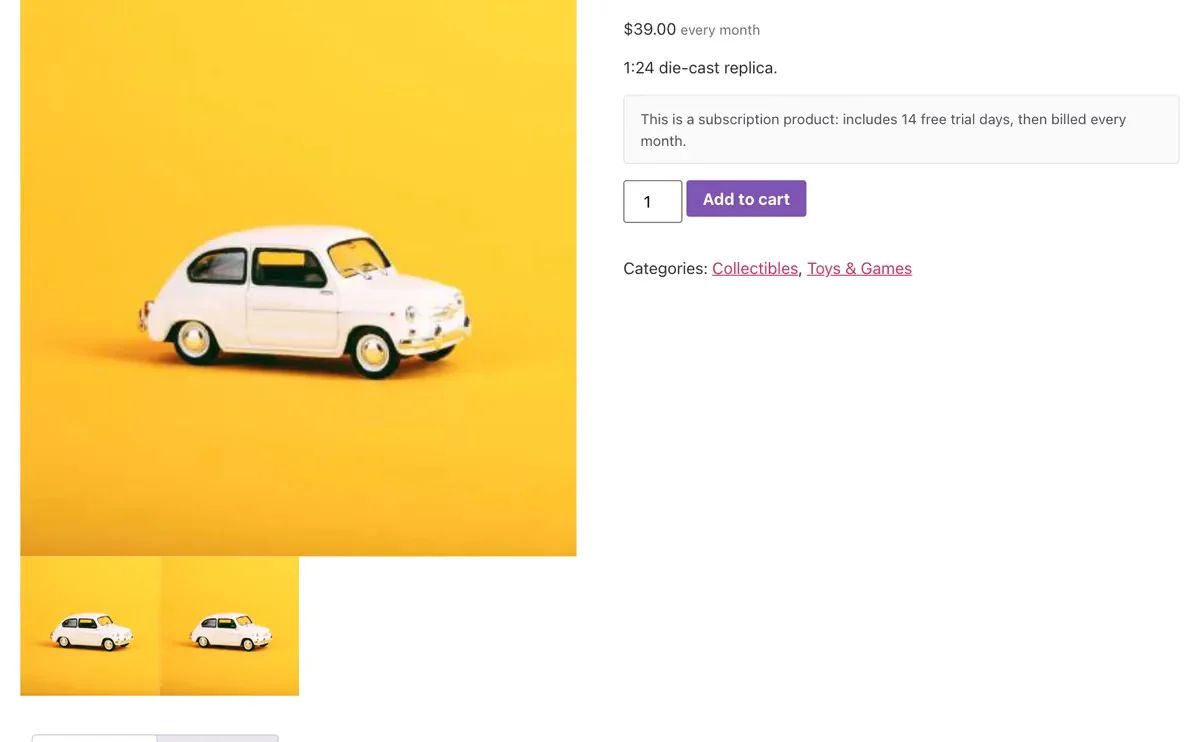
On the product page, the billing rhythm follows the price and the notice explains the schedule above the add-to-cart button.
 (Open the full-size image in a new tab)
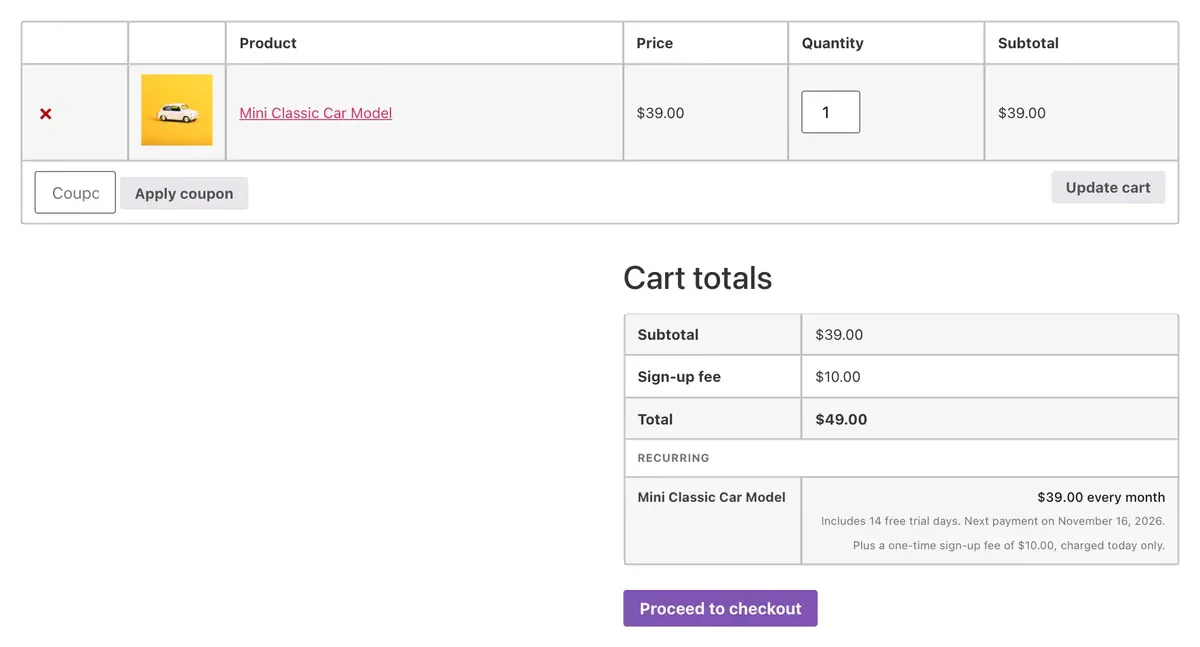
In the cart and at checkout, a Sign-up fee line is added when the product has one, and the Recurring summary shows what the customer will pay from then on.
After the order, customers find their subscriptions in My Account → Subscriptions, with the status and next payment date of each. A subscription's page shows its renewals, a Pay now button when a renewal is waiting for payment, and Cancel subscription when you allow it. To show the same list on another page, add the [atomel_subscriptions] shortcode.
A subscription needs a customer account. A guest order doesn't create a subscription record until you assign a customer to it and save the order, so turn off guest checkout in WooCommerce when you sell subscriptions.
Manage Subscriptions
Go to WooCommerce → Subscriptions to see every subscription record. Open one to check its customer, product, next payment and renewals, read its activity log, or change its Status: Pending, Active, On hold, Cancelled, Expired or Past due.
All done! You have successfully set up the Subscriptions extension on your store.
Thanks for being with us.
Can't find what you need?
Our support team can help with setup questions and anything the docs don't cover yet.