
The One Page Checkout extension by Atomic Addons lets customers complete their order without leaving the page. It can add the checkout form to your product pages, and its shortcode builds a page where shoppers pick products and check out in one place — ideal for single-product stores, landing pages and quick reorders. This guide covers both modes and the per-product setting.
Enable the One Page Checkout Extension
 (Open the full-size image in a new tab)
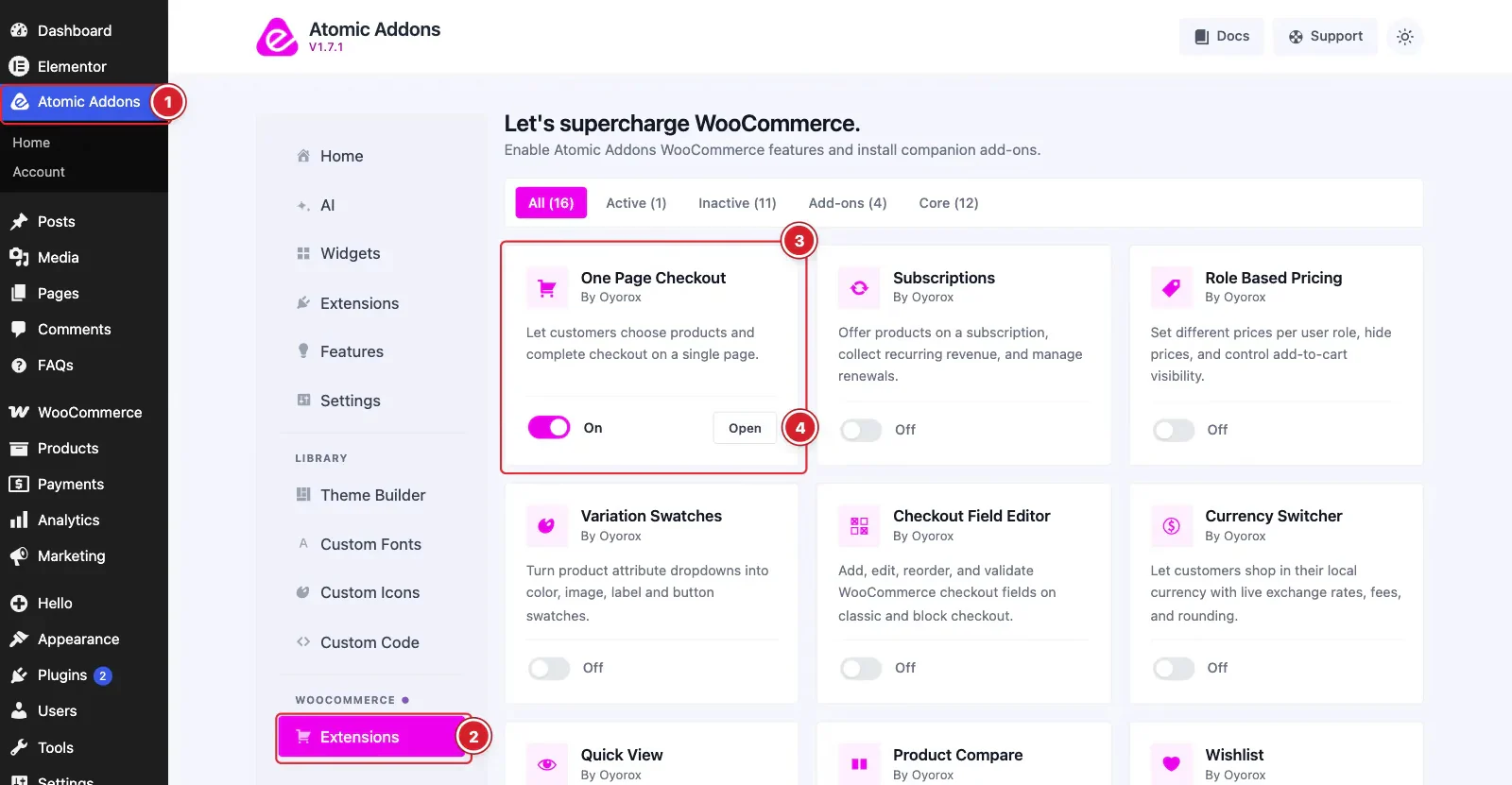
WooCommerce must be installed and active. Then switch the extension on from the Atomic Addons dashboard:
- 1
Go to WordPress Dashboard → Atomic Addons.
- 2
Under WooCommerce, click Extensions.
- 3
Find the One Page Checkout card and turn its switch On.
- 4
Click Open to open the extension's settings.
Add Checkout to Product Pages
 (Open the full-size image in a new tab)
- 1
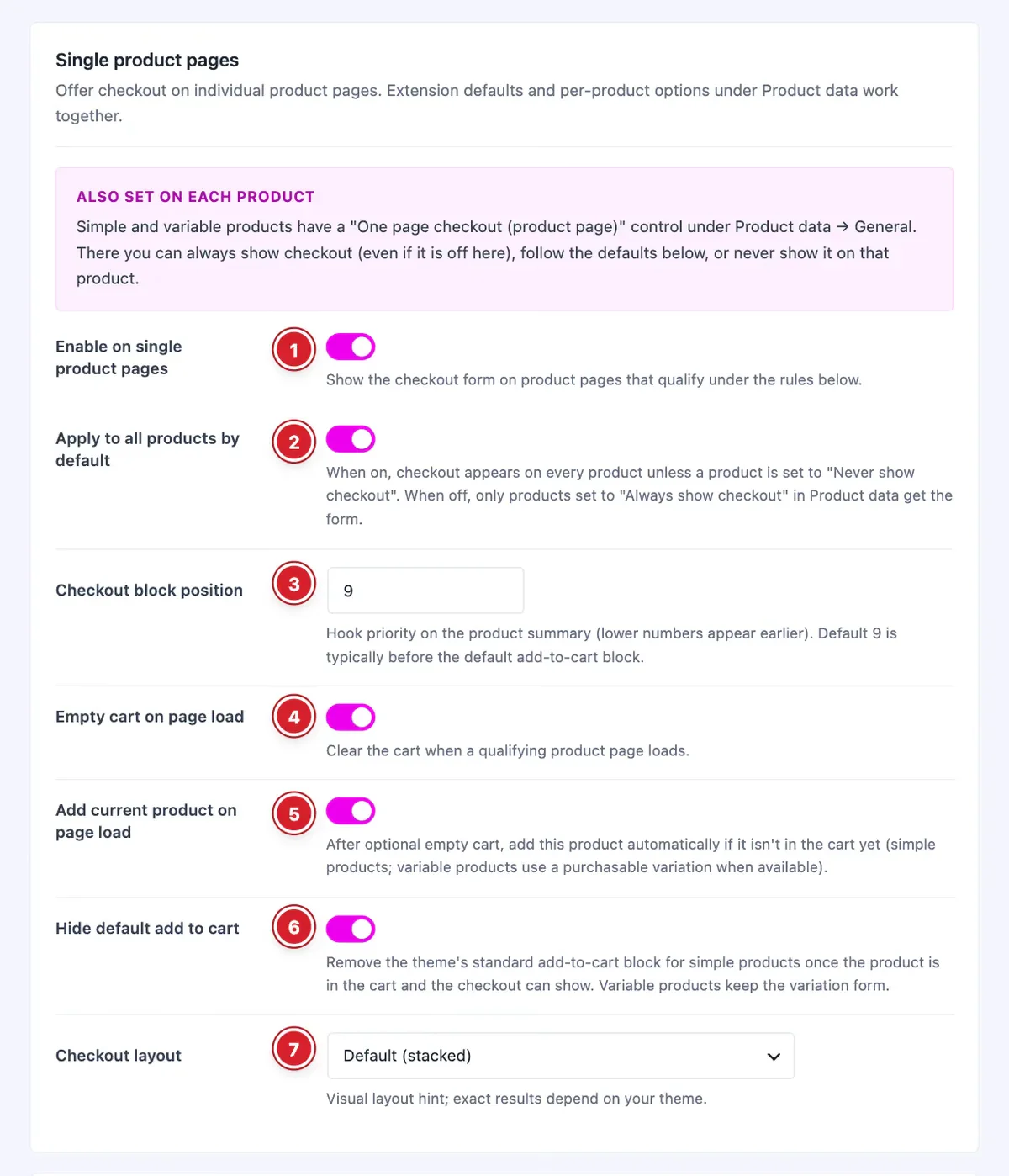
Enable on single product pages: Shows the checkout form on product pages that qualify under the next setting.
- 2
Apply to all products by default: On: every product gets the checkout unless it is set to Never show checkout. Off: only products set to Always show checkout get it.
- 3
Checkout block position: Where the form sits in the product summary. Lower numbers appear higher; the default 9 places it right after the product title.
- 4
Empty cart on page load: Clears the cart whenever a qualifying product page loads, so the order holds only this product.
- 5
Add current product on page load: Adds the product being viewed to the cart when the page loads, unless it is already there, so a reload never adds another unit. For a variable product, its first available variation is added.
- 6
Hide default add to cart: Removes the standard add-to-cart button on simple products once the product is in the cart and the checkout form shows. Variable products keep their variation form.
- 7
Checkout layout: Default (stacked), or Two columns with the gallery beside the summary. The exact look depends on your theme.
WooCommerce only shows the checkout form when the cart has something in it. Until the product is in the cart, its add-to-cart button stays visible — shoppers add it and the checkout appears. Turn on Add current product on page load to skip that step.
Build a Multi-Product Checkout Page
 (Open the full-size image in a new tab)
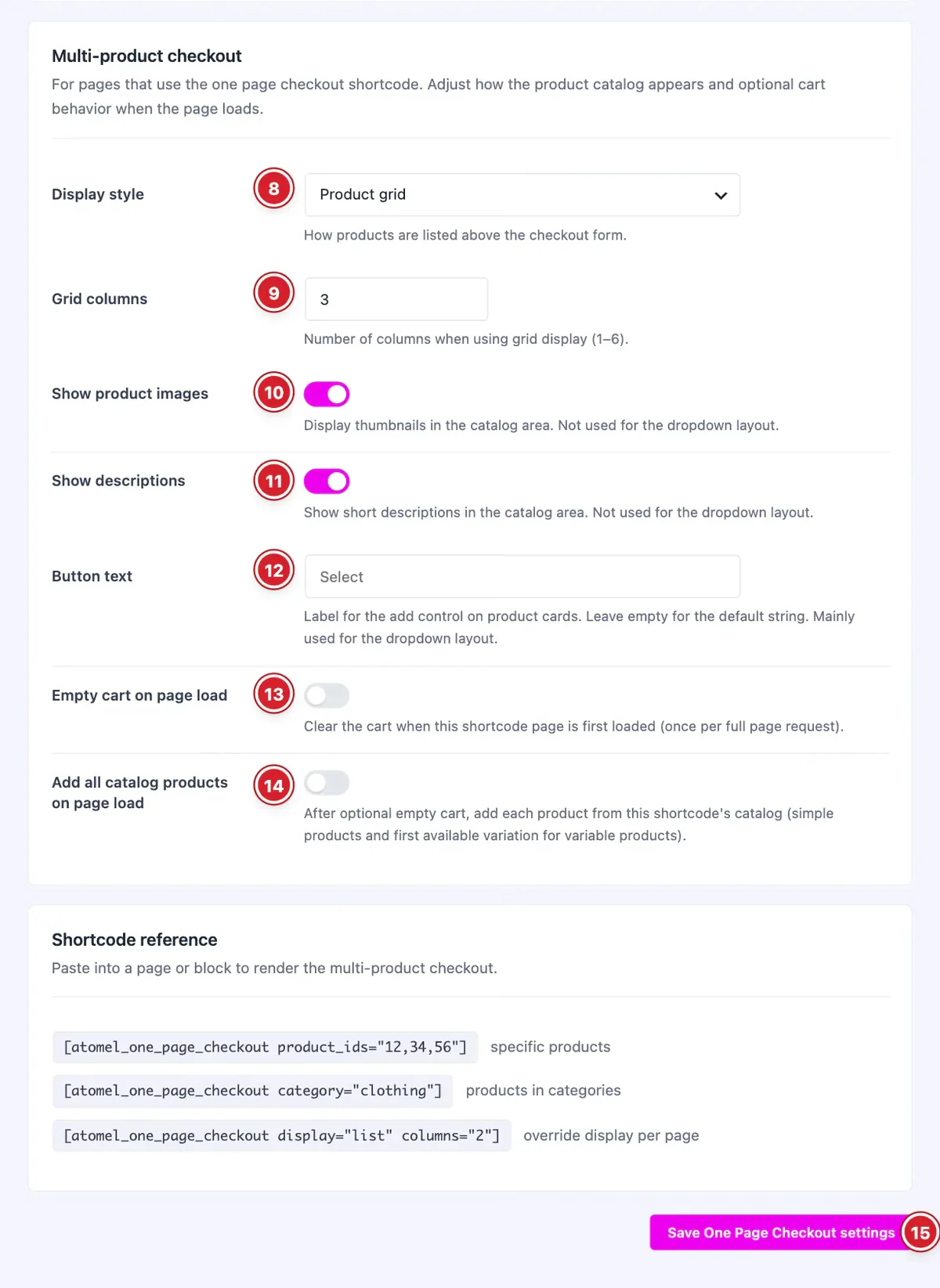
These settings control pages that use the [atomel_one_page_checkout] shortcode: a list of products followed by the order review and the checkout form.
- 8
Display style: Product grid, Product list or Dropdown selector.
- 9
Grid columns: 1 to 6 columns for the grid.
- 10
Show product images: Thumbnails in the grid and list.
- 11
Show descriptions: Short descriptions in the grid and list.
- 12
Button text: The label of the add button. Leave it empty to use “Select”.
- 13
Empty cart on page load: Clears the cart when the shortcode page loads.
- 14
Add all catalog products on page load: Adds every product in the page's list to the cart when it loads.
- 15
Save One Page Checkout settings: Click to save your changes.
Add the shortcode to any page, or to Elementor's Shortcode widget:
[atomel_one_page_checkout product_ids="12,34,56"]lists these products, in this order.[atomel_one_page_checkout category="clothing"]lists the products of one or more categories (comma-separated slugs).display="list"andcolumns="2"override the display style and columns for that page.
Use simple products in the shortcode's list. A variable product needs a variation chosen first, so it can't be added from the list. Both modes show WooCommerce's classic checkout form.
Choose the Behavior for One Product
 (Open the full-size image in a new tab)
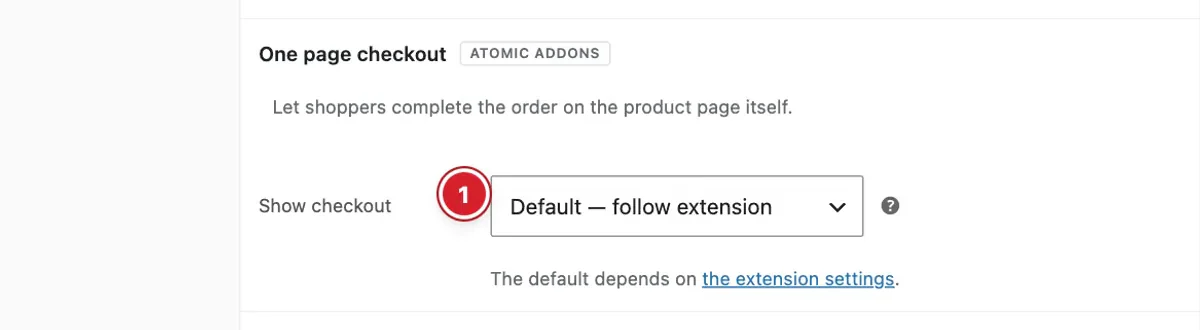
Edit a simple or variable product and open Product data → General. In the One page checkout section:
- 1
Show checkout: Default — follow extension uses the settings above. Always show checkout adds the form to this product even when it's switched off globally. Never show checkout keeps it off this product.
Final Preview
 (Open the full-size image in a new tab)
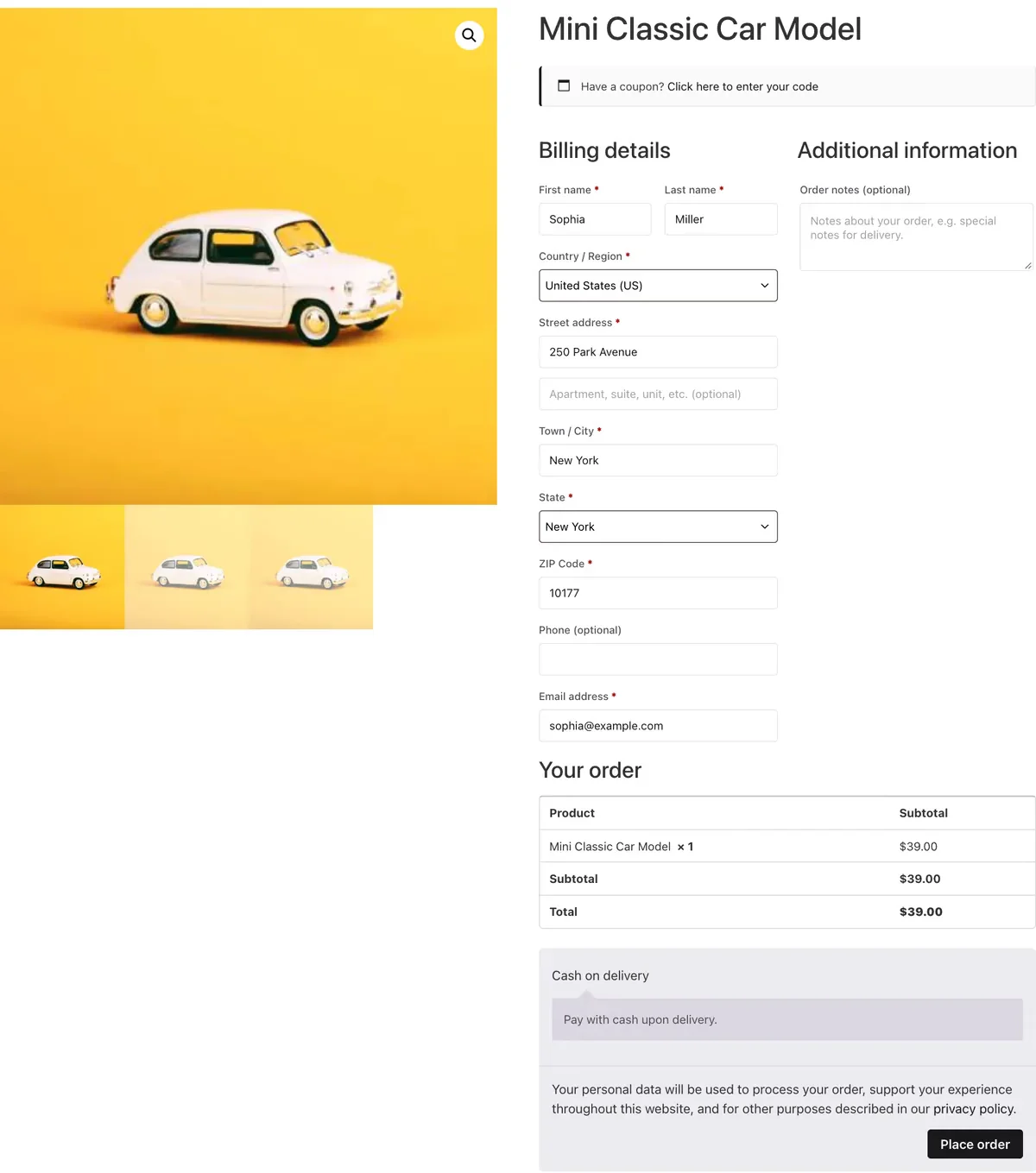
On a product page, the checkout form sits in the product summary, so the customer fills in their details and places the order right there.
 (Open the full-size image in a new tab)
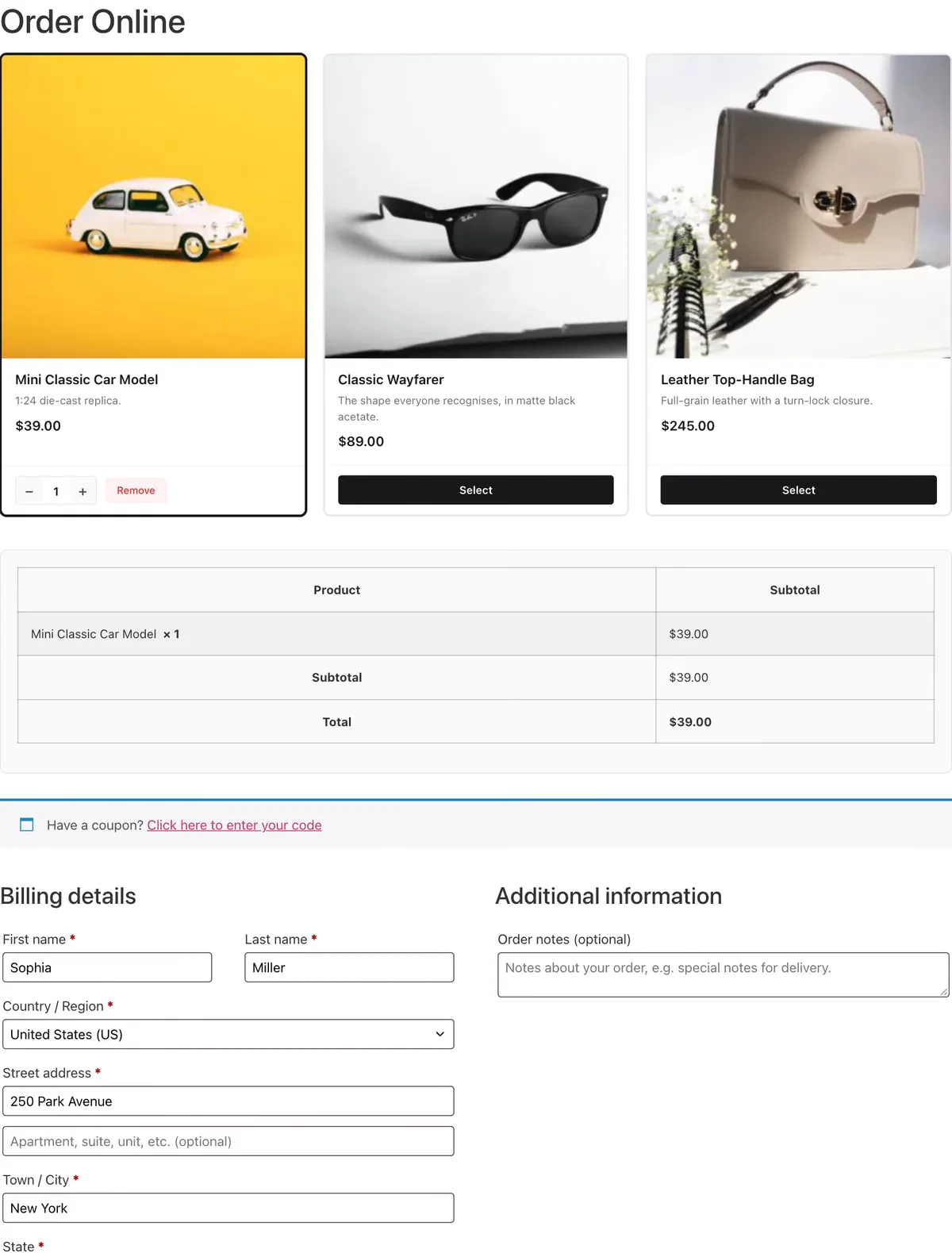
On a shortcode page, shoppers add products from the list and check out below it.
All done! You have successfully set up the One Page Checkout extension on your store.
Thanks for being with us.
Can't find what you need?
Our support team can help with setup questions and anything the docs don't cover yet.