
The Order Page widget by Atomic Addons presents a single WooCommerce order in your own design: a heading with the order number, a summary card, the table of items and the billing and shipping addresses. It is the widget for the Orders template in the Theme Builder, where it shows the customer's orders list or the order they opened. This guide covers adding the widget and styling each block.
Enable the Order Page Widget
Order Page is a Pro widget and needs Atomic Addons Pro and WooCommerce. Switch it on from the plugin dashboard:
- 1
Go to WordPress Dashboard → Atomic Addons.
- 2
Click the Widgets tab.
- 3
Search for Order Page. You can also open the WooCommerce category.
- 4
Turn the Order Page widget on.
- 5
Click Save Settings.
Add the Order Page Widget
 (Open the full-size image in a new tab)
The widget belongs in a Theme Builder template for the account's orders area:
- 1
Go to WordPress Dashboard → Atomic Addons → Theme Builder.
- 2
Click Add New and choose the Orders Page card.
- 3
Give the template a name and open it in Elementor. Its display condition is already set to WooCommerce → Orders Page, so it applies as soon as you publish it.
- 4
In the widget panel, search for Order Page and drag it into the template. The widget sits in the Atomic Addons Pro category.
- 5
Design it with the controls below, then click Publish.
In the editor the widget shows your most recent order, so you can style it without placing a new one. If your store has no orders yet, it asks you to create a test order first.
What the Widget Shows
What the customer sees depends on the page they are on:
- On the Orders tab of My Account, the customer's list of orders, as WooCommerce prints it.
- On a single order (a View order link, or an order-received page with its order key), that order.
- Anywhere else, the logged-in customer's latest order.
- A logged-out visitor sees the login form on the account page, and nothing elsewhere. A customer can never open someone else's order: the widget checks the order key and the customer first.
 (Open the full-size image in a new tab)
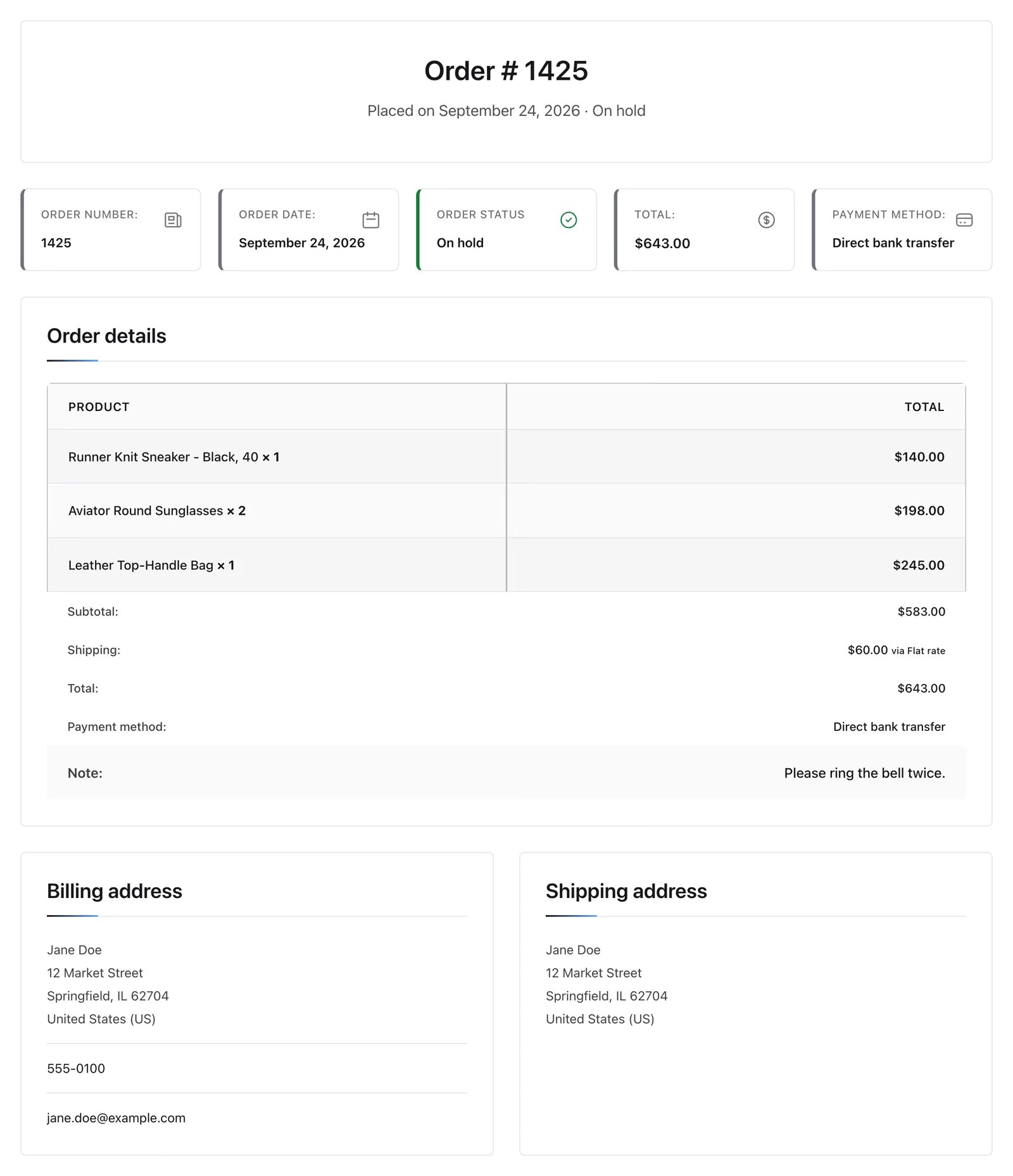
A single order is drawn in four blocks:
- 1
Order heading: The title (Order # 1425) and the description line under it.
- 2
Order card: A row of facts: order number, date, status, total and payment method.
- 3
Order details: The table of products with quantities and totals, then the subtotal, shipping, tax and total rows, and the customer's note.
- 4
Addresses: The billing address with phone and email, and the shipping address when the order has one. These are shown only to the logged-in customer who owns the order.
A payment gateway's own instructions, such as bank transfer details, appear between the order card and the details.
Content Settings
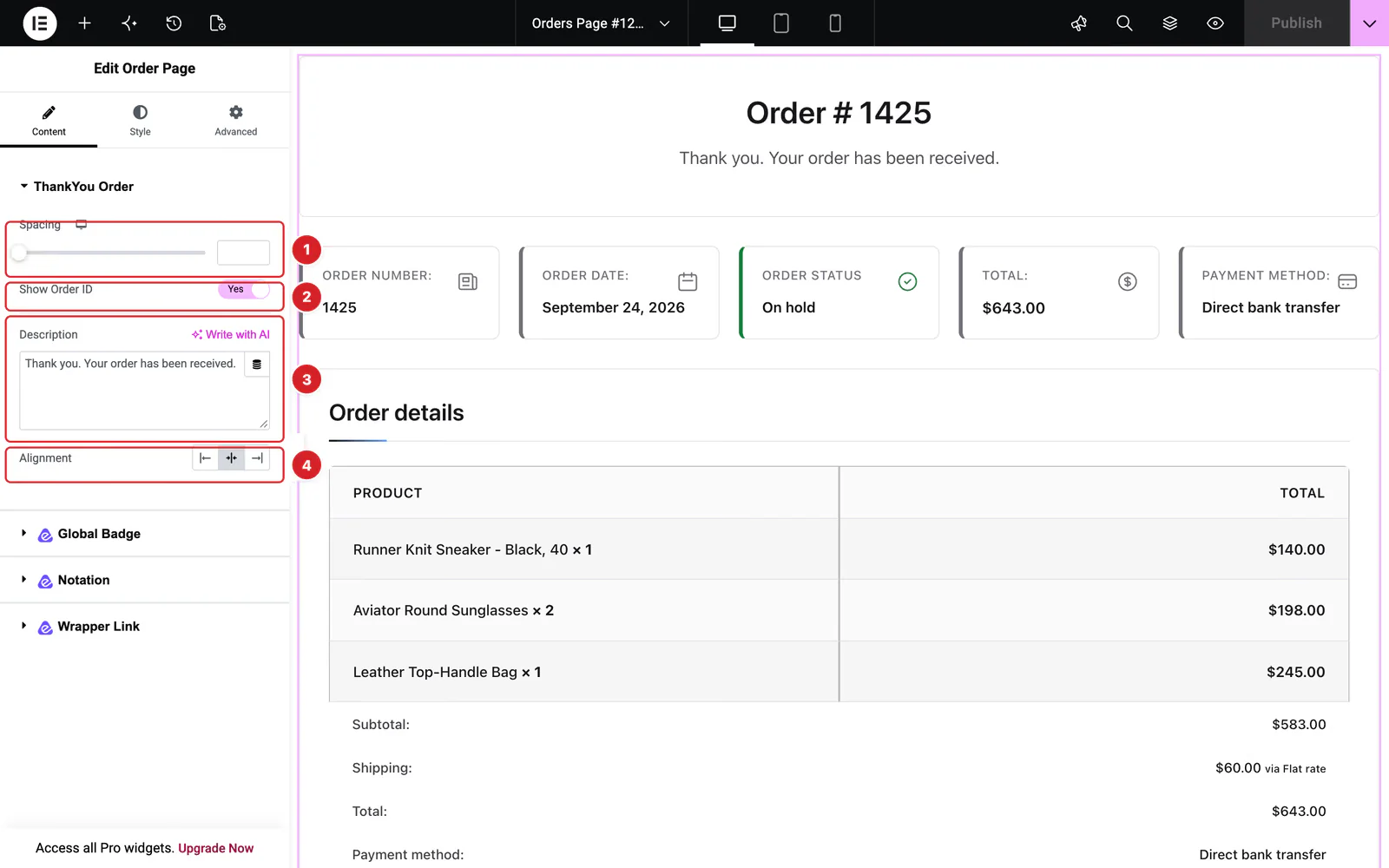
Open the widget and go to Content → ThankYou Order:
- 1
Spacing: The gap between the blocks.
- 2
Show Order ID: Show or hide the Order # title. It is on by default.
- 3
Description: The text under the heading on the order-received page right after checkout. The default is “Thank you. Your order has been received.” When a customer opens the order later, for example from My Account, the line reads “Placed on” the order date and its status instead. A failed order shows WooCommerce's payment-declined message.
- 4
Alignment: Left, center or right alignment of the heading and description. Center is the default.
Style the Order Page
Everything below is under the Style tab.
Order Heading
The heading block: Background, Border Color, and the color and typography of the Title and the Description.
Order Card
The row of order facts. Container sets how many Columns it has and the Gap between them. Items sets the Wrapper background and border, the Label and Value colors and typography, the Total Value Color and the Icon size.
Order Details
The items table. Style the Wrapper and Title, then the Header row, the Body rows (with separate Odd Row and Even Row background colors and a Meta Data typography for variation details) and the Footer rows.
Address Details
The address block: Wrapper background and border color, Title color and typography, and the Address typography.
Can't find what you need?
Our support team can help with setup questions and anything the docs don't cover yet.