
The Product Category widget by Atomic Addons shows your WooCommerce product categories as a grid of cards. Each card has the category's thumbnail, its name and how many products it holds, and links to the category's page in your shop. Six styles change how the name and count sit on the image. This guide covers adding the widget, the styles and choosing which categories appear.
Enable the Product Category Widget
Product Category is a Pro widget and needs Atomic Addons Pro and WooCommerce. Switch it on from the plugin dashboard:
- 1
Go to WordPress Dashboard → Atomic Addons.
- 2
Click the Widgets tab.
- 3
Search for Product Category. You can also open the WooCommerce category.
- 4
Turn the Product Category widget on.
- 5
Click Save Settings.
Add the Product Category Widget
Product Category works on any page:
- 1
Open the page in Elementor (Edit with Elementor).
- 2
In the widget panel, search for Product Category. The widget sits in the Atomic Addons Pro category.
- 3
Drag it into the page and set it up with the controls below.
- 4
Click Publish (or Update).
The cards use the thumbnail set for each category under Products → Categories. A category without one shows a gray placeholder, so add thumbnails first.
Layout
 (Open the full-size image in a new tab)
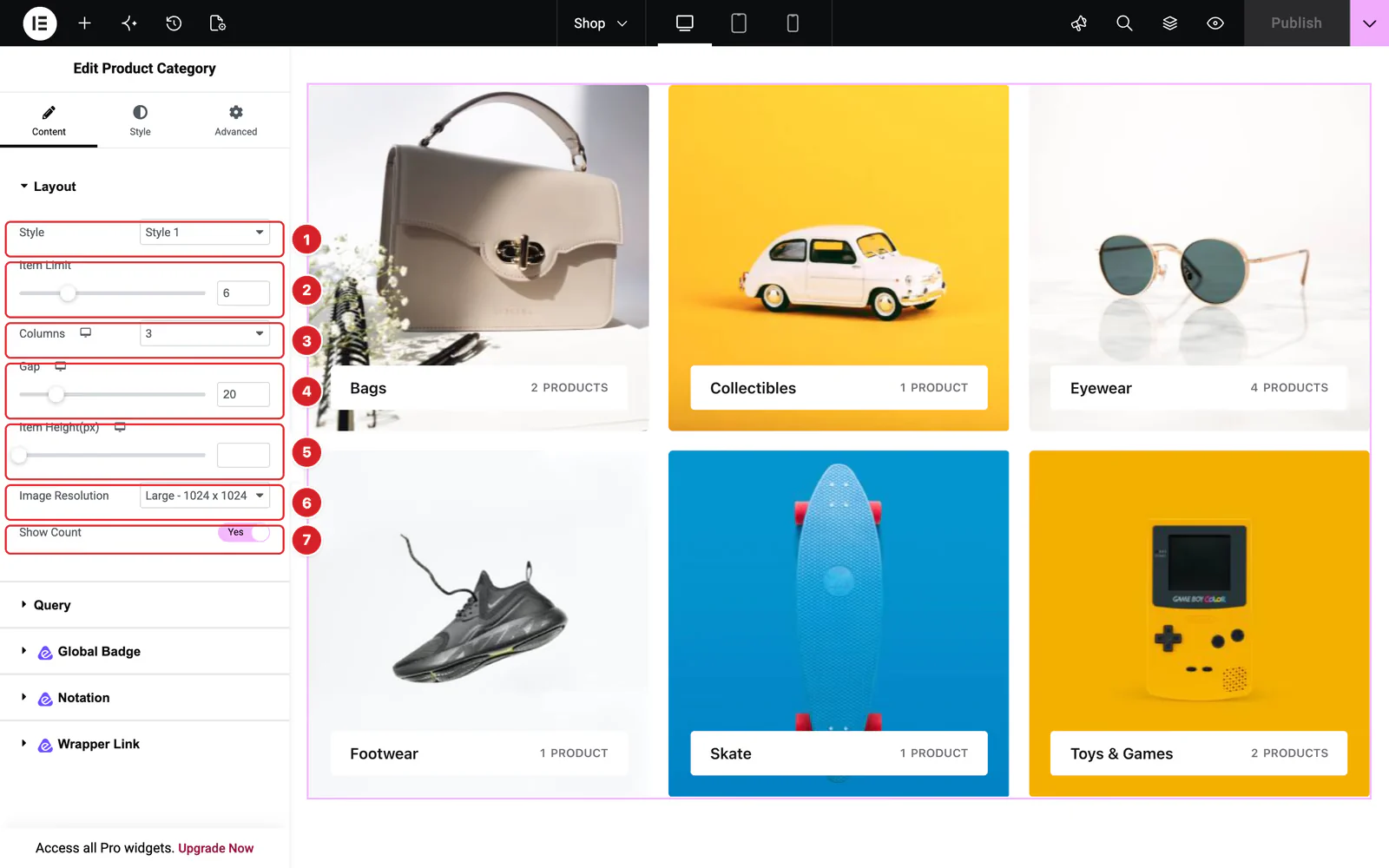
Open the widget and go to Content → Layout:
- 1
Style: Six looks for the cards, Style 1 by default. See The Six Styles.
- 2
Item Limit: How many categories to show, 6 by default and up to 20.
- 3
Columns: 1 to 6 columns: 3 by default, 2 on tablets and 1 on phones. Use the device icon to change each.
- 4
Gap: The space between cards, 20px by default.
- 5
Item Height(px): A fixed height for the cards. Empty by default, which lets the image decide.
- 6
Image Resolution: Which image size WordPress serves for the thumbnails, Large by default.
- 7
Show Count: The number of products in the category. On by default. The count includes products in its subcategories.
Some styles add their own controls here. Style 3 adds Alignment for the text. Style 6 adds Item Direction (the image beside the text in a Row, or above it in a Column), Alignment for the column direction and Show Image.
The Six Styles
 (Open the full-size image in a new tab)
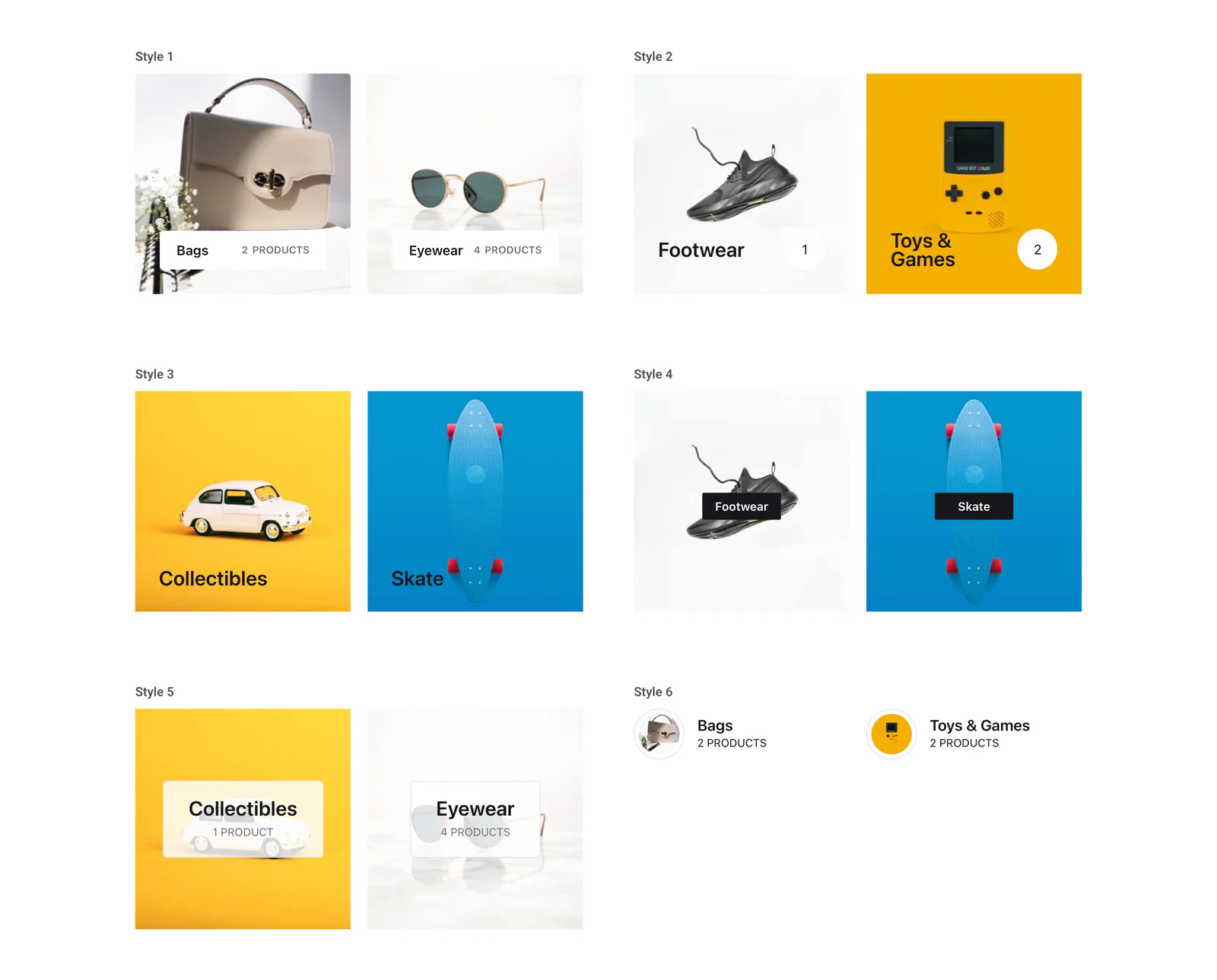
- Style 1 — a white bar at the bottom of the image with the name and “N Products”. On hover the bar turns dark and an arrow replaces the count.
- Style 2 — a large name over the image and the number of products in a white circle, which shows an arrow on hover.
- Style 3 — the name over the bottom of the image; on hover it moves up and the count appears below it.
- Style 4 — the name in a dark label in the middle of the image; on hover the label gives way to the count.
- Style 5 — the name and count in a frosted box in the middle of the image.
- Style 6 — a compact list: a small round image beside the name and count.
In Styles 1 to 4 the image zooms in slightly when a shopper points at the card; Style 5 adds a shadow instead. In Styles 2 and 3 the dark name sits right on the image, so they suit light thumbnails; for dark ones, change the color under Style → Title.
Query
 (Open the full-size image in a new tab)
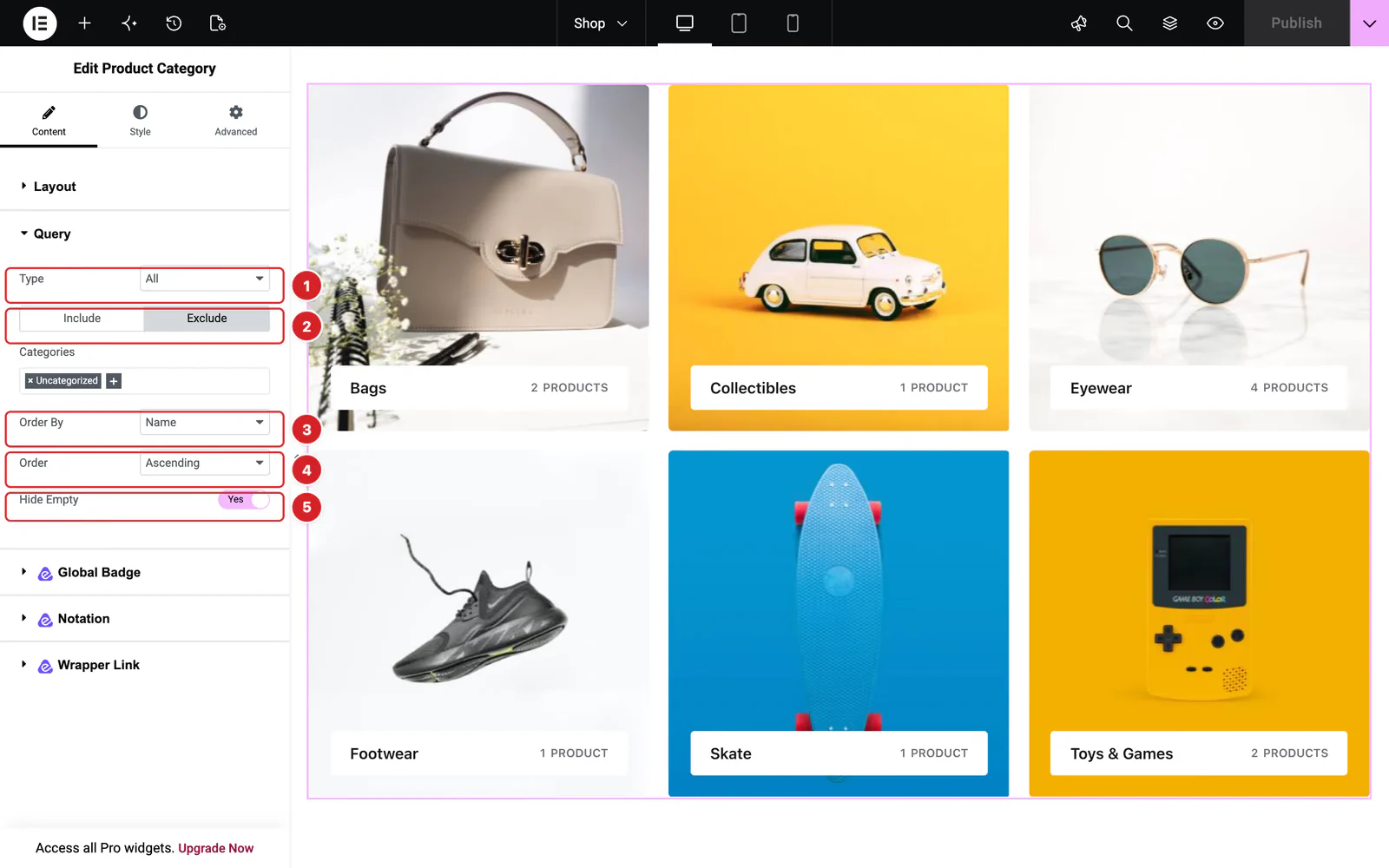
Content → Query decides which categories appear:
- 1
Type: All, the default, shows every category, top-level and sub. Only Parents shows top-level categories only. Only Child adds Child Categories of, where you pick a top-level category to show its subcategories and their subcategories. If you leave it at None, the widget lists every subcategory in your store, as the note in the panel says.
- 2
Include / Exclude: With the All type: Include shows only the Categories you pick; Exclude leaves out the ones you pick.
- 3
Order By: Name (the default), Count (number of products) or Slug.
- 4
Order: Ascending (the default) or Descending.
- 5
Hide Empty: Leaves out categories with no products. On by default. A category whose subcategories have products still shows.
WooCommerce's default Uncategorized category is listed like any other. Add it under Exclude unless you want it on the page, as in the screenshot.
On Category Archive Pages
The widget always shows the categories the Query picks. It doesn't follow the category being viewed: placed in a Theme Builder Products Archive template, it shows the same cards on the shop page and on every category page. To show one category's subcategories, set Type to Only Child and pick that category under Child Categories of.
Style the Product Category
Everything below is on the Style tab.
- Item — the card in Normal and Hover states: background, border, border radius, padding and box shadow.
- Image — the image's border, radius, padding, Width, Height, CSS filters and shadow, with a Hover state.
- Content — for Styles 1, 2 and 5: the box around the name and count, with Glassmorphism and Blur Level for a frosted look, background, border, radius, padding, margin and shadow.
- Title — the category name in Normal and Hover states: color, background, border, radius, padding, margin and typography.
- Count / Icon — the product count and its arrow in Normal and Hover states: Text Color, Icon Color, background, border, radius, padding, margin, Size, Icon Size and typography.
Can't find what you need?
Our support team can help with setup questions and anything the docs don't cover yet.