
WordPress doesn't accept SVG files on its own. The SVG Support feature by Atomic Addons lets you upload SVG logos, icons and illustrations to the Media Library and use them like any other image — in Elementor's Image widget, as backgrounds or in posts. SVGs stay sharp at any size and are usually smaller than PNG or JPG files. Every file is cleaned as it is uploaded, so scripts and other unsafe code are removed. This guide covers switching the feature on, uploading SVGs and using them in Elementor.
Enable the SVG Support Feature
 (Open the full-size image in a new tab)
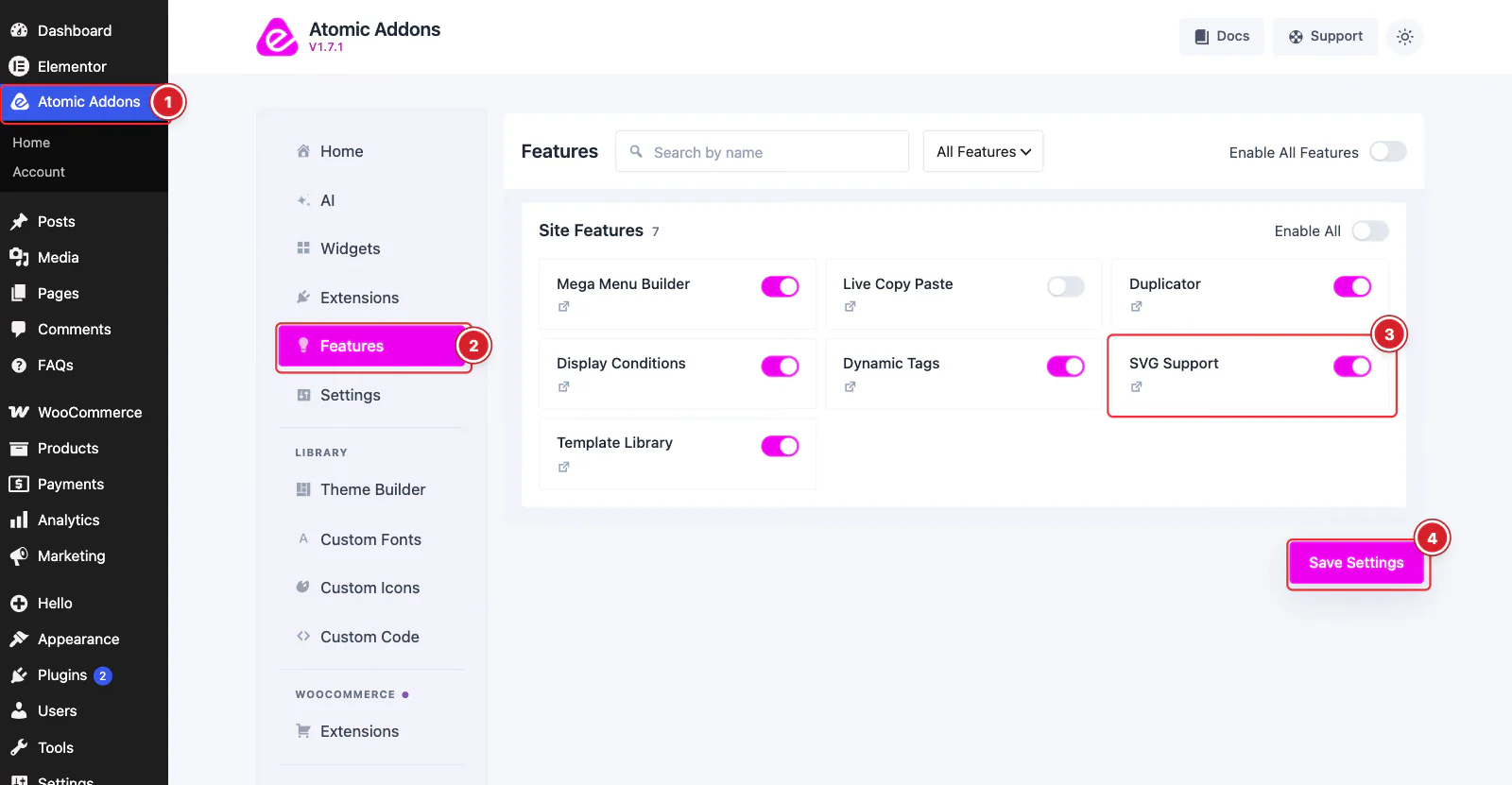
SVG Support is free. Switch it on from the plugin dashboard:
- 1
Go to WordPress Dashboard → Atomic Addons.
- 2
Click Features.
- 3
Find the SVG Support card and turn its switch On.
- 4
Click Save Settings.
Upload SVG Files
 (Open the full-size image in a new tab)
- 1
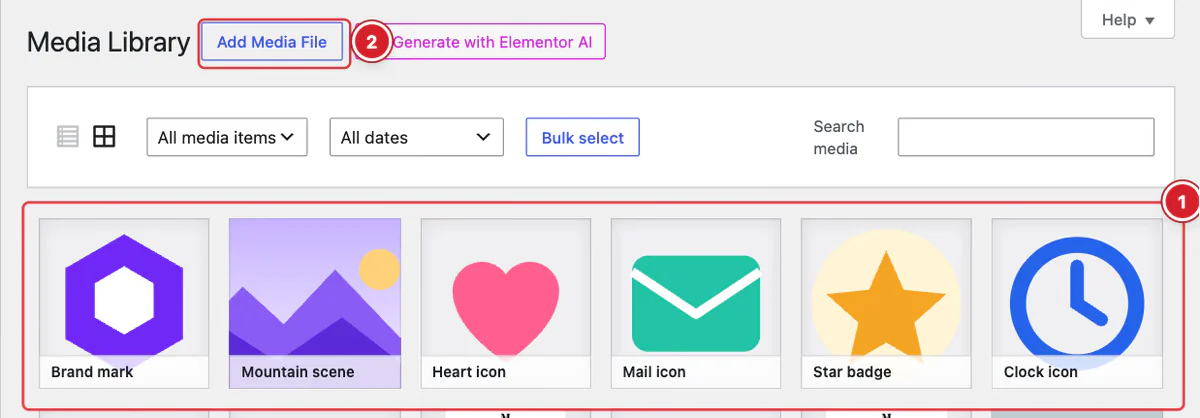
SVG files: Uploaded SVGs show as thumbnails in the Media Library, like any image.
- 2
Add Media File: Go to Media → Library and click Add Media File, then drop your
.svgfiles in or click Select Files.
Only administrators can upload SVG files. Anyone else gets WordPress's “Sorry, you are not allowed to upload this file type.” message. Upload plain .svg files; compressed .svgz files aren't accepted.
Check an SVG's Details
 (Open the full-size image in a new tab)
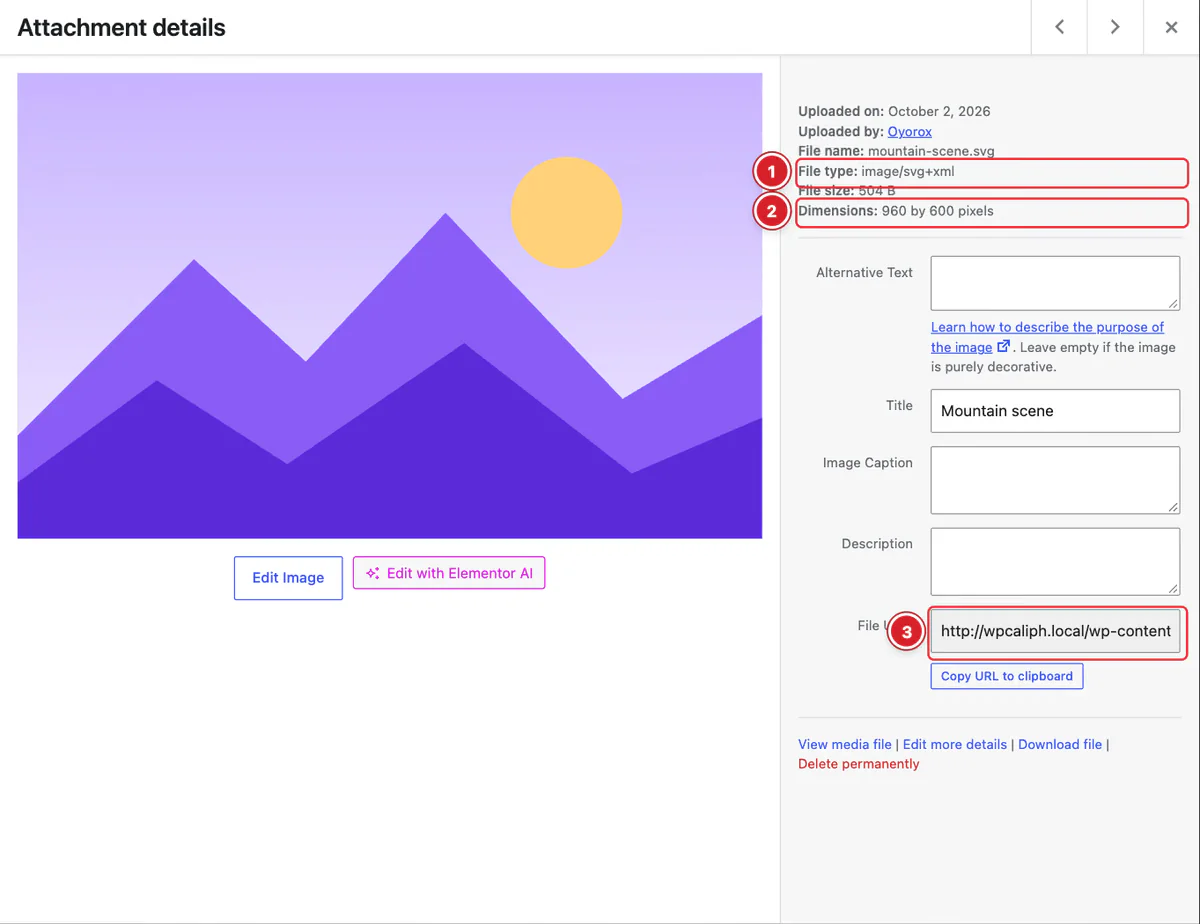
Click an SVG in the library to see its details:
- 1
File type:
image/svg+xml. - 2
Dimensions: Read from the
widthandheightset in the SVG file, or from itsviewBoxwhen those are missing. - 3
File URL: The file's address. Copy URL to clipboard copies it for use elsewhere.
Use an SVG in Elementor
 (Open the full-size image in a new tab)
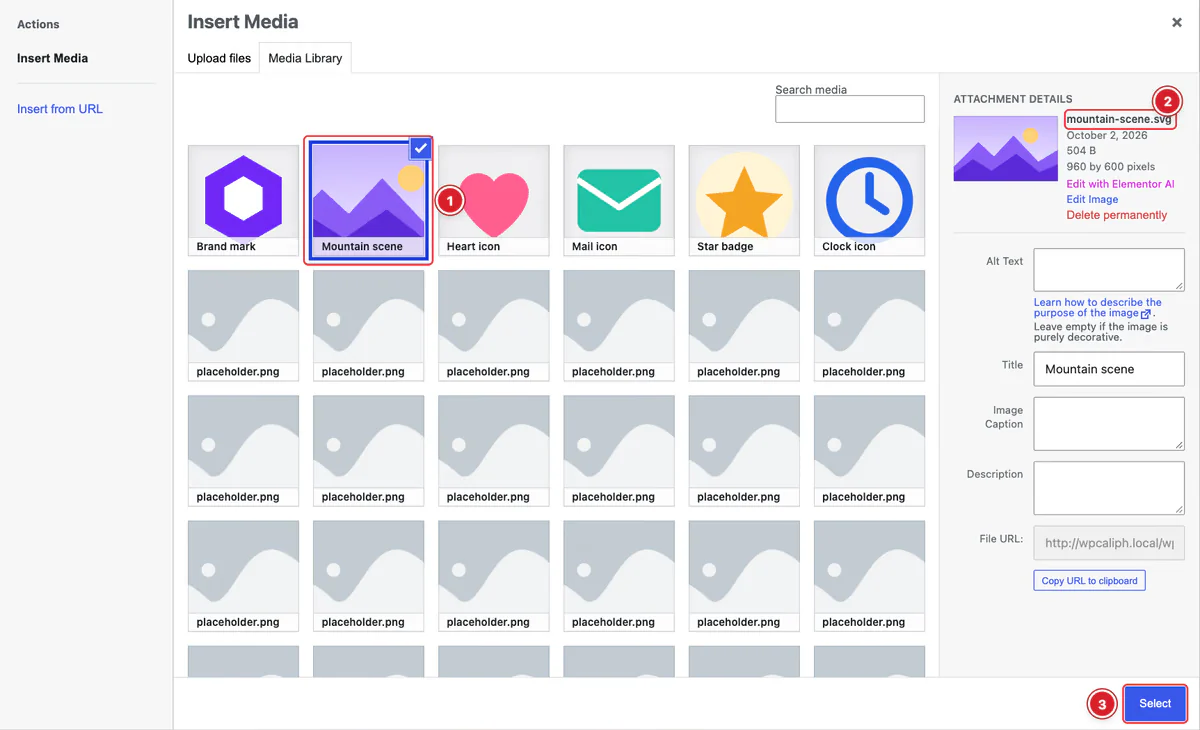
Add an Image widget (or open any image field) and click the image to open the media window. Then:
- 1
SVG image: On the Media Library tab, click your SVG.
- 2
Attachment details: The file name ends in
.svg. - 3
Select: Click Select to use it.
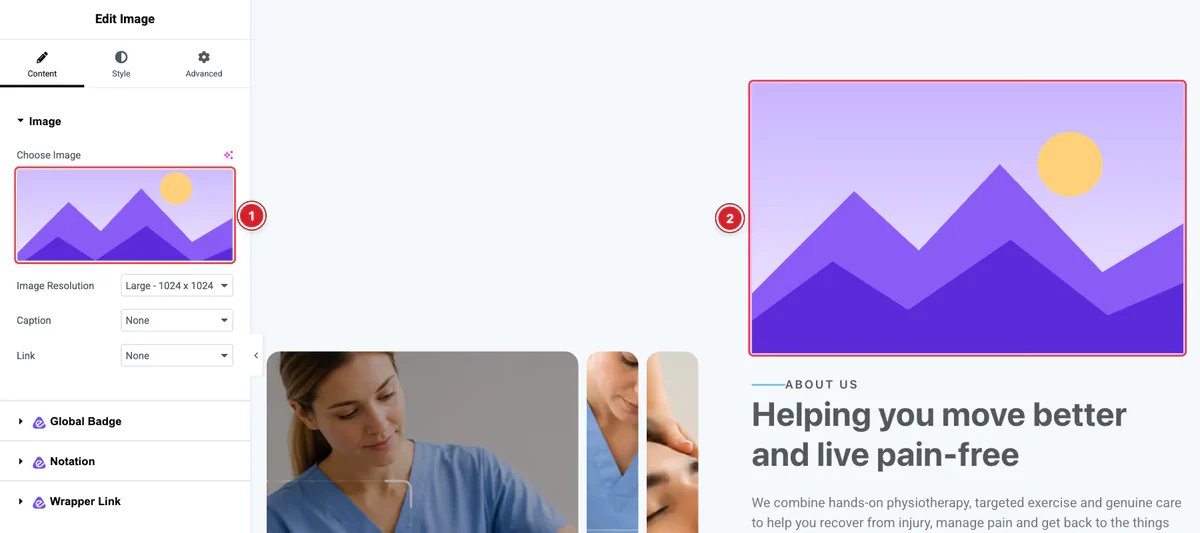 (Open the full-size image in a new tab)
- 1
Choose Image: The field shows your SVG.
- 2
Preview: The SVG appears on the page, sharp at any size.
Elementor runs its own check on files uploaded from inside the editor. Unless Enable Unfiltered File Uploads is on under Elementor → Settings → Advanced, uploading an SVG from an Elementor media window, or with Upload SVG in an Icon field, is blocked. Upload the file through Media → Add Media File first, then pick it in Elementor.
What Gets Cleaned
As each SVG uploads, Atomic Addons removes anything that could run code:
- scripts, and event handlers such as
onclick; - links and references that start with
javascript:,data:orvbscript:; - embedded objects, frames and
foreignObjectcontent; - animations (
animate,setand similar); - DOCTYPE declarations and processing instructions.
The rest of the file is kept, including <style> blocks and ordinary links. A file that can't be read as SVG is not uploaded, and you see “This SVG could not be sanitised and was not uploaded.”
Cleaning also removes embedded base64 images, SVG animations and text inside foreignObject (common in diagram exports), so check such files after uploading. Only upload SVGs from sources you trust.
All done! You have successfully set up the SVG Support feature.
Thanks for being with us.
Can't find what you need?
Our support team can help with setup questions and anything the docs don't cover yet.