
The Template Library feature by Atomic Addons brings ready-made designs into the Elementor editor. Browse full pages, headers, footers and blocks from the Atomic Addons library, preview them, and add one to your page in a click — then make it your own. This guide covers switching the feature on, finding a template and inserting it.
Enable the Template Library Feature
 (Open the full-size image in a new tab)
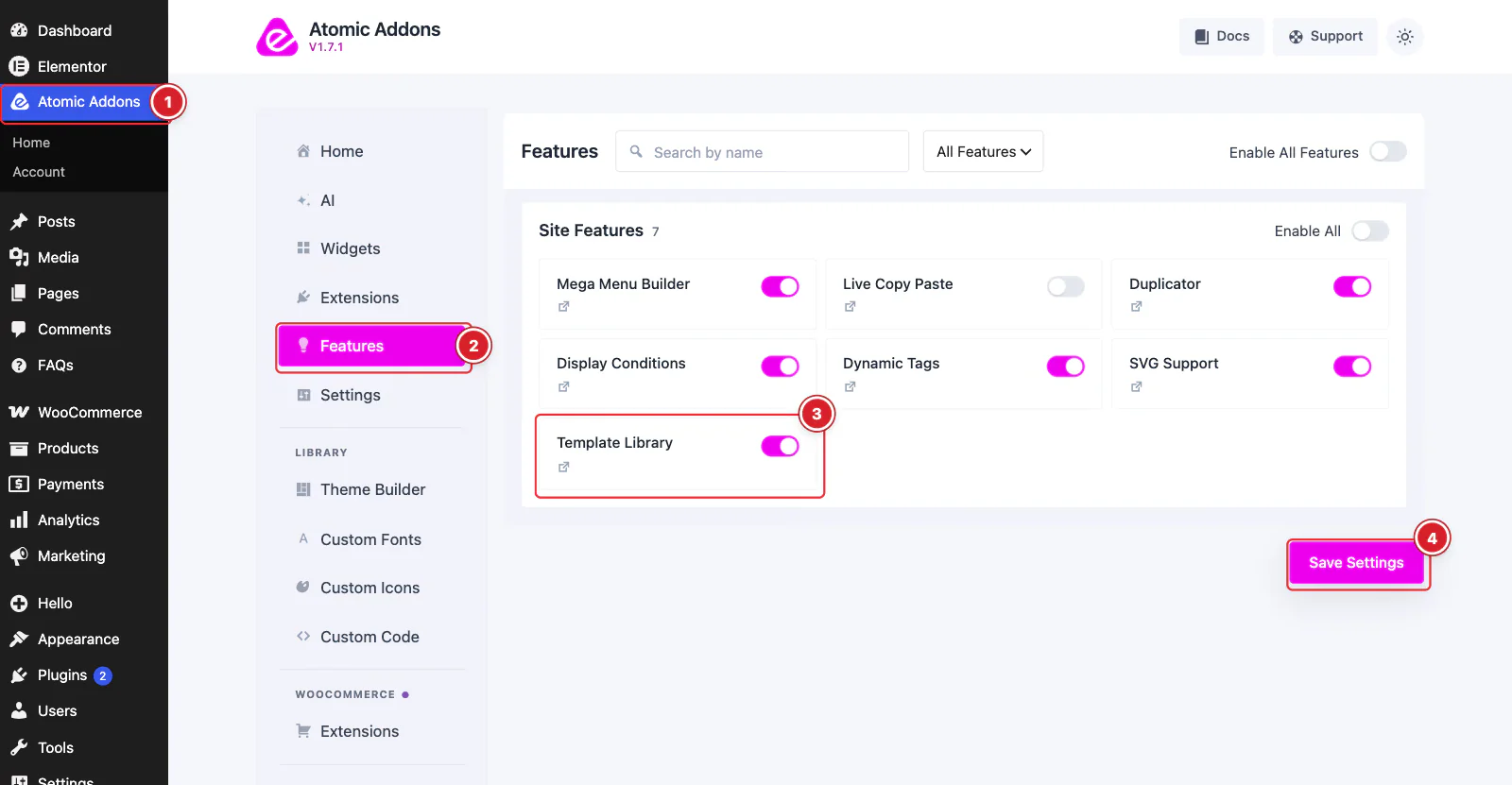
Template Library is free. Switch it on from the plugin dashboard:
- 1
Go to WordPress Dashboard → Atomic Addons.
- 2
Click Features.
- 3
Find the Template Library card and turn its switch On.
- 4
Click Save Settings.
Open the Template Library
 (Open the full-size image in a new tab)
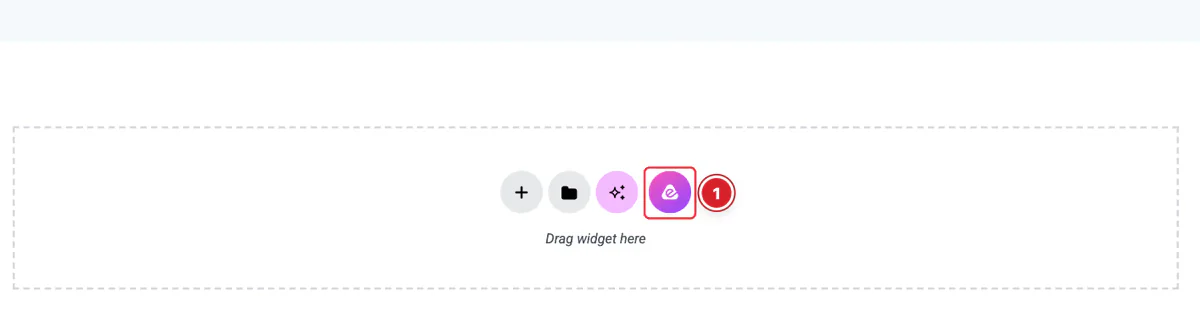
Open a page in Elementor. The add-section area at the bottom of the page — and the one that opens when you click + on a block — now has a round pink Atomic Addons button next to Elementor's own buttons.
- 1
Atomic Addons button: Click it to open the Template Library.
Browse the Templates
 (Open the full-size image in a new tab)
- 1
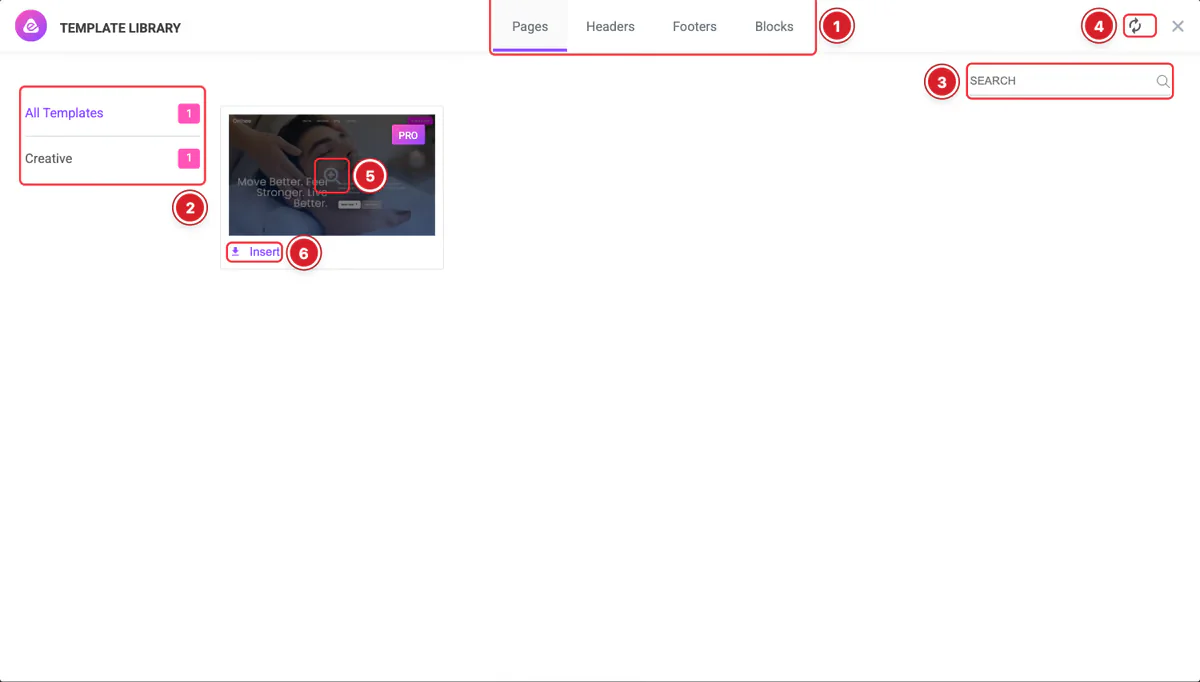
Tabs: Pages, Headers, Footers and Blocks. The library opens on Pages.
- 2
Categories: Filter the current tab by category. The number shows how many templates each category holds.
- 3
Search: Find templates by name in the current tab.
- 4
Sync Library: Fetch the latest templates from the Atomic Addons library.
- 5
Preview: Hover a template and click the magnifier to preview it.
- 6
Insert: Add the template to your page.
A NEW ribbon marks templates added in the last month. Templates marked PRO use Pro widgets; on a site without Atomic Addons Pro those widgets are left out when you insert the template.
Your site keeps a copy of the template list and refreshes it every 15 days and after plugin updates. Click Sync Library whenever you expect new templates.
Preview a Template
 (Open the full-size image in a new tab)
- 1
Back to Library: Return to the list.
- 2
Live Preview: Open the template's demo in a new browser tab.
- 3
Insert: Add the template to your page.
After Inserting
The template goes where you opened the library: above the block whose + you clicked, or at the end of the page when you used the area at the bottom. Its images are copied into your Media Library, and you can edit it like any other Elementor content. Changed your mind? Ctrl + Z (⌘ + Z on a Mac) removes it.
Only the template's content is inserted; its page settings, such as the page layout, aren't applied. If something goes wrong, the library shows the reason above the templates — for example “The template file is unavailable on the server”, which means the file is missing from the Atomic Addons library. Try again later, or pick another template.
All done! You have successfully set up the Template Library feature.
Thanks for being with us.
Can't find what you need?
Our support team can help with setup questions and anything the docs don't cover yet.