
The Wishlist Products widget by Atomic Addons shows the products a shopper saved with the Product Wishlist extension: one row per product with its image, name, price, stock status and an add to cart button. The extension already has a wishlist table in My Account; this widget lets you put that table on a page you design in Elementor and style it. This guide covers adding the widget, what it shows and its styles.
Enable the Wishlist Products Widget
Wishlist Products is a Pro widget and needs Atomic Addons Pro, WooCommerce and the Product Wishlist extension. The widget appears in Elementor only while the extension is on, so switch that on first: go to Atomic Addons, under WooCommerce click Extensions and turn on the Wishlist card. Then switch the widget on from the plugin dashboard:
- 1
Go to WordPress Dashboard → Atomic Addons.
- 2
Click the Widgets tab.
- 3
Search for Wishlist Products. You can also open the WooCommerce category.
- 4
Turn the Wishlist Products widget on.
- 5
Click Save Settings.
Add the Wishlist Products Widget
 (Open the full-size image in a new tab)
The usual home for the widget is your wishlist page. Create a page with the slug wishlist (or pick a page in the extension's settings), then:
- 1
Open the page in Elementor (Edit with Elementor).
- 2
In the widget panel, search for Wishlist Products. The widget sits in the Atomic Addons Pro category.
- 3
Drag it into the page and set it up with the controls below.
- 4
Click Publish (or Update).
The widget has no Content settings, so it opens on the Style tab.
The Browse Wishlist buttons lead where the extension's Primary wishlist URL says: the My Account Wishlist tab (the default) or your wishlist page with WordPress page. The My Account tab shows your wishlist page when the page is built with Elementor, so your design carries over there too. If the page can't be found, the buttons fall back to the My Account tab while Show in My Account menu is on.
What the Widget Shows
 (Open the full-size image in a new tab)
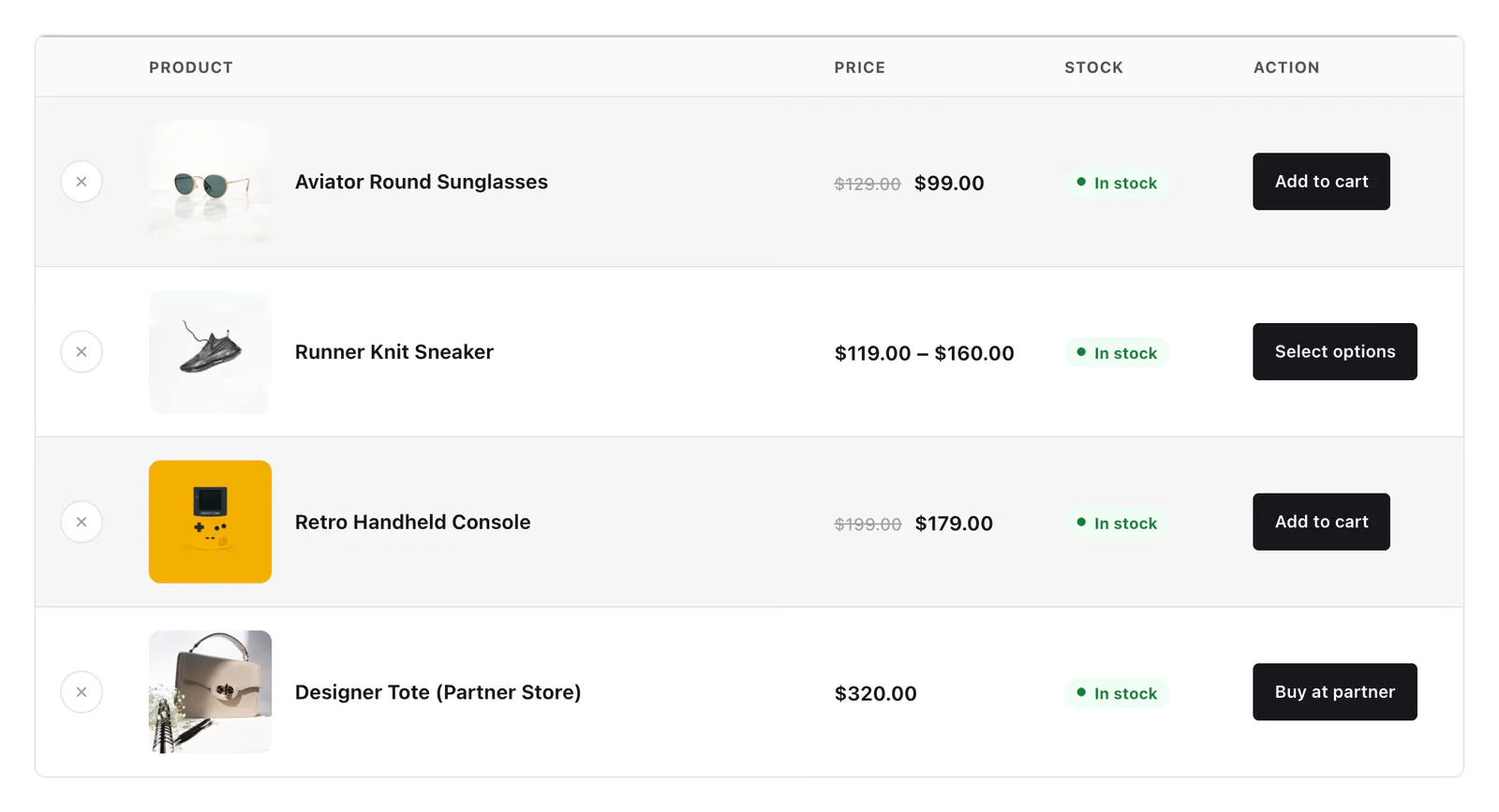
Each row has a × to remove the product, its image and name (both linked to the product), the Price, the Stock status (“In stock” or “Out of stock”) and an Action button. The button is WooCommerce's own for the product type: Add to cart for a simple product, which adds it without leaving the page, Select options for a variable product, and the product's own button text for an external product.
A click on × removes the row without reloading the page, and the product's wishlist buttons elsewhere on the page switch back. When the last product is removed, the table gives way to “Your wishlist is empty.”, which is also what an empty wishlist shows.
Each visitor sees their own list: a logged-in customer's is saved to their account and a guest's is kept in a browser cookie. Products that are deleted, unpublished or hidden from the catalog drop out of the list. In the editor you see your own wishlist, so save a few products to it while you design.
Style the Wishlist Products
Header
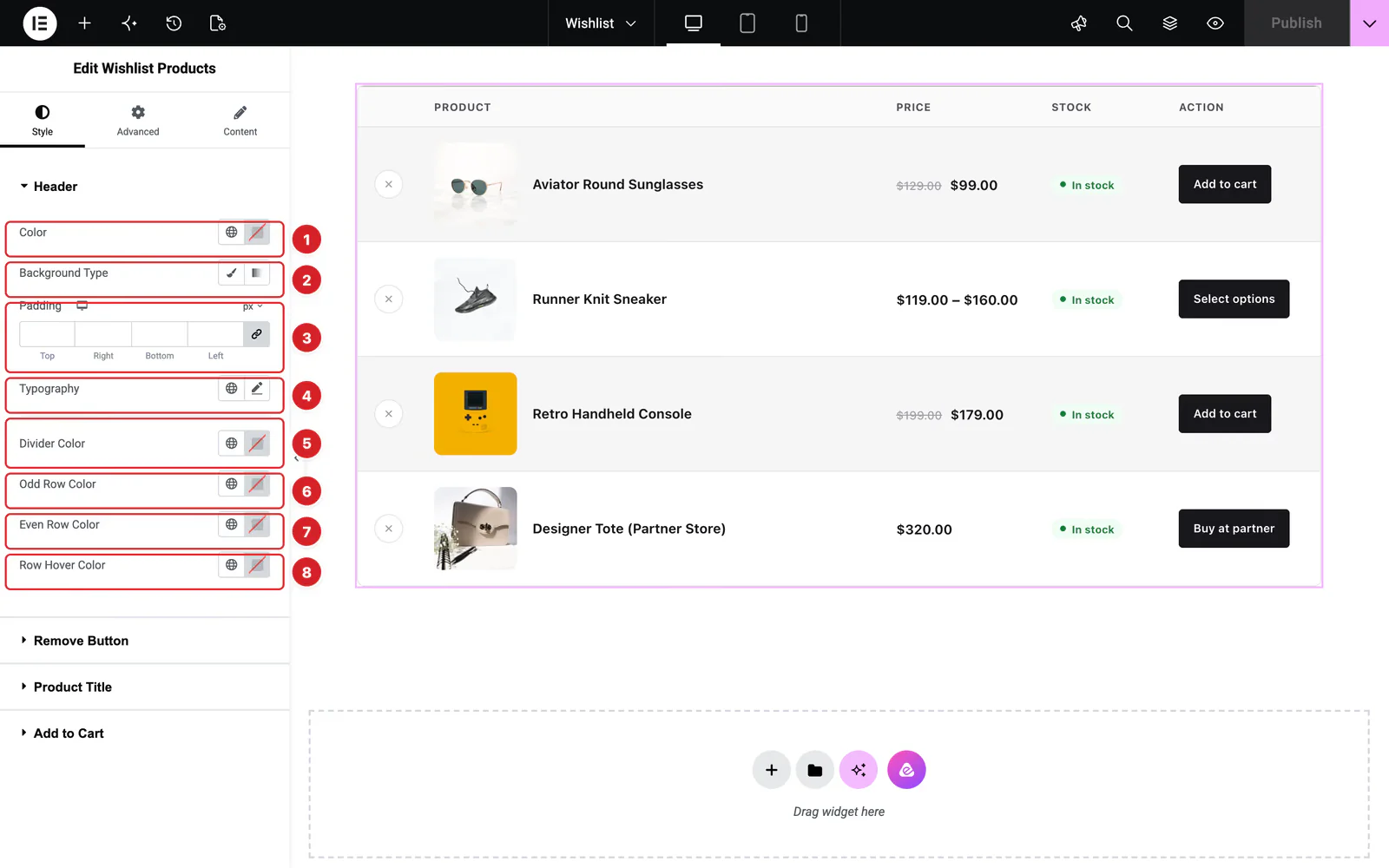
Despite its name, this section styles the rows as well as the heading row (numbered in the editor screenshot above):
- 1
Color: The heading row's text color.
- 2
Background Type: The heading row's background, a color or a gradient.
- 3
Padding: The space inside the heading cells, per device.
- 4
Typography: The column headings' font.
- 5
Divider Color: The lines between rows.
- 6
Odd Row Color: The background of the first, third and every other odd row.
- 7
Even Row Color: The background of the even rows.
- 8
Row Hover Color: The background of the row under the pointer.
Remove Button
The × buttons: Color, Background and Border in the Normal state, and the color and background on Hover.
Product Title
The product names: Color and typography.
Add to Cart
The buttons in the Action column: text Color, background (a color or a gradient) and typography.
Can't find what you need?
Our support team can help with setup questions and anything the docs don't cover yet.