
The Product Image Hotspot widget by Atomic Addons turns a photo into a shoppable picture. You place round hotspots on the image, and each hotspot stands for one of your WooCommerce products. When a shopper points at a hotspot, a card with the product's image, name, price and an add to cart button opens next to it. With the Slider layout the cards sit in a slider beside the image instead, and clicking a hotspot shows its product. This guide covers adding the widget, placing the hotspots, linking them to products and both layouts.
Enable the Product Image Hotspot Widget
Product Image Hotspot is a Pro widget and needs Atomic Addons Pro and WooCommerce. Switch it on from the plugin dashboard:
- 1
Go to WordPress Dashboard → Atomic Addons.
- 2
Click the Widgets tab.
- 3
Search for Product Image Hotspot. You can also open the WooCommerce category.
- 4
Turn the Product Image Hotspot widget on.
- 5
Click Save Settings.
Add the Product Image Hotspot Widget
Product Image Hotspot works on any page:
- 1
Open the page in Elementor (Edit with Elementor).
- 2
In the widget panel, search for Product Image Hotspot. The widget sits in the Atomic Addons Pro category.
- 3
Drag it into the page and set it up with the controls below.
- 4
Click Publish (or Update).
A lifestyle photo that shows several of your products, such as an outfit or a styled room, works best: put one hotspot on each product in the picture.
How Hotspots Get Their Products
A hotspot only holds a position. The products come from the widget's Query, and the two are paired in order: the first hotspot in Hotspot Items gets the first product of the query, the second hotspot the second product, and so on.
- The order is the query's Order By and Order, not the order in which you pick products with Manual Selection. To control the pairing, pick an order you can predict, such as Title with ASC, and arrange the hotspot items to match.
- The widget shows no more products than there are hotspot items, whatever the Limit.
- If the query finds fewer products than there are hotspot items, the extra hotspots don't show.
In the screenshots, Manual Selection picks the Aviator Round Sunglasses, the Leather Top-Handle Bag and the Runner Knit Sneaker, ordered by title, so hotspot 1 is the sunglasses, hotspot 2 the bag and hotspot 3 the sneaker.
Image Hotspot
 (Open the full-size image in a new tab)
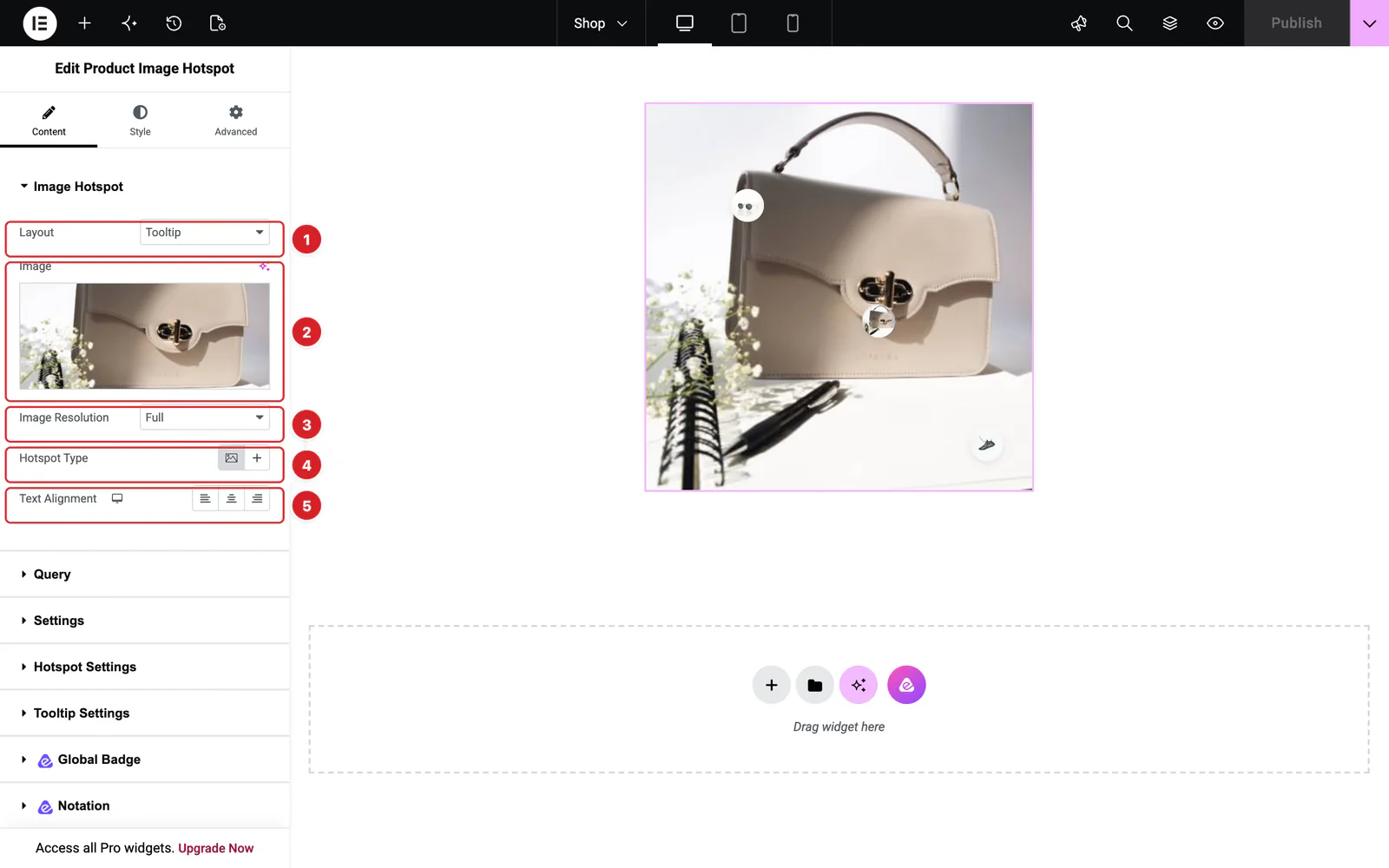
Open the widget and go to Content → Image Hotspot:
- 1
Layout: Tooltip, the default, opens each product in a card next to its hotspot. Slider shows the cards in a slider beside the image; see The Slider Layout.
- 2
Image: The picture the hotspots sit on. Choose it from the Media Library.
- 3
Image Resolution: Which size of that picture WordPress serves, Full by default.
- 4
Hotspot Type: Image, the default, fills each hotspot with its product's photo, so shoppers see what it stands for. Icon shows an icon you choose under Icon, or a plus sign if you choose none.
- 5
Text Alignment: Left, center or right alignment of the text in the product cards.
With the Slider layout, two more controls appear here: Slider Position and Slider Effect.
The image keeps its own width and isn't stretched to fill a wider column. Hotspot positions are measured on the image, so they stay on their spots at any column width.
Hotspot Settings
 (Open the full-size image in a new tab)
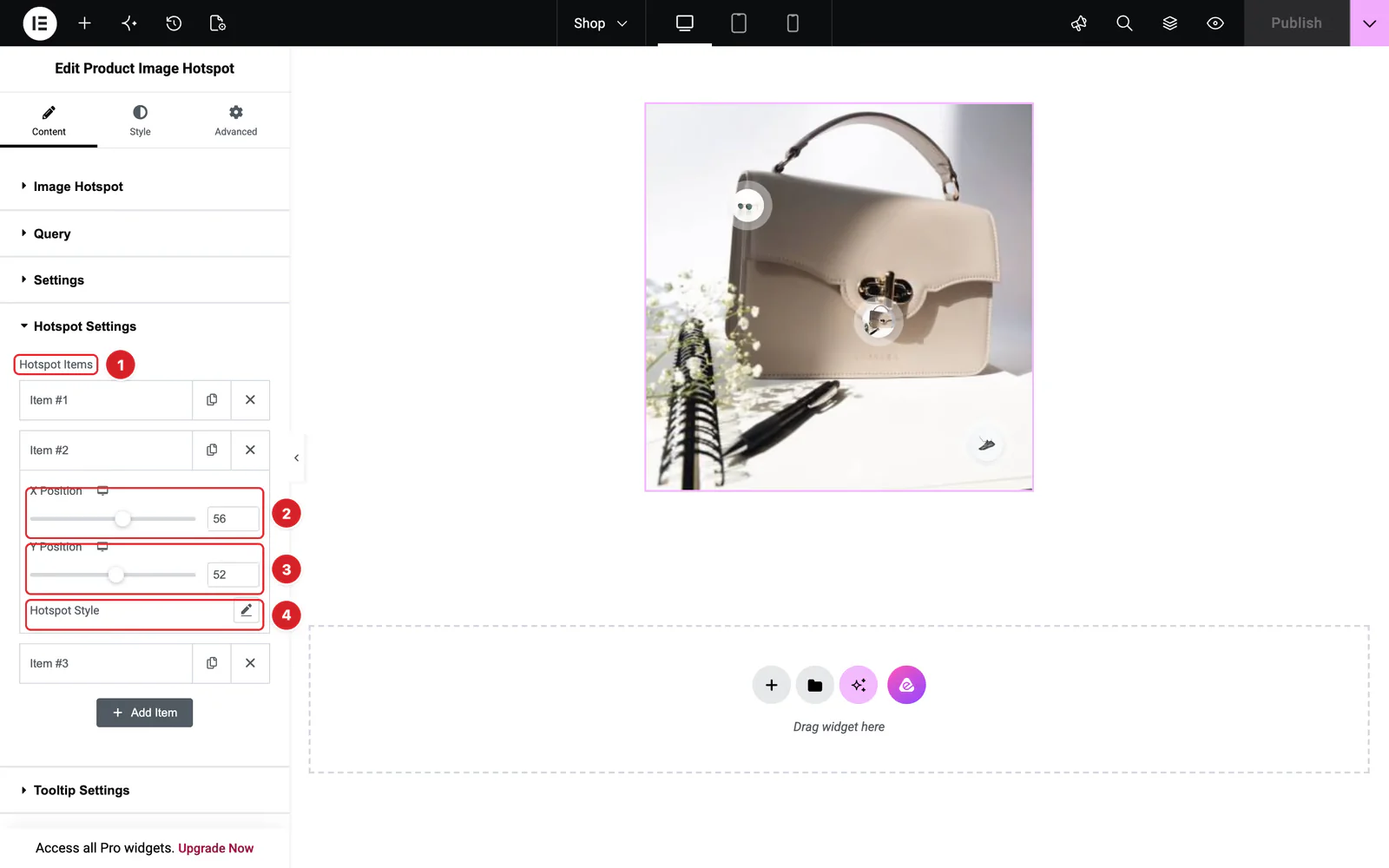
Content → Hotspot Settings holds the hotspots:
- 1
Hotspot Items: One item per hotspot, three by default. Click Add Item for more, the copy icon to duplicate an item, or the × to delete it. Drag items to change their order, and with it the products they stand for.
- 2
X Position: How far from the left edge the hotspot sits, in percent of the image's width. Use the device icon to move it on tablets and phones.
- 3
Y Position: How far from the top the hotspot sits, in percent of the image's height.
- 4
Hotspot Style: Click the pencil for this hotspot's own Color (the icon's color) and Background. With the Image hotspot type the product photo covers the background.
Each hotspot has a soft ring that pulses around it to draw the eye. Its color and size are on the Style tab.
Query and Settings
Content → Query works as in the Product Image Accordion: Source (Product, Manual Selection, Current Query or Related), Limit (3 by default), Include / Exclude, Offset, Date, Order By, Order, Show Product, Hide Free Product and Hide Out of Stock. Manual Selection is the usual choice here, since each hotspot belongs to a product in the picture.
Content → Settings picks what each product card shows:
- Content tab — Title and Title HTML Tag (H3 by default), Category and Category HTML Tag (H5 by default), Rating, Price, and Image Resolution: the size of the product photos in the cards and in Image hotspots, Full by default.
- Badge tab — Sale, Percentage, Stock Status (off by default), Trending for featured products and New, with Newness Days (30 by default).
- Action btn tab — Add to Cart, the button on the card's image. This widget has no wishlist, compare or quick view buttons.
The Tooltip Layout
 (Open the full-size image in a new tab)
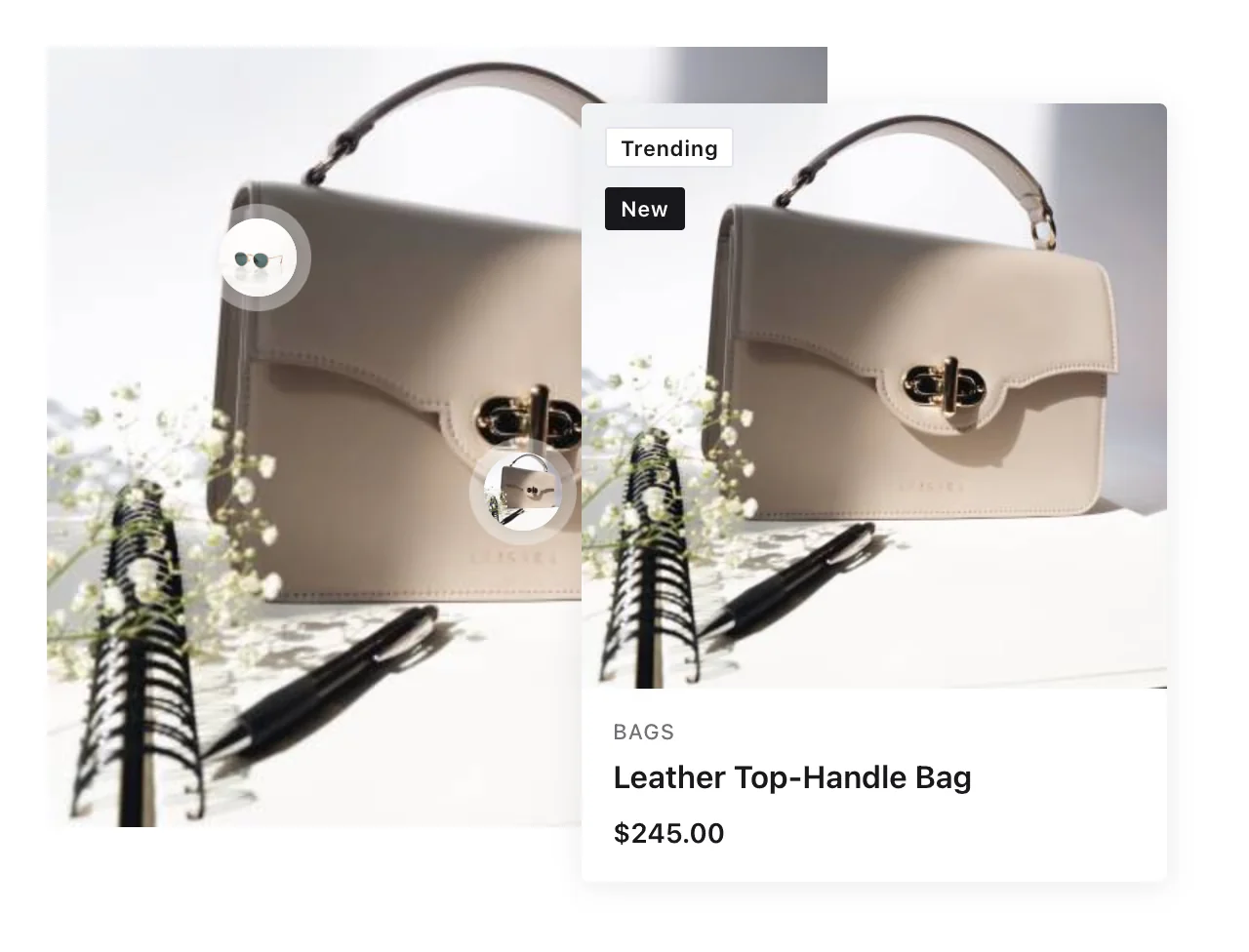
With the default Tooltip layout, pointing at a hotspot opens its product card, and the card closes when the pointer leaves the hotspot and the card. Shoppers can move into the card to use it. The card shows the product photo with its badges, then the category, name and price; the photo and the name link to the product.
When the pointer is on the card, the photo changes to the product's first gallery image and an add to cart bar slides up over the bottom of the photo. For a product with reviews, the stars take the place of the price. The bar reads whatever WooCommerce uses for the product type, such as Add to cart, or Select options for a variable product, which opens the product page. Simple products go into the cart without a page reload.
Tooltip Settings
 (Open the full-size image in a new tab)
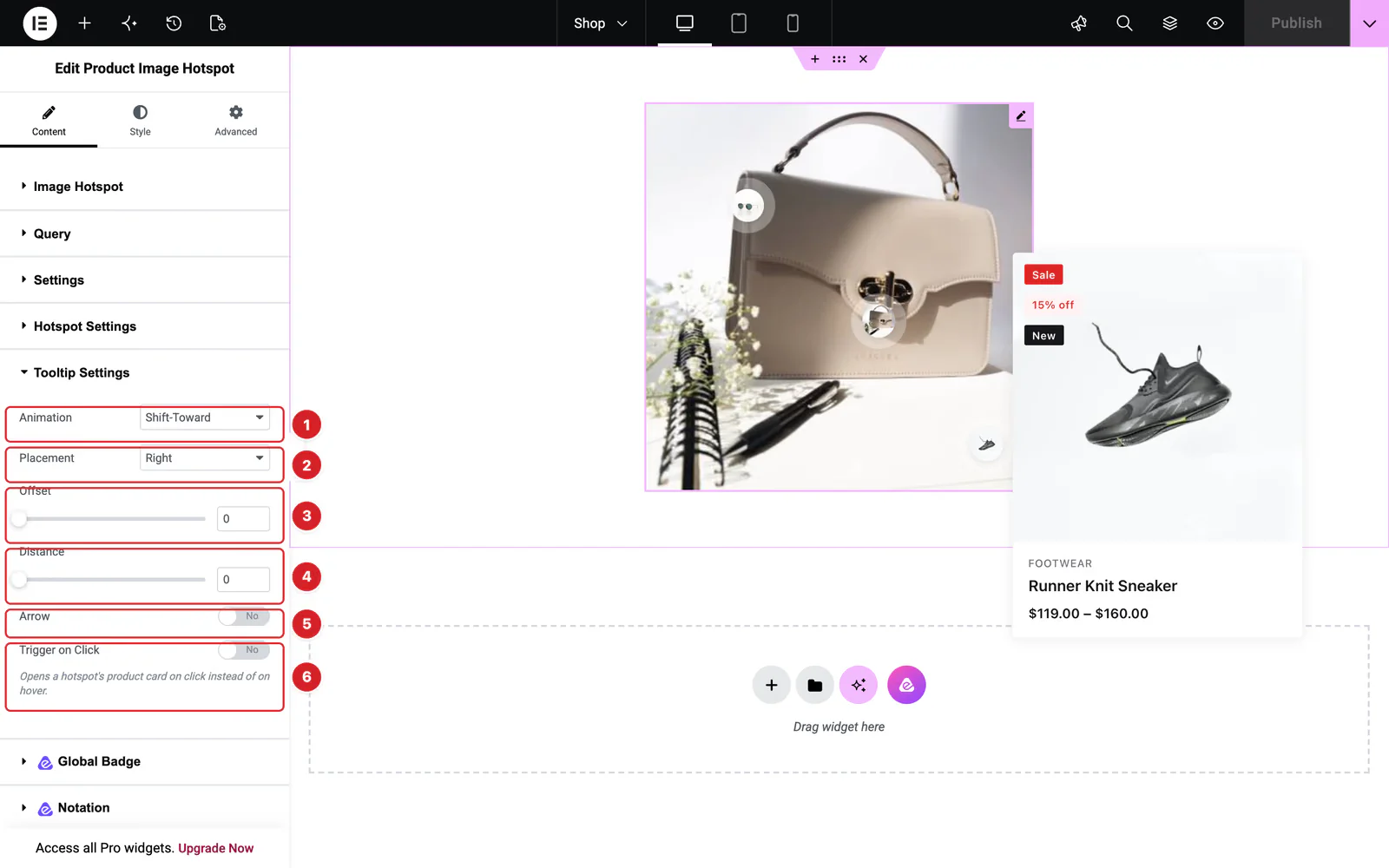
Content → Tooltip Settings appears with the Tooltip layout:
- 1
Animation: How the card appears: Shift-Toward (the default), Shift-Away, Fade, Scale or Perspective.
- 2
Placement: Where the card opens: Top by default, or Top Left, Top Right, Bottom Left, Bottom, Bottom Right, Left or Right. If there isn't room on that side, the card opens on the opposite side.
- 3
Offset: Slides the card along the side of the hotspot, in pixels.
- 4
Distance: Moves the card away from the hotspot, in pixels. While both Offset and Distance are 0, the card keeps a 10px gap from the hotspot.
- 5
Arrow: A small arrow on the card that points at the hotspot. Off by default.
- 6
Trigger on Click: Opens cards with a click instead of on hover; a click elsewhere closes them. Off by default.
The Slider Layout
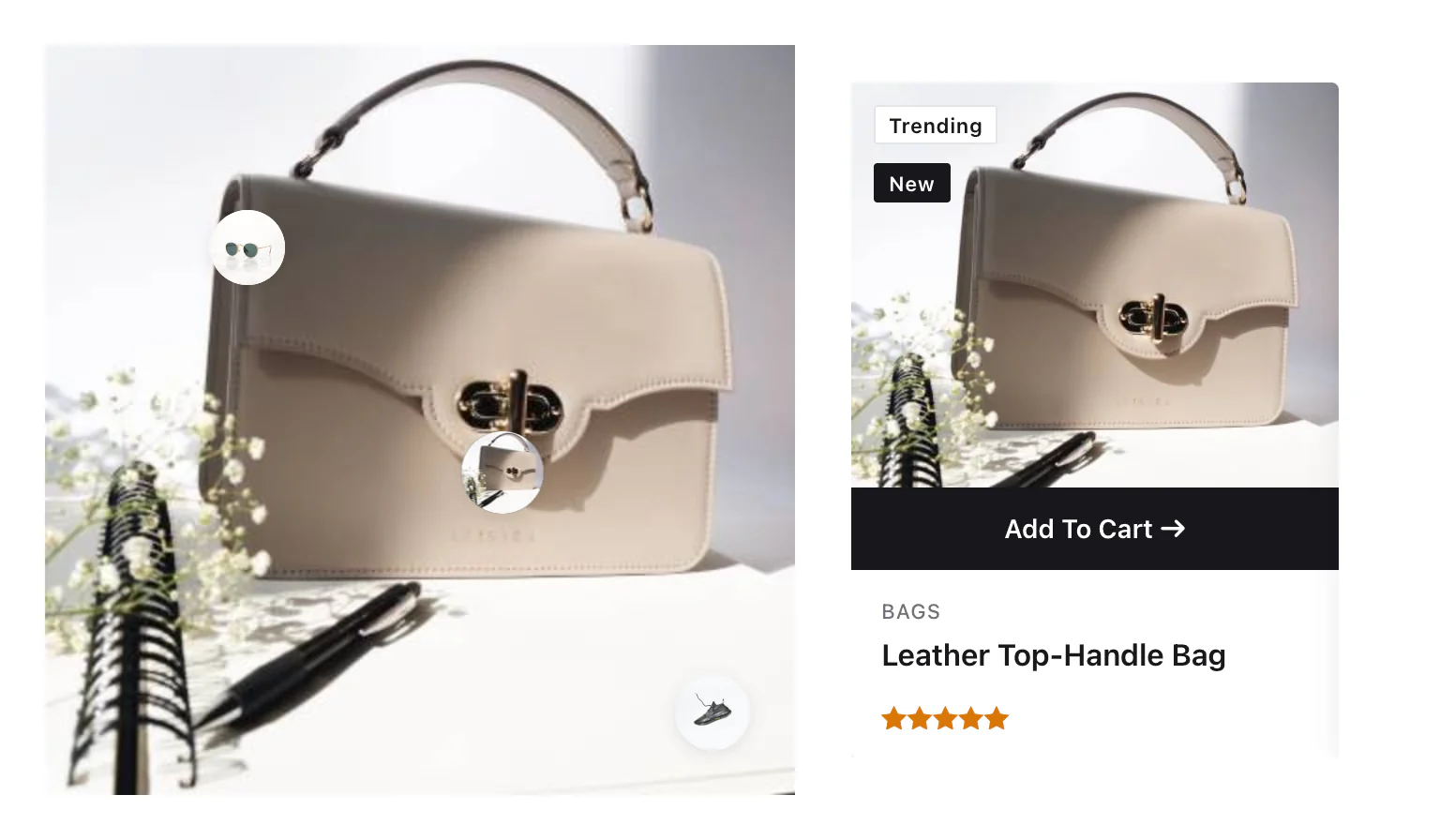 (Open the full-size image in a new tab)
Set Layout to Slider to show the product cards in a slider next to the image, one card at a time. Clicking a hotspot slides to its product, and swiping the cards moves the selection between hotspots. The card works as in the tooltip, with the add to cart bar and the gallery image on hover.
- Slider Position puts the cards on the Right (the default) or the Left of the image.
- Slider Effect chooses how cards change: Slide (the default), Fade, Cube or Flip.
- The card column is 27% of the widget's width; set your own under Style → Product Items → Width.
- On screens narrower than 768px the card sits above the image.
The Tooltip Settings section is hidden with this layout, and the Active tab under Style → Image Hotspot styles the hotspot whose product is showing.
Style the Product Image Hotspot
Everything below is on the Style tab. The card styles apply to the tooltip cards and to the slider cards alike.
- Image Hotspot — the hotspots in Normal, Hover and (Slider layout) Active states: Background, Border, Border Radius, Size, and the Shadow Pulse Color and Shadow Pulse Size of the pulsing ring. With the Icon type, Icon Color and Icon Size appear too.
- Product Items — the card: background, border, radius and padding in Normal and Hover states, and Width, which sets the tooltip's width or the slider column's. With the Slider layout, Gap sets the space between the image and the cards.
- Image and Content — the card's photo area and text area: background, border, radius and padding.
- Title, Category, Price and Rating — colors, hover colors, spacing and typography.
- Badge — the badges' shape and a color for each badge.
- Add to Cart — the bar in Normal and Hover states: color, background, border, radius, typography, Width(%) and Height(px).
If no product matches the query, the widget shows a short notice in place of the hotspots.
Can't find what you need?
Our support team can help with setup questions and anything the docs don't cover yet.