
The Product Recommendations widget by Atomic Addons places a recommendation block of the Product Recommendations extension, such as “Frequently bought together” or “You might also like”, exactly where you want it in an Elementor design. The block decides where the products come from; the widget can change the heading, the number of products, the layout and the columns for this spot, and gives you style controls for the cards and buttons. This guide covers adding the widget, its settings and what it shows.
Enable the Product Recommendations Widget
Product Recommendations is a Pro widget and needs Atomic Addons Pro, WooCommerce and the Product Recommendations extension. The widget appears in Elementor only while the extension is on, so switch that on first: go to Atomic Addons, under WooCommerce click Extensions and turn on the Product Recommendations card. Create at least one block there, too. Then switch the widget on from the plugin dashboard:
- 1
Go to WordPress Dashboard → Atomic Addons.
- 2
Click the Widgets tab.
- 3
Search for Product Recommendations. You can also open the WooCommerce category.
- 4
Turn the Product Recommendations widget on.
- 5
Click Save Settings.
Add the Product Recommendations Widget
- 1
Open the page in Elementor (Edit with Elementor).
- 2
In the widget panel, search for Product Recommendations. The widget sits in the Atomic Addons Pro category.
- 3
Drag it into the page and set it up with the controls below.
- 4
Click Publish (or Update).
The widget recommends from what the page is about, so it fits well in Theme Builder templates: a Single Product template for products that go with the one being viewed, a Cart Page template for products that go with the cart, and a Thank You Page template for products that go with the order. On any other page it uses the cart, or the product you set as the Context product ID.
A block still appears in its own place on the store when its Show on setting is anything but Manual. To show a block only where you put the widget, set its Show on to Manual · shortcode or Elementor widget only, or the shopper may see it twice.
Recommendation Block
 (Open the full-size image in a new tab)
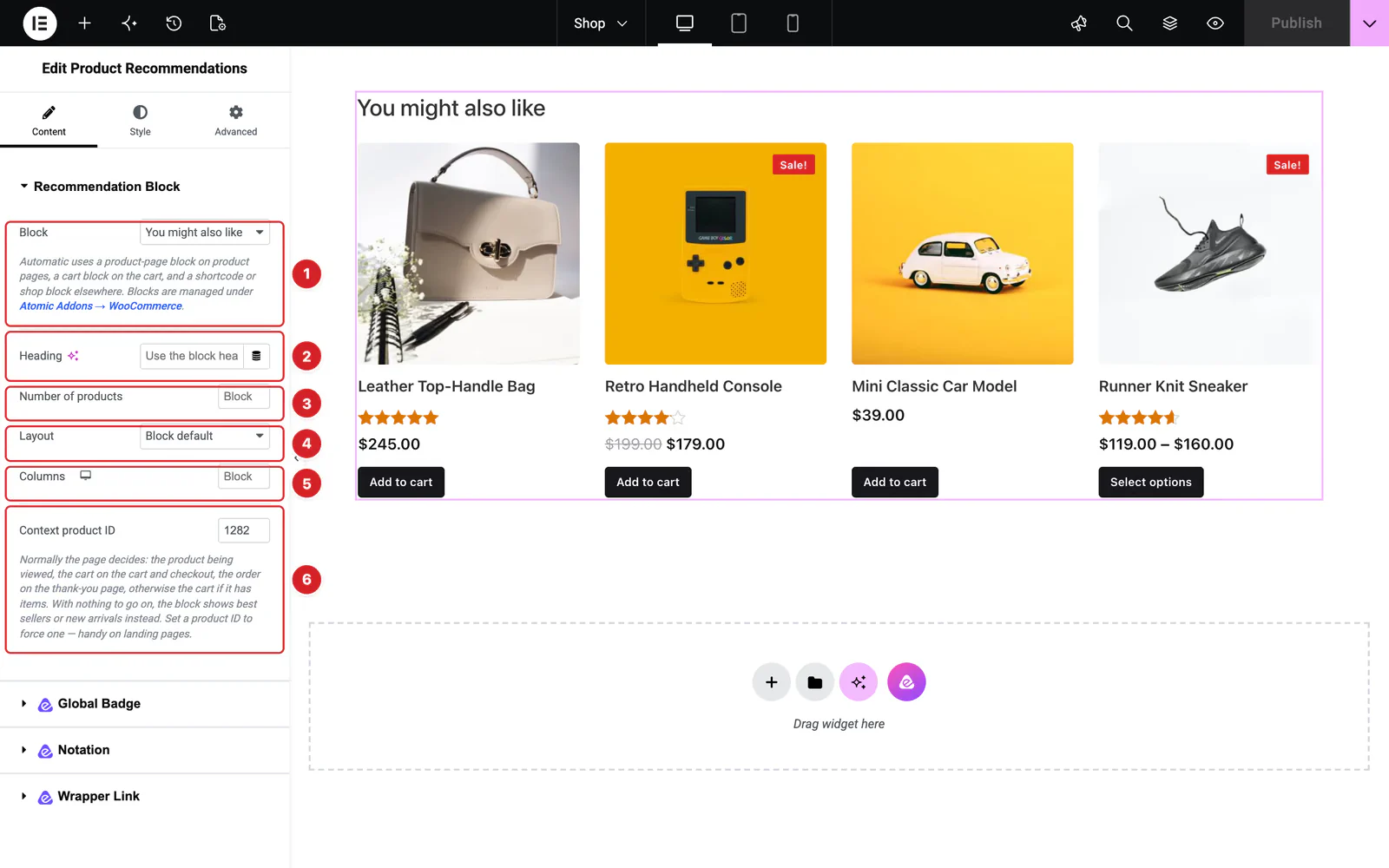
Open the widget and go to Content → Recommendation Block:
- 1
Block: The block to show. The default, Automatic (best match for the page), picks an enabled block that fits the page: a product page block on product pages, a thank-you block on the order received page, and a cart or checkout block on the cart and checkout, or on other pages while the cart has products. After those come blocks set to Manual, then shop blocks. Add-to-cart popup blocks are never picked. Disabled blocks are marked “(disabled)” in the list and show nothing.
- 2
Heading: Replaces the block's heading in this spot. Leave it empty to use the block's own heading.
- 3
Number of products: 1 to 24. Leave it empty to use the block's number.
- 4
Layout: Block default, Grid, Carousel, List or Bundle.
- 5
Columns: Columns per device; leave it empty to use the block's. Up to 8 on desktop, 6 on tablets and 4 on phones. Hidden for the Bundle layout.
- 6
Context product ID: Normally the page decides what the recommendations are based on: the product being viewed, the cart on the cart and checkout pages, the order on the thank-you page, and elsewhere the cart when it has products. Type a product ID to base them on that product instead, for example on a landing page.
Everything else, such as where the products come from, the fallback, the category filters and what each card shows, is set in the block itself: see the Product Recommendations extension guide.
What the Widget Shows
 (Open the full-size image in a new tab)
The products come from the block's Source, then its Fallback source. If both find nothing, the widget tries best sellers and then new arrivals, so it doesn't vanish from your design, unless the block's fallback is set to — No fallback (show nothing) —. The block's Only for these products and Only for these categories rules still apply. Products already in the cart and out-of-stock products are left out while the extension's general settings say so, which they do by default.
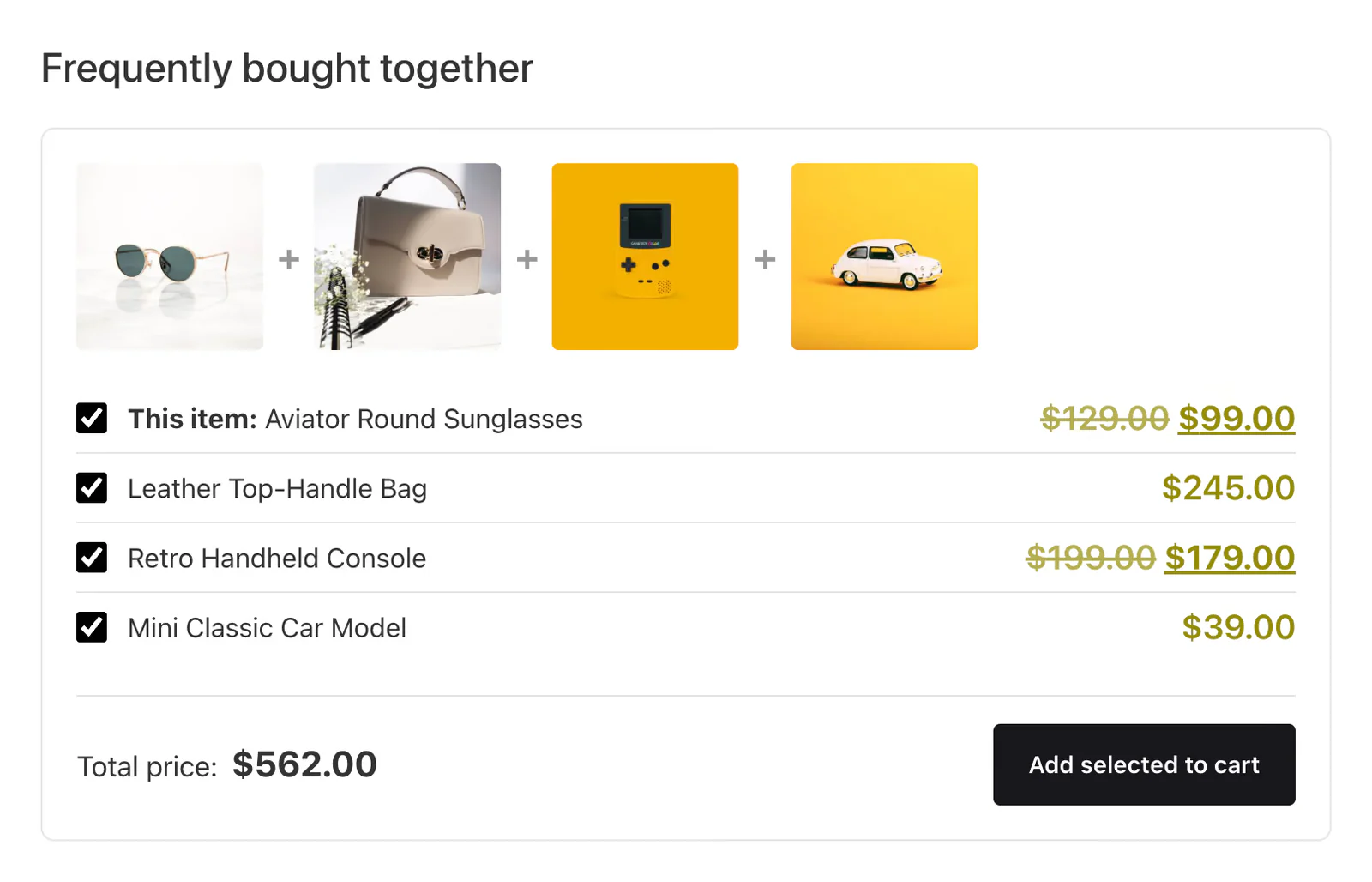
With the Bundle layout, on a product page the product being viewed heads the list as “This item:”. Shoppers tick the products they want, the Total price follows, and one button adds them all; what happens next follows the extension's After “Add selected to cart” setting. Only simple products that are in stock can be ticked: others show a Select options or Out of stock link.
 (Open the full-size image in a new tab)
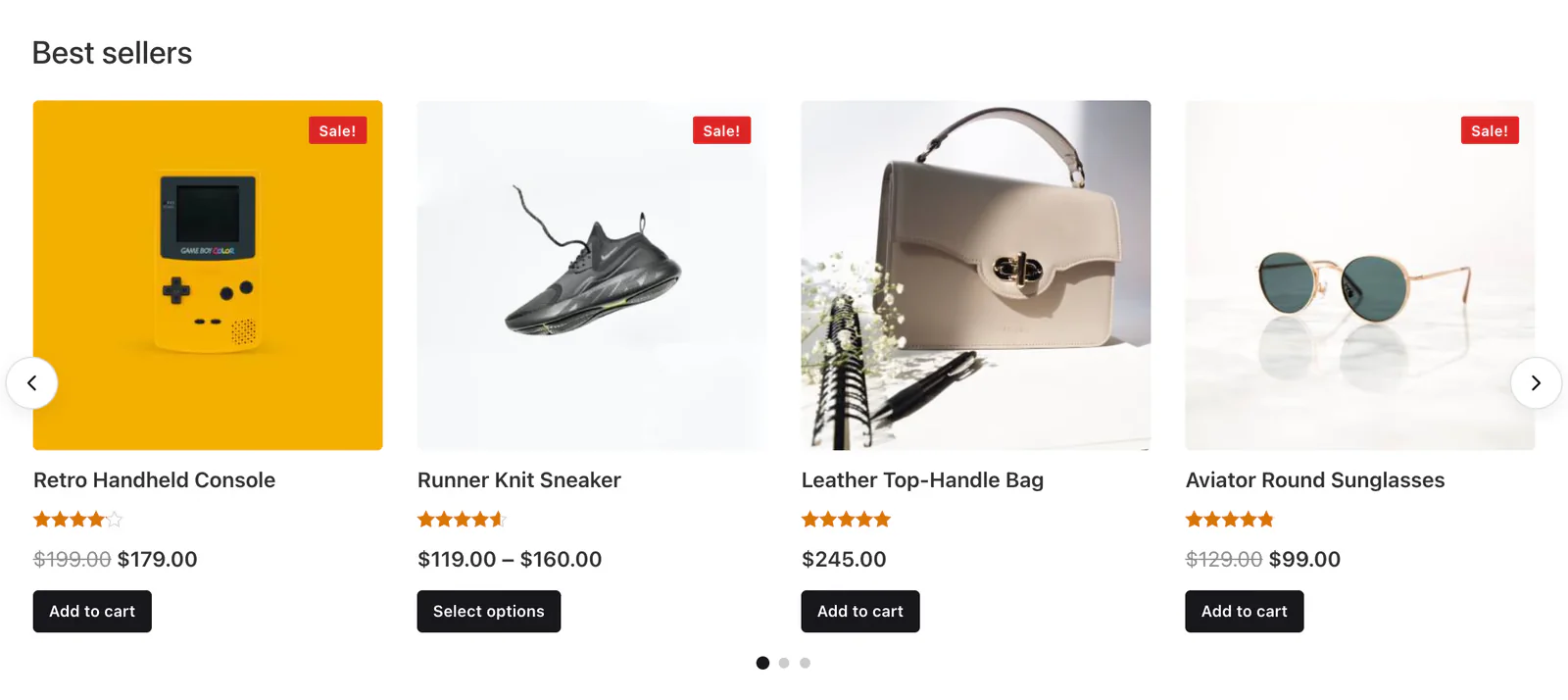
The Grid, List and Carousel layouts show product cards with the parts the block switches on: image, sale badge, title, rating, price, short description and add to cart button. The carousel adds arrows and dots when the block has them on.
When the block has nothing to show, the widget prints nothing on your site. In the editor it shows a notice that says why instead, such as a block that is disabled, hidden by its targeting rules, or one that needs a product and the page has none.
Style the Product Recommendations
Everything below is on the Style tab.
- Heading — the Alignment, the heading's Color and typography, the Subheading Color and typography, and the Bottom Spacing under them.
- Cards — the Gap between cards, their Background, Border, Border Radius, Padding and Box Shadow, the Image Radius, and the Sale Badge Background and Sale Badge Color. The background and border also apply to the bundle box.
- Product Title & Price — Title Color, Title Hover Color and typography; Price Color, the Regular Price (on sale) Color of a struck-through price, and typography.
- Buttons — the add to cart buttons and the bundle's button: typography, then text color, background and border in Normal and Hover states, plus Border Radius and Padding.
- Carousel Navigation — Arrow Size, Arrow Color, Arrow Background, Dot Color and Active Dot Color.
Can't find what you need?
Our support team can help with setup questions and anything the docs don't cover yet.