
The Product Filters widget by Atomic Addons adds a filter panel to a Product Grid: a price slider, and checkboxes for categories, tags, brands, attributes such as color or size, and star ratings. When a shopper ticks a box or moves the slider, the grid updates in place without reloading the page. This guide covers adding the widget next to a grid, building the list of filters and what shoppers see.
Enable the Product Filters Widget
Product Filters is a Pro widget and needs Atomic Addons Pro and WooCommerce. Switch it on from the plugin dashboard:
- 1
Go to WordPress Dashboard → Atomic Addons.
- 2
Click the Widgets tab.
- 3
Search for Product Filters. You can also open the WooCommerce category.
- 4
Turn the Product Filters widget on.
- 5
Click Save Settings.
Add the Product Filters Widget
The filters work together with the Product Grid widget, so put both on the same page:
- 1
Open the page in Elementor (Edit with Elementor).
- 2
In the widget panel, search for Product Filters. The widget sits in the Atomic Addons Pro category.
- 3
Drag it into the page and set it up with the controls below.
- 4
Click Publish (or Update).
A two-column container works well: the filters in a narrow column and the grid beside them. For your shop and category pages, put both widgets in a Theme Builder template made from the Products Archive card and set the grid's Source to Current Query: the filters then narrow down the category, tag or search results being viewed.
The filters update only the Atomic Addons Product Grid widget. Other product widgets, WooCommerce's own shop loop and the WooCommerce product blocks are not filtered.
Filters
 (Open the full-size image in a new tab)
Open the widget and go to Content → Filters:
- 1
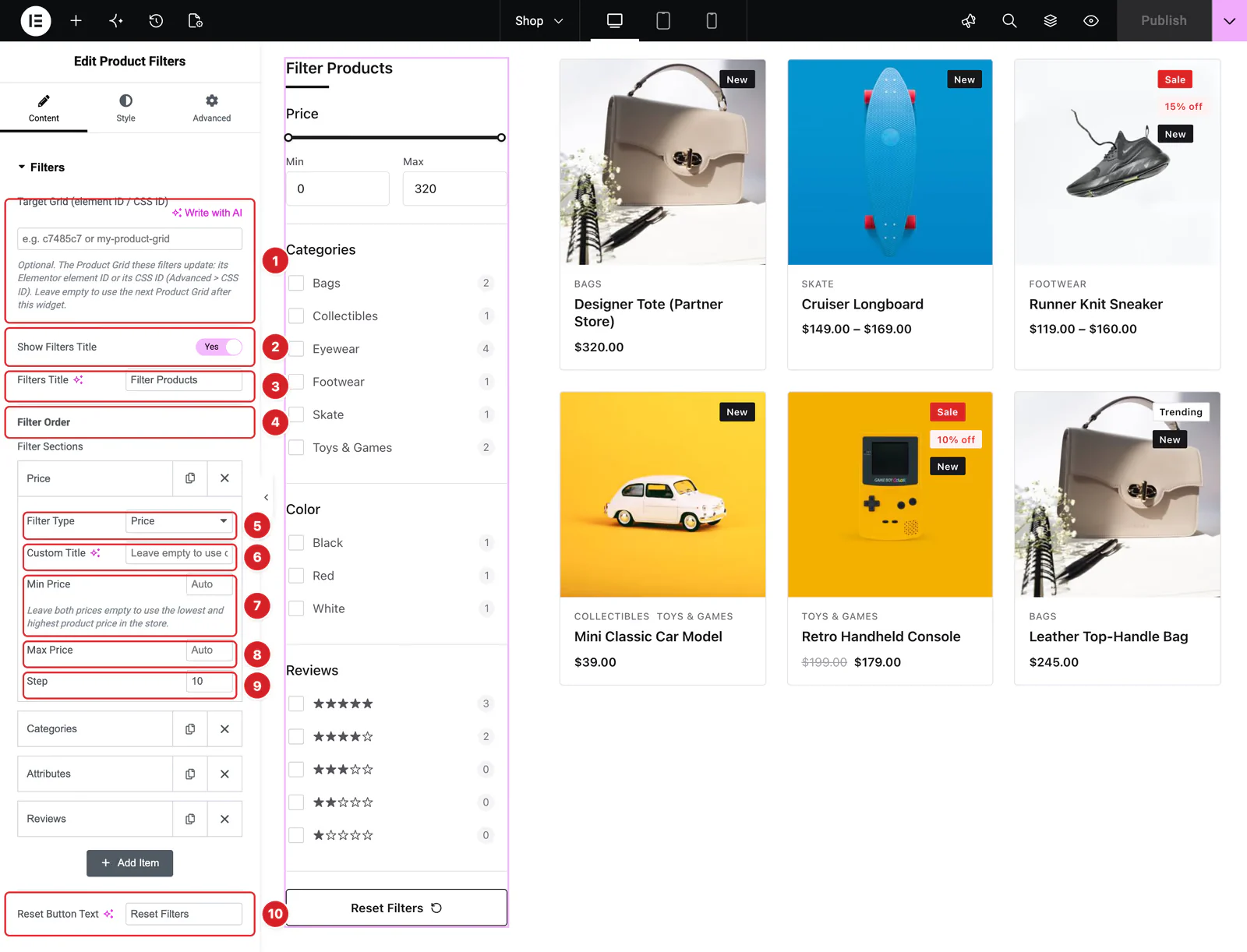
Target Grid (element ID / CSS ID): Which Product Grid the filters update. Leave it empty to use the next Product Grid after the filters on the page or template, or the closest one before them. To pick one, give the grid (or a container around it) a CSS ID under Advanced → CSS ID and type that ID here; the grid's Elementor element ID works too.
- 2
Show Filters Title: Shows a title above the filters. On by default.
- 3
Filters Title: The title's text, “Filter Products” by default.
- 4
Filter Order: The Filter Sections list under it holds one item per group of filters, in the order shoppers see them. Drag items to reorder them, click Add Item for another group and the × to remove one. The default list is Price, Categories, Tags and Attributes. Click an item to open its fields.
- 5
Filter Type: What the group filters by: Categories, Tags, Brands, Price, Reviews or Attributes. A new item starts as Categories.
- 6
Custom Title: The group's heading. Leave it empty for the default: Categories, Tags, Brands, Price, Reviews or the attribute's name.
- 7
Min Price: Price groups only: the low end of the slider. Leave Min Price and Max Price empty to use the lowest and highest product price in your store, rounded out to the Step. Entering exactly 0 and 1000 counts as empty too, because those were the old default values.
- 8
Max Price: The high end of the slider.
- 9
Step: How far the slider moves at a time, 10 by default.
- 10
Reset Button Text: The text of the button under the filters that clears them all, “Reset Filters” by default.
An Attributes item has a Select Attributes field in place of the price fields. Pick one or more of your global attributes (Products → Attributes), such as Color or Size, and the item shows a group for each.
The Attributes item in the default list has no attribute picked, so it shows nothing until you choose one under Select Attributes. A Custom Title on an Attributes item is used for every attribute in it: add one item per attribute to give each its own heading. Only the first Price item is shown, since a filter request holds one price range.
What Shoppers See
 (Open the full-size image in a new tab)
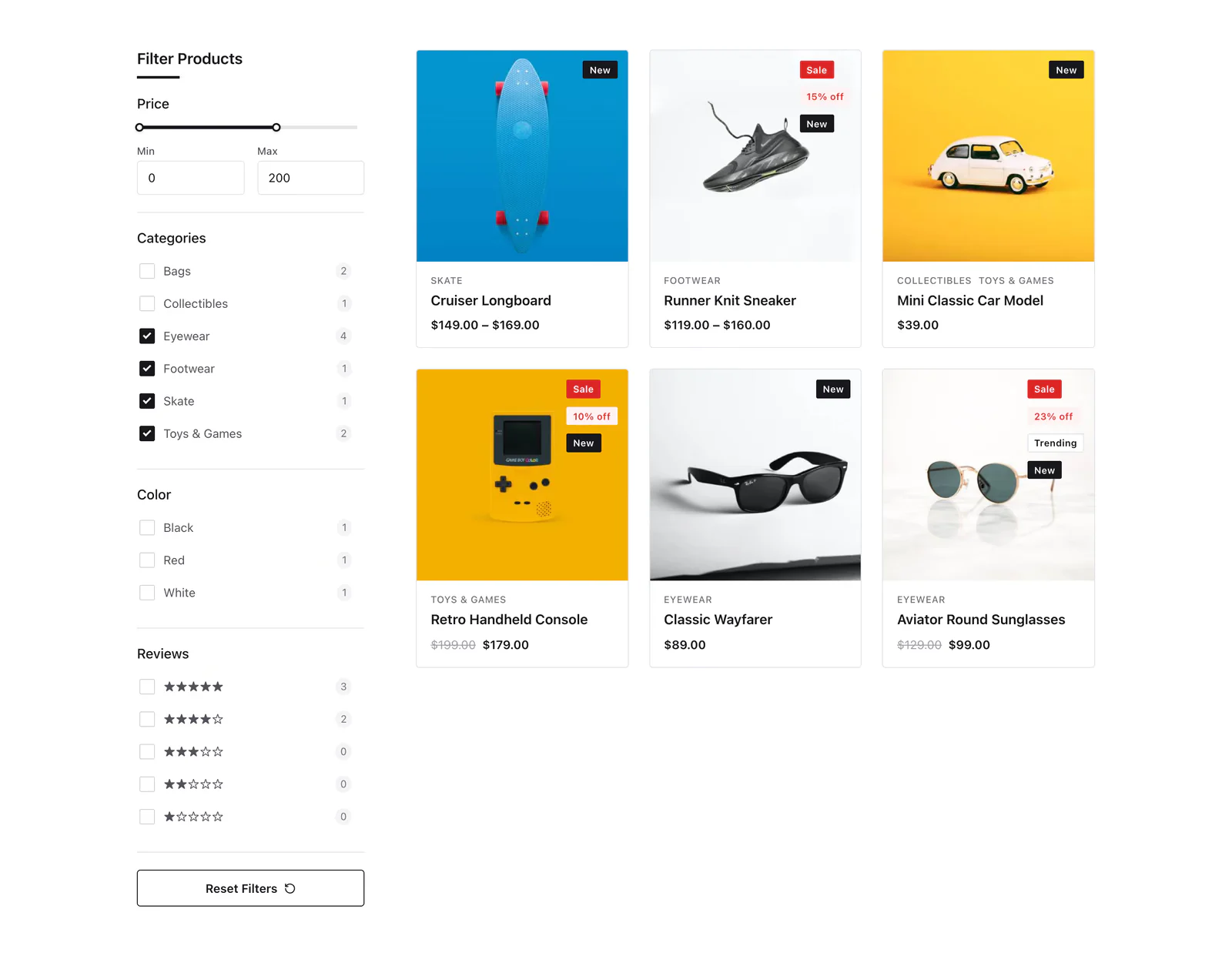
Each filter type shows as its own group:
- Price — a slider with Min and Max fields. Shoppers drag the handles or type a price. A price counts only once it is narrower than the slider's full range, so an end left untouched stays open. A variable product matches when its lowest or highest price is in the range.
- Categories, Tags and Brands — a checkbox for each one that has products, with its product count. Categories are one flat list, so sub-categories are not indented, and Uncategorized appears when products sit in it. Brands are WooCommerce's product brands. A group with nothing to list is hidden.
- Attributes — a checkbox for each term of the attribute, such as Black, Red and White, with its count.
- Reviews — five rows from five stars down to one. A product belongs to the row its average rating rounds to, so 4.5 counts as five stars and 3.5 as four. Products without reviews are in no row.
Ticking several boxes in one group shows products that match any of them; groups narrow each other down. In the screenshot, four categories are ticked and the maximum price is 200. The counts are store-wide totals and don't change while shoppers filter. Long lists scroll inside their group.
The grid dims and shows a spinner while it loads, then shows the matching products. Every change starts again at page 1, and the grid's own page numbers keep the filters when shoppers move between pages. When the grid shows WooCommerce's result count (its Columns Filter bar), the count updates too. If nothing matches, the grid gives way to “No products match your filters.” and a button that resets them. Reset Filters clears every box and the price and shows the grid's products again.
The filters are not added to the page address, so reloading the page or sharing its link shows the grid unfiltered. Each filter request runs the grid's saved query again on the server, so changes to the grid apply to filtering once you save them. On a draft or another unpublished page, filtering works only for users who can edit that page, as in your own preview.
Style the Product Filters
Everything below is on the Style tab.
- Filter : Header Title — the title's Color, the Border Color of the short line under it, Typography and Margin. Shown while Show Filters Title is on.
- Filter : Items — four tabs. Wrap styles each group's box: background, padding, border, radius and shadow, the Items Gap between groups and the Scrollbar colors of long lists. Titles sets the group headings' color, typography and margin. List sets the Text Color, the Active Text Color of ticked options, the Reviews Color of the stars, the typography and the Checkbox colors, size, radius and Item Gap. Count styles the count badges, with Hover and Active colors.
- Filter : Price — on the Slider tab, the Bar Color, the Range Color of the selected part, the Handle Color and Focus Color. On the Input tab, the Min and Max labels and the fields' text, background, border, focus colors, radius and margin.
- Filter : Reset Button — Normal and Hover states: text color, background, border and shadow, plus typography, padding, radius and a Focus Border Color.
Can't find what you need?
Our support team can help with setup questions and anything the docs don't cover yet.