
The Product Carousel widget by Atomic Addons shows your WooCommerce products as a row of cards that slides sideways. The cards are the same as in the Product Grid widget: the product image, category, name, price and rating, badges such as Sale and New, and an add to cart button with quick actions on hover. You choose which products appear, how many cards show at once and how shoppers move through them: arrows, dots, a counter, a progress bar or autoplay. This guide covers adding the widget, choosing the products and setting up the cards and the carousel.
Enable the Product Carousel Widget
Product Carousel is a Pro widget and needs Atomic Addons Pro and WooCommerce. Switch it on from the plugin dashboard:
- 1
Go to WordPress Dashboard → Atomic Addons.
- 2
Click the Widgets tab.
- 3
Search for Product Carousel. You can also open the WooCommerce category.
- 4
Turn the Product Carousel widget on.
- 5
Click Save Settings.
Add the Product Carousel Widget
Product Carousel works on any page:
- 1
Open the page in Elementor (Edit with Elementor).
- 2
In the widget panel, search for Product Carousel. The widget sits in the Atomic Addons Pro category.
- 3
Drag it into the page and set it up with the controls below.
- 4
Click Publish (or Update).
It fits a row of products on a home or landing page, such as your newest products or the ones on sale: you pick them in the Query section.
Layout
 (Open the full-size image in a new tab)
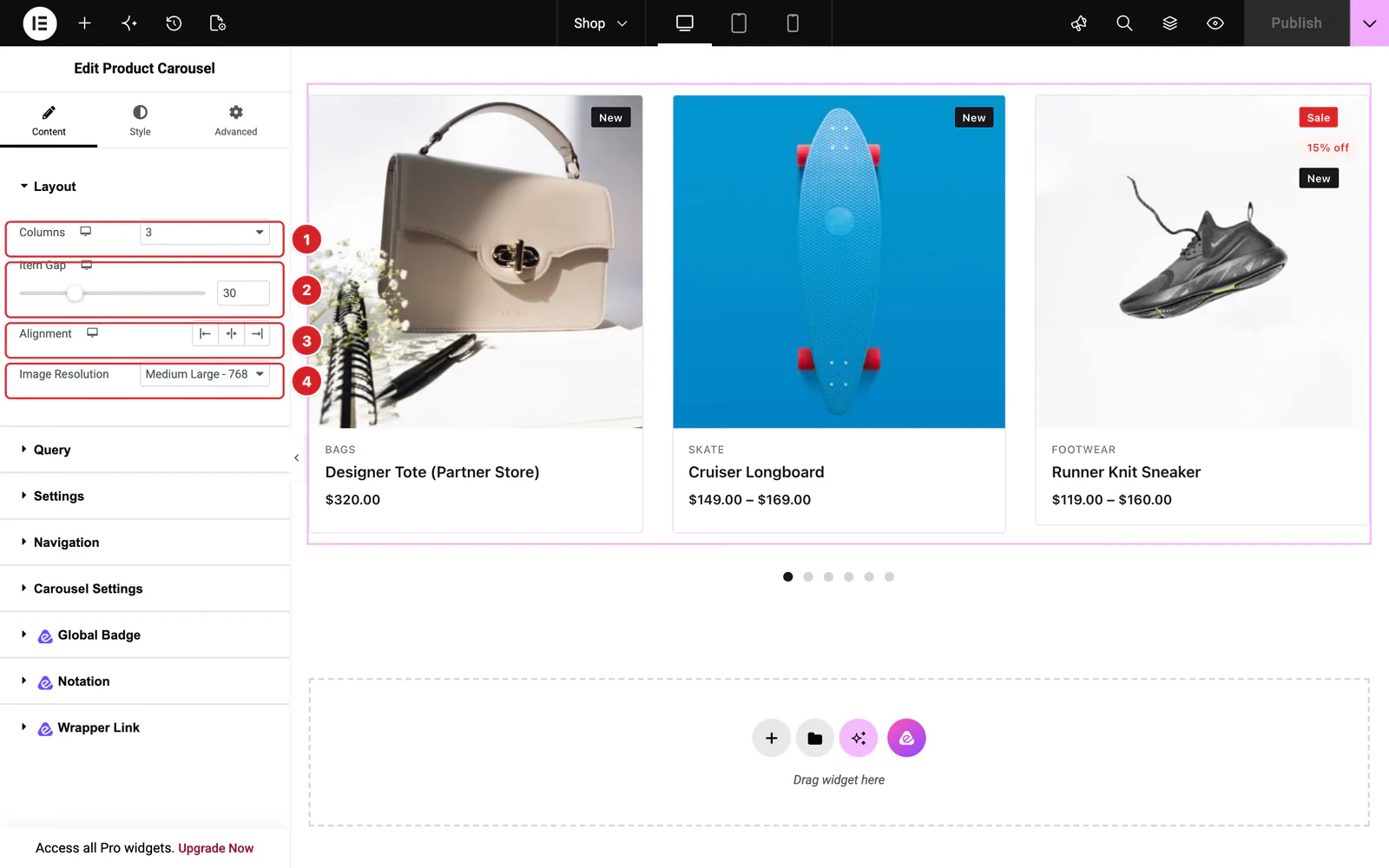
Open the widget and go to Content → Layout:
- 1
Columns: How many cards show at once, 1 to 6: 3 by default, 2 on tablets and 1 on phones. Use the device icon to change the tablet and phone numbers.
- 2
Item Gap: The space between cards: 30px by default, 20px on tablets and phones.
- 3
Alignment: Left, center or right alignment of the text in each card.
- 4
Image Resolution: Which image size WordPress serves for the cards. The default, Medium Large, is sharp at three or four columns.
 (Open the full-size image in a new tab)
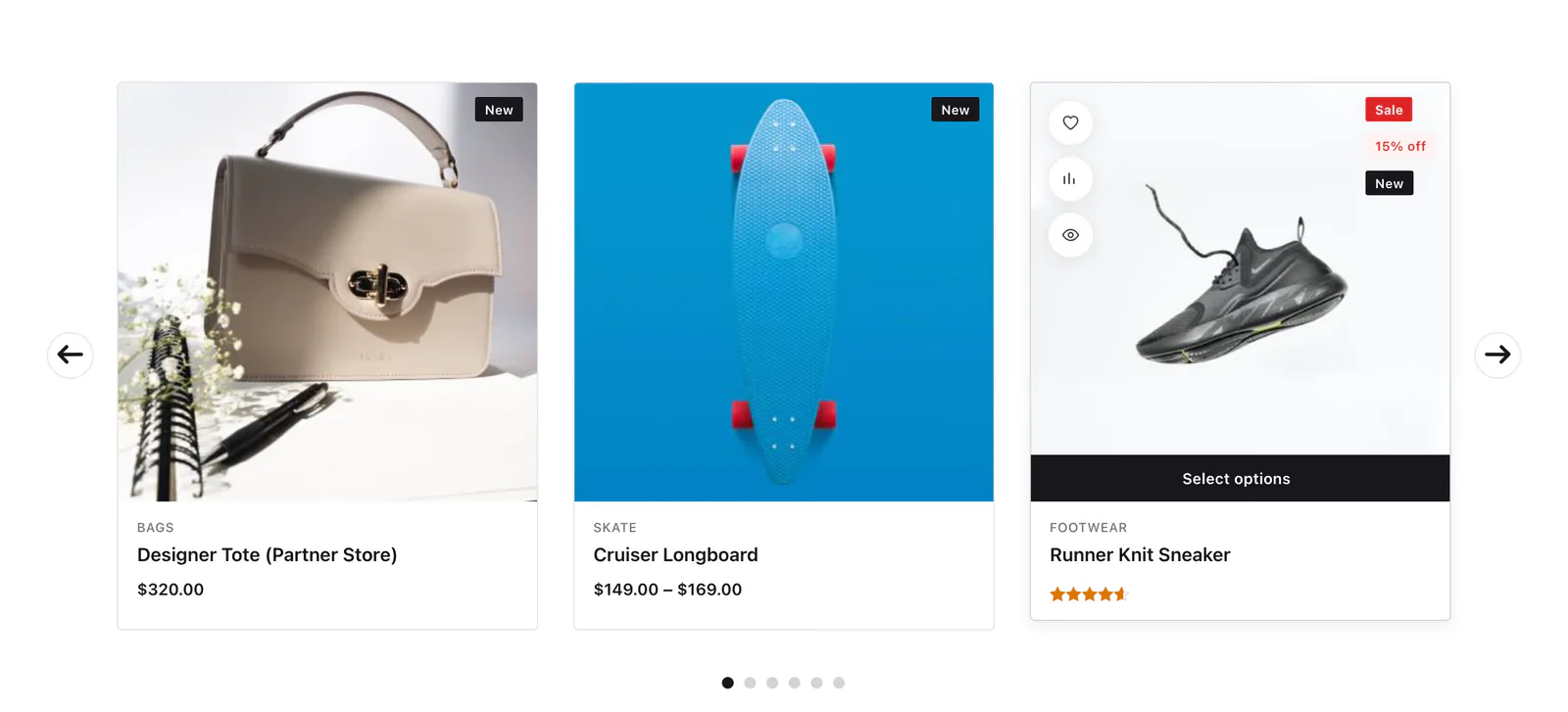
When a shopper points at a card, its image changes to the product's first gallery image, the add to cart button appears along the bottom of the image and the quick action buttons show up. For a product with reviews, the stars take the place of the price. The button reads whatever WooCommerce uses for the product type, such as Add to cart, or Select options for a variable product.
Query
 (Open the full-size image in a new tab)
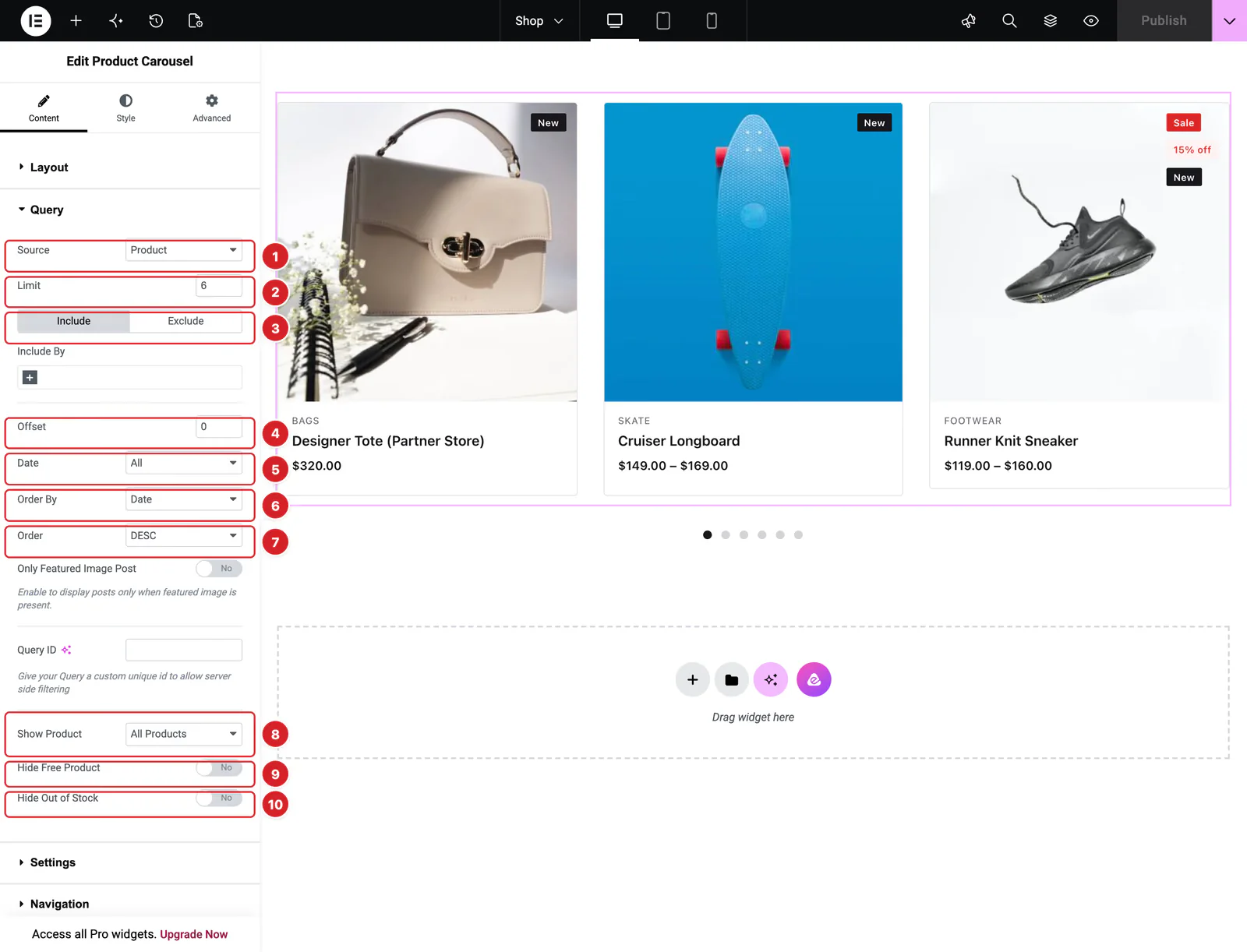
Content → Query decides which products appear:
- 1
Source: Product, the default, picks from all your products with the filters below. Manual Selection shows only the products you search for and pick. Current Query shows the products of the page being viewed — the shop, a category, a tag or search results; the editor may not show them until you save and reload. Related shows, on a product page, products by the same author as the one being viewed; narrow it down with Include By → Terms, and add Exclude By → Current Post to leave out the product itself.
- 2
Limit: How many products the carousel holds, 6 by default.
- 3
Include / Exclude: Include By keeps only products in the Terms you pick (categories or tags) or by the Authors you pick. Exclude By leaves out terms, authors, the Current Post or products you pick with Manual Selection.
- 4
Offset: Skips this many products from the start of the list.
- 5
Date: Only products published in the past day, week, month, quarter or year, or between a Before and an After date with Custom.
- 6
Order By: Date (the default), Title, ID, Author, Comment Count, Menu Order, Random, Price or Sales.
- 7
Order: DESC puts the newest, most expensive or best-selling first; ASC reverses it.
- 8
Show Product: All Products, only products On Sale, or only Featured products.
- 9
Hide Free Product: Leaves out products with no price.
- 10
Hide Out of Stock: Leaves out products that are out of stock.
Only Featured Image Post leaves out products without an image. Query ID is for developers: it gives the query a name that custom code can filter.
With Current Query the page's own query decides which products show and in what order, so the filters and order settings are hidden. Limit still sets how many appear.
Card Content, Badges and Buttons
 (Open the full-size image in a new tab)
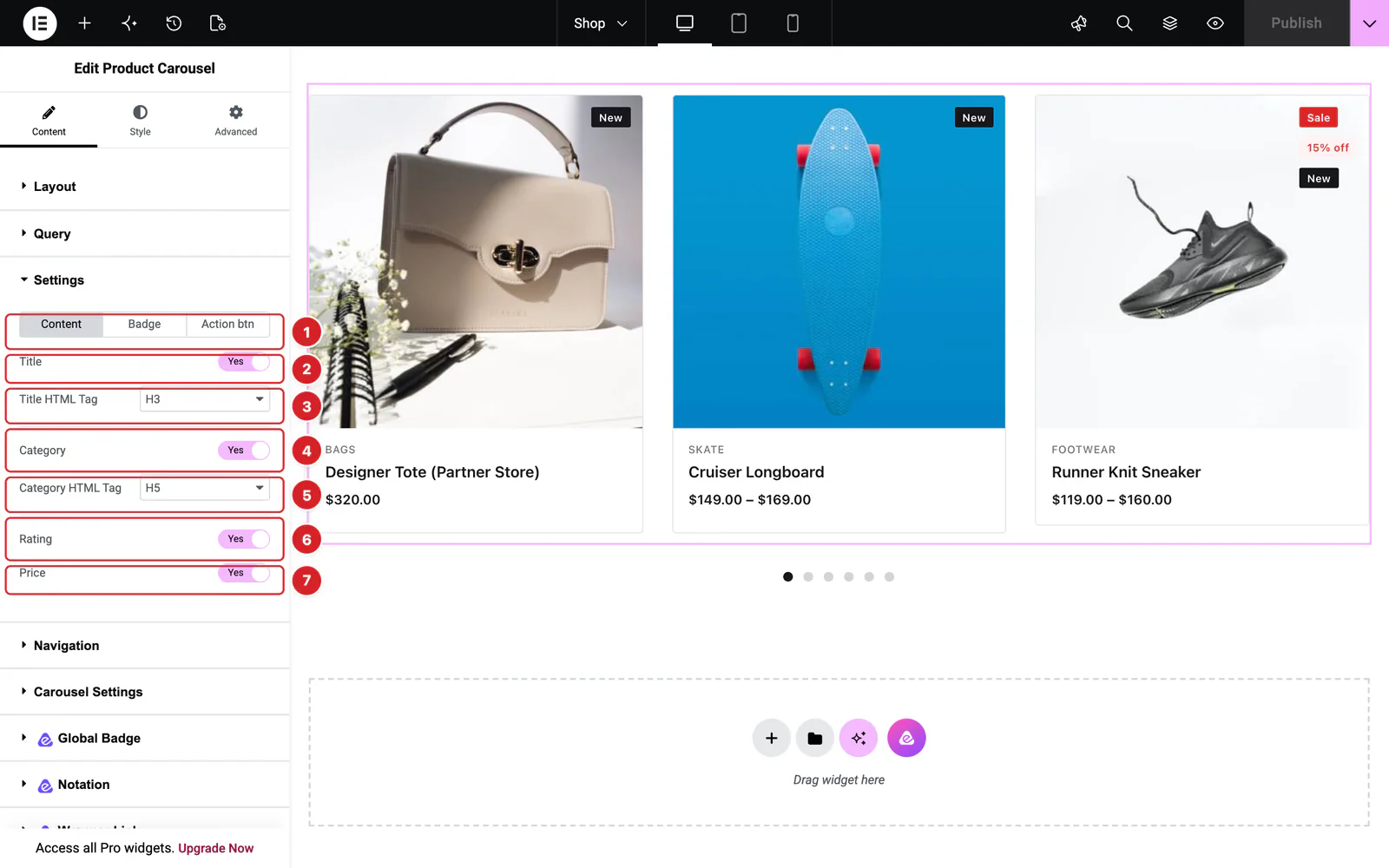
Content → Settings picks what each card shows:
- 1
Tabs: Content, Badge and Action btn, each described here.
- 2
Title: The product name, linked to the product.
- 3
Title HTML Tag: The name's markup: H1 to H6, div, span or p. H3 by default.
- 4
Category: The product's categories, above the name.
- 5
Category HTML Tag: The categories' markup, H5 by default.
- 6
Rating: The star rating. Products without reviews show no stars.
- 7
Price: The price, with the regular price struck through while a product is on sale.
The Badge tab chooses the labels in the corner of the image:
- Sale — on products that are on sale.
- Percentage — the discount, such as “15% off”.
- Stock Status — In Stock, Out of Stock or On Backorder. Off by default.
- Trending — on your featured products, the ones starred in Products → All Products.
- New — on products published within the Newness Days, 30 by default.
The Action btn tab switches the buttons on the image: Wishlist, Compare, Quick View and Add to Cart. Wishlist, Compare and Quick View appear only while their extensions are on (Atomic Addons → WooCommerce → Extensions). See the Product Wishlist, Product Compare and Quick View guides.
Navigation
 (Open the full-size image in a new tab)
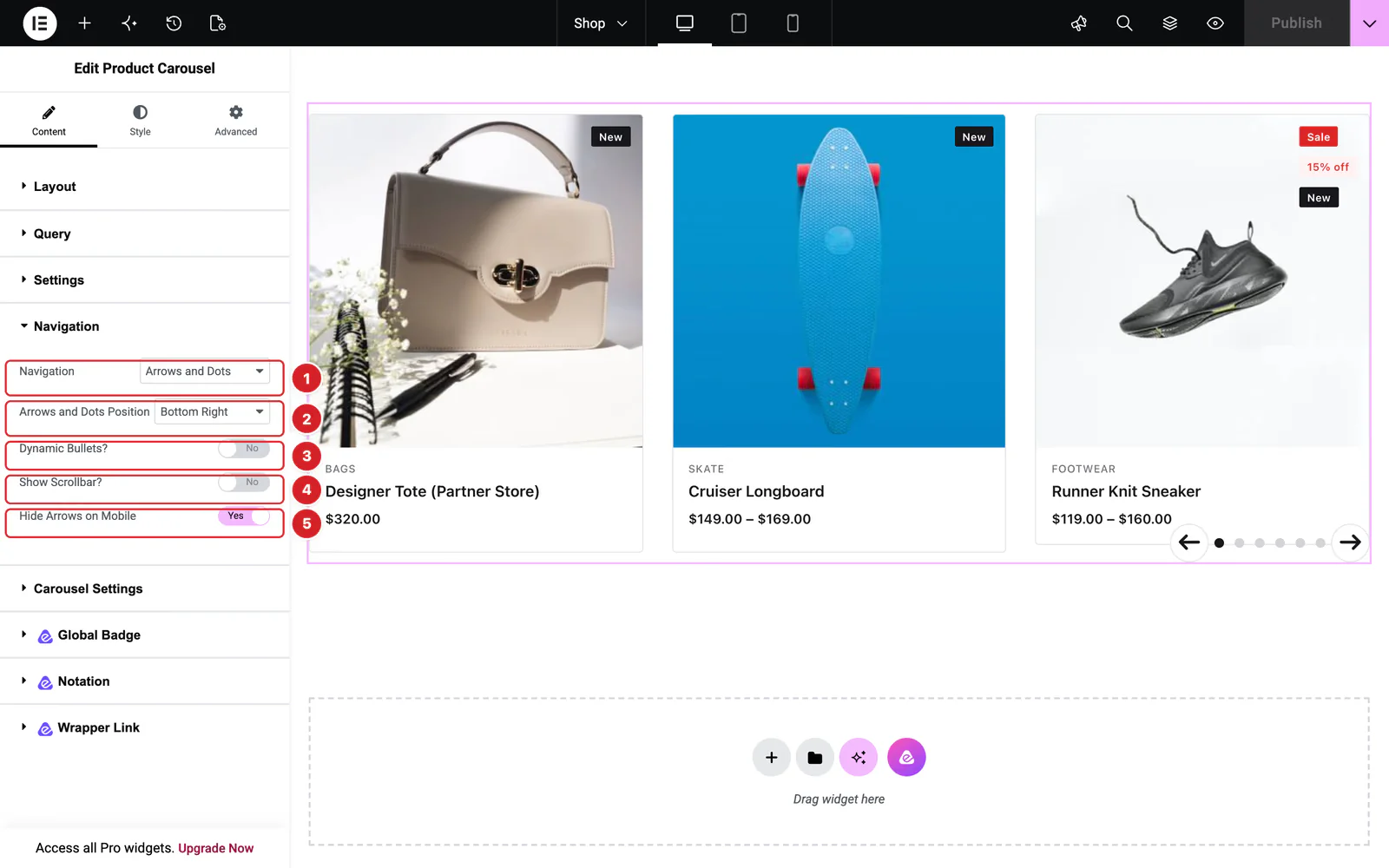
Content → Navigation sets the controls shoppers use to move the carousel. They can also swipe or drag the cards.
- 1
Navigation: Arrows, the default, adds previous and next buttons. Arrows and Dots adds a dot for each position as well, and Arrows and Fraction a counter such as “1 / 6”. Dots shows only the dots, Progress a bar that fills as the carousel moves, and None nothing.
- 2
Arrows and Dots Position: Where the controls sit. Its name follows your choice above: Arrows Position, Arrows and Fraction Position and Arrows and Dots Position offer nine places around the carousel, Center by default, which puts the arrows at the sides; Dots Position offers eight, Bottom Center by default.
- 3
Dynamic Bullets?: With dots: shows only a few dots at a time, smaller the further they are from the current one. Useful when the carousel holds many products.
- 4
Show Scrollbar?: Adds a draggable bar under the cards. It appears while the carousel moves and fades out a second later.
- 5
Hide Arrows on Mobile: Hides the arrows on screens narrower than 960px, where shoppers swipe. On by default.
At Center, the arrows sit 60px outside the cards, so in a full-width section they can fall off the screen. Pull them in with the Arrows Horizontal Offset (or Arrows Offset) slider under Style → Navigation, or give the section some side padding.
With Progress, the bar runs along the bottom of the cards by default; set Progress Position to Top to move it above them. Progress Offset under Style → Navigation nudges it up or down.
Carousel Settings
 (Open the full-size image in a new tab)
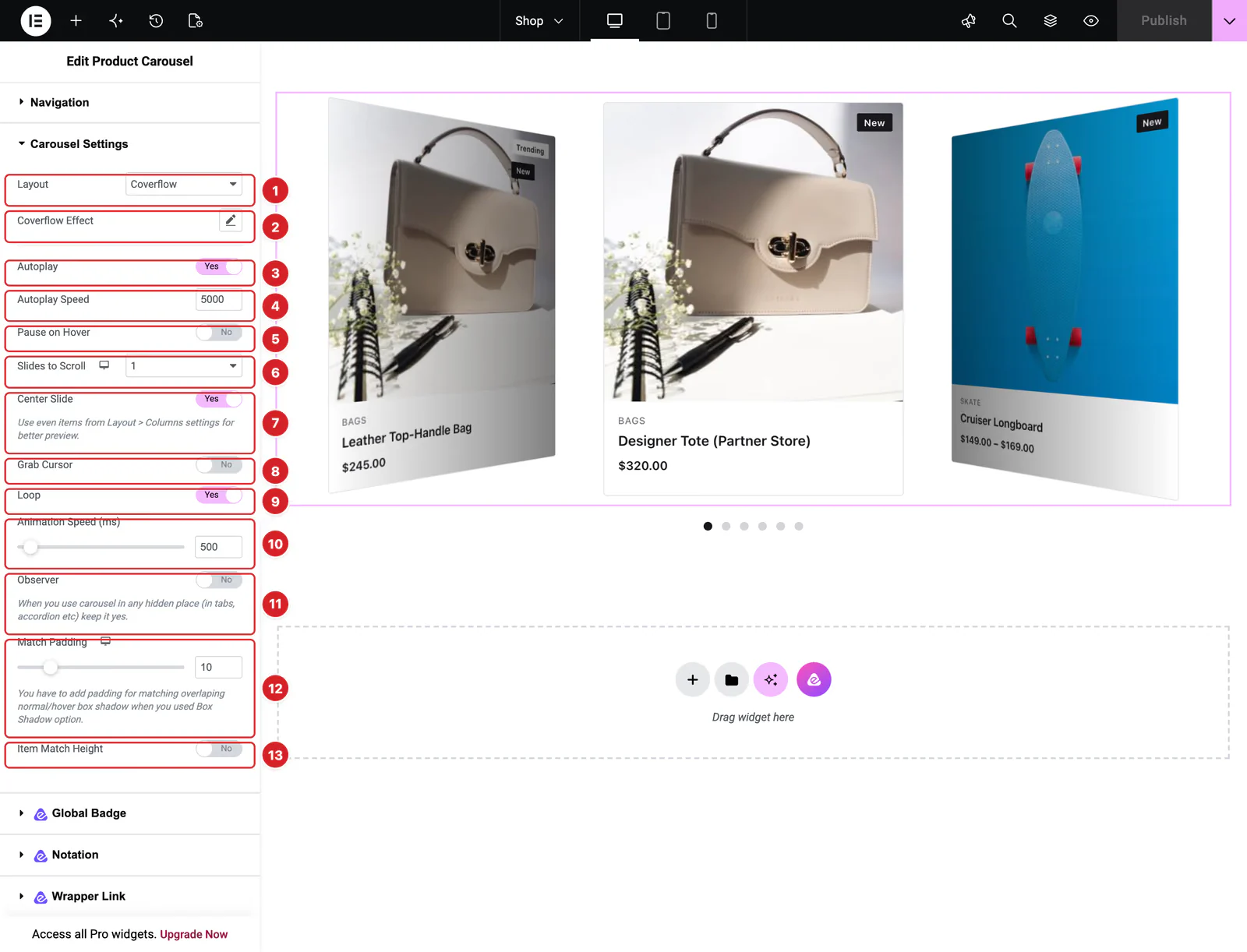
Content → Carousel Settings controls how the carousel moves:
- 1
Layout: Carousel, the default, slides the cards in a flat row. Coverflow turns the cards beside the current one away in 3D, as in the preview above, where Center Slide is on.
- 2
Coverflow Effect: Coverflow only: Rotate sets how far the side cards turn (50 by default), Stretch the space between them (0), Depth how far back they sit (100) and Modifier multiplies the whole effect (1).
- 3
Autoplay: Moves the carousel on by itself. On by default.
- 4
Autoplay Speed: How long each position stays, in milliseconds: 5000, or 5 seconds, by default.
- 5
Pause on Hover: Stops autoplay while the pointer is over the carousel. Off by default.
- 6
Slides to Scroll: How many cards each move advances, 1 by default. Use the device icon to set it for tablets and phones.
- 7
Center Slide: Keeps the current card in the middle, with the others on either side. The panel's hint suggests an even number of Columns.
- 8
Grab Cursor: Shows a hand cursor over the cards, a hint that they can be dragged.
- 9
Loop: Starts again from the first product after the last one. On by default. When the carousel holds no more products than it shows at once, loop turns itself off so the same cards don't repeat side by side.
- 10
Animation Speed (ms): How long one move takes, 500 by default.
- 11
Observer: Turn it on when the carousel sits in a tab, an accordion or a popup that is hidden when the page loads, so it sizes itself when it appears.
- 12
Match Padding: Space around the row of cards, 10px by default, so a box shadow you give the cards isn't cut off at the edges.
- 13
Item Match Height: Stretches every card to the height of the tallest one, so their borders line up. Off by default, which lets a card with less content stay shorter than its neighbors.
Style the Product Carousel
Everything below is on the Style tab. Sections that belong to a feature you turned off are hidden.
- Items — the card: background, border, border radius, padding and shadow, with a Hover state.
- Image — the image area's background, border, radius, padding and shadow.
- Content — the text area under the image: background, border, radius and padding.
- Title, Category and Price — colors, hover colors, spacing and typography. Price has separate Regular Color and Sale Color.
- Rating — the Color of empty stars and the Active Color of filled ones.
- Badge — the shared shape (border, radius, padding, spacing, typography), Display Type to stack the badges or set them in a row, and a color and background for each badge.
- Add to Cart — the button in Normal and Hover states, with its width and height.
- Navigation — the arrows in Normal and Hover states (color, background, border, radius, padding, size, spacing), the dots, the fraction counter, the progress bar and the scrollbar, plus Offset sliders that move the arrows and dots.
If no product matches the query, the widget shows a short notice in place of the carousel.
Can't find what you need?
Our support team can help with setup questions and anything the docs don't cover yet.