
The Cart Page widget by Atomic Addons puts the WooCommerce shopping cart into an Elementor layout you can style. It shows the cart's item table, a coupon field, the Update cart button, WooCommerce's cart totals and the checkout button, and it shows a clear empty-cart message when there is nothing in the cart. This guide covers adding the widget, choosing which columns show, and styling each part.
Enable the Cart Page Widget
Cart Page is a Pro widget and needs Atomic Addons Pro and WooCommerce. Switch it on from the plugin dashboard:
- 1
Go to WordPress Dashboard → Atomic Addons.
- 2
Click the Widgets tab.
- 3
Search for Cart Page. You can also open the WooCommerce category.
- 4
Turn the Cart Page widget on.
- 5
Click Save Settings.
Add the Cart Page Widget
 (Open the full-size image in a new tab)
The usual home for the widget is a Theme Builder template, which replaces the whole cart page:
- 1
Go to WordPress Dashboard → Atomic Addons → Theme Builder.
- 2
Click Add New and choose the Cart Page card.
- 3
Give the template a name and open it in Elementor. Its display condition is already set to WooCommerce → Cart Page, so it applies as soon as you publish it.
- 4
In the widget panel, search for Cart Page and drag it into the template. The widget sits in the Atomic Addons Pro category.
- 5
Design it with the controls below, then click Publish.
You can also drag the widget onto the page you have set as the cart in WooCommerce → Settings → Advanced.
Use one Cart Page widget per page. WooCommerce's own cart shortcode or block on the same page would show the cart twice.
Cart Layout
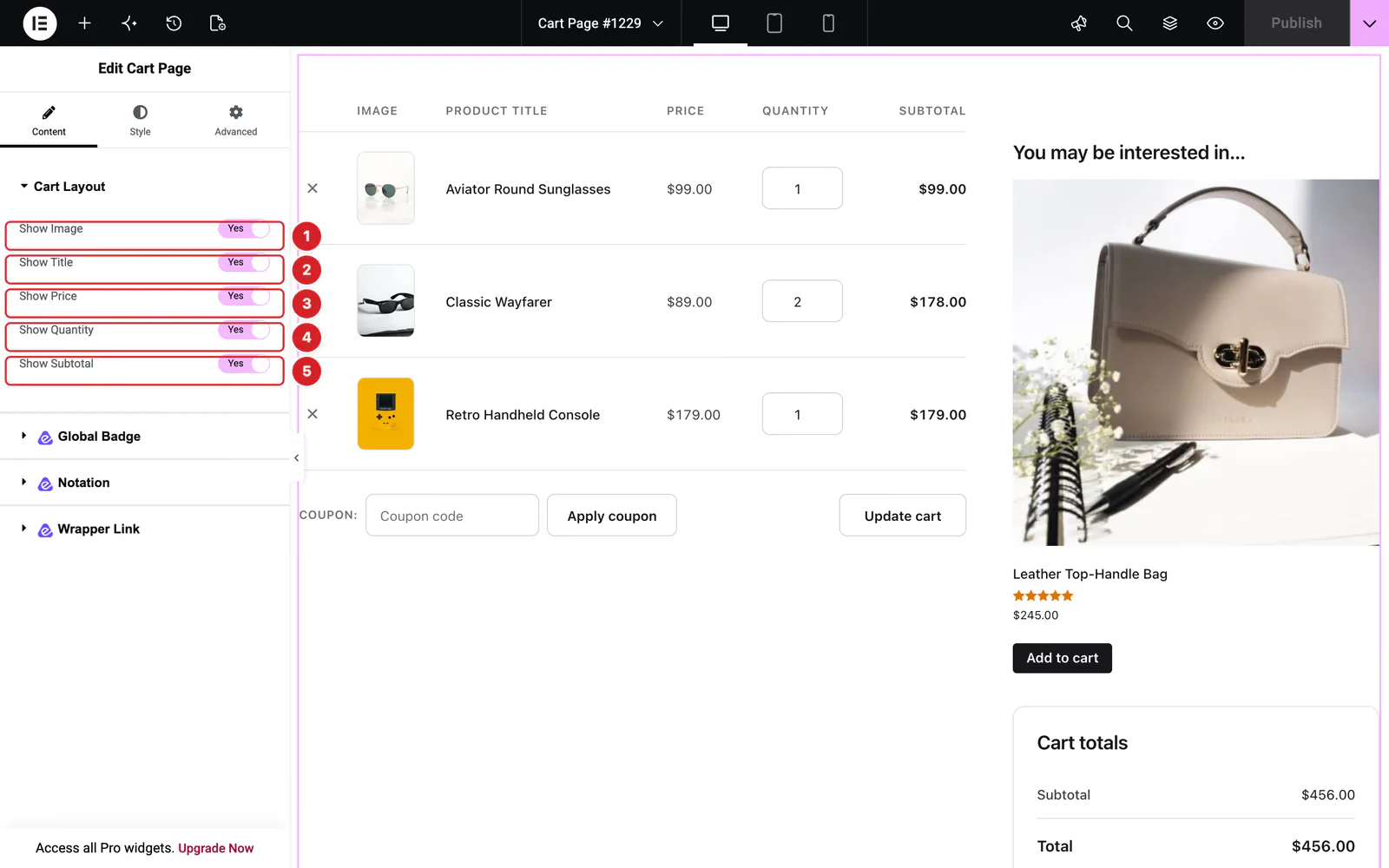
Open the widget and go to Content → Cart Layout. Each switch shows or hides one column of the item table, and all five are on by default:
- 1
Show Image: The product thumbnail, linked to the product page.
- 2
Show Title: The product name, with its variation details and a backorder notice when one applies.
- 3
Show Price: The price of one unit.
- 4
Show Quantity: The quantity field. A product sold individually shows a plain 1 instead.
- 5
Show Subtotal: The line total, price times quantity.
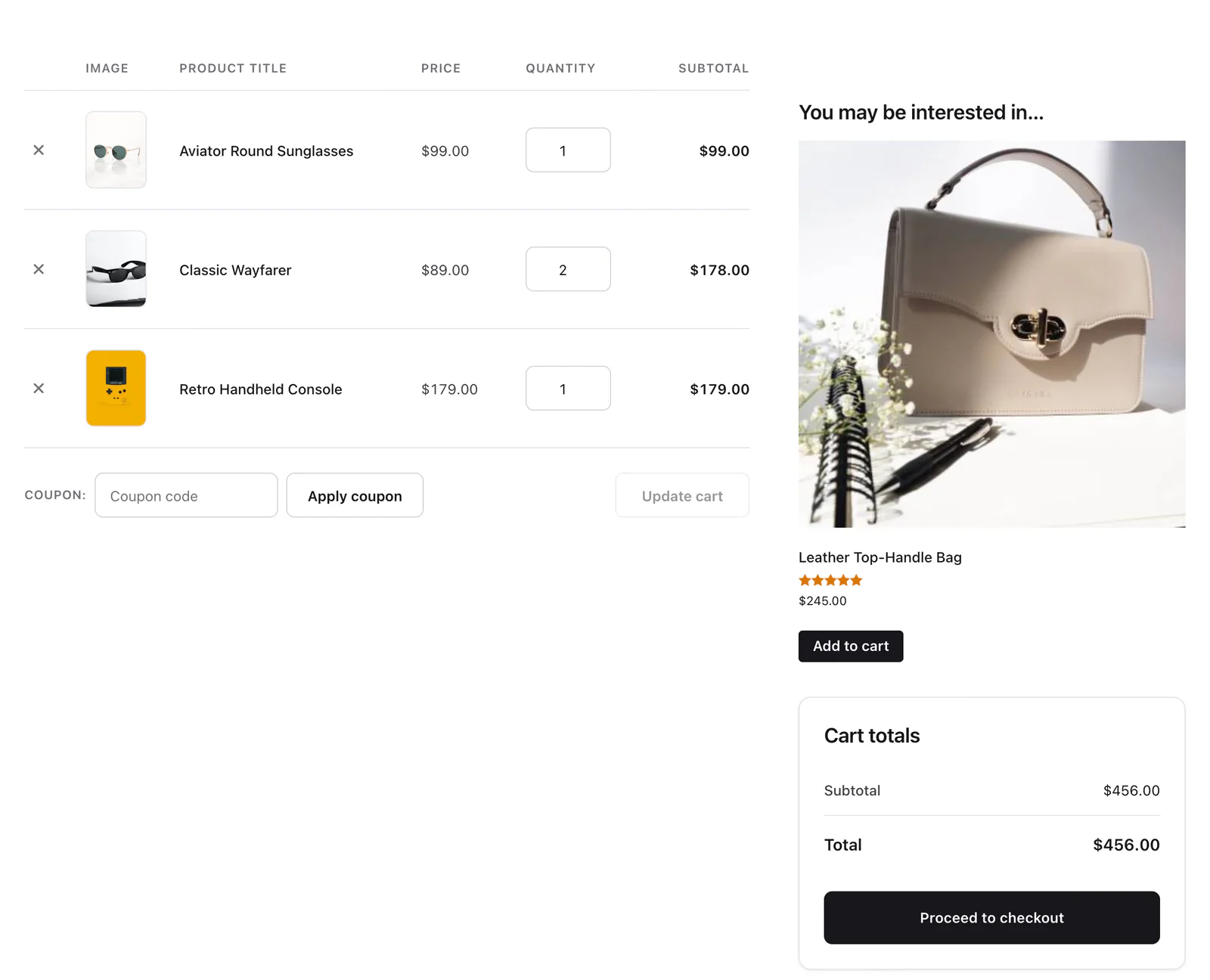
The remove button (×) in the first column always stays, so shoppers can take an item out. The row with the coupon field and the Update cart button stretches across whatever columns are left on.
The coupon field appears only when coupons are switched on in WooCommerce → Settings → General → Enable the use of coupon codes.
 (Open the full-size image in a new tab)
When the cart is empty, the widget shows WooCommerce's empty-cart message and its return-to-shop button instead of the table. On phones the table turns into one card per item, and on desktop the totals card sits beside the table.
Style the Cart Page
Everything below is under the Style tab. Each section matches a part of the page.
Cart Heading
The table's header row: Alignment, Color, Background, Border, Padding and Typography.
Cart Item
The product rows. This is the largest section:
- Cell Padding, Alignment, a Border for the table, and separate Even Row and Odd Row background colors for striped rows.
- Product Image — the image size, border and border radius.
- Product Title — color, hover color and typography.
- Product Price — color and typography.
- Product Quantity — the field's width, color, alignment, padding, border radius and typography.
- Product Sub Total — the line total's color.
Close Button
The remove (×) button. Style its Normal and Hover states: color, background, border, border radius, padding and icon size.
Coupon Style
Three parts of the coupon row: the Coupon Label, the Coupon Field (typography, padding, border, radius and width) and the Coupon Button with Normal and Hover states.
Cart Update Button
The Update cart button in Normal and Hover states: color, background, border, radius, padding, margin, width and typography.
Cart Collaterals
The totals card WooCommerce prints under the table, with its shipping calculator and any cross-sells. Style the Heading, the Table Body (background, border, padding, margin), the Subtotal row and the Total row, each with its own title and amount typography.
Checkout Button
The Proceed to checkout button in Normal and Hover states: color, background, border, radius, padding, margin and typography.
How the Cart Behaves
The widget is a design layer over WooCommerce's own cart, so everything WooCommerce does still works. Changing a quantity and clicking Update cart recalculates the totals, Apply coupon applies the code, stock limits are checked, and plugins that add to the cart, such as shipping calculators and cross-sells, keep working.
Can't find what you need?
Our support team can help with setup questions and anything the docs don't cover yet.