
The Product Stock widget by Atomic Addons shows whether the product is in stock, on backorder or out of stock in a product page design. For a product in stock it can add the number left, the number sold and a bar of how much stock remains. This guide covers adding the widget, choosing what it shows and styling it.
Enable the Product Stock Widget
Product Stock is a Pro widget and needs Atomic Addons Pro and WooCommerce. Switch it on from the plugin dashboard:
- 1
Go to WordPress Dashboard → Atomic Addons.
- 2
Click the Widgets tab.
- 3
Search for Product Stock. You can also open the WooCommerce category.
- 4
Turn the Product Stock widget on.
- 5
Click Save Settings.
Add the Product Stock Widget
The widget belongs in a Theme Builder template for products, usually above the Add To Cart widget:
- 1
Go to WordPress Dashboard → Atomic Addons → Theme Builder.
- 2
Click Add New and choose the Single Product card.
- 3
Give the template a name and open it in Elementor. Its display condition is already set to WooCommerce → Product, so it applies as soon as you publish it.
- 4
In the widget panel, search for Product Stock and drag it into the template. The widget sits in the Atomic Addons Pro (Single) category.
- 5
Design it with the controls below, then click Publish.
In the editor the template previews a sample product: the one picked under Builder Settings → Builder Post in the template's page settings (click Apply & Preview), or your newest product if none is picked. On your store, each product page shows its own stock; anywhere else the widget falls back to your newest product. The widget appears in the panel only while you edit a Theme Builder template, a saved Elementor template or a product.
Product Stock Settings
 (Open the full-size image in a new tab)
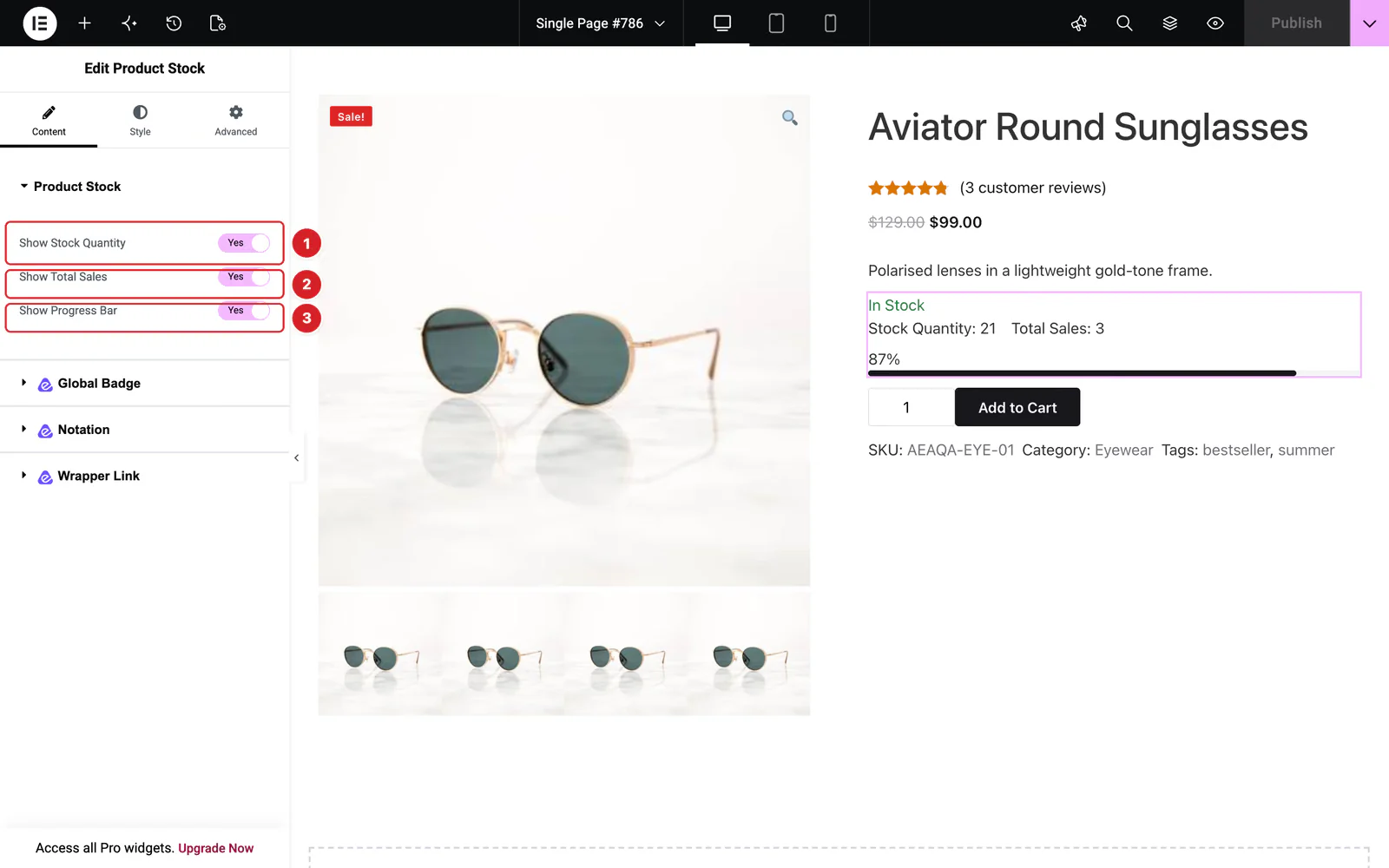
Open the widget and go to Content → Product Stock. All three lines are on by default and show only for a product in stock:
- 1
Show Stock Quantity: “Stock Quantity:” and the number of units in stock.
- 2
Show Total Sales: “Total Sales:” and the number of units sold so far, from WooCommerce's sales count.
- 3
Show Progress Bar: A bar with a percentage of the stock left: the units in stock divided by the units in stock plus the units sold. 21 in stock and 3 sold makes 87%.
The stock quantity and the bar need Track stock quantity for this product on in the product's Inventory tab. Without it, only the units sold appear.
What the Widget Shows
 (Open the full-size image in a new tab)
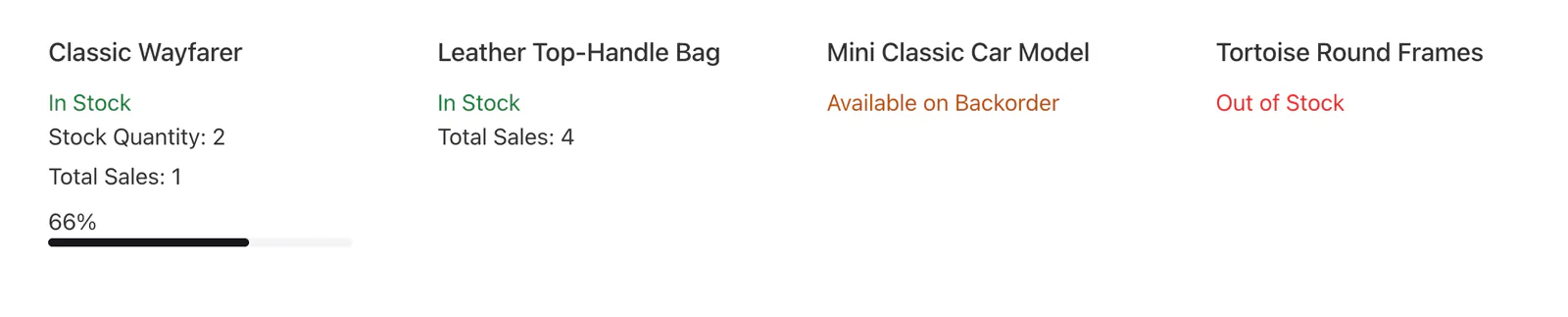
The widget prints one of three labels:
- In Stock — followed by the lines you switched on.
- Available on Backorder — the label only.
- Out of Stock — the label only.
These are the widget's own labels, not WooCommerce's stock text such as “2 in stock”, and there is no low stock state: a product with two left shows In Stock and a quantity of 2. For a variable product the widget uses the product's own stock settings, not its variations': stock tracked per variation doesn't appear, and choosing an option doesn't change the widget.
Style the Product Stock
Everything below is on the Style tab.
Stock Status
The label: Color, Background (classic or gradient), Border, Border Radius, Padding, Box Shadow and Typography, enough to turn it into a badge. Margin sets the space around it and Alignment places it left (the default), center or right. By default each status has its own text color: green for In Stock, amber for Available on Backorder and red for Out of Stock. Color replaces all three; to style one status alone, use custom CSS on aea-product-stock--in-stock, aea-product-stock--on-backorder or aea-product-stock--out-of-stock.
Stock Quantity / Sales
Shown while Show Stock Quantity or Show Total Sales is on. Text Color and Count Color style the words and the numbers, then Text Typography and Margin. Direction sets the two lines in a Row or a Column; once you pick one, Justify Content (row) or Align Items (column) positions them, and Gap sets the space between them.
Progress Bar
Shown while Show Progress Bar is on: Percentage Color and Percentage Typography for the number above the bar, Progress Base Color for the track, Progress Fill Color for the filled part, Border Radius, and Height, 6px by default.
Can't find what you need?
Our support team can help with setup questions and anything the docs don't cover yet.