
The Variation Swatches extension by Atomic Addons replaces the dropdowns on variable products with clickable swatches: color dots, image thumbnails, short labels or buttons. You choose a swatch type for each product attribute once, and every variable product that uses the attribute shows swatches. This guide covers the attribute and term settings, per-product overrides and the result on the product page.
Enable the Variation Swatches Extension
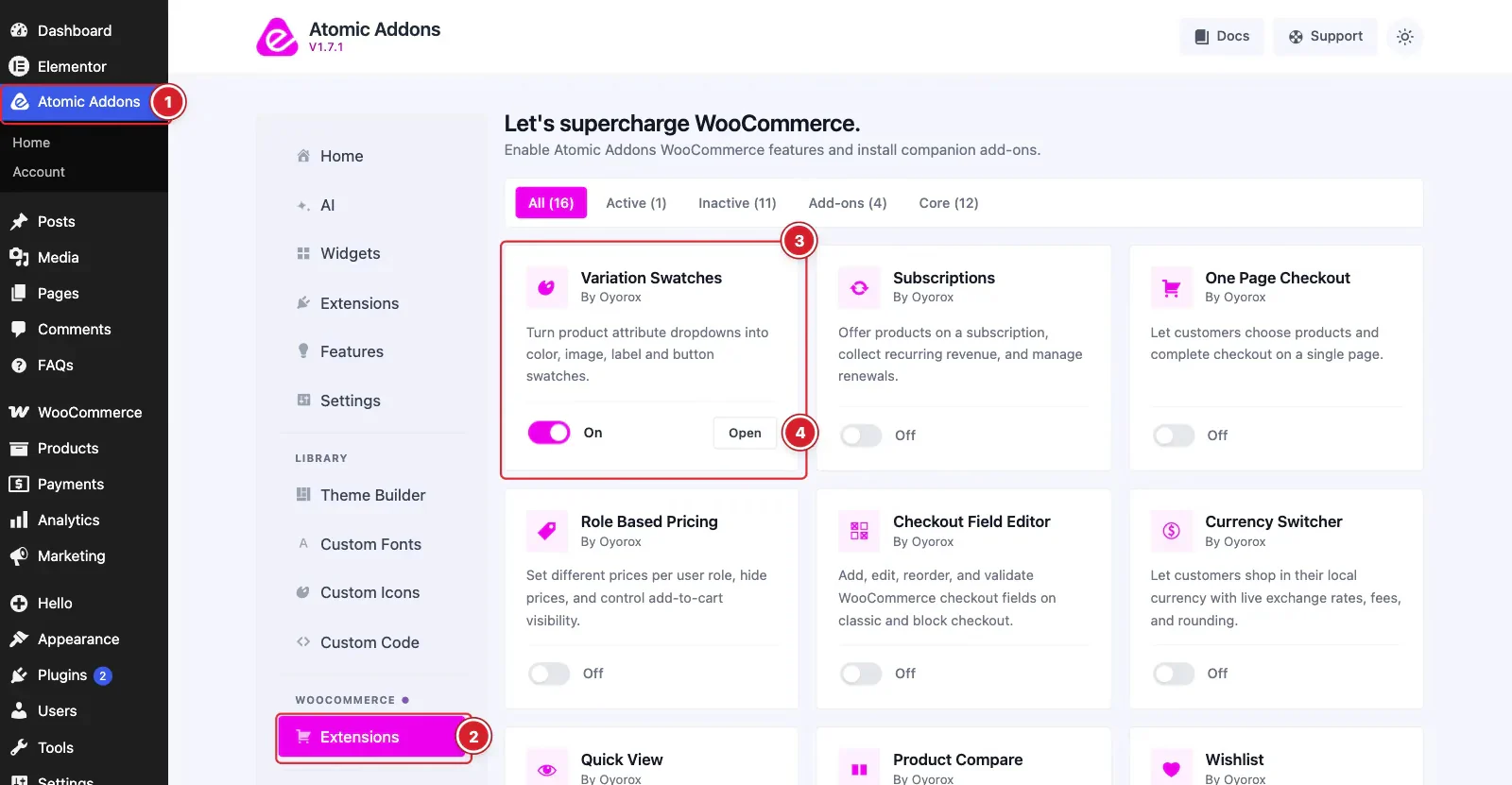 (Open the full-size image in a new tab)
WooCommerce must be installed and active. Then switch the extension on from the Atomic Addons dashboard:
- 1
Go to WordPress Dashboard → Atomic Addons.
- 2
Under WooCommerce, click Extensions.
- 3
Find the Variation Swatches card and turn its switch On.
- 4
Click Open to open the extension's settings.
The extension's dialog has no settings of its own: swatches are configured per attribute, as shown below.
Choose a Swatch Type for an Attribute
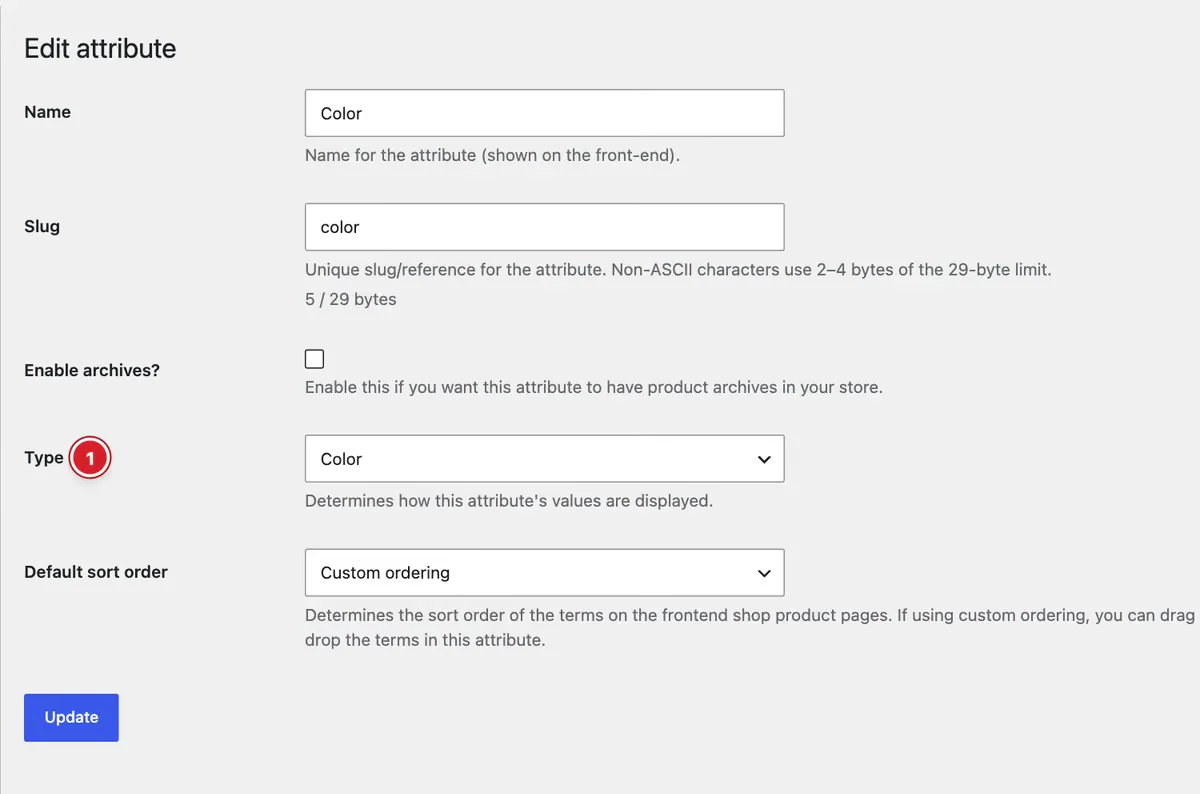 (Open the full-size image in a new tab)
Go to Products → Attributes and edit an attribute, or add a new one:
- 1
Type: Color shows color dots, Image shows thumbnails, Label shows short text such as “S” or “XL”, and Button shows each value's name as a button.
- 2
Update: Click to save the attribute.
Attributes left on WooCommerce's default type, and custom attributes added inside a product, are shown as buttons automatically.
Set Each Value's Color, Image or Label
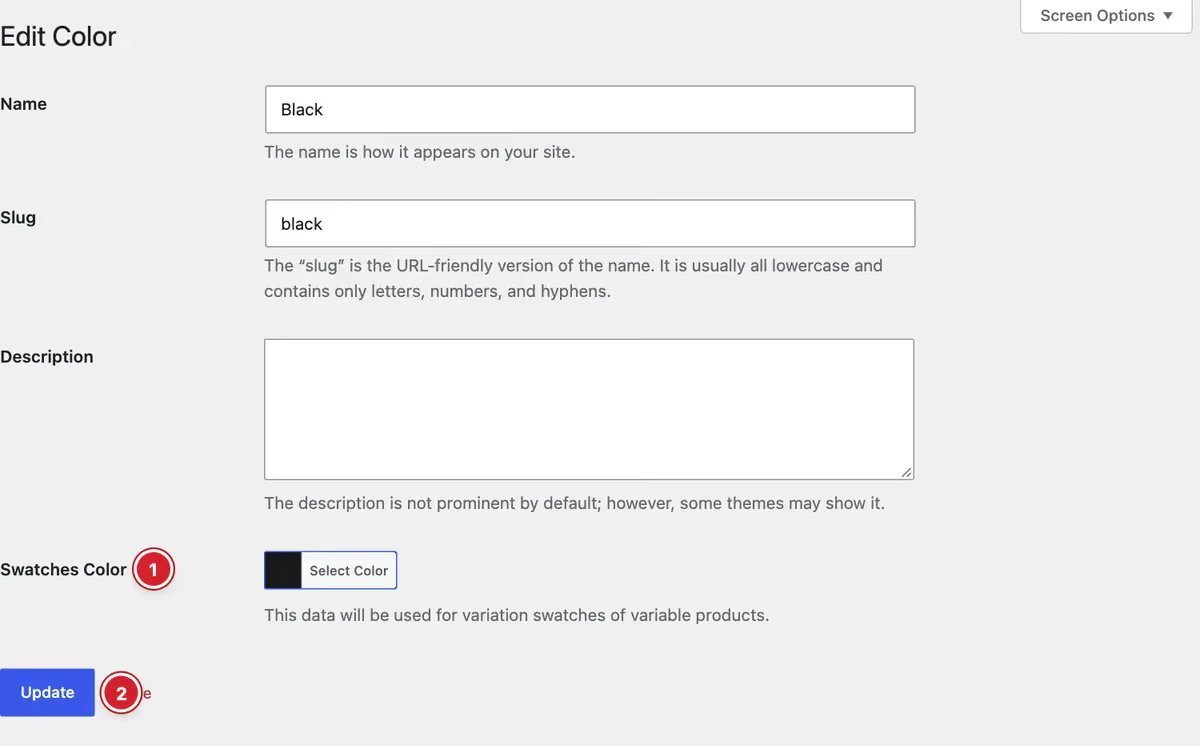 (Open the full-size image in a new tab)
Click Configure terms next to the attribute, then edit a term (value) or add a new one:
- 1
Swatches Color: Pick the color for this value. For Image attributes the field is Swatches Image, with a button to choose a picture; for Label attributes it is Swatches Label, a short text.
- 2
Update: Click to save the term.
Button attributes need nothing here — they use each term's name. You can also add new terms with their color, image or label straight from a product's Attributes tab, using Add new.
Change the Swatches on One Product
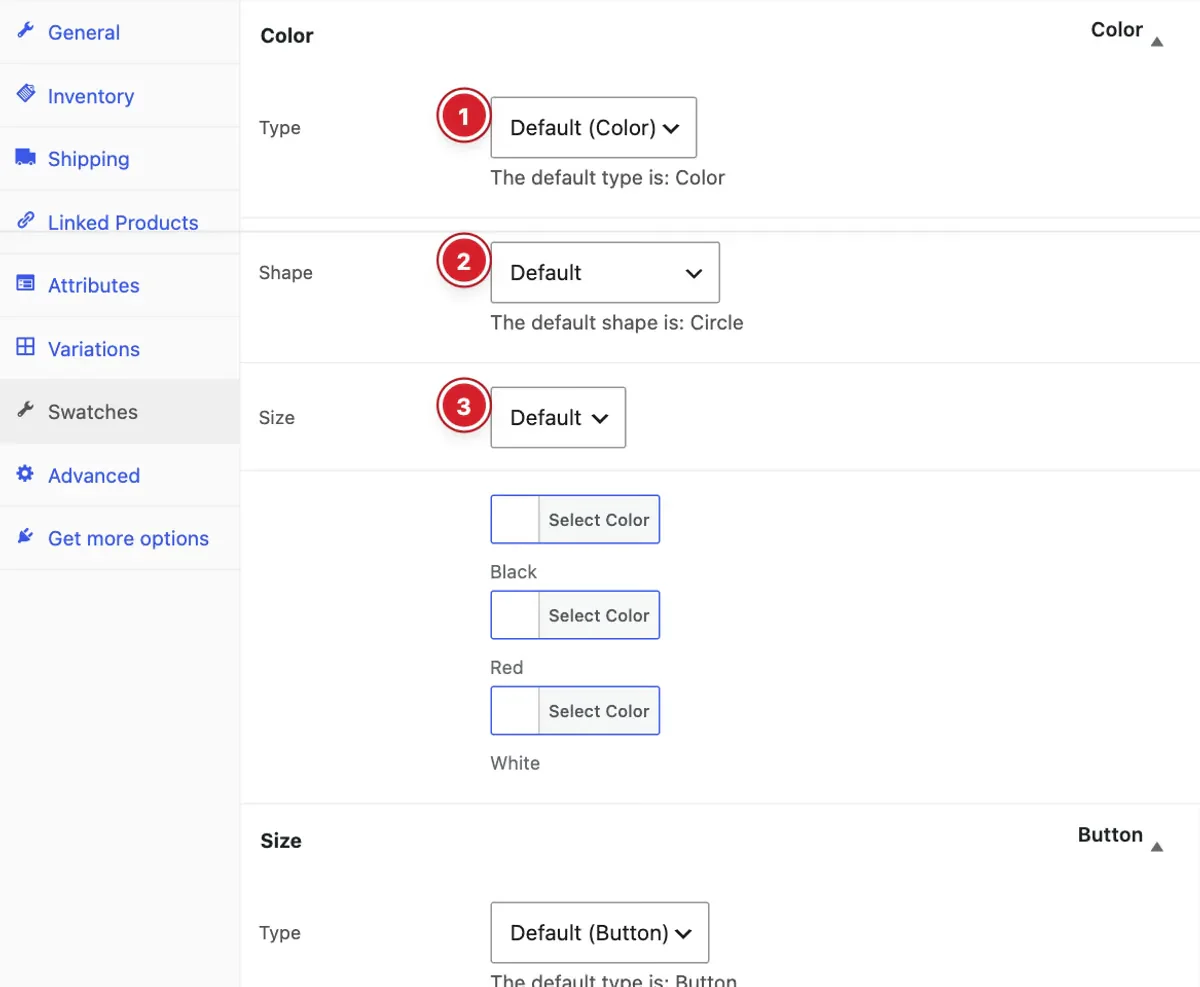 (Open the full-size image in a new tab)
Variable products get a Swatches tab in Product data, with one box for each attribute used for variations:
- 1
Type: Keep the attribute's type (Default) or choose another for this product.
- 2
Shape: Circle, Rounded corners or Square.
- 3
Size: Default, or Custom with your own width and height in pixels.
A product's colors, images and labels start from the attribute's terms. Change any of them in this box for this product only; leave a value empty to keep using the term's.
Final Preview
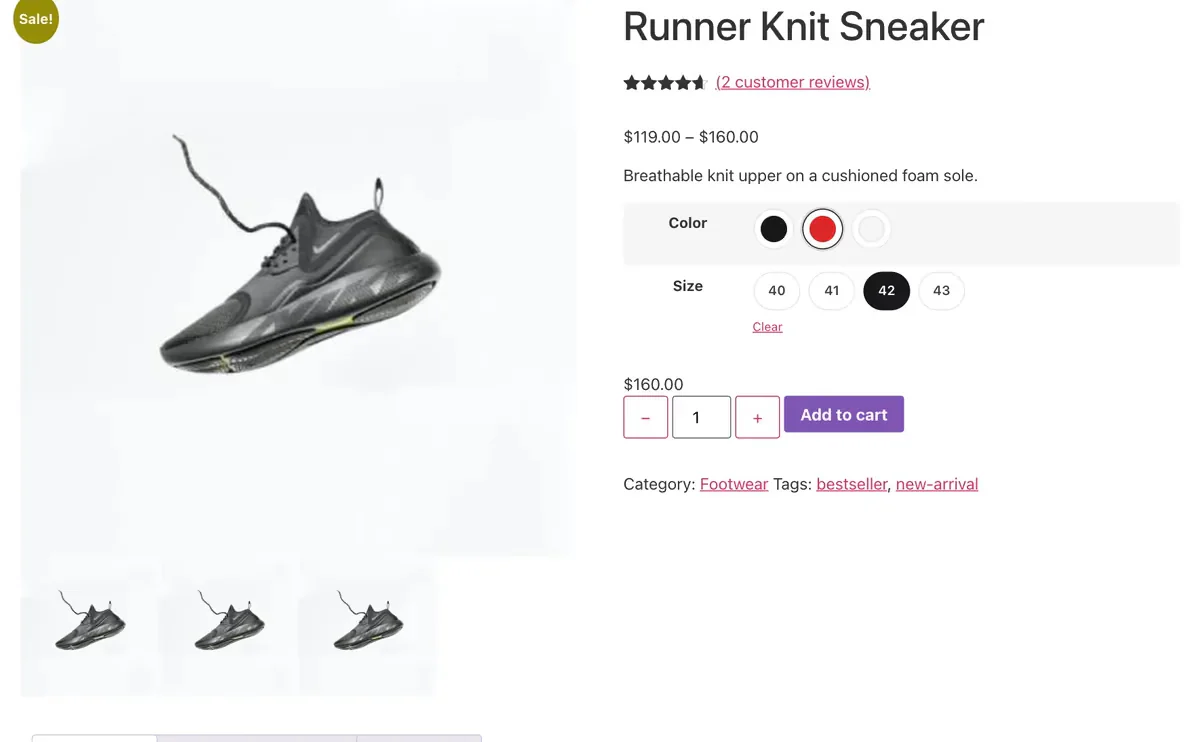 (Open the full-size image in a new tab)
On the product page, shoppers pick a variation by clicking swatches instead of opening dropdowns:
- Hovering a color, image or label swatch shows the value's name in a tooltip.
- Combinations that don't exist are greyed out and can't be selected.
- Clicking a selected swatch clears it.
- Swatches also work in the Quick View popup.
All done! You have successfully set up the Variation Swatches extension on your store.
Thanks for being with us.
Can't find what you need?
Our support team can help with setup questions and anything the docs don't cover yet.