
The Mini Cart widget by Atomic Addons adds a cart button to your site, usually in the header. The button shows the cart total and a cart icon with the number of items. Clicking it opens a panel from the side of the screen with the products in the cart, the subtotal and View cart and Checkout buttons, and everything updates as soon as shoppers add or remove products. This guide covers adding the widget, the button and panel settings, and the styles.
Enable the Mini Cart Widget
Mini Cart is a Pro widget and needs Atomic Addons Pro and WooCommerce. Switch it on from the plugin dashboard:
- 1
Go to WordPress Dashboard → Atomic Addons.
- 2
Click the Widgets tab.
- 3
Search for Mini Cart. You can also open the WooCommerce category.
- 4
Turn the Mini Cart widget on.
- 5
Click Save Settings.
Add the Mini Cart Widget
Put the widget in a header template, so the cart is on every page:
- 1
Go to WordPress Dashboard → Atomic Addons → Theme Builder.
- 2
Click Add New and choose the Header card.
- 3
Give the template a name and open it in Elementor. Its display condition is already set to Entire site.
- 4
In the widget panel, search for Mini Cart and drag it into the header. The widget sits in the Atomic Addons Pro category.
- 5
Set it up with the controls below, then click Publish.
The widget also works on any single page you edit with Elementor.
Mini Cart
 (Open the full-size image in a new tab)
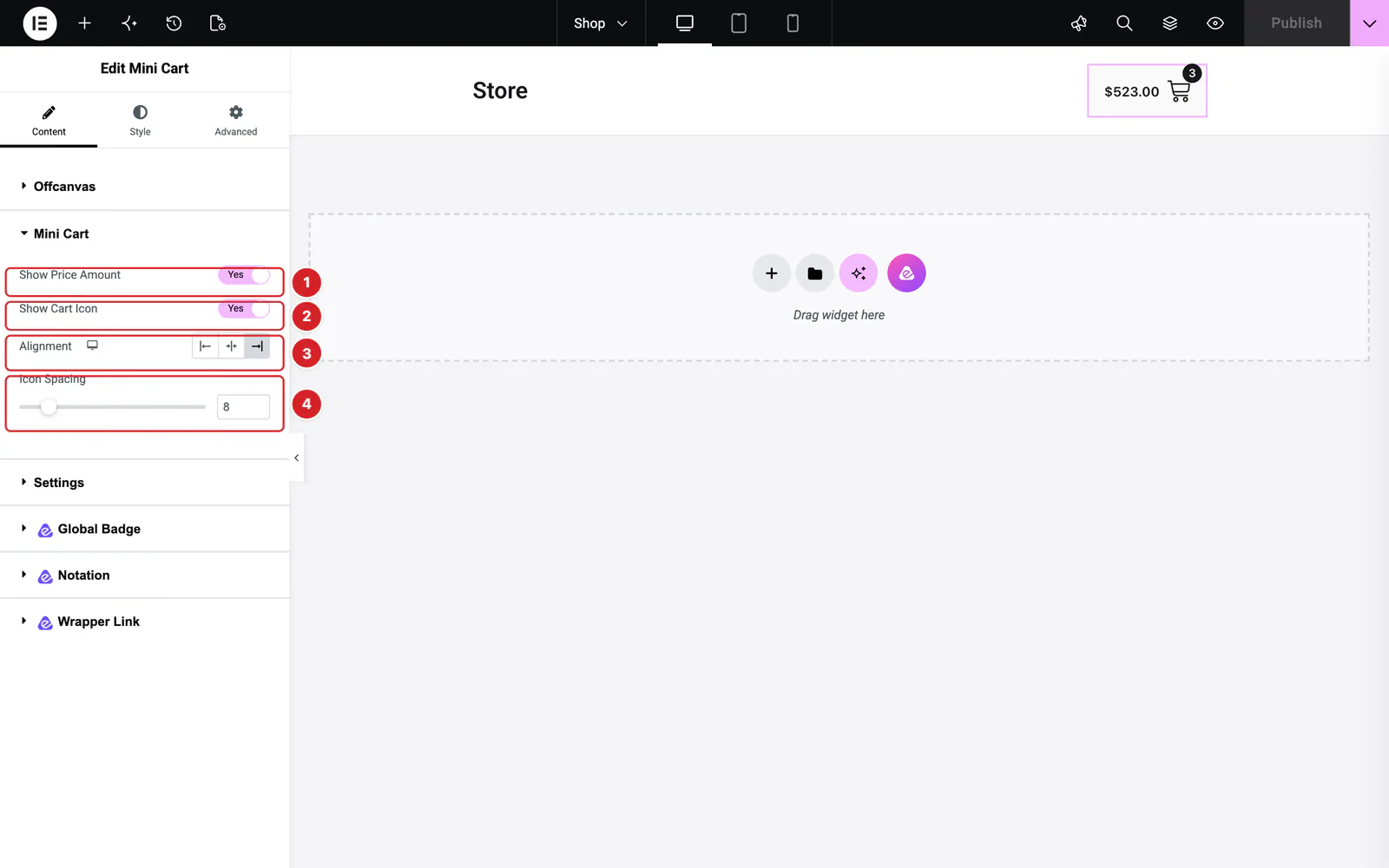
Content → Mini Cart sets up the button:
- 1
Show Price Amount: Shows the cart subtotal on the button. On by default.
- 2
Show Cart Icon: Shows a cart icon with a badge counting the items in the cart (quantities added up). The badge is hidden while the cart is empty. On by default.
- 3
Alignment: Left, center or right, set per device with the device icon. Left by default.
- 4
Icon Spacing: The gap between the amount and the icon, 8px by default. Shown while both are on.
Offcanvas
Content → Offcanvas has one setting, Cart Title: the heading at the top of the panel, “Shopping Cart” by default, with the panel's close (×) button beside it. It accepts dynamic tags, and the default style shows it in capitals.
Settings
 (Open the full-size image in a new tab)
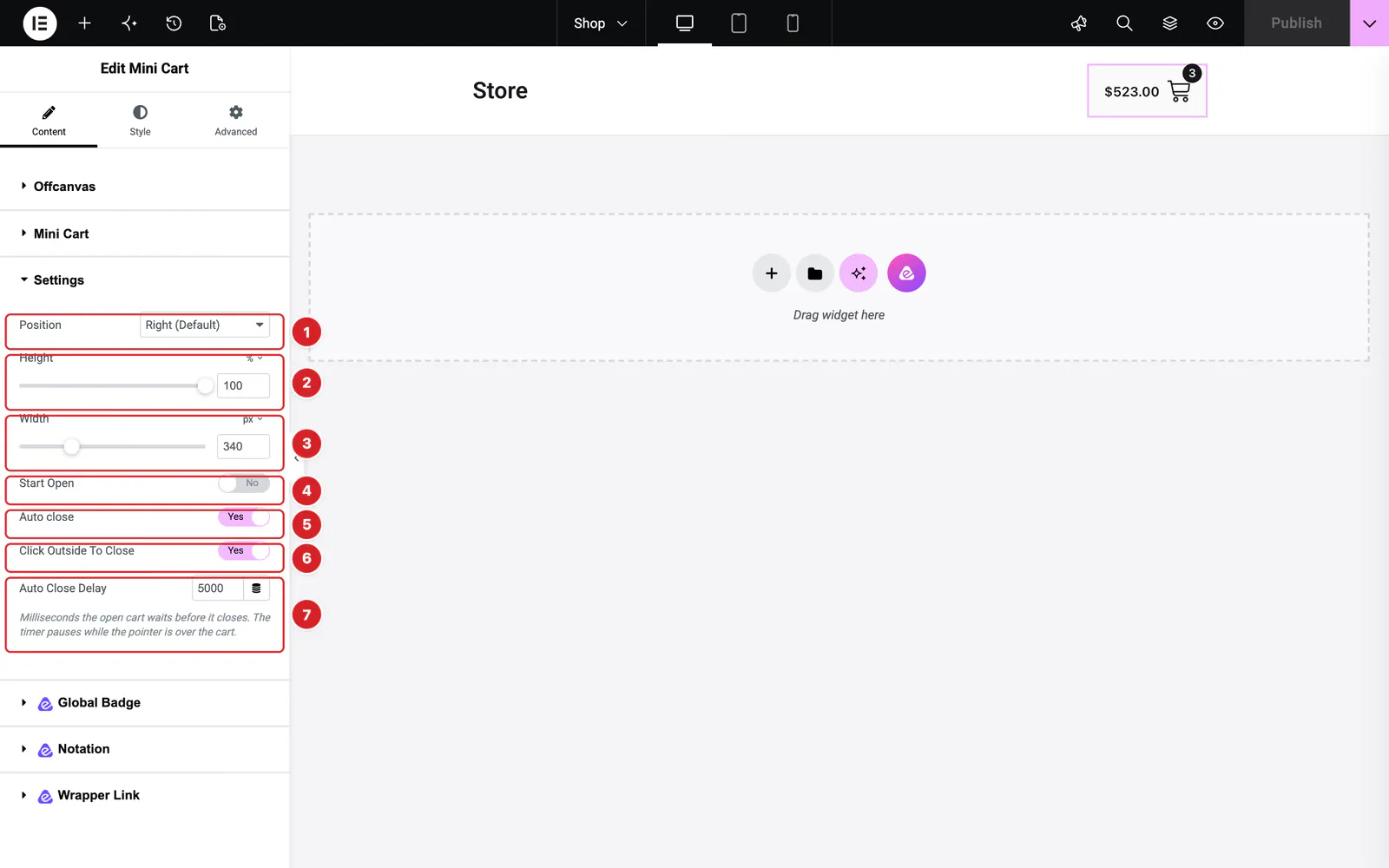
Content → Settings controls the panel:
- 1
Position: The side of the screen the panel slides in from: Right (Default), Left, Top or Bottom.
- 2
Height: The panel's height, 100% by default.
- 3
Width: The panel's width, 340px by default. For Top or Bottom, set the width to 100% and lower the height.
- 4
Start Open: Opens the panel as soon as the page loads.
- 5
Auto close: Closes the panel after the Auto Close Delay each time it opens, at page load with Start Open or from the button. The wait pauses while the shopper's pointer is over the panel and starts again when it leaves.
- 6
Click Outside To Close: Closes the panel when the shopper clicks anywhere outside it. On by default.
- 7
Auto Close Delay: Shown while Auto close is on. How long it waits, in milliseconds: 5000 (five seconds) by default, up to 10000.
Shoppers close the panel with the × next to its title or the cart button, and by clicking outside it while Click Outside To Close is on. With Start Open and Auto close both on, the cart greets shoppers on arrival and slides away after the delay.
What the Mini Cart Shows
 (Open the full-size image in a new tab)
The button shows the cart subtotal and the item count. When the cart is empty, the amount reads zero and the badge disappears.
 (Open the full-size image in a new tab)
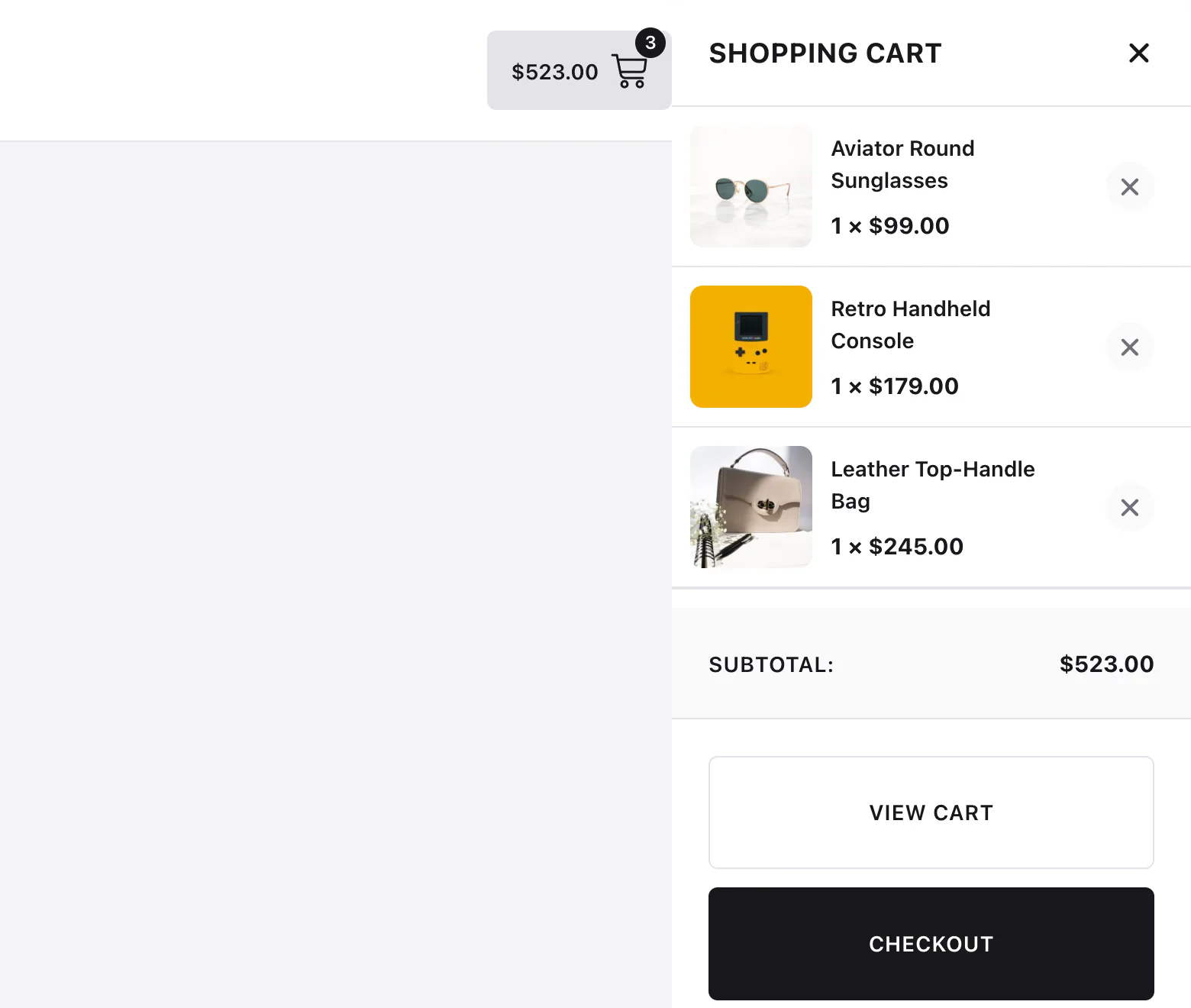
The panel lists each product with its image, its name (linked to the product), the options of a chosen variation and the quantity times the price. The × beside a product removes it without reloading the page. Under the list come the Subtotal and the View cart and Checkout buttons. An empty cart shows “No products in the cart.”
The amount, the badge and the list refresh on their own when a product is added to the cart without a page reload, for example from a product grid or a quick view, and when one is removed. They also catch up on pages served from a cache. Adding a product does not open the panel.
Style the Mini Cart
Everything below is on the Style tab.
- Mini Cart — the button: the Amount Color, Icon Color, Background Color, Border, Border Radius and Padding, and a typography that sets both the amount and the icon size. Under Cart Badge, the count's Color, Background, Size and typography.
- Offcanvas, Product List tab — the Cart Title (color, the line under it and typography), the product names (Title Color, Title Hover Color, typography), the Price line (Quantity Color, Amount Color), the Image border and radius, the Subtotal label and price, the View Cart Button and Checkout Button (colors, backgrounds and borders with hover states, radius, padding, shadow, typography) and the Product Remove Button.
- Offcanvas, Offcanvas tab — the panel's Content Background, the Item Background and Item Hover Background of each product, the panel's shadow, padding and margin, and the Footer background.
Can't find what you need?
Our support team can help with setup questions and anything the docs don't cover yet.