
The Distance Rate Shipping extension by Atomic Addons adds a Distance rate shipping method that prices delivery by how far the customer is from your store: a base fee plus a rate per km or mile, or distance bands, with a delivery radius and free delivery above an order amount. This guide covers the distance settings, the address checker, the method in a shipping zone and what customers see.
Enable the Distance Rate Shipping Extension
 (Open the full-size image in a new tab)
WooCommerce must be installed and active. Then switch the extension on from the Atomic Addons dashboard:
- 1
Go to WordPress Dashboard → Atomic Addons.
- 2
Under WooCommerce, click Extensions.
- 3
Find the Distance Rate Shipping card and turn its switch On.
- 4
Click Open to open the extension's settings.
Choose the Distance Provider and Store Location
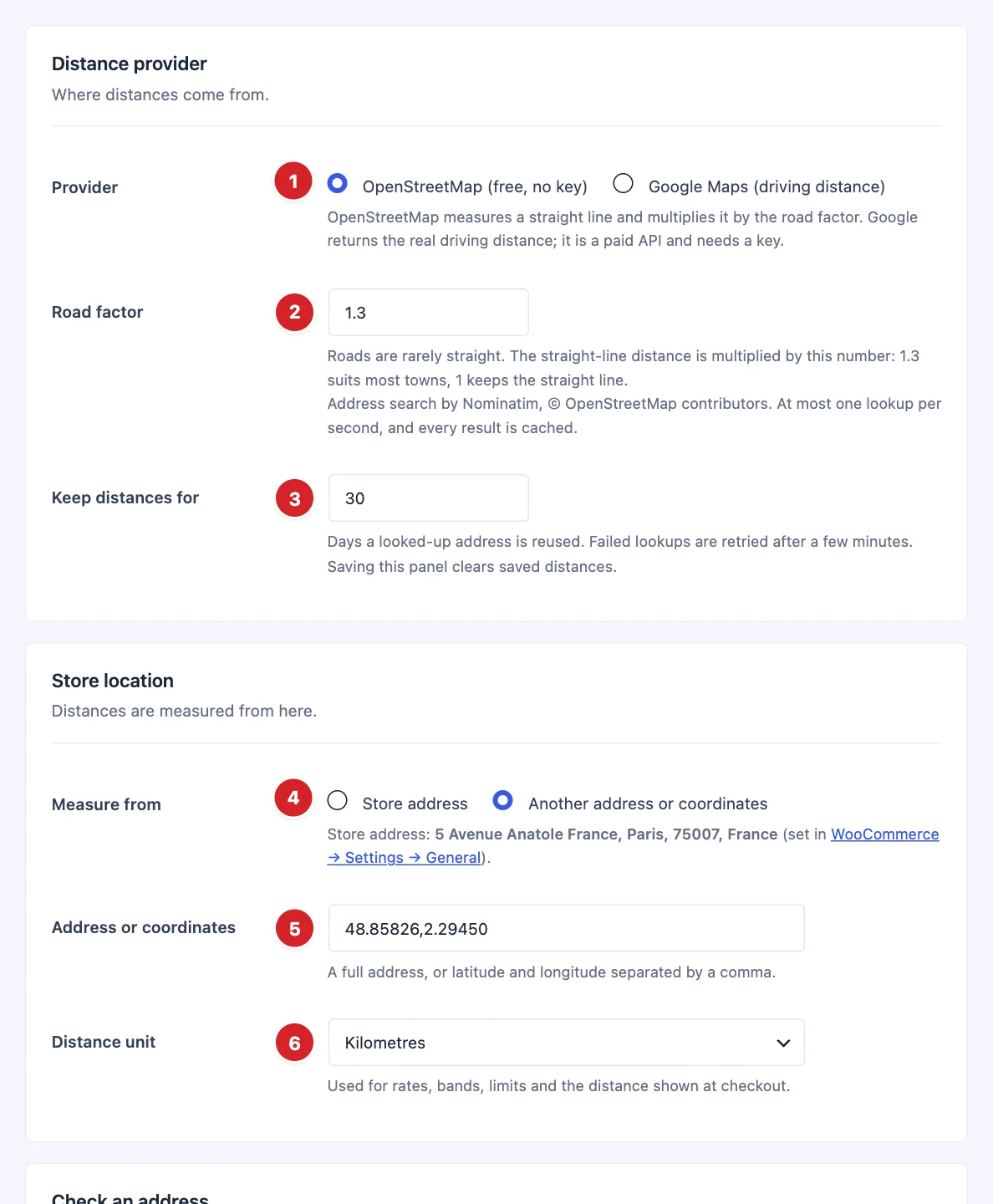 (Open the full-size image in a new tab)
- 1
Provider: OpenStreetMap (free, no key) multiplies the straight line between the two addresses by the road factor. Google Maps (driving distance) uses Google's Routes API.
- 2
Road factor: From 1 to 3, 1.3 by default. 1 keeps the straight line.
- 3
Keep distances for: Days a looked-up address is reused, 30 by default.
- 4
Measure from: Store address (from WooCommerce → Settings → General) or Another address or coordinates.
- 5
Address or coordinates: A full address, or latitude and longitude such as
48.85826,2.29450, which is the most exact. - 6
Distance unit: Kilometres or Miles, for rates, bands, limits and checkout. US, UK, Liberian and Myanmar stores start on miles.
With Google Maps chosen, Road factor is replaced by Google API key: create the key in Google Cloud with the Routes API enabled. A saved key is never shown again; leave the field empty to keep it.
OpenStreetMap measures a straight line times the road factor, not the real route. It allows one lookup per second, and every result is cached. Google is a paid API.
Check an Address
 (Open the full-size image in a new tab)
This card tests the settings above, saved or not. Its fields are never saved.
- 1
Street address: The street and number.
- 2
Town / city: A town or a postcode is required.
- 3
Postcode / ZIP: The postcode.
- 4
State / county: Optional.
- 5
Country: Starts on your store's country.
- 6
Check distance: Looks the address up.
- 7
Result: The distance and how it was measured, where the Store and Customer were found (View on map), and whether the street or only the postcode or town Matched. Problems show here too.
- 8
Save Distance Rate Shipping settings: Saves your changes and clears saved distances.
Add the Distance Rate Method to a Shipping Zone
Go to WooCommerce → Settings → Shipping, open a zone, click Add shipping method and choose Distance rate (later, click Edit next to it). Each zone has its own prices.
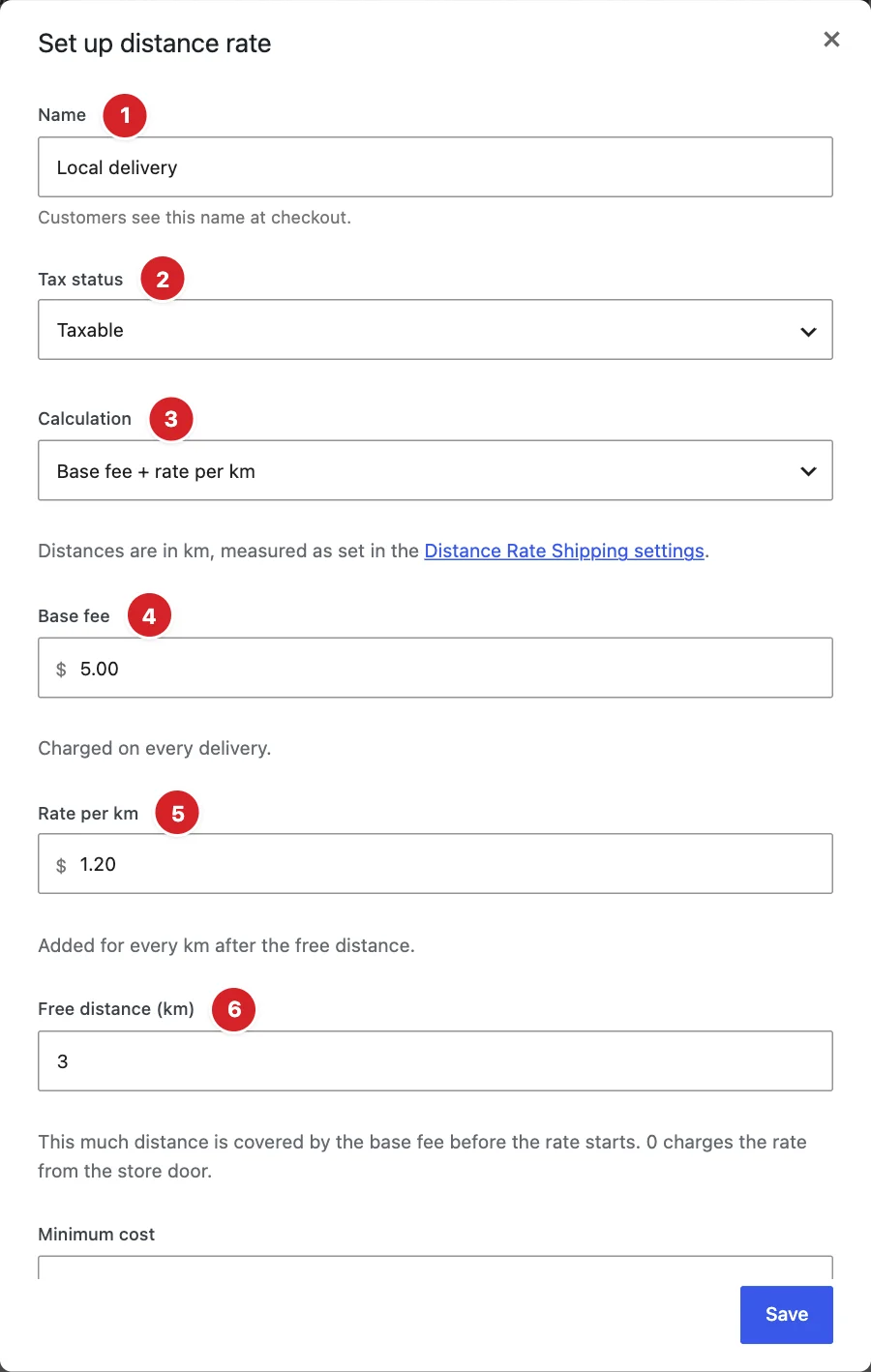 (Open the full-size image in a new tab)
- 1
Name: “Local delivery” by default.
- 2
Tax status: Taxable or None.
- 3
Calculation: Base fee + rate per km (per mile with miles) or Distance bands.
- 4
Base fee: Charged on every delivery.
- 5
Rate per km: Added for every km after the free distance.
- 6
Free distance (km): How far the base fee covers before the rate starts.
With the settings shown, an address 6.2 km away costs $5.00 + 3.2 km × $1.20 = $8.82.
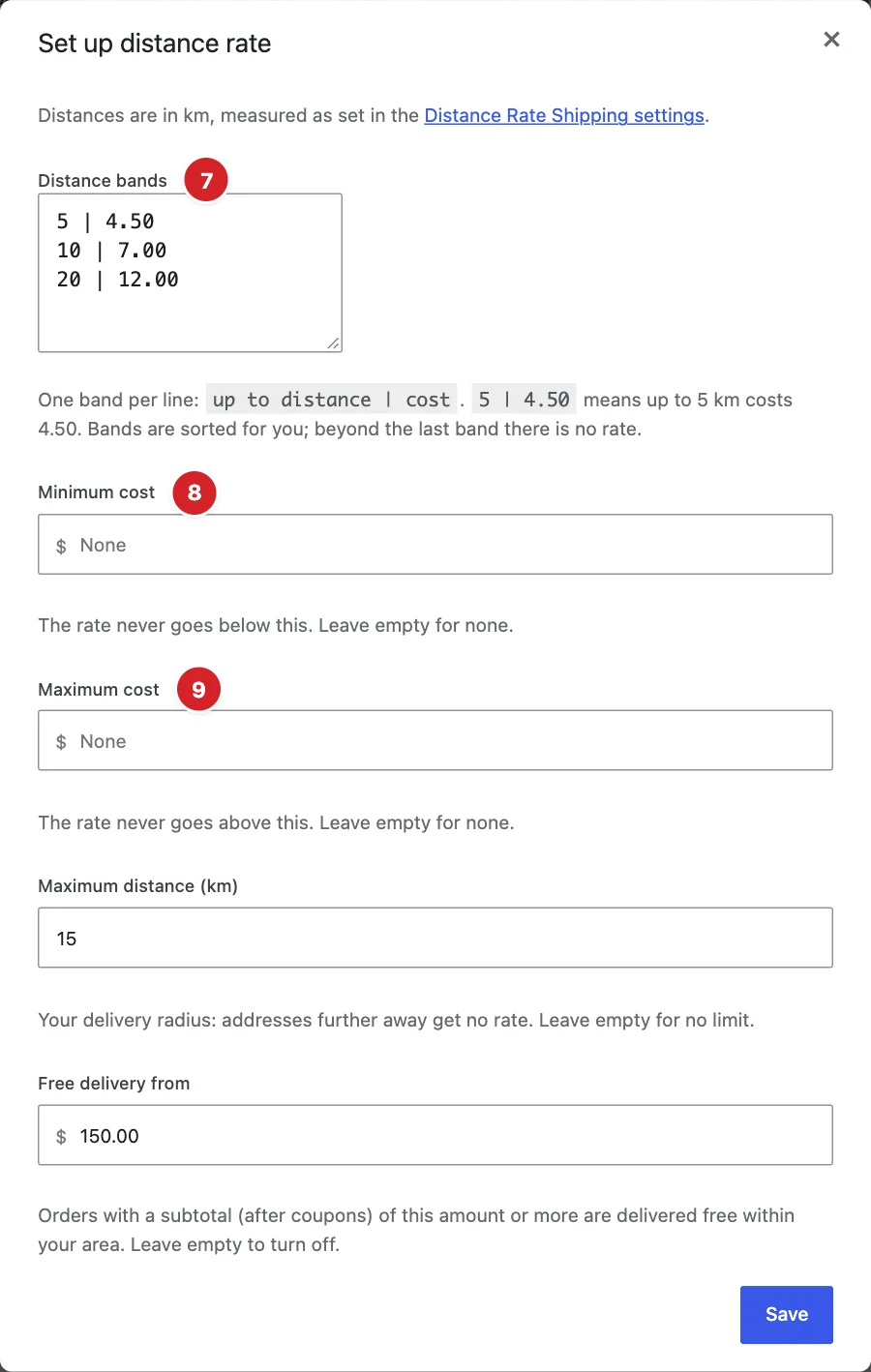 (Open the full-size image in a new tab)
- 1
Distance bands: One band per line:
up to distance | cost. With these bands, 6.2 km costs $7.00 and 25 km gets no rate. - 2
Minimum cost: The lowest the rate can be.
- 3
Maximum cost: The highest the rate can be.
Up to 50 bands, sorted for you. If a line can't be read, the previous bands are kept. The dialog shows only the fields of the chosen calculation, and Fallback cost only when the fallback is chosen.
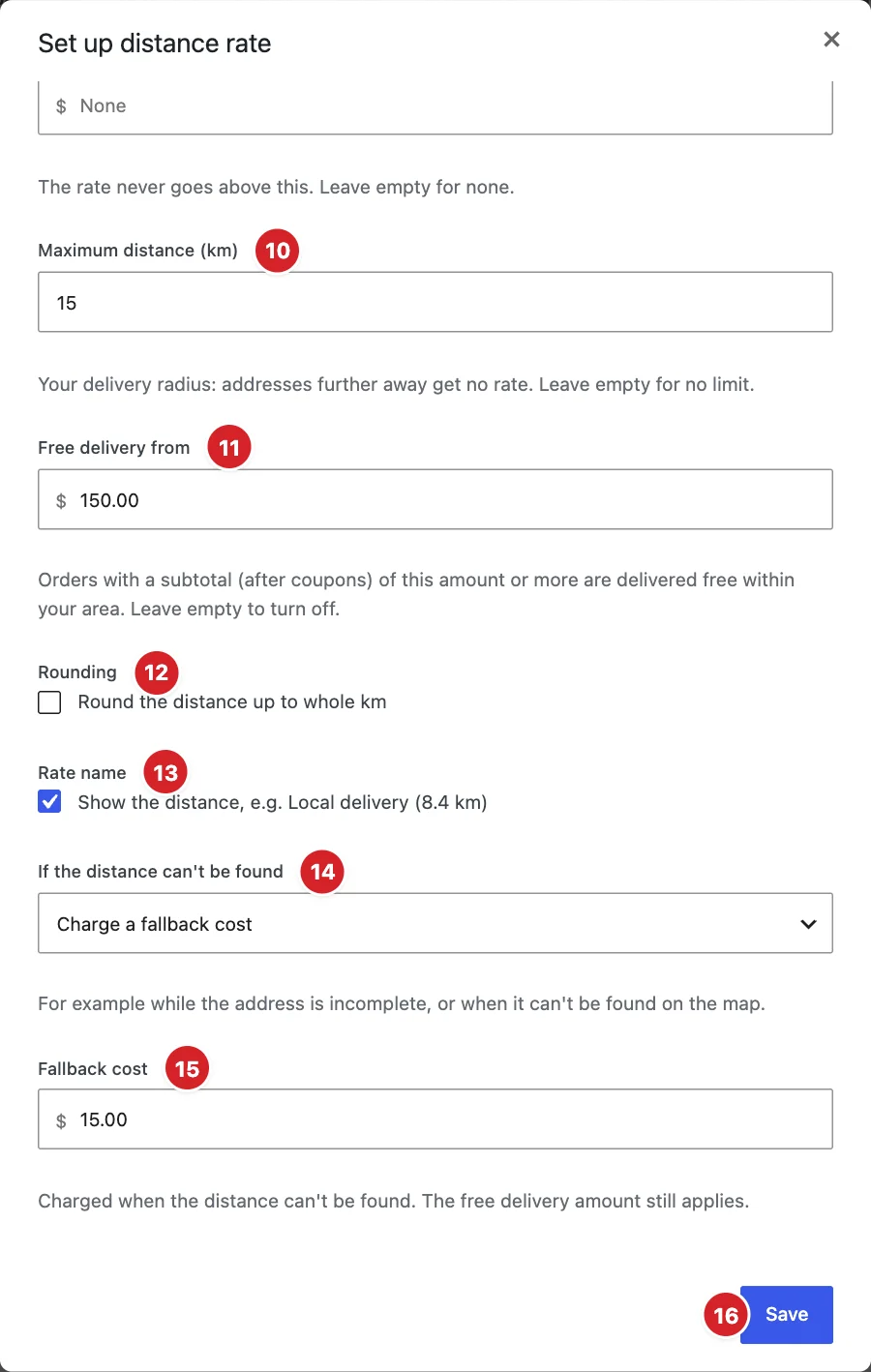 (Open the full-size image in a new tab)
- 1
Maximum distance (km): Your delivery radius; addresses further away get no rate.
- 2
Free delivery from: Free delivery from this subtotal (after coupons).
- 3
Rounding: Rounds the distance up to whole km before pricing.
- 4
Rate name: Adds the distance to the name, on by default.
- 5
If the distance can't be found: Hide this rate (default) or Charge a fallback cost.
- 6
Fallback cost: Charged when the distance is unknown and the fallback is chosen.
- 7
Save: Saves the method.
What Customers See
Once the shipping address has a country and a postcode or town, the rate appears on the classic and block cart and checkout. The distance is also saved on the order's shipping line.
- An address beyond the radius or the last band gets no rate and no message; with no other method, WooCommerce shows its usual “no shipping options” notice.
- With WooCommerce's shipping debug mode on, shop managers see how each price was worked out.
Each page load allows only a few seconds of lookups. A skipped or failed lookup hides the rate unless you charge a fallback cost, and is retried on the next update.
Final Preview
 (Open the full-size image in a new tab)
A customer 6.2 km away sees “Local delivery (6.2 km)” at $8.82.
All done! You have successfully set up the Distance Rate Shipping extension on your store.
Thanks for being with us.
Can't find what you need?
Our support team can help with setup questions and anything the docs don't cover yet.