
The Add To Cart widget by Atomic Addons places a product's add to cart form wherever you want it in a product page design. It shows WooCommerce's own form for the product — the quantity field and button for a simple product, the options for a variable product, the list of items for a grouped product — so stock limits, variations and cart rules keep working. You set the button text and icon, the starting quantity and the styles. This guide covers adding the widget and each of its settings.
Enable the Add To Cart Widget
Add To Cart is a Pro widget and needs Atomic Addons Pro and WooCommerce. Switch it on from the plugin dashboard:
- 1
Go to WordPress Dashboard → Atomic Addons.
- 2
Click the Widgets tab.
- 3
Search for Add To Cart. You can also open the WooCommerce category.
- 4
Turn the Add To Cart widget on.
- 5
Click Save Settings.
Add the Add To Cart Widget
The widget belongs in a Theme Builder template for products, next to widgets such as Product Title and Product Price:
- 1
Go to WordPress Dashboard → Atomic Addons → Theme Builder.
- 2
Click Add New and choose the Single Product card.
- 3
Give the template a name and open it in Elementor. Its display condition is already set to WooCommerce → Product, so it applies as soon as you publish it.
- 4
In the widget panel, search for Add To Cart and drag it into the template. The widget sits in the Atomic Addons Pro (Single) category.
- 5
Design it with the controls below, then click Publish.
In the editor the template previews a sample product: the one picked under Builder Settings → Builder Post in the template's page settings (click Apply & Preview), or your newest product if none is picked. On your store, each product page fills the widget with its own product; anywhere else the widget falls back to your newest product. The widget appears in the panel only while you edit a Theme Builder template, a saved Elementor template or a product.
Layout
 (Open the full-size image in a new tab)
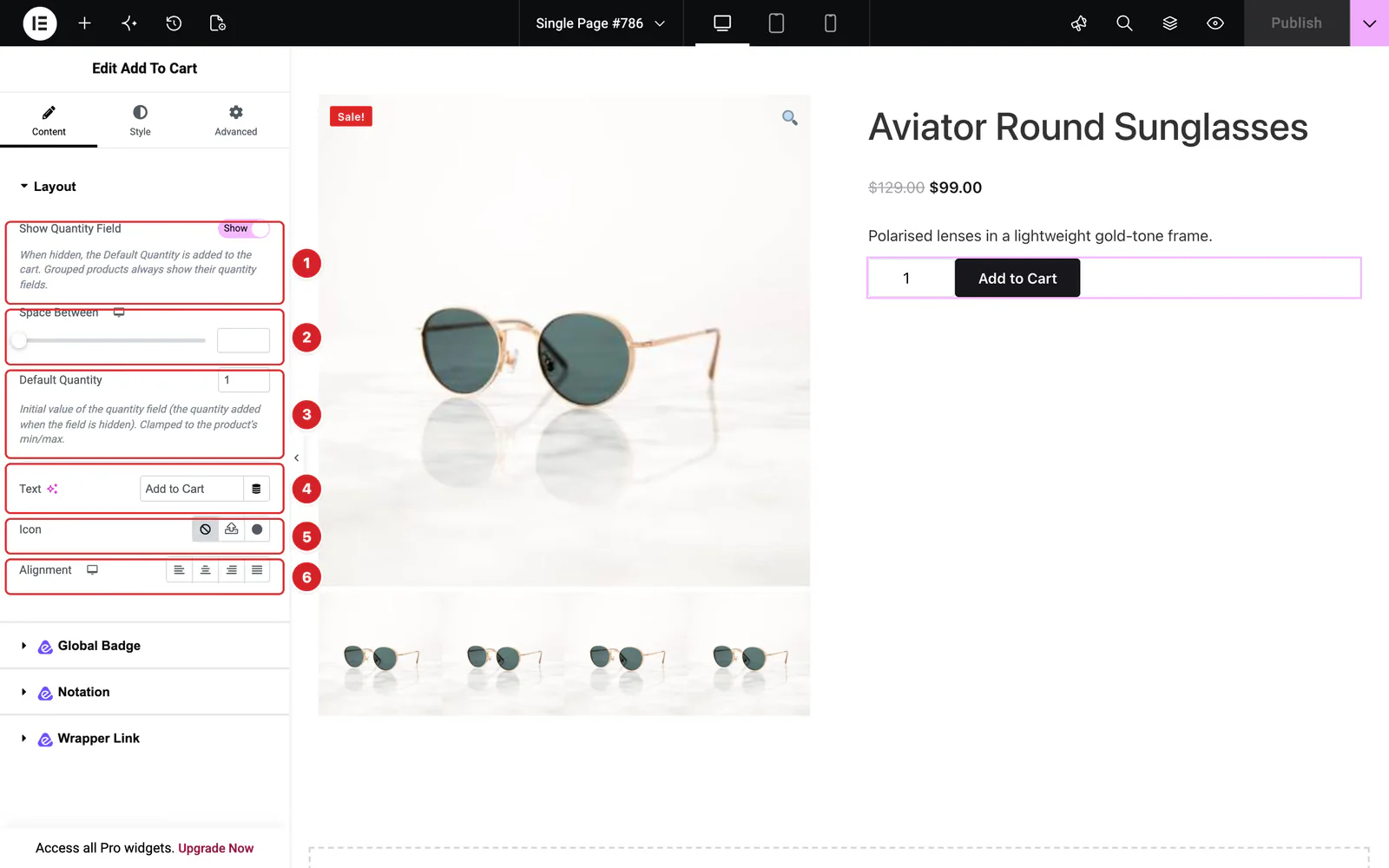
Open the widget and go to Content → Layout:
- 1
Show Quantity Field: Show or hide the quantity field. When it is hidden, the Default Quantity is what goes into the cart. Grouped products always keep their quantity fields.
- 2
Space Between: The gap between the quantity field and the button.
- 3
Default Quantity: The number the quantity field starts at, 1 by default. A product's own minimum and maximum still apply.
- 4
Text: The button's text, “Add to Cart” by default. Clear it to keep WooCommerce's text. An external product always keeps the button text set on the product.
- 5
Icon: An icon in the button. Once you pick one, Icon Position places it before or after the text and Icon Spacing sets the gap.
- 6
Alignment: Left, center, right or justified, where justified stretches the form across the column. Set it per device with the device icon.
What the Widget Shows
The form follows the product type:
- Simple — the quantity field and the button.
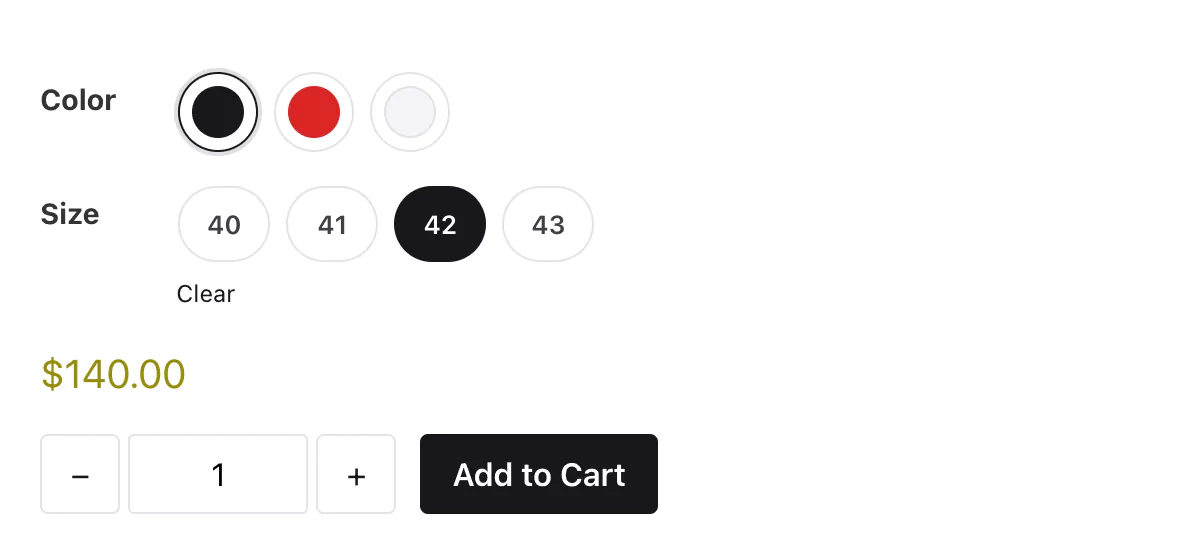
- Variable — a choice for each option, such as color and size, then the price of the chosen variation, the quantity field and the button. The button stays inactive until every option is chosen.
- Grouped — each product in the group with its own quantity field, and one button.
- External — a button that links to the product's address on the other store.
Stock messages appear only when they matter for buying: out of stock, on backorder, or the stock of a chosen variation. To show the stock of an in-stock product, add the Product Stock widget.
 (Open the full-size image in a new tab)
With the Variation Swatches extension on, the options turn into color swatches and buttons, and − and + buttons appear around the quantity field.
Style the Add To Cart Widget
Everything below is on the Style tab.
Add To Cart
The button in Normal and Hover states: text color, background, border, border radius, padding, typography and box shadow. Hover Animation adds one of Elementor's hover effects.
Quantity Field
The number field: Width, color, background, border, border radius, padding, margin, typography and box shadow.
Variation Swatches
The options of a variable product: the label's color, spacing and typography, then each option's text color, background, border, radius, padding, gap and shadow in Normal, Hover and Active states, where Active is the chosen option. It also styles the Clear link that resets the choice.
Quantity Plus Minus
The − and + buttons that the Variation Swatches extension adds: color, background, border, radius, padding, shadow and Icon Size, in Normal and Hover states.
Variation Price
The price shown once a variation is chosen: its margin, and the color and typography of the Regular Price and the Sale Price.
Can't find what you need?
Our support team can help with setup questions and anything the docs don't cover yet.