
The Thank You Page widget by Atomic Addons designs the page a customer lands on after they check out. It reads the order they just placed and builds an order confirmation from it: a heading with their name and order number, a message that fits the order's status, their contact and address details, and an order summary with the products and totals beside it. This guide covers adding the widget, what it shows for each order status, and every setting.
Enable the Thank You Page Widget
Thank You Page is a Pro widget and needs Atomic Addons Pro and WooCommerce. Switch it on from the plugin dashboard:
- 1
Go to WordPress Dashboard → Atomic Addons.
- 2
Click the Widgets tab.
- 3
Search for Thank You Page. You can also open the WooCommerce category.
- 4
Turn the Thank You Page widget on.
- 5
Click Save Settings.
Add the Thank You Page Widget
 (Open the full-size image in a new tab)
Add it to a Theme Builder template for the order-received page:
- 1
Go to WordPress Dashboard → Atomic Addons → Theme Builder.
- 2
Click Add New and choose the Thank You Page card.
- 3
Give the template a name and open it in Elementor. Its display condition is already set to WooCommerce → Thank You Page, so it applies as soon as you publish it.
- 4
In the widget panel, search for Thank You Page and drag it into the template. The widget sits in the Atomic Addons Pro category.
- 5
Design it with the controls below, then click Publish.
In the editor, the widget shows your most recent order so you can design it without placing a new one. If your store has no orders yet, it asks you to place a test order to preview it.
The widget fills itself from the order in the page's address. Visitors who open the page without a valid order key, or who are not allowed to see that order, see nothing in its place, so it never exposes another customer's details.
What the Widget Shows
 (Open the full-size image in a new tab)
The page changes with the order's status:
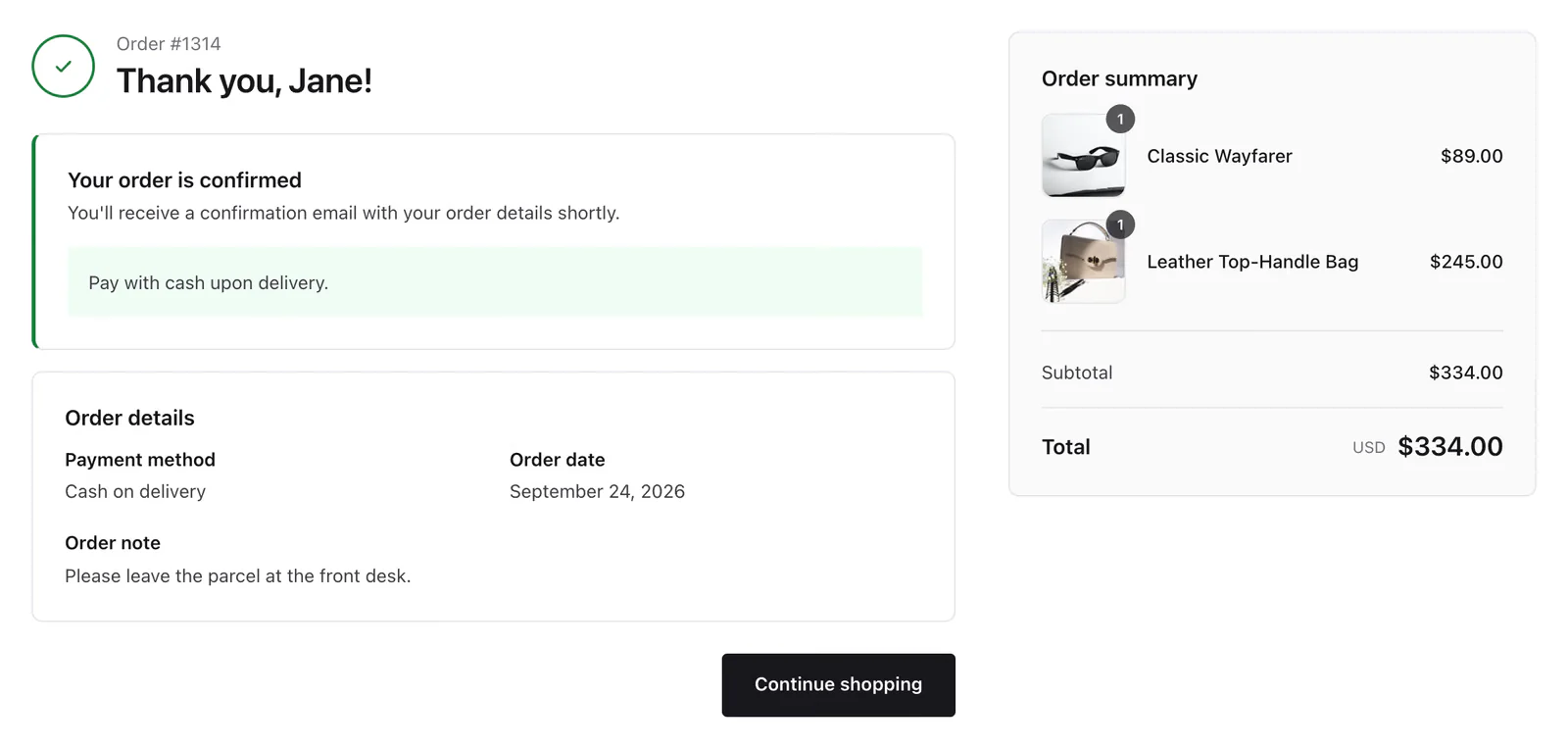
- Confirmed (processing, completed and similar statuses) — a check icon, the confirmed title and text, and your payment gateway's own message.
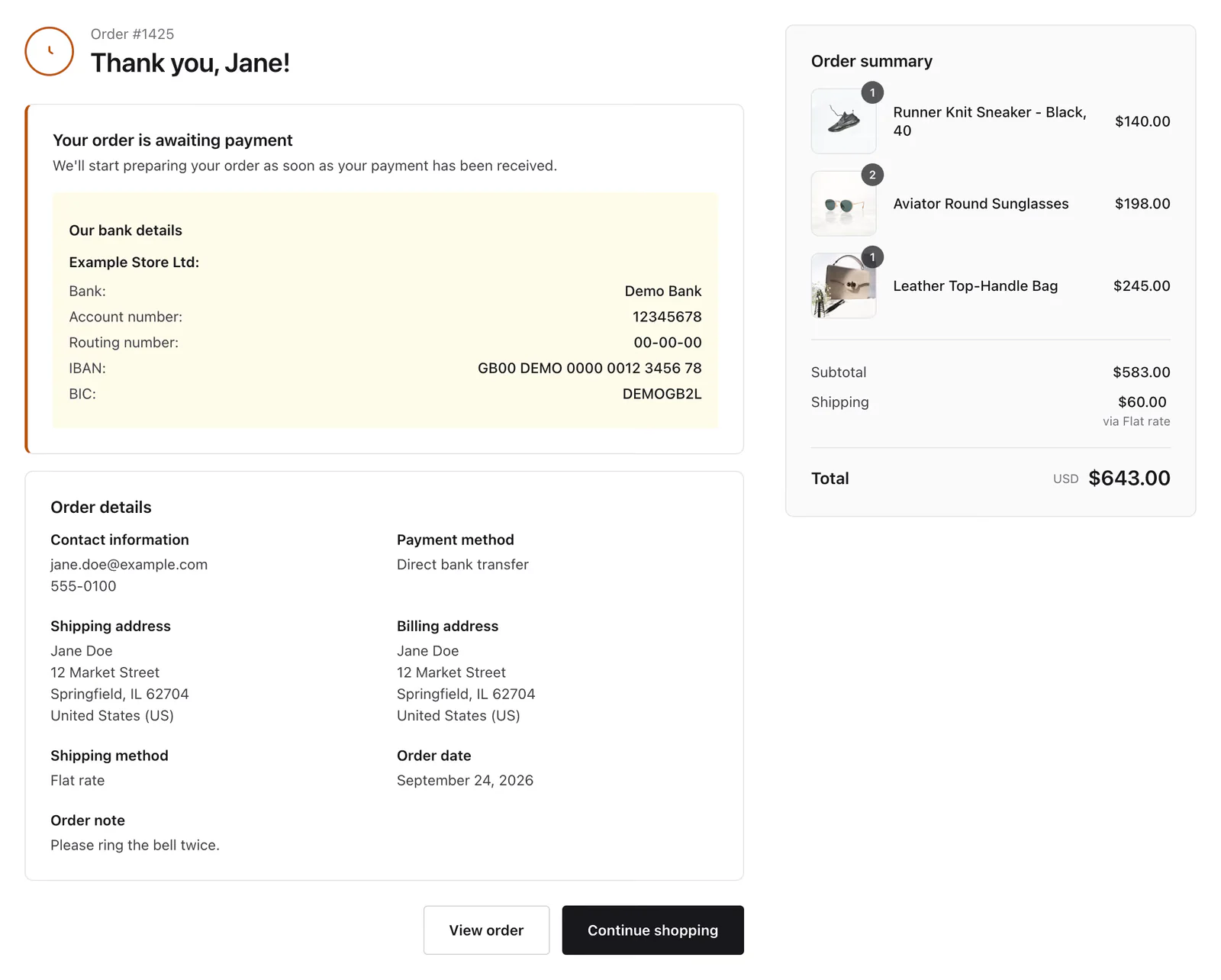
- Awaiting payment (pending or on hold) — a clock icon and the awaiting-payment message. Payment instructions, such as bank transfer details, appear underneath.
- Payment failed — a cross icon, the heading Payment failed and a Pay button that returns the customer to the payment step.
- Closed (cancelled or refunded) — a notice that the order is no longer active.
 (Open the full-size image in a new tab)
Below the status message the widget adds, when they apply:
- A Downloads card for downloadable products, once the order's downloads are available.
- An Order details card with the contact information, payment method, shipping address, billing address, shipping method, order date and the customer's note. The addresses and contact details are shown only to the customer who placed the order.
- An Order summary with every product, its quantity, any discount, shipping, tax and the total.
- The buttons: Continue shopping, View order and a help line.
Header
Open the widget and go to Content → Header:
- 1
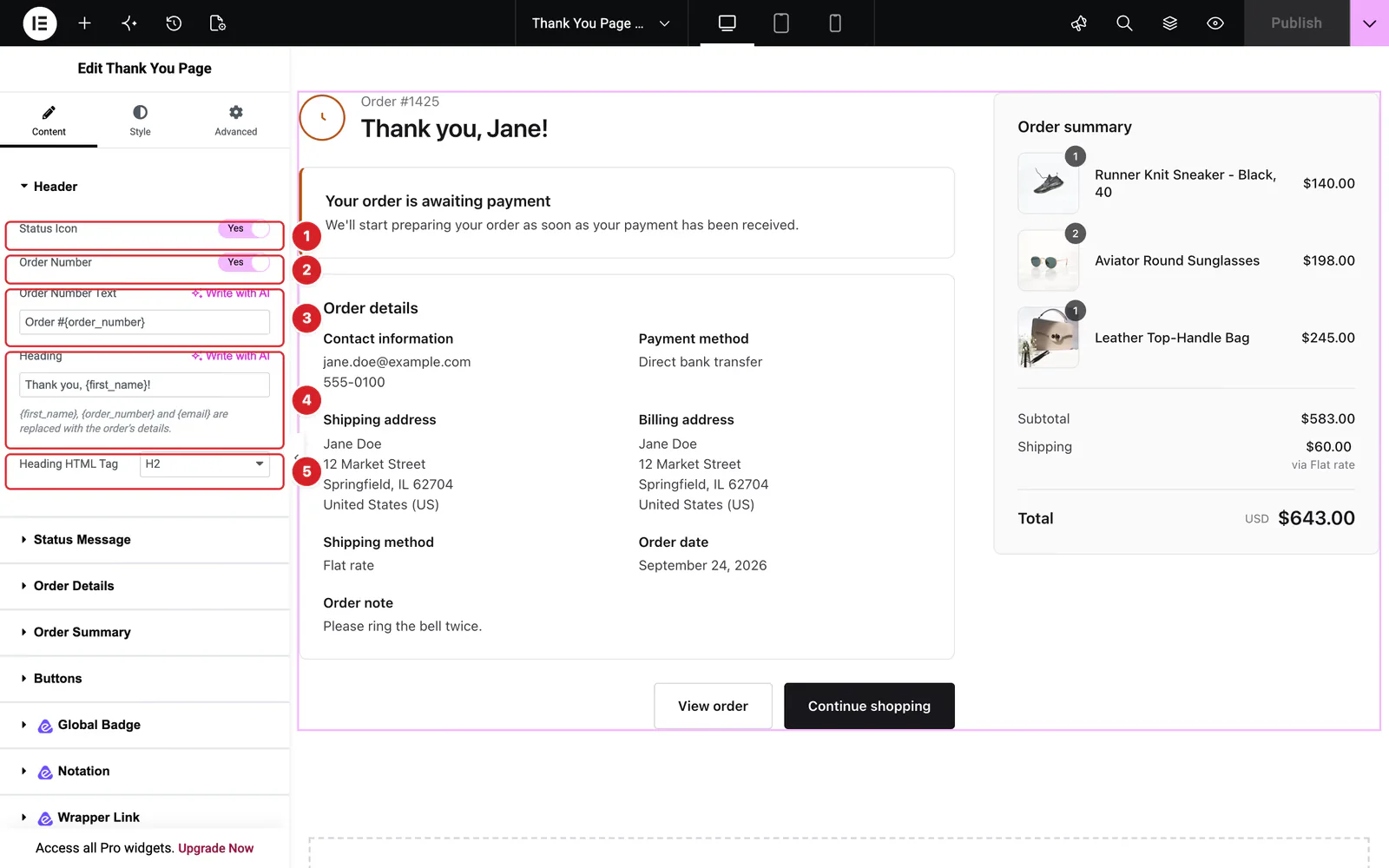
Status Icon: Show or hide the round icon that matches the order's status.
- 2
Order Number: Show or hide the line above the heading.
- 3
Order Number Text: What that line says. The default is
Order #{order_number}. - 4
Heading: The main heading. The default is
Thank you, {first_name}!. A failed payment always shows Payment failed instead. - 5
Heading HTML Tag: H1 to H4, or a plain div, for the heading's markup.
The two texts accept these placeholders: {first_name} (the billing first name), {order_number} and {email} (the billing email). When an order has no first name, {first_name} and the comma before it are left out, so the heading reads “Thank you!”.
Status Message
Go to Content → Status Message. It has two groups of settings, each with a Title and a Text:
- 1
Order Confirmed: The default title is “Your order is confirmed”. The text tells the customer a confirmation email is on its way.
- 2
Awaiting Payment: The default title is “Your order is awaiting payment”. The text says the order will be prepared once the payment arrives.
Both accept the same placeholders as the header. The messages for failed and closed orders are fixed, so that a customer is always told the truth about a payment that did not go through.
Order Details
Go to Content → Order Details:
- 1
Show Order Details: Show or hide the whole details card.
- 2
Title: The card's title. The default is “Order details”.
- 3
Order Date: Include the date the order was placed.
- 4
Order Note: Include the note the customer left at checkout, when they left one.
Order Summary
Go to Content → Order Summary:
- 1
Layout: Beside the details puts the summary in a second column. Below the details stacks it under them. On narrow screens the summary always follows the status message.
- 2
Position: Left or right of the details. Shown when the layout is beside the details.
- 3
Sticky: Keeps the summary in view while the customer scrolls. On by default, for the beside-the-details layout.
- 4
Title: The summary's title. The default is “Order summary”.
- 5
Product Images: Show the product thumbnail next to each line.
Buttons
Go to Content → Buttons:
- 1
Continue Shopping: Show the button, set its Text and its Link. Without a link it goes to your shop page.
- 2
View Order: Opens the order in My Account. It shows only for a logged-in customer who owns the order, and you can change its Text.
- 3
Help: A line such as “Need help? Contact us”. Set the Help Text, the Help Link Text and the Help Link. The line appears once a link is set.
Style the Thank You Page
All of these controls are on the Style tab.
- General — text color, secondary text color, border color, link color, the column and row gaps, and the summary column's width.
- Header — the icon color and size, the order number's color and typography, and the heading's color and typography.
- Cards — the background, border radius and padding of the status, downloads and details cards, plus the title, label and text typography and colors.
- Order Summary — the summary's background, the product name color and typography, the price color, and the total's color and typography.
- Buttons — the border radius, the Normal primary background and text and secondary text and border colors, and the Hover colors.
Can't find what you need?
Our support team can help with setup questions and anything the docs don't cover yet.