
The Live Copy Paste feature by Atomic Addons lets you reuse a design across websites. It adds a Live Copy button to the sections of your published pages: click it, then paste the section into the Elementor editor on any other site, images included. This guide covers switching the feature on, choosing where the button appears, and copying and pasting a section.
Enable the Live Copy Paste Feature
 (Open the full-size image in a new tab)
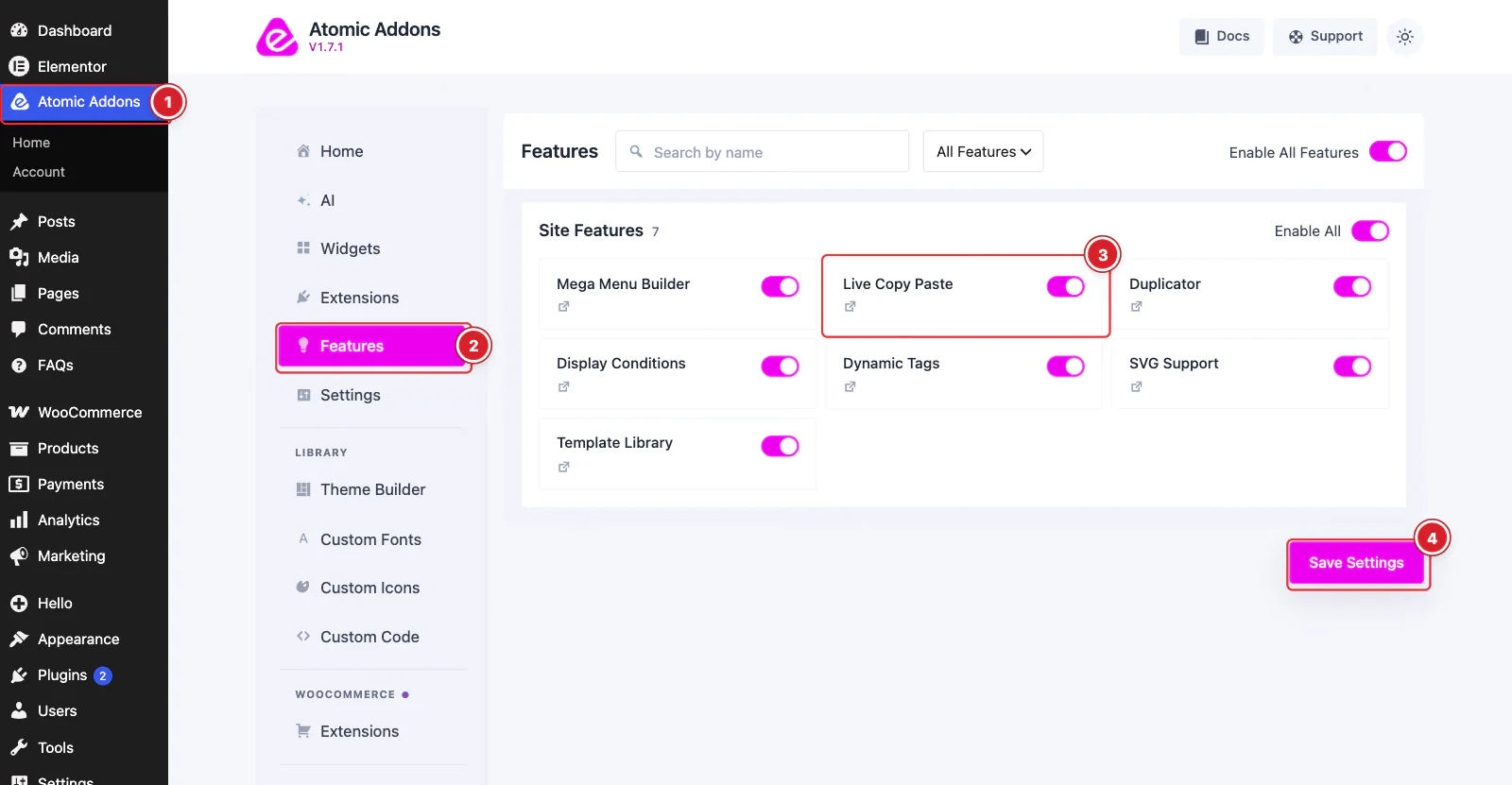
Live Copy Paste is free. Switch it on from the plugin dashboard:
- 1
Go to WordPress Dashboard → Atomic Addons.
- 2
Click Features.
- 3
Find the Live Copy Paste card and turn its switch On.
- 4
Click Save Settings.
Turn On the Live Copy Button
 (Open the full-size image in a new tab)
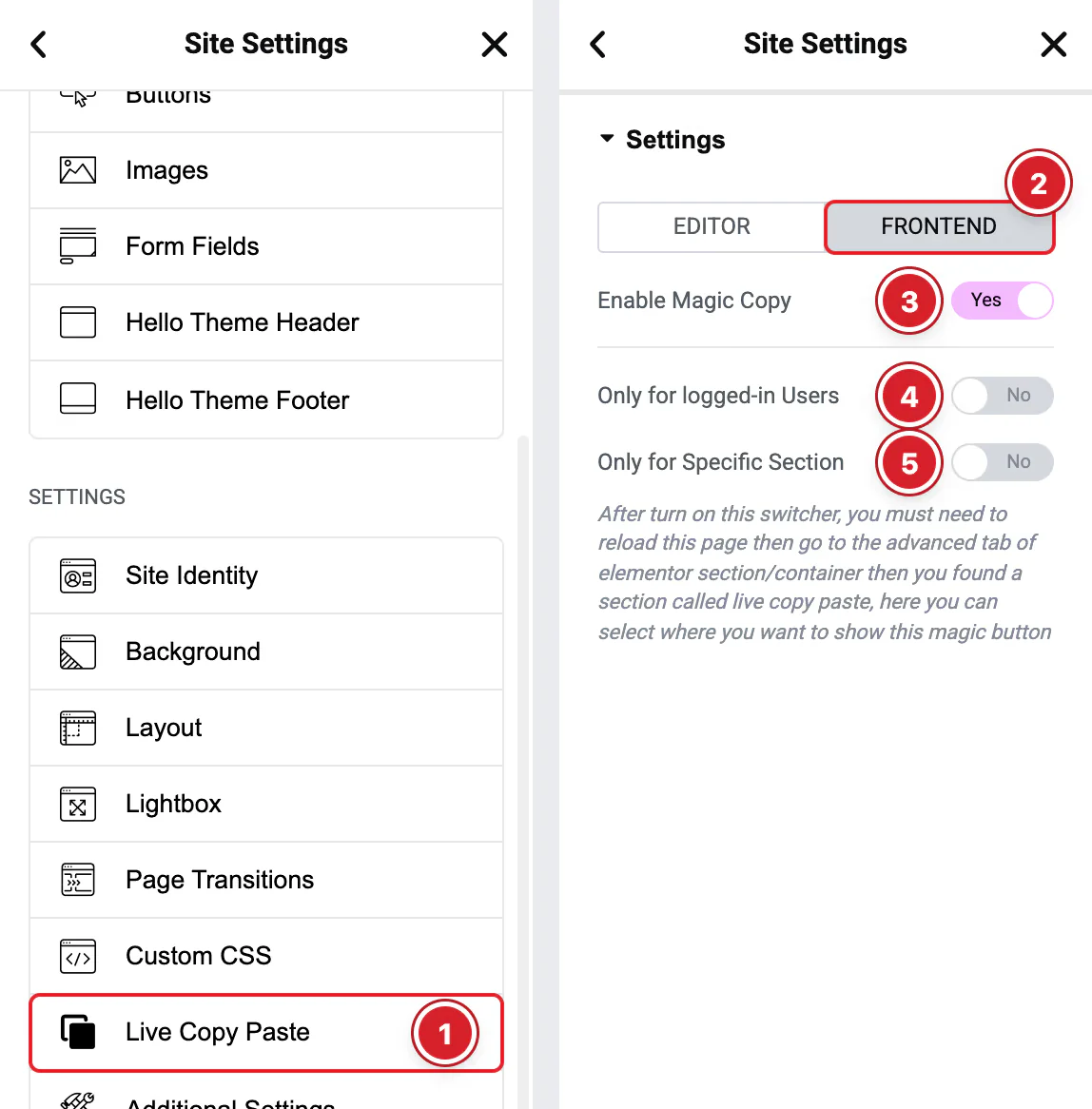
The button stays hidden until you turn it on in Elementor's Site Settings. Open any page in Elementor, click the Elementor logo at the top left and choose Site Settings. Then:
- 1
Live Copy Paste: Under Settings, click Live Copy Paste.
- 2
FRONTEND: Open the FRONTEND tab.
- 3
Enable Magic Copy: Turn it on to add the Live Copy button to your pages.
- 4
Only for logged-in Users: Show the button only to visitors who are logged in — for example while you copy designs between your own sites.
- 5
Only for Specific Section: Show the button only on the sections you choose (see below). Left off, it appears on every top-level section.
Click Save Changes at the bottom of the panel.
When the button is on for everyone, any visitor can use it to copy your sections. To show it only to you and other logged-in users, turn on Only for logged-in Users.
Choose Sections One by One
 (Open the full-size image in a new tab)
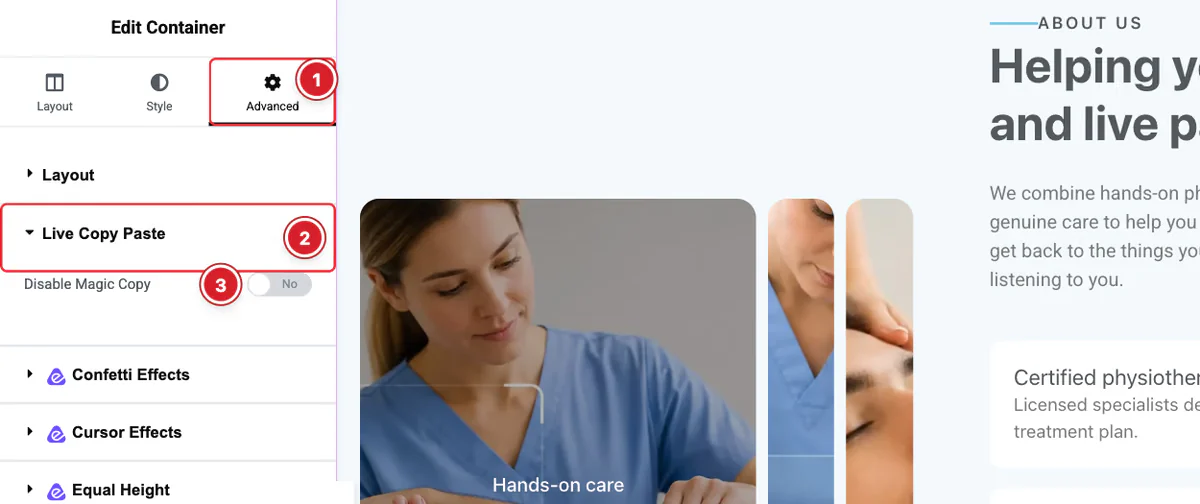
Every container and section has its own switch:
- 1
Advanced: Select a top-level container or section and open the Advanced tab.
- 2
Live Copy Paste: Expand the Live Copy Paste section.
- 3
Disable Magic Copy: Turn it on to hide the button on this section.
With Only for Specific Section on, the switch is called Enable Magic Copy instead, and the button appears only on the sections where you turn it on. After changing Only for Specific Section, save and reload the editor to see the switch change.
The button only appears on the top-level containers and sections of pages and posts built with Elementor — not on inner containers, and not in Theme Builder templates such as headers and footers.
Copy a Section
 (Open the full-size image in a new tab)
- 1
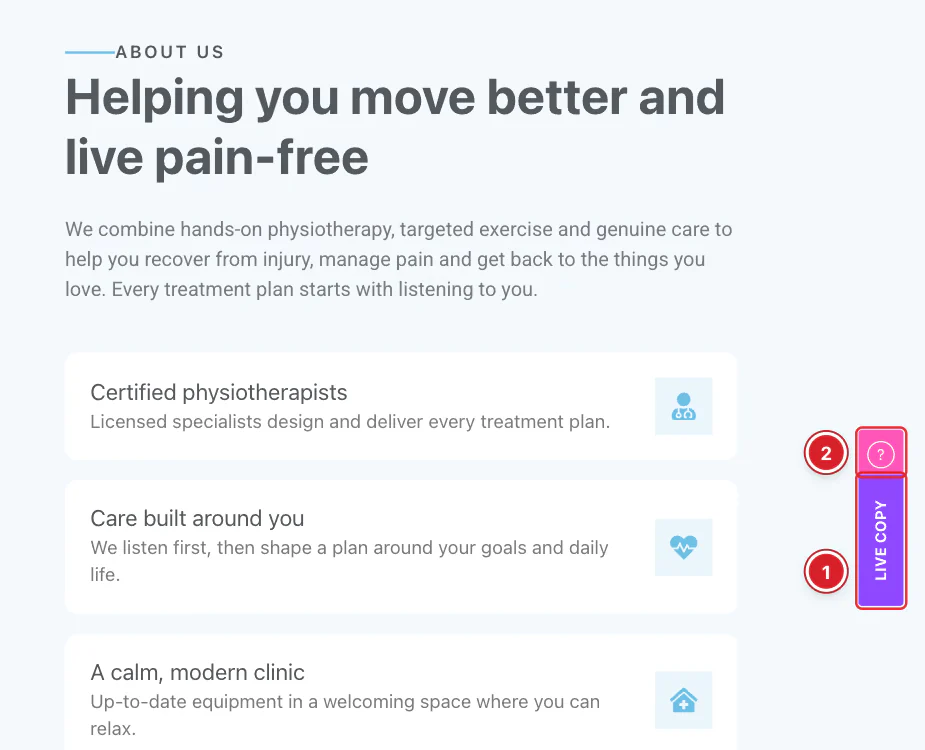
Live Copy: Open the published page, hover over a section and click the Live Copy button on its right edge. The label changes to “Copied!” when the section is on your clipboard.
- 2
Help icon: Hover the icon above the button for a reminder of what it does.
If the label shows “Click again”, click once more; if it shows “Try again!”, reload the page and retry. The button is hidden on screens 768 px wide or narrower, so copy from a desktop browser.
Paste It Into Another Site
 (Open the full-size image in a new tab)
On the site where you want the section, open the page in Elementor (version 3.11 or later).
- 1
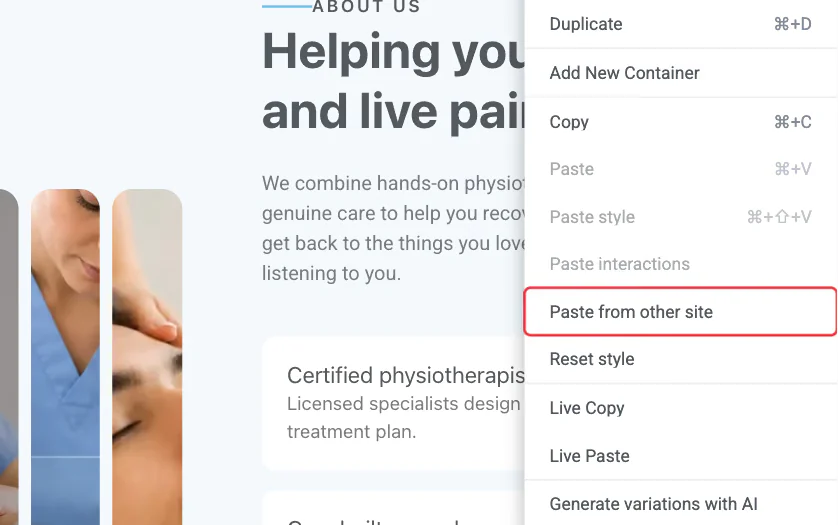
Paste from other site: Right-click an element, or the empty area at the bottom of the page, and choose Paste from other site.
 (Open the full-size image in a new tab)
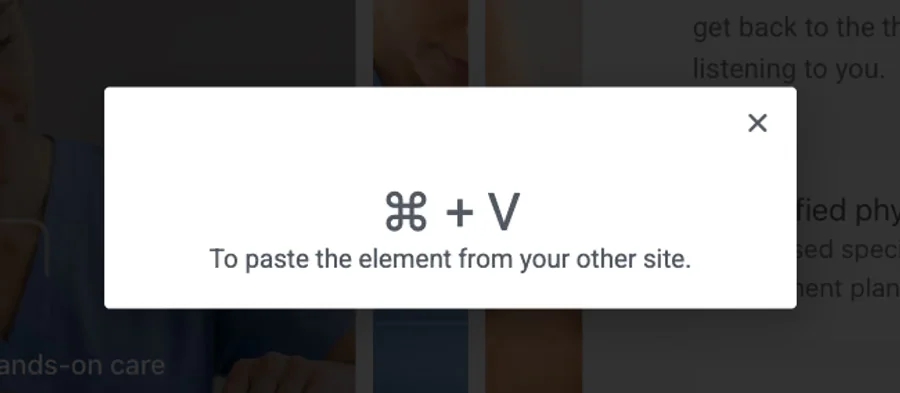
While this dialog is open, press Ctrl + V (⌘ + V on a Mac). Elementor adds the section and copies its images into this site's Media Library.
A plain Ctrl + V on the canvas doesn't paste a Live Copy — always use Paste from other site. If the section uses Atomic Addons widgets, the destination site needs Atomic Addons with the same widgets switched on.
The Live Copy and Live Paste items in the right-click menu are left over from older versions and only point you to Elementor's own Copy and Paste from other site. To remove them, turn off Enable Copy Paste on the EDITOR tab of the Live Copy Paste settings.
All done! You have successfully set up the Live Copy Paste feature.
Thanks for being with us.
Can't find what you need?
Our support team can help with setup questions and anything the docs don't cover yet.