
The Min Max Quantities extension by Atomic Addons sets minimum and maximum purchase limits for your WooCommerce store: a quantity range for each product or variation, plus limits on the whole cart's item count and total. When a cart breaks a rule, shoppers see a clear message telling them what to change. This guide covers the cart-wide limits, how they are enforced, the messages, and the limits you set on individual products.
Enable the Min Max Quantities Extension
 (Open the full-size image in a new tab)
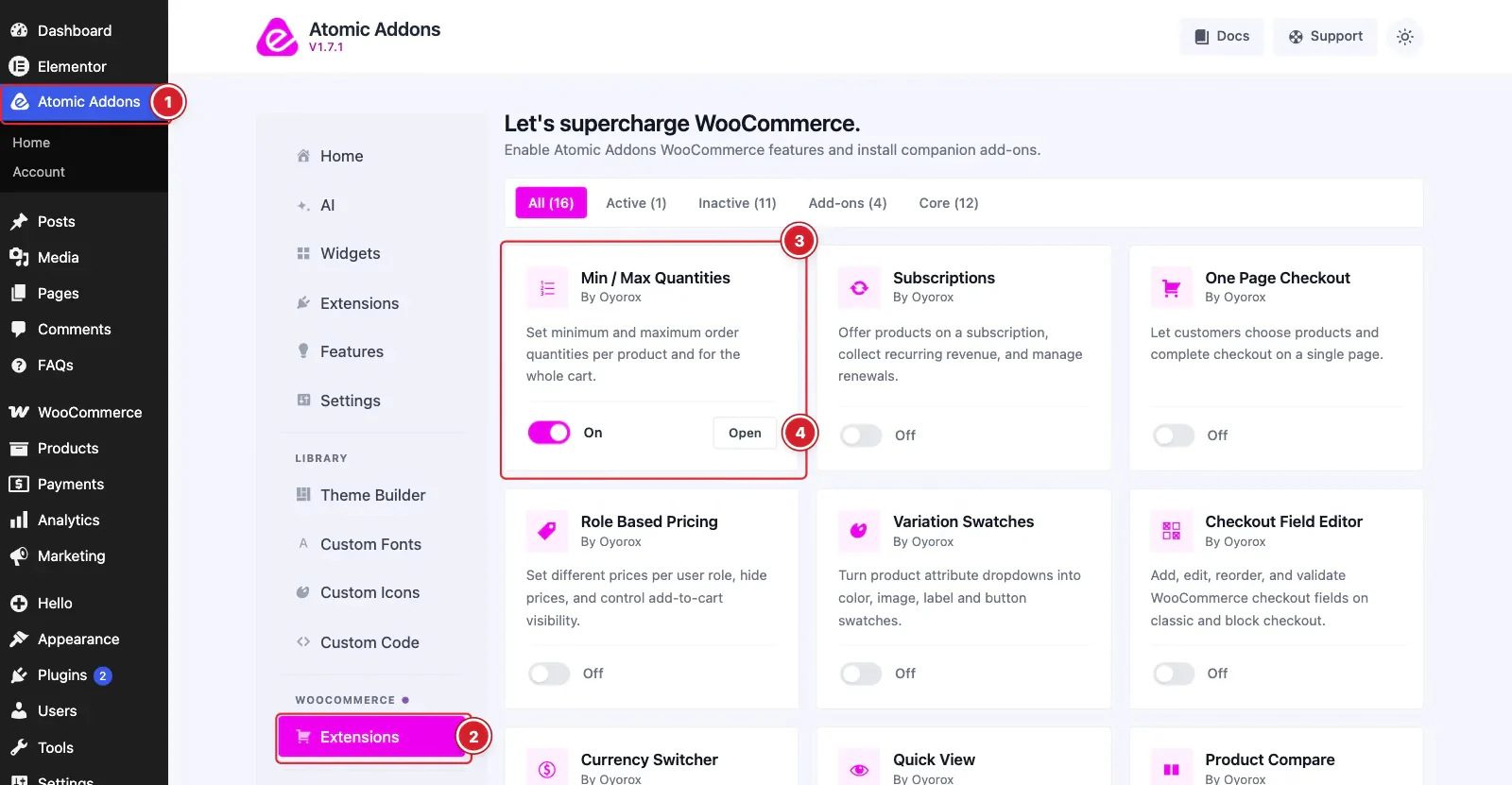
WooCommerce must be installed and active. Then switch the extension on from the Atomic Addons dashboard:
- 1
Go to WordPress Dashboard → Atomic Addons.
- 2
Under WooCommerce, click Extensions.
- 3
Find the Min / Max Quantities card and turn its switch On.
- 4
Click Open to open the extension's settings.
Set Cart-Wide Limits
 (Open the full-size image in a new tab)
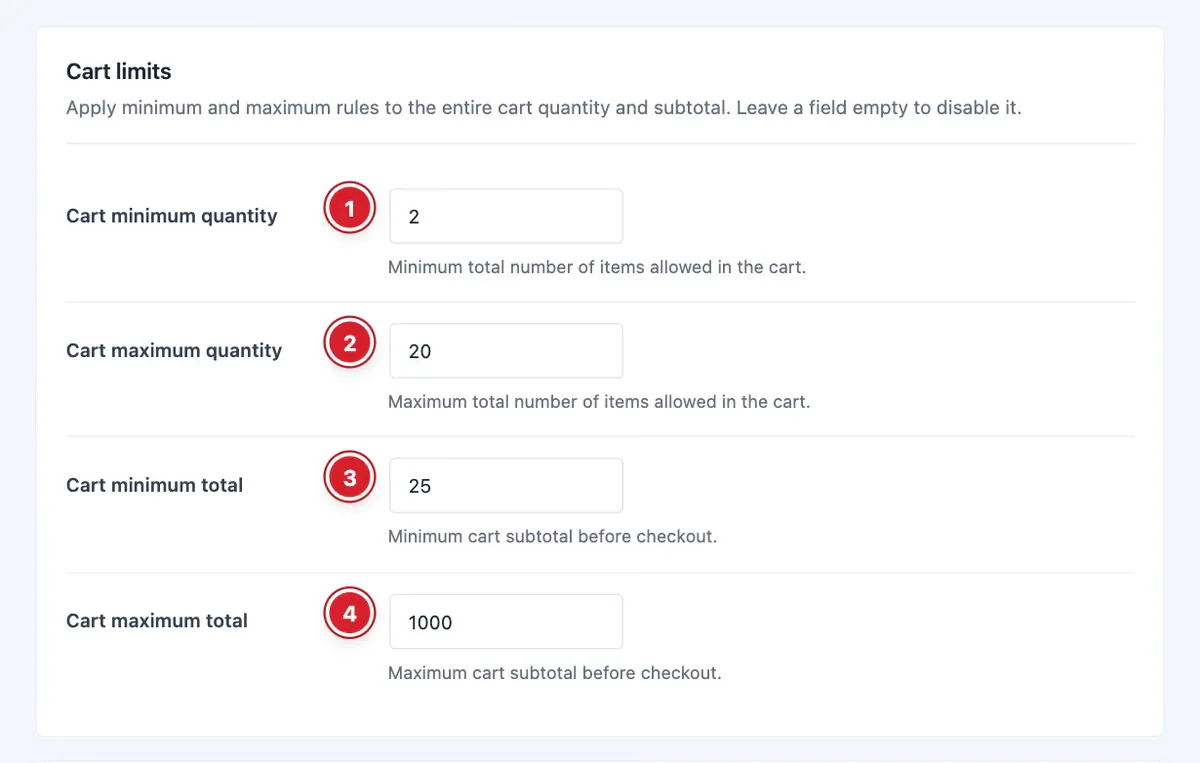
The first card applies to the whole cart. Leave a field empty to switch that limit off.
- 1
Cart minimum quantity: The fewest items the cart must hold, counting every product in it.
- 2
Cart maximum quantity: The most items one order may contain.
- 3
Cart minimum total: The smallest order value that can go to checkout.
- 4
Cart maximum total: The largest order value allowed.
Choose How the Limits Are Enforced
 (Open the full-size image in a new tab)
- 5
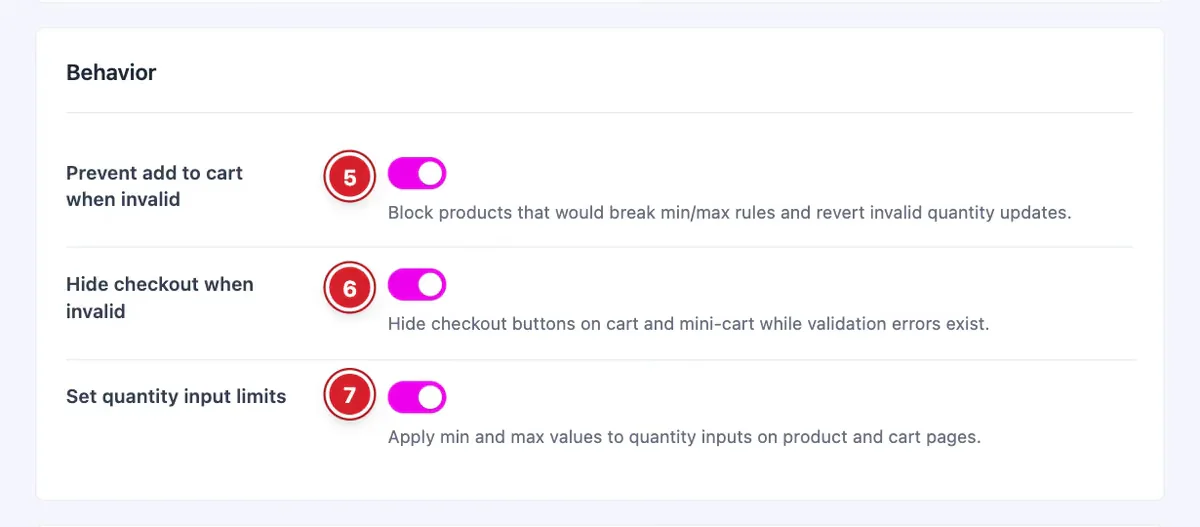
Prevent add to cart when invalid: Blocks an add-to-cart that would break a limit, and reverts a quantity change in the cart that would break one.
- 6
Hide checkout when invalid: Hides the checkout button on the cart page while a limit is broken.
- 7
Set quantity input limits: Applies each product's minimum and maximum to its quantity box on product and cart pages, so shoppers can't pick a number outside the range.
Customize the Messages
 (Open the full-size image in a new tab)
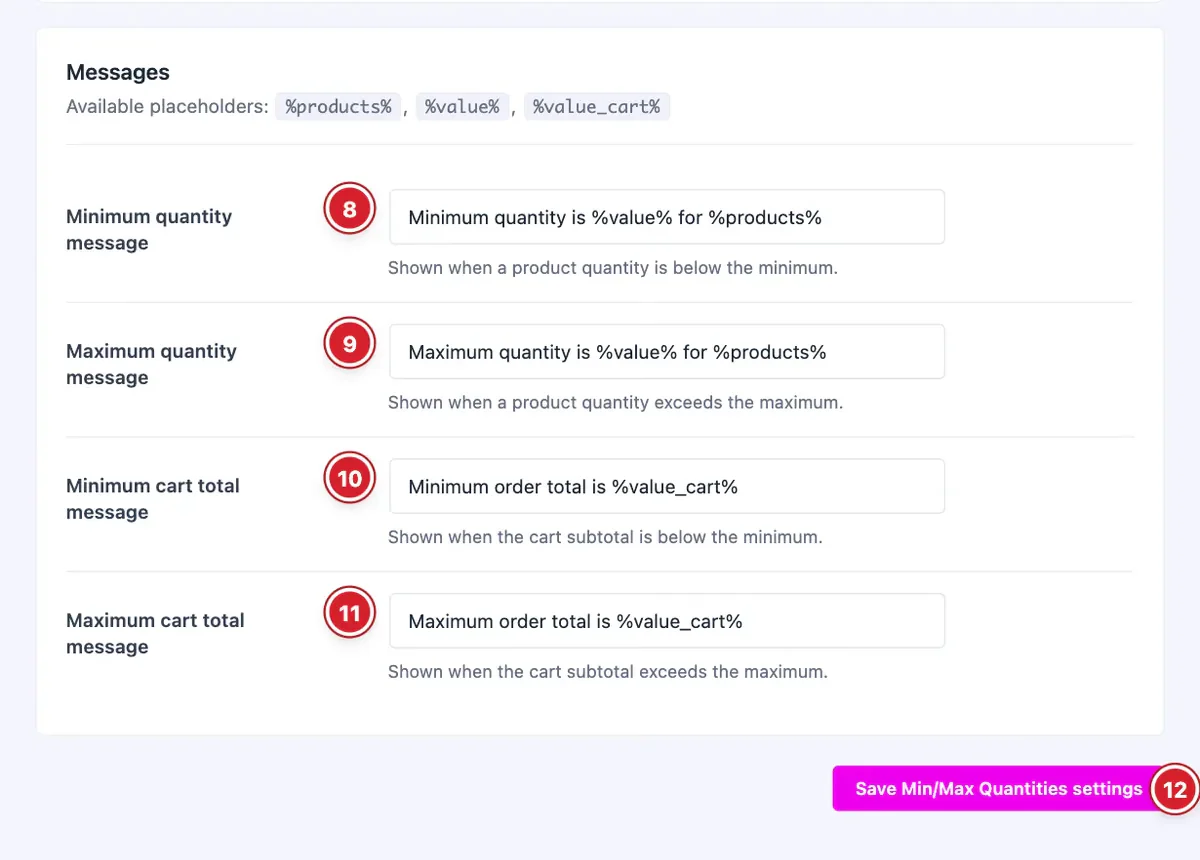
Each message can use three placeholders: %products% for the product name (or “your cart” for cart-wide rules), %value% for the quantity limit and %value_cart% for the order total limit, shown as a price.
- 8
Minimum quantity message: Shown when a quantity is below the minimum.
- 9
Maximum quantity message: Shown when a quantity is above the maximum.
- 10
Minimum cart total message: Shown when the order total is below the minimum.
- 11
Maximum cart total message: Shown when the order total is above the maximum.
- 12
Save Min/Max Quantities settings: Click to save your changes.
Set Limits for a Single Product
 (Open the full-size image in a new tab)
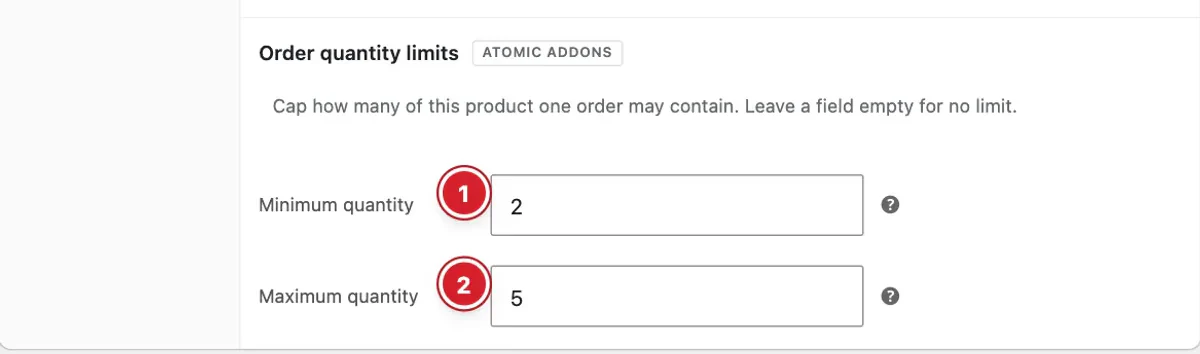
Edit a product and open Product data → Inventory. Under Order quantity limits:
- 1
Minimum quantity: The fewest units of this product one order may contain.
- 2
Maximum quantity: The most units of this product one order may contain.
Variable products have the same two fields inside each variation. A variation's limits apply to that variation, and the limits on the parent product apply to all of its variations added together.
Leave a field empty for no limit. Product limits work alongside the cart-wide limits, so an order has to meet both.
Final Preview
 (Open the full-size image in a new tab)
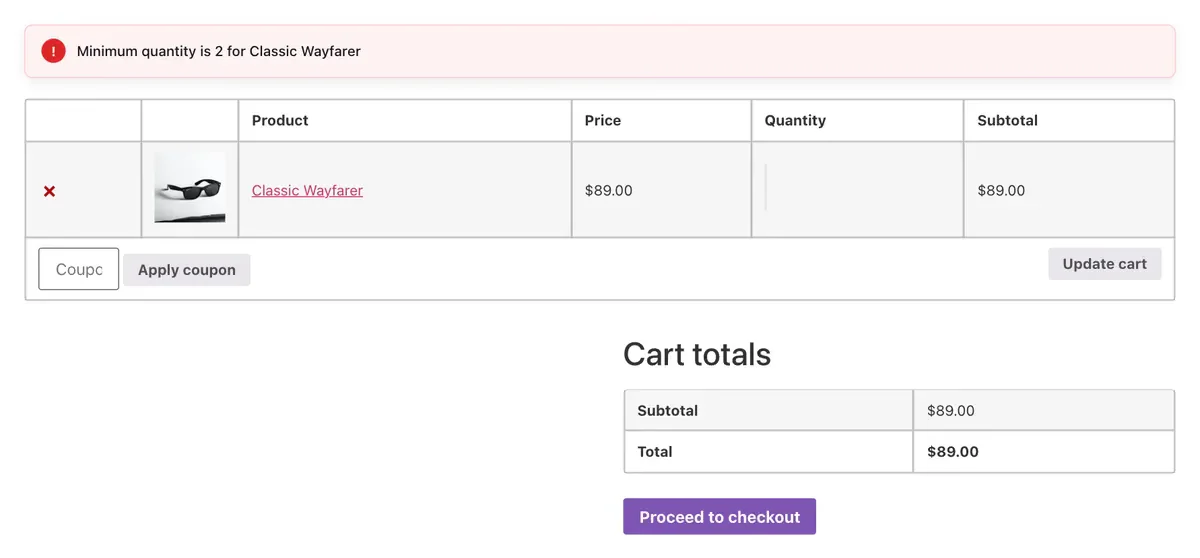
Here the Classic Wayfarer has a minimum quantity of 2, so a cart holding just one shows the minimum quantity message. The same kind of message appears for the other limits, using the text you set.
All done! You have successfully set up the Min Max Quantities extension on your store.
Thanks for being with us.
Can't find what you need?
Our support team can help with setup questions and anything the docs don't cover yet.