
The Accommodation Bookings extension by Atomic Addons adds an Accommodation product type to WooCommerce. Guests pick their dates on a calendar, the price is worked out night by night, and every stay becomes a booking that follows its order. This guide covers the settings, the product fields, pricing and bookings.
Enable the Accommodation Bookings Extension
 (Open the full-size image in a new tab)
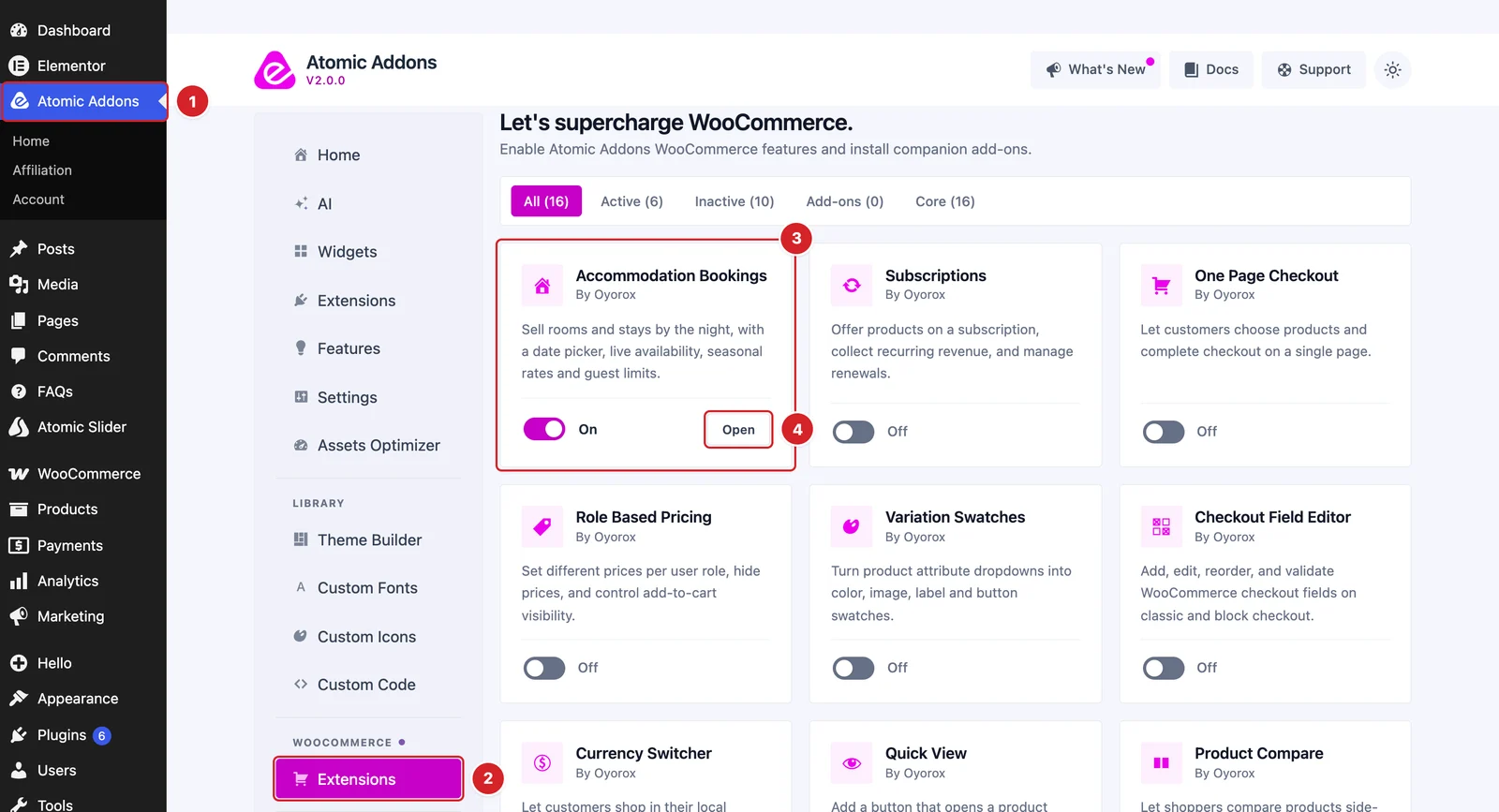
WooCommerce must be installed and active. Then switch the extension on from the Atomic Addons dashboard:
- 1
Go to WordPress Dashboard → Atomic Addons.
- 2
Under WooCommerce, click Extensions.
- 3
Find the Accommodation Bookings card and turn its switch On.
- 4
Click Open to open the extension's settings.
Set Up the Booking Form and Availability
 (Open the full-size image in a new tab)
- 1
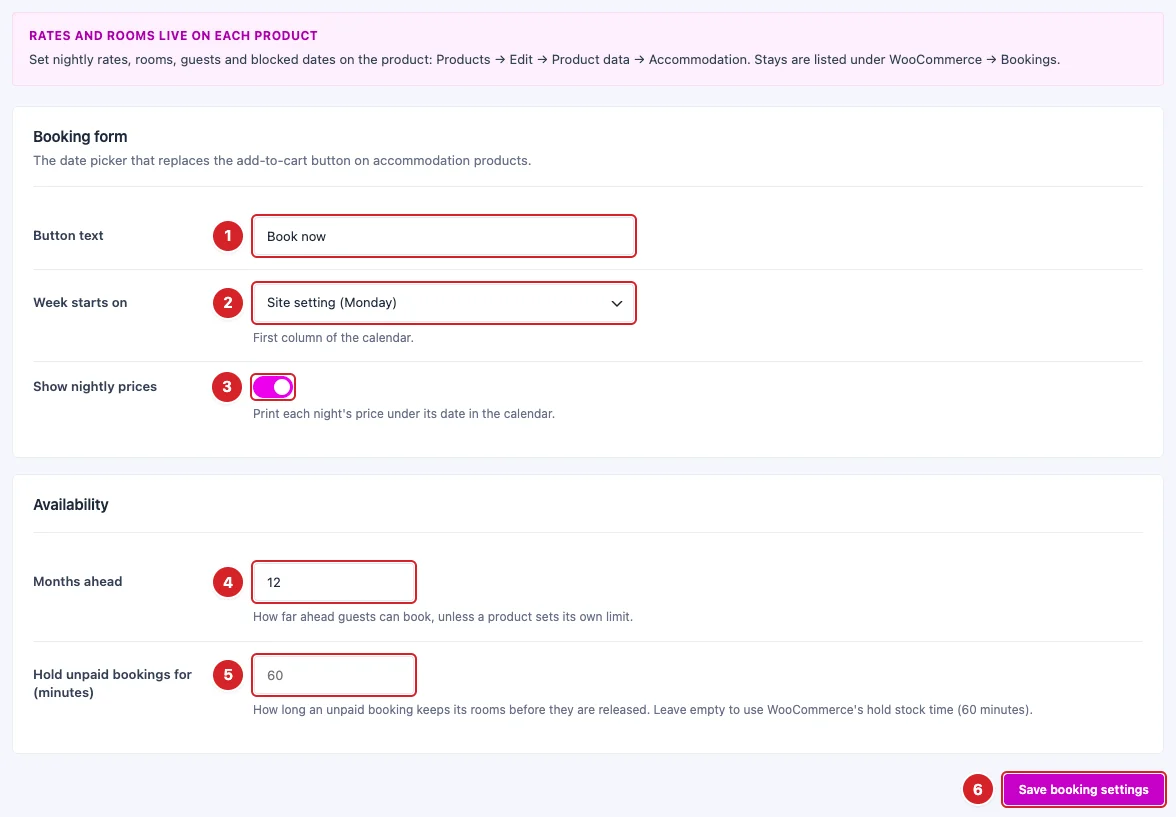
Button text: The booking button's text. “Book now” by default.
- 2
Week starts on: The calendar's first column. Site setting follows WordPress's Week Starts On.
- 3
Show nightly prices: Prints each night's price under its date. On by default.
- 4
Months ahead: How far ahead guests can book unless a product sets its own limit. 12 by default, up to 36.
- 5
Hold unpaid bookings for (minutes): How long an unpaid order keeps its rooms. Empty uses WooCommerce's hold stock time, or 60 minutes when that isn't set.
- 6
Save booking settings: Click to save your changes.
Create an Accommodation Product
Add or edit a product and set Product data to Accommodation. Use one product per room type.
 (Open the full-size image in a new tab)
- 1
Product data: Choose Accommodation. The product is always virtual and doesn't manage stock; rooms are counted per night instead.
- 2
Accommodation: The tab with the booking fields.
- 3
Nightly rate: Price per room per night; shop sorting and price filters use it. Empty stops bookings.
- 4
Weekend rate: For Friday and Saturday nights. Empty uses the nightly rate.
- 5
Seasonal rates: Click Add season and enter a name, the first and last night and a rate. Tick Every year to repeat the dates yearly (they may run over the new year). If seasons overlap, the first one wins.
 (Open the full-size image in a new tab)
- 1
Minimum nights: The shortest stay. 1 by default.
- 2
Maximum nights: The longest stay. Empty means no limit.
- 3
Book at least (days ahead): 0 lets guests book for tonight.
- 4
Book up to (months ahead): Empty uses Months ahead from the settings.
- 5
Rooms of this type: Identical rooms you can let on the same night. 1 by default.
- 6
Guests per room: The most guests one room sleeps. 2 by default.
- 7
Guests included in the rate: Guests per room the rate covers. 2 by default.
- 8
Extra guest fee per night: Charged for each guest above that, each night.
 (Open the full-size image in a new tab)
- 1
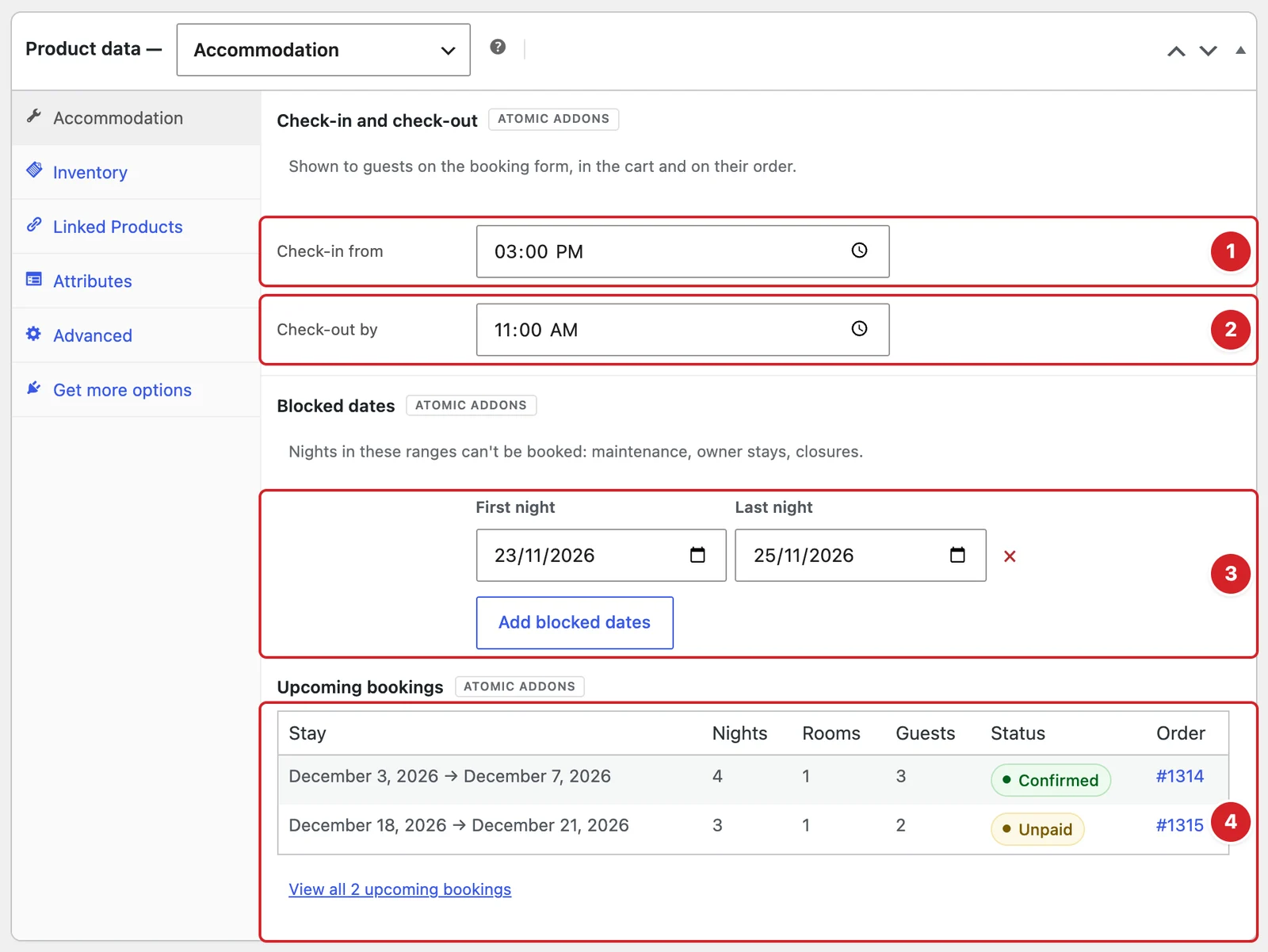
Check-in from: 15:00 by default. Shown on the form, in the cart and on the order.
- 2
Check-out by: 11:00 by default.
- 3
Blocked dates: Click Add blocked dates and enter the first and last night of a closure. Those nights can't be booked.
- 4
Upcoming bookings: The next 10 unpaid and confirmed stays, with a link to the full list.
How the Price Adds Up
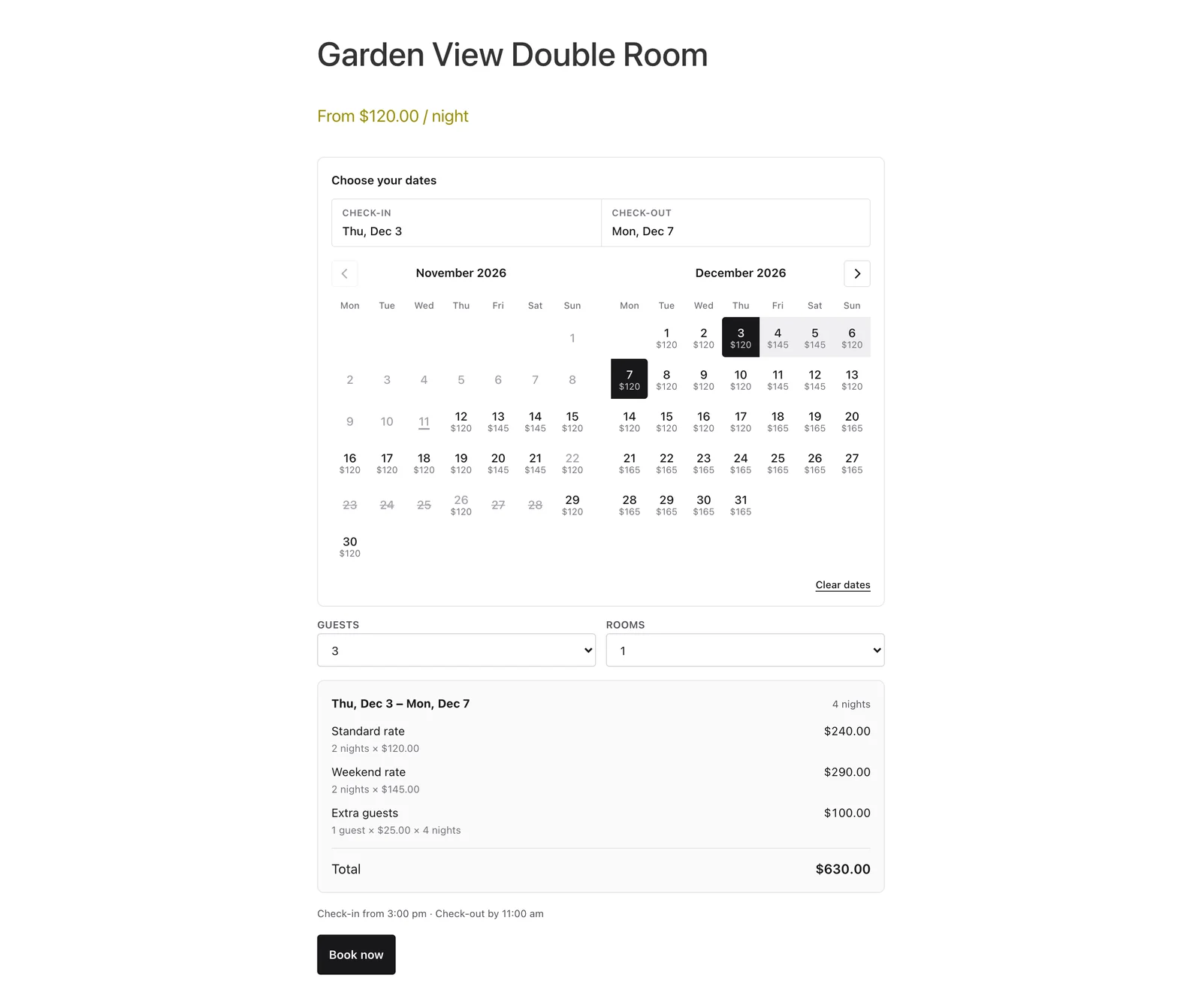
Each night is priced on its own: a season's rate if a season covers it, else the weekend rate on Friday and Saturday nights, else the nightly rate. The nights are added up and multiplied by the rooms. Guests above Guests included in the rate × rooms each pay the extra guest fee every night.
Below, 3 guests stay 4 nights in one room: 2 nights at $120, Friday and Saturday at $145, and 1 extra guest × $25 × 4 nights, $630 in all. Shop and product pages show “From $120.00 / night”, the lowest of the nightly, weekend and current seasonal rates.
Sale prices don't apply (saving the product clears them), and other price rules such as role-based discounts don't change a stay's price. Only the Currency Switcher converts it.
What Guests See
 (Open the full-size image in a new tab)
The booking form replaces the add-to-cart button. The calendar shows two months when there is room (one on narrow screens). Blocked and fully booked nights are struck through; dates that can't start a minimum-length stay are dimmed.
- Guests goes up to rooms × guests per room. Rooms appears only when the product has more than one room, and rises to fit the guests.
- The summary lists each rate, the extra guests and the Total, with the check-in and check-out times below.
- In product loops the button reads Check availability and opens the product page.
- The cart, order, order emails and My Account show Check-in, Check-out, Nights and Guests. The quantity is the number of rooms.
Manage Bookings
 (Open the full-size image in a new tab)
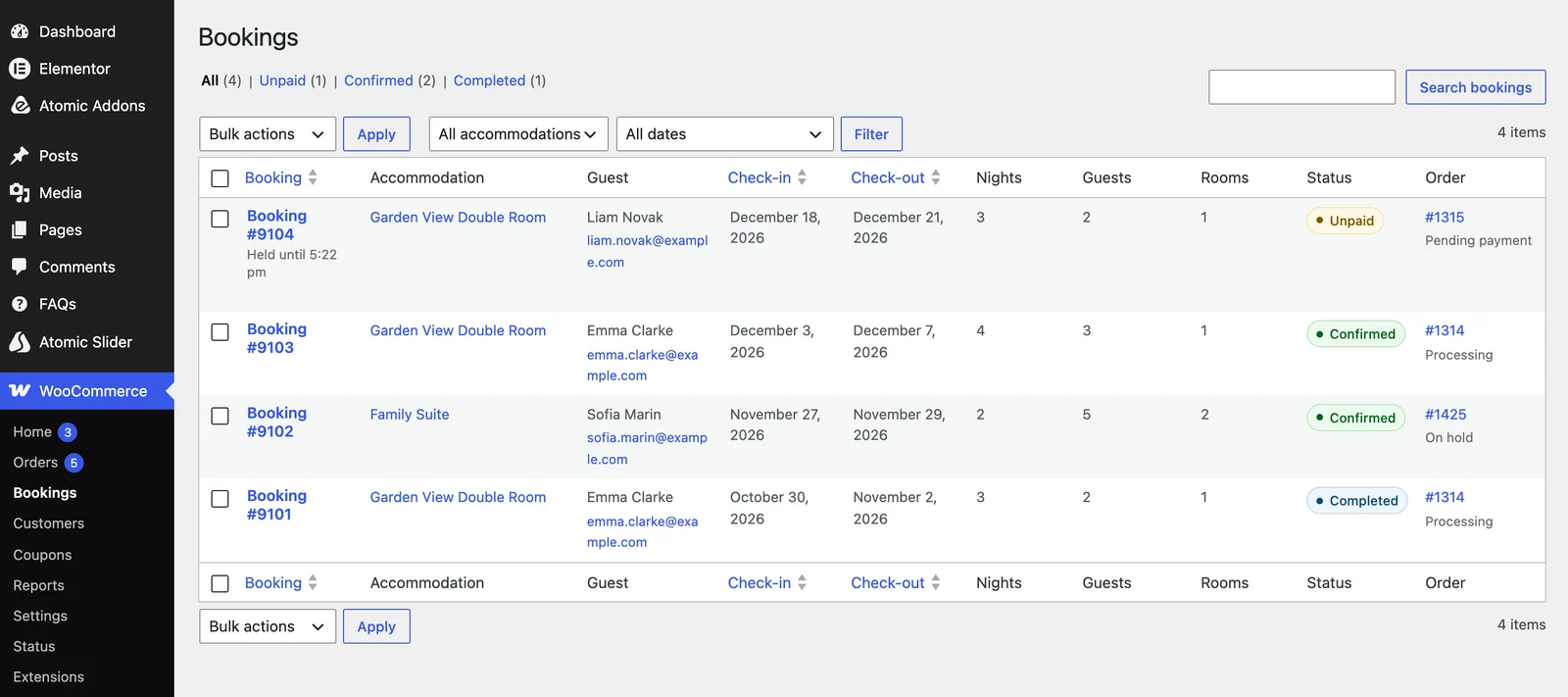
WooCommerce → Bookings lists every stay. Filter by accommodation or by Upcoming and current stays and Past stays. Bookings come from orders, each following its order:
- Unpaid: placed, not paid. It holds its rooms for the hold time (“Held until …”). Rooms are re-checked as the order is placed, so the last room can't be sold twice. An order On hold for an offline payment such as bank transfer keeps its rooms with no time limit (“Awaiting payment”) until it is paid or cancelled.
- Confirmed: the order is Processing or Completed.
- Cancelled: the order was cancelled, refunded, failed or deleted, or the hold ran out. Its rooms are free again.
- Completed: the check-out date has passed.
An hourly cleanup cancels expired holds (noting it on the order) and completes finished stays; availability ignores an expired hold right away. Click Details to open a booking and correct its Status if needed.
There are no booking emails of their own, deposits or iCal sync. While the extension is off, accommodation products can't be booked.
Final Preview
Guests choose their dates, see the total and book; you follow every stay under WooCommerce → Bookings.
All done! You have successfully set up the Accommodation Bookings extension on your store.
Thanks for being with us.
Can't find what you need?
Our support team can help with setup questions and anything the docs don't cover yet.