
The Mega Menu Builder feature by Atomic Addons turns ordinary WordPress menu items into mega menus: wide dropdown panels you design in Elementor with any widgets — columns of links, images, buttons and more. Menu items can also carry a badge such as “New” and an icon. This guide covers switching the feature on, setting up a menu, designing a dropdown and showing the menu with the Mega Menu widget.
Enable the Mega Menu Builder Feature
 (Open the full-size image in a new tab)
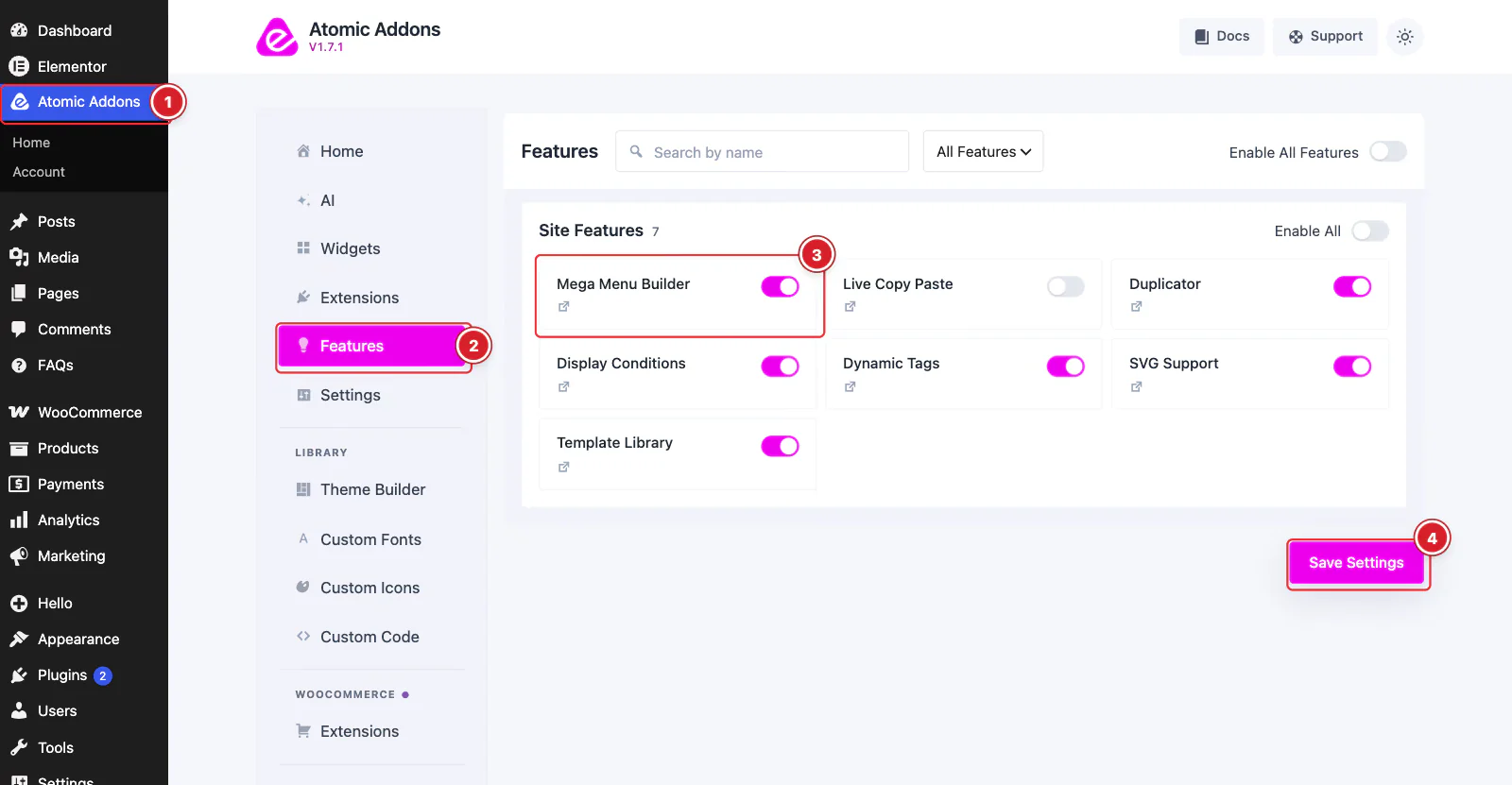
Mega Menu Builder is a Pro feature, so it needs Atomic Addons Pro; without Pro its card is locked. Switch it on from the plugin dashboard:
- 1
Go to WordPress Dashboard → Atomic Addons.
- 2
Click Features.
- 3
Find the Mega Menu Builder card and turn its switch On.
- 4
Click Save Settings.
Mega menus are displayed by the Mega Menu widget, so make sure that widget is switched on under Atomic Addons → Widgets as well.
Turn On Mega Menu for a Menu
 (Open the full-size image in a new tab)
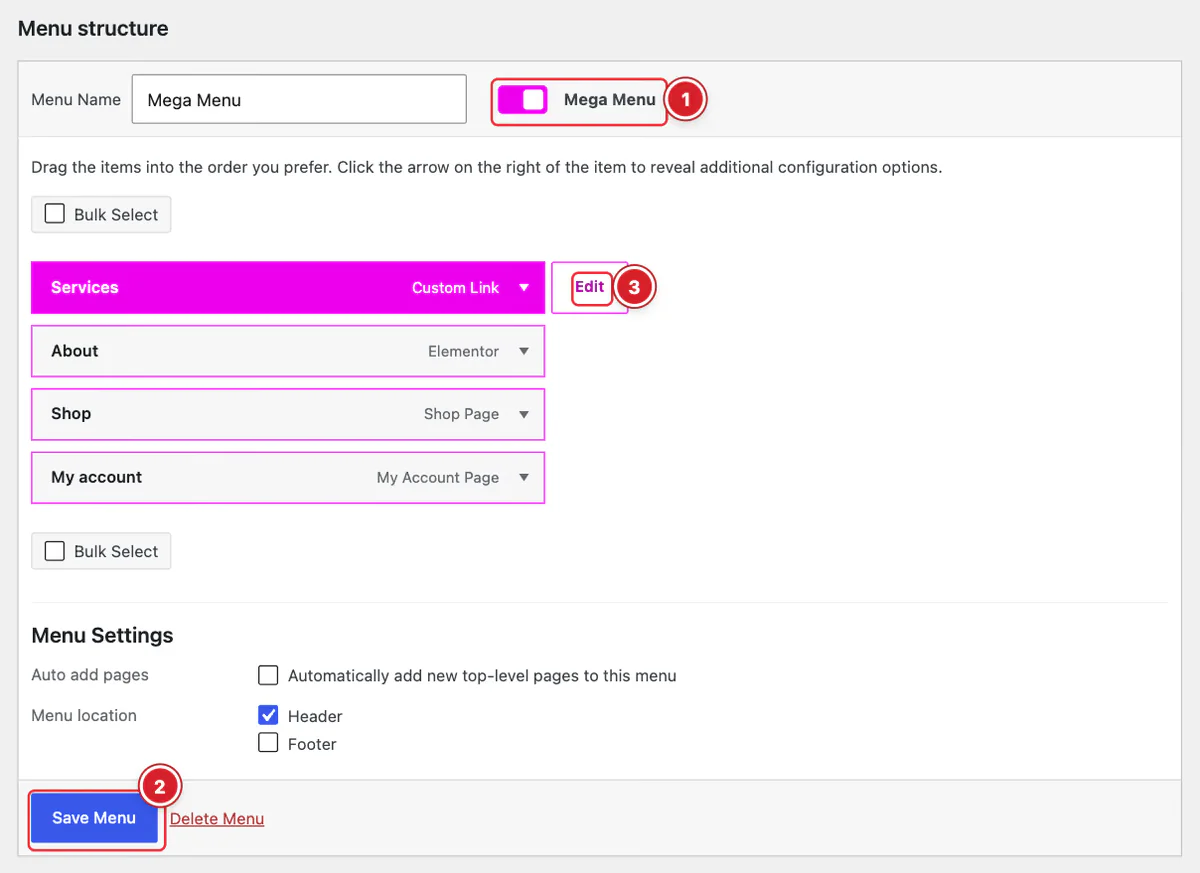
Go to Appearance → Menus and select the menu to work on, or create one.
- 1
Mega Menu: Turn on the Mega Menu switch next to the menu name.
- 2
Save Menu: Click Save Menu.
- 3
Edit: Each top-level item now has an Edit button. Click it to open the item's Mega Menu settings.
Set Up a Menu Item
 (Open the full-size image in a new tab)
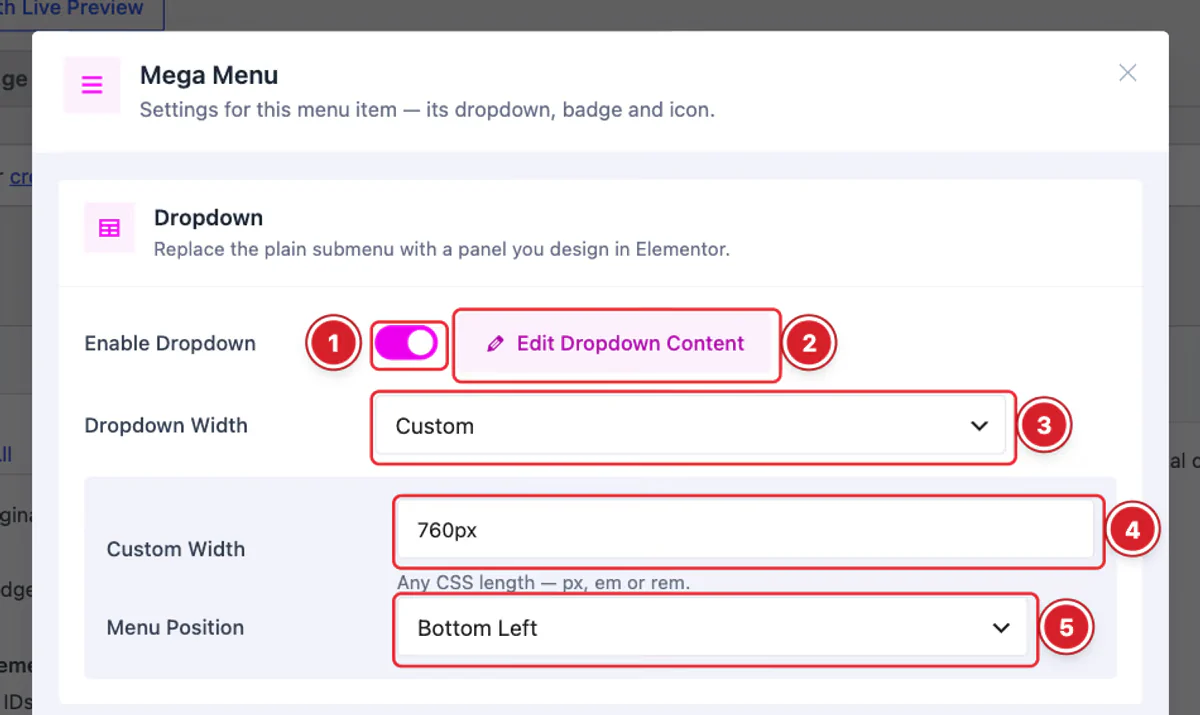
The Mega Menu window has three parts. The first is the dropdown:
- 1
Enable Dropdown: Turn it on to give this item a mega menu panel instead of a plain submenu.
- 2
Edit Dropdown Content: Opens Elementor so you can design the panel (see the next section).
- 3
Dropdown Width: Default matches the width of the container the menu sits in, Full spans the whole screen and Custom uses a fixed width.
- 4
Custom Width: With Custom, any CSS length — px, em or rem.
- 5
Menu Position: With Custom, line the panel up with the item: Bottom Left, Bottom Center or Bottom Right.
 (Open the full-size image in a new tab)
- 6
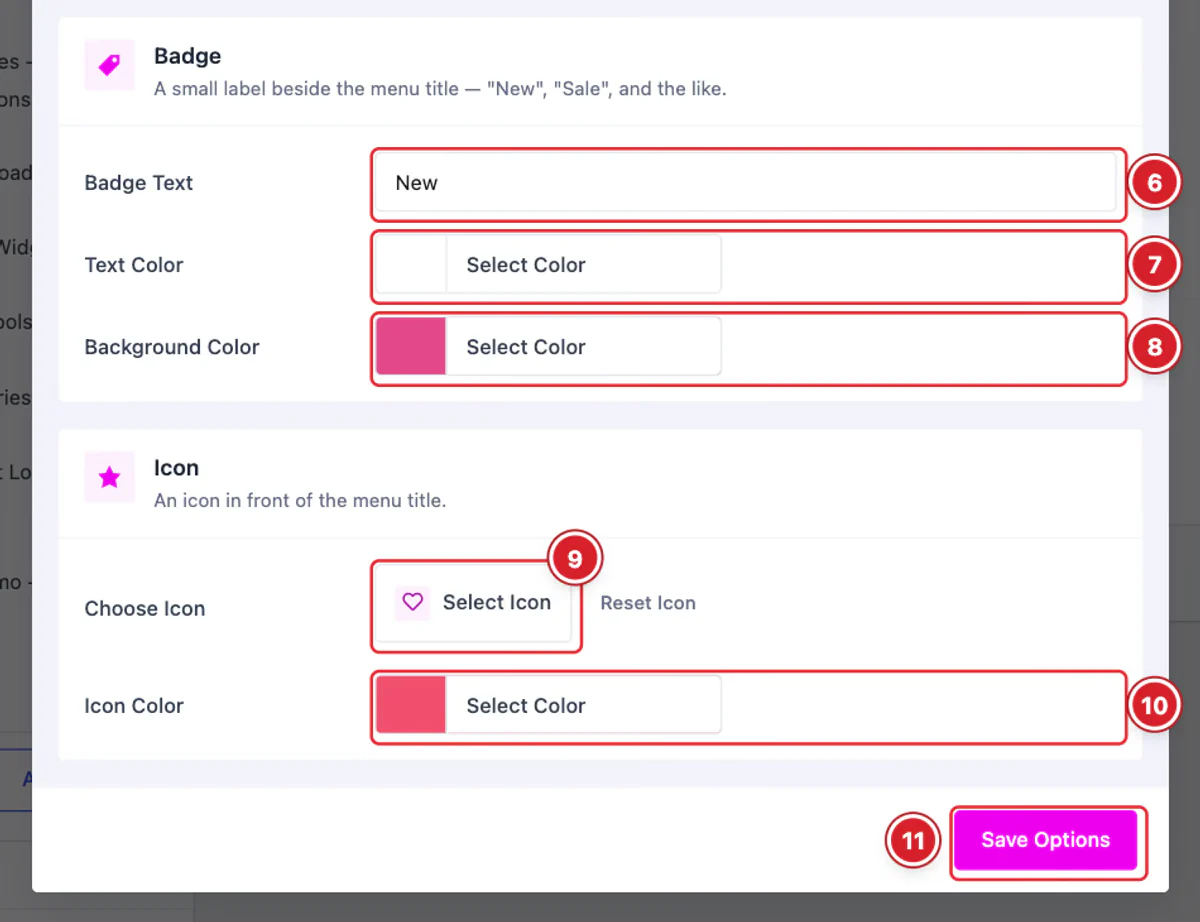
Badge Text: A short label shown with the item's title, such as “New” or “Sale”.
- 7
Text Color: The badge's text color.
- 8
Background Color: The badge's background color.
- 9
Choose Icon: Pick an icon to show in front of the title. Reset Icon removes it.
- 10
Icon Color: The icon's color.
- 11
Save Options: Saves this item's settings.
Badges and icons work on any top-level item of a menu with Mega Menu turned on, with or without a dropdown.
Design the Dropdown Content
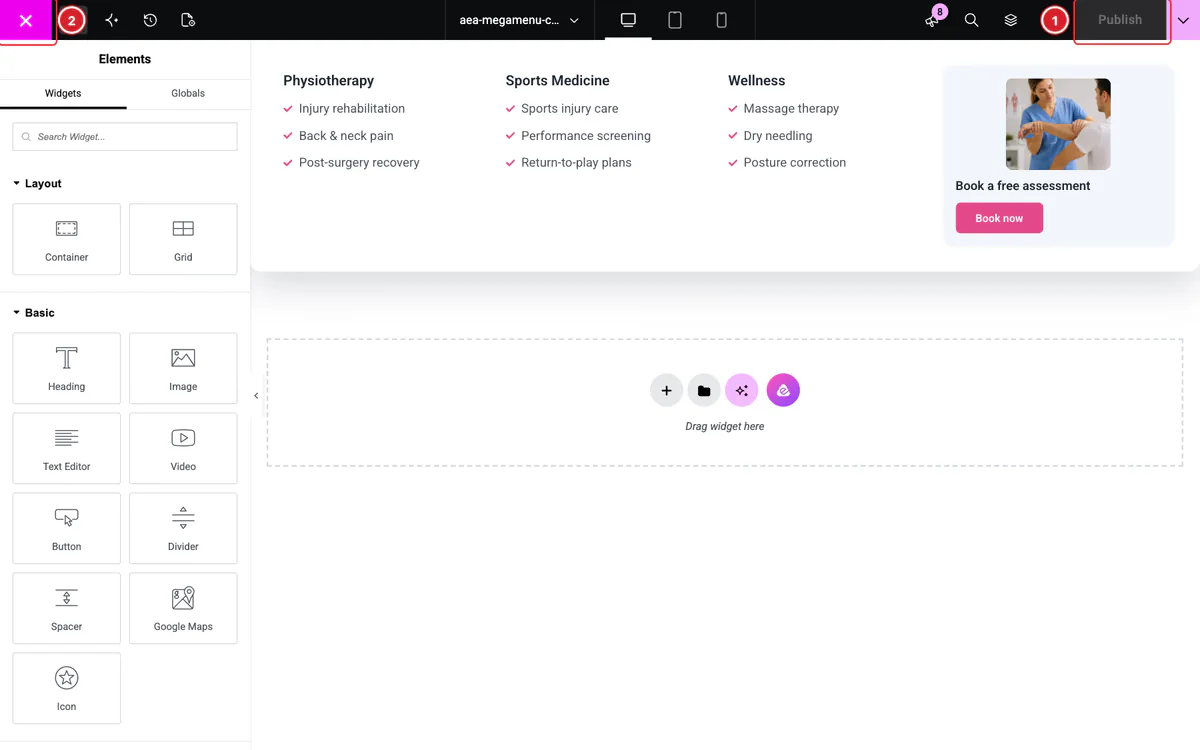 (Open the full-size image in a new tab)
Edit Dropdown Content opens the Elementor editor in a full-screen window with a blank canvas for this item's panel. Build the panel with any widgets — for example a container with three columns of links and a call-to-action card.
- 1
Publish: Click Publish (or Update) to save the panel.
- 2
Close: Close the window to return to the menu. If there are unsaved changes, you're asked whether to save them first.
Show the Menu With the Mega Menu Widget
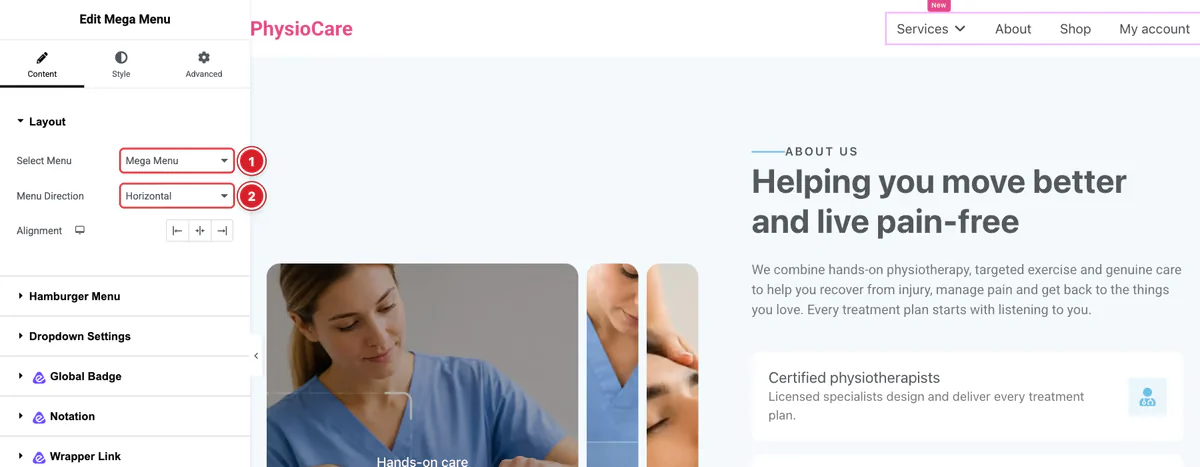 (Open the full-size image in a new tab)
Only the Mega Menu widget displays mega menus — a menu shown by your theme keeps its normal dropdowns. Add the widget to your header template or a page:
- 1
Select Menu: Choose the menu you set up.
- 2
Menu Direction: Horizontal for a menu bar, or Vertical for a side menu.
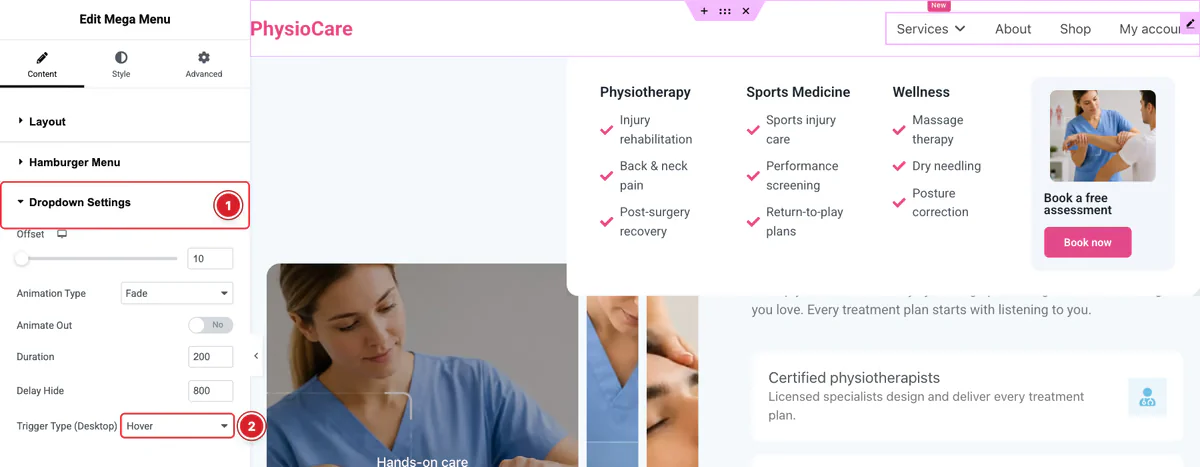 (Open the full-size image in a new tab)
- 1
Dropdown Settings: Set the panel's Offset from the menu, its Animation Type, Duration and Delay Hide.
- 2
Trigger Type (Desktop): Open the panels on Hover (the default) or on Click.
Under Hamburger Menu, choose the Breakpoint where the menu switches to its mobile version and the Mobile Menu Type: Hamburger or Offcanvas. On the Style tab, the Badge section styles the item badges.
Final Preview
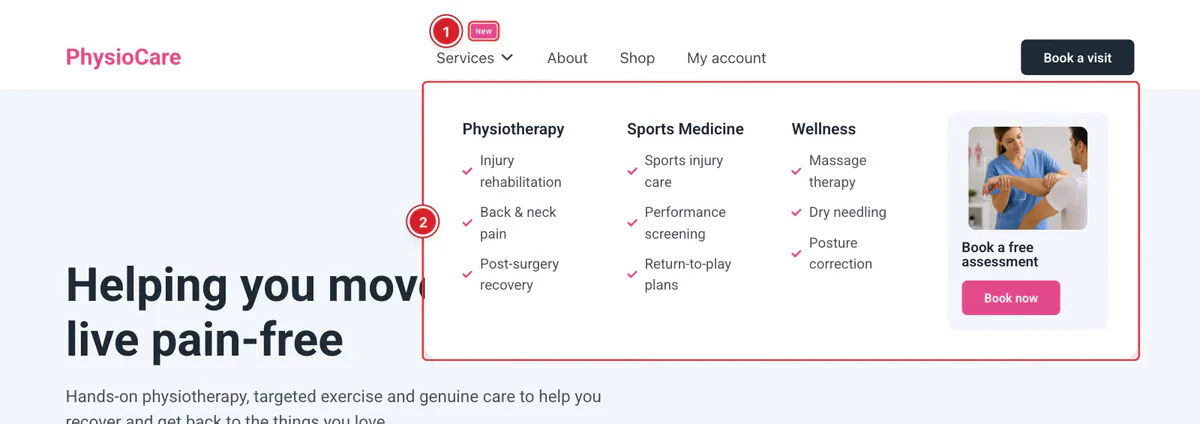 (Open the full-size image in a new tab)
- 1
Badge: The item's badge, in the colors you chose.
- 2
Mega menu panel: Hovering the item opens the panel you designed.
On mobile, the panels open inside the hamburger or off-canvas menu.
All done! You have successfully set up the Mega Menu Builder feature.
Thanks for being with us.
Can't find what you need?
Our support team can help with setup questions and anything the docs don't cover yet.