
The Display Conditions feature by Atomic Addons decides who sees an element. Add rules to any widget, container or section — the visitor's login status or role, the day or time, the page they came from, what is in their WooCommerce cart and more — and the element appears only when the rules are met, or disappears when they are. This guide covers switching the feature on, building a set of rules, the conditions you can use and how to check the result.
Enable the Display Conditions Feature
 (Open the full-size image in a new tab)
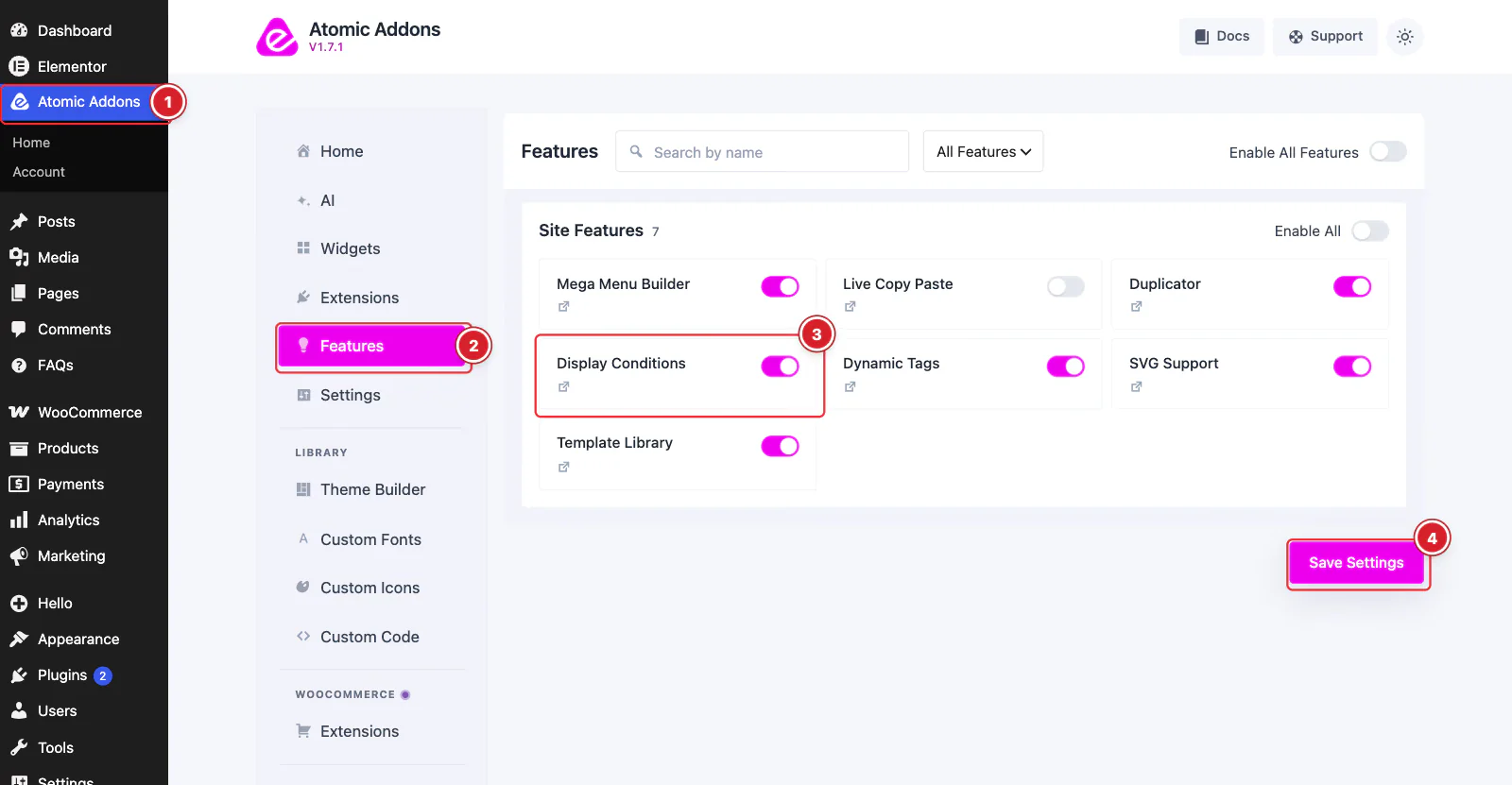
Display Conditions is a Pro feature, so it needs Atomic Addons Pro; without Pro its card is locked. Switch it on from the plugin dashboard:
- 1
Go to WordPress Dashboard → Atomic Addons.
- 2
Click Features.
- 3
Find the Display Conditions card and turn its switch On.
- 4
Click Save Settings.
Add Display Conditions to an Element
 (Open the full-size image in a new tab)
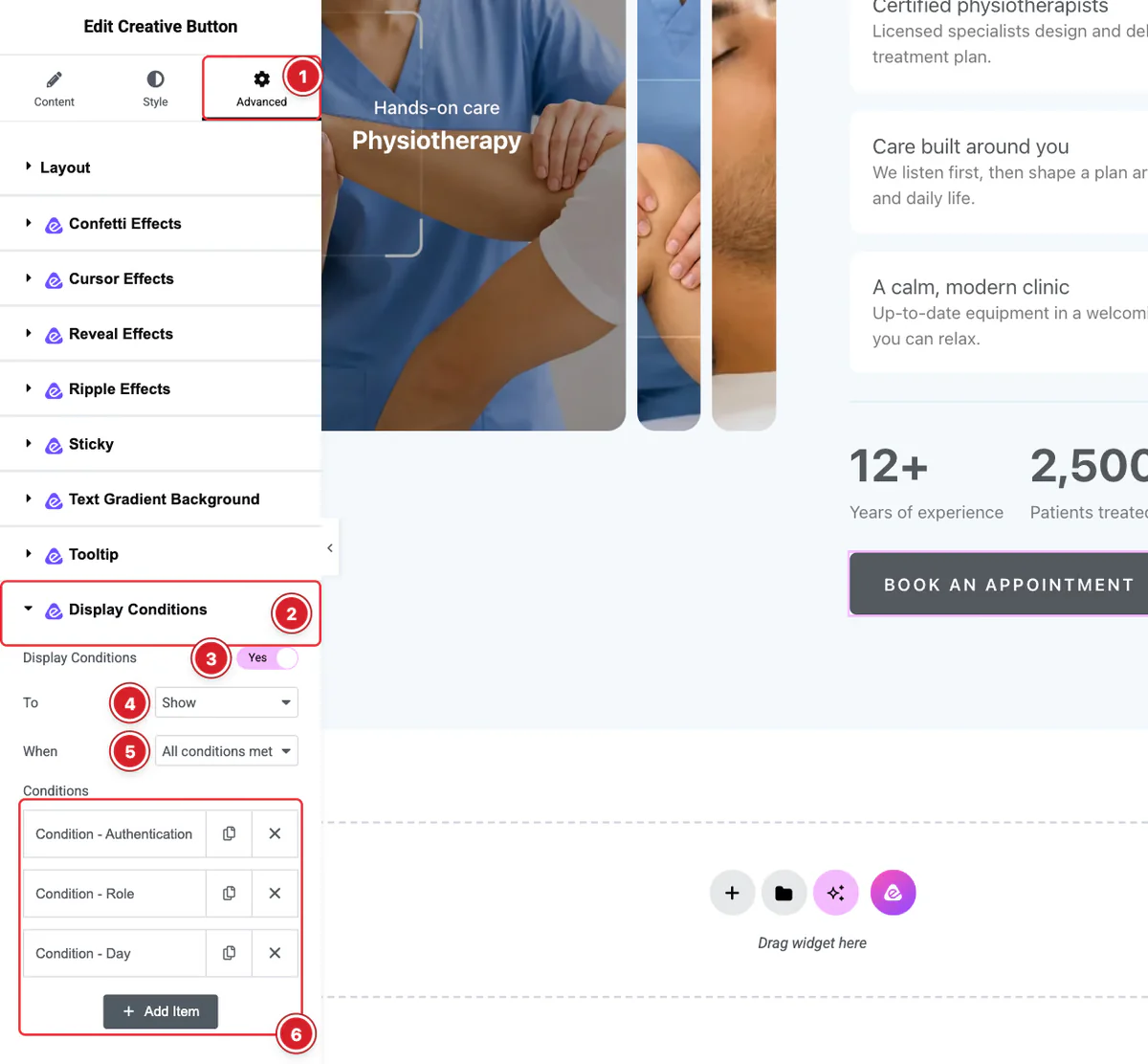
Open a page in Elementor and select the widget, container or section you want to control. Then:
- 1
Advanced: Open the Advanced tab.
- 2
Display Conditions: Expand the Display Conditions section. It has the Atomic Addons icon in front of its name.
- 3
Display Conditions switch: Turn it on (Yes).
- 4
To: Show displays the element only when the rules are met. Hide removes it when they are met and shows it the rest of the time.
- 5
When: All conditions met needs every rule to be true; Any condition met needs just one.
- 6
Conditions: Each item is one rule. Click Add Item to add a rule, the copy icon to duplicate one and × to delete one.
In this example the button is shown only to logged-in customers, and only on Saturdays and Sundays.
Columns don't have a Display Conditions section. Add the rules to the widgets or the container inside the column instead. Keep at least one rule in the list: with the switch on and no rules, Show hides the element for everyone.
Set Up a Rule
 (Open the full-size image in a new tab)
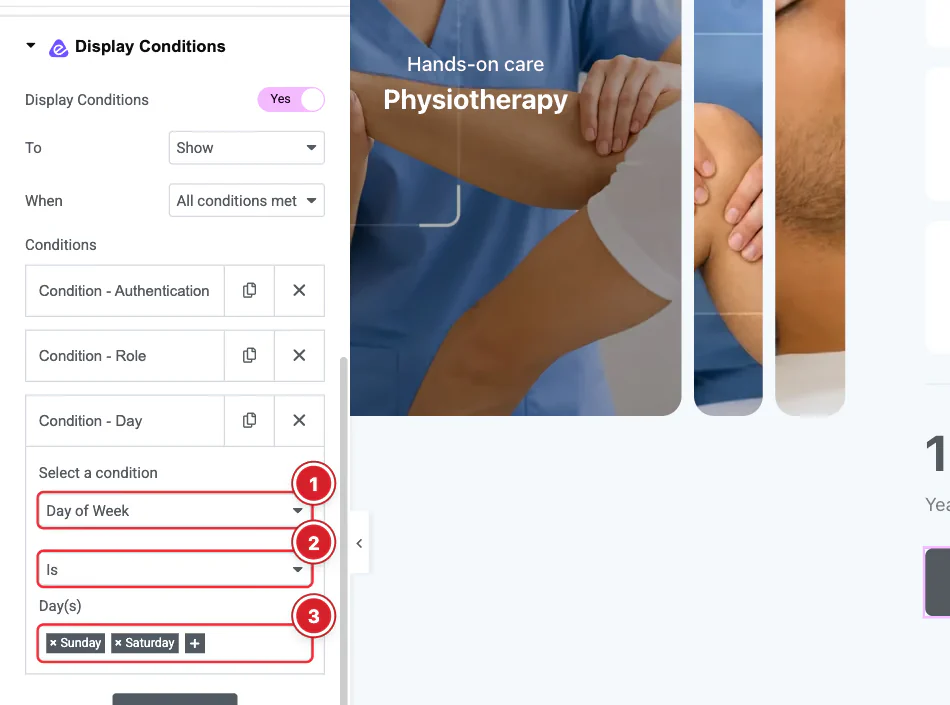
Click a rule to open it:
- 1
Select a condition: Choose what to check. The conditions are grouped by type and listed in full below.
- 2
Is / Is not: Is is true when the visitor matches the value; Is not when they don't.
- 3
Value: What to compare against. The field changes with the condition: a list of days here, a date picker for Date Range, a product search for Cart: Products and so on.
A rule's title shows the condition's internal name, so a Login Status rule is titled “Condition - Authentication” and a Day of Week rule “Condition - Day”.
Available Conditions
User
- Login Status — whether the visitor is logged in. Use Is not to target logged-out visitors.
- User — specific user accounts, found by searching. Left empty, any logged-in visitor.
- User Role — the logged-in visitor's role, such as Subscriber or Customer.
- Visit Count — true for the visitor's first page views, up to the number you set. Views are counted per element with a browser cookie.
- Session Count — true for the visitor's first sessions, up to the number you set.
- Country — the visitor's country, worked out from their IP address. It doesn't work on a local server.
System
- Operating System — iPhone, Android, Windows, OpenBSD, SunOS, Linux or Mac OS, read from the browser's user agent.
- Browser — Internet Explorer, Firefox, Chrome, Opera, Safari or Edge.
- Site Language — the language your site is set to in WordPress, not the visitor's browser language.
Date & Time
- Date Range — between two dates, including both.
- Time Range — between a Start Time and an End Time, every day. A range can't run past midnight.
- Till Date (Server Time) — until the start of the chosen date.
- Till Time of Day (Server Time) — every day from midnight until the chosen time.
- Day of Week — on the chosen days.
URL
- From External URL — the visitor arrived from another website. Enter a site, such as
example.com, to match only visitors from it (and its subdomains), or leave the field empty for any other site. - URL Parameters — the page address contains one of the
param=valuepairs you list, one per line. - URL String — the page address (path and query) contains the text you enter. Upper and lower case must match.
- From Search Engine URL — the visitor came from one of the search engines you select: Google, Yahoo, Bing, Yandex or Baidu, including their country sites such as google.co.uk. With none selected, any of them counts.
Post
- Post — on the posts you select. Left empty, it matches any single post or page.
- Post Type — on single items of the selected post types.
- Page — the Homepage, Front Page, Blog, 404 Page, or a Custom Page chosen by its ID.
WooCommerce
These appear when WooCommerce is active. Purchase history counts the visitor's completed orders.
- Cart: Products, Cart: Categories and Cart: Tags — the cart holds one of the selected products, or a product from one of the selected categories or tags.
- Cart: Items Number and Cart: Subtotal Price — the cart holds at least this many items, or its subtotal is at least this amount. Enter 0 to check for an empty cart.
- First Purchased Date, Purchased Date and Last Purchased Date — compare the dates of the visitor's completed orders.
- Purchased Items Number and Order(s) Placed — how many completed orders the visitor has.
- Current Category Page — on the archive page of the selected product categories.
- Single Product conditions — on a product page, check the product's price, stock, category or type, or whether it is downloadable, virtual, featured, on backorder, on sale or sold individually.
Advanced Custom Fields
These appear when ACF is active. Pick the field with Choose Key, then enter the value to compare:
- ACF Boolean — a True / False field.
- ACF Choice — a Select, Checkbox or Radio field.
- ACF Text — a text, textarea, WYSIWYG, number, range, email, URL or password field. The value must match exactly.
Misc
- Shortcode — runs the shortcode you enter and compares its output with the value.
Some conditions count as not met whenever there is nothing to check — an empty cart, a page that isn't a product, a value left empty — whether you choose Is or Is not.
Check the Result
Rules apply on your live site. In the Elementor editor every element stays visible, whatever its rules, so you can keep working on it. To test, publish the page and open it the way your target visitor would — for example logged out in a private window, or on a phone.
When the rules hide an element, it is left out of the page's HTML altogether, not just hidden with CSS.
Elements with rules are kept out of Elementor's Element Cache, so every visitor gets their own result. A page cache from a caching plugin or your host still stores the page as the first visitor saw it, so leave pages that use visitor-based rules out of it.
The date and time conditions use the timezone set under Settings → General. Country looks up the visitor's IP address with an outside service (findip.net) — once a day for each address — so that address is shared with the service.
All done! You have successfully set up the Display Conditions feature.
Thanks for being with us.
Can't find what you need?
Our support team can help with setup questions and anything the docs don't cover yet.