
The Currency Switcher extension by Atomic Addons lets shoppers see prices and pay in their own currency. Add the currencies you accept with live or manual exchange rates, add a fee or rounding, and show a switcher on product pages or anywhere with a shortcode. This guide covers currencies, exchange rates, the switcher and checkout.
Enable the Currency Switcher Extension
 (Open the full-size image in a new tab)
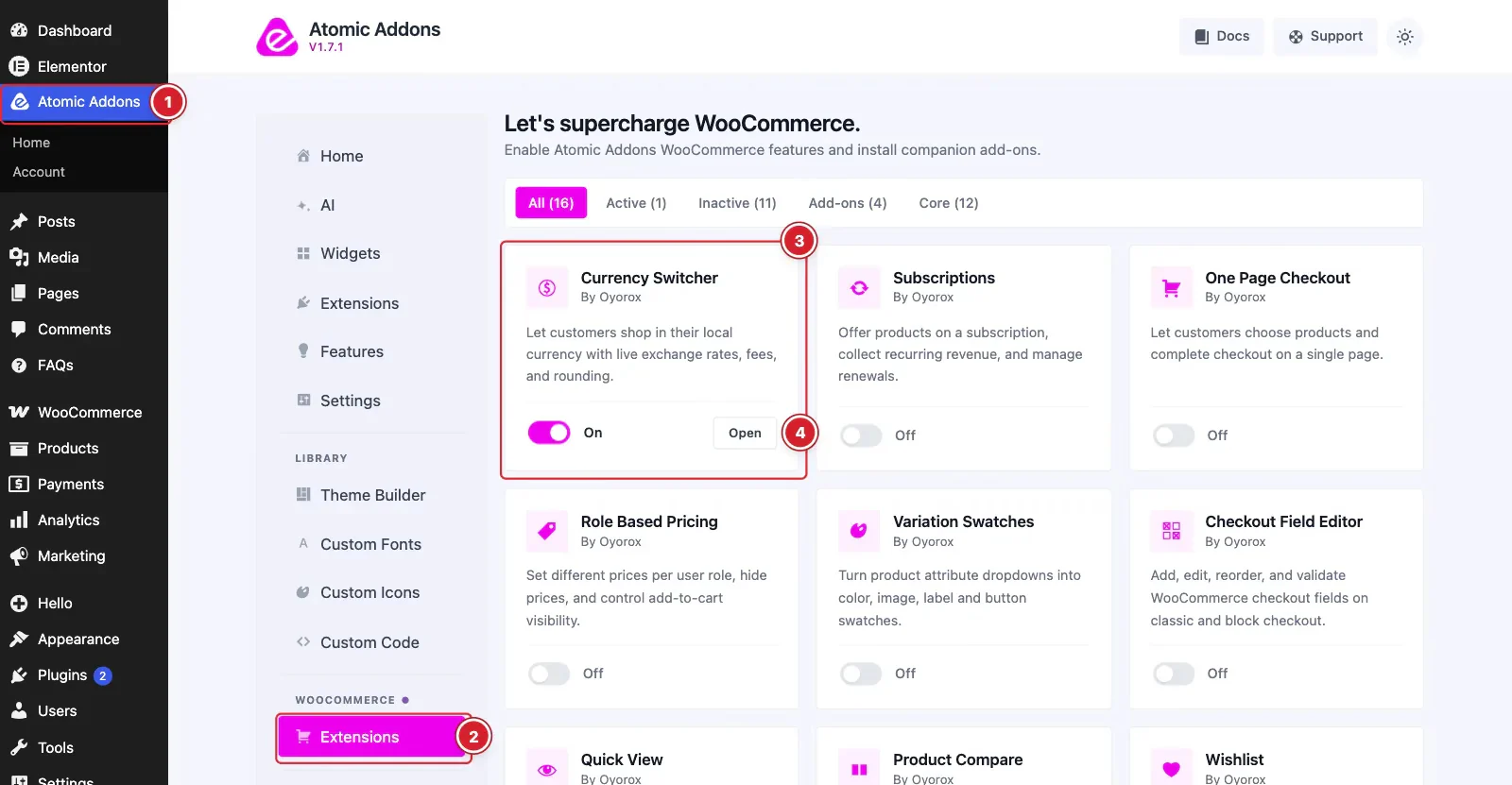
WooCommerce must be installed and active. Then switch the extension on from the Atomic Addons dashboard:
- 1
Go to WordPress Dashboard → Atomic Addons.
- 2
Under WooCommerce, click Extensions.
- 3
Find the Currency Switcher card and turn its switch On.
- 4
Click Open to open the extension's settings.
Add Your Currencies
 (Open the full-size image in a new tab)
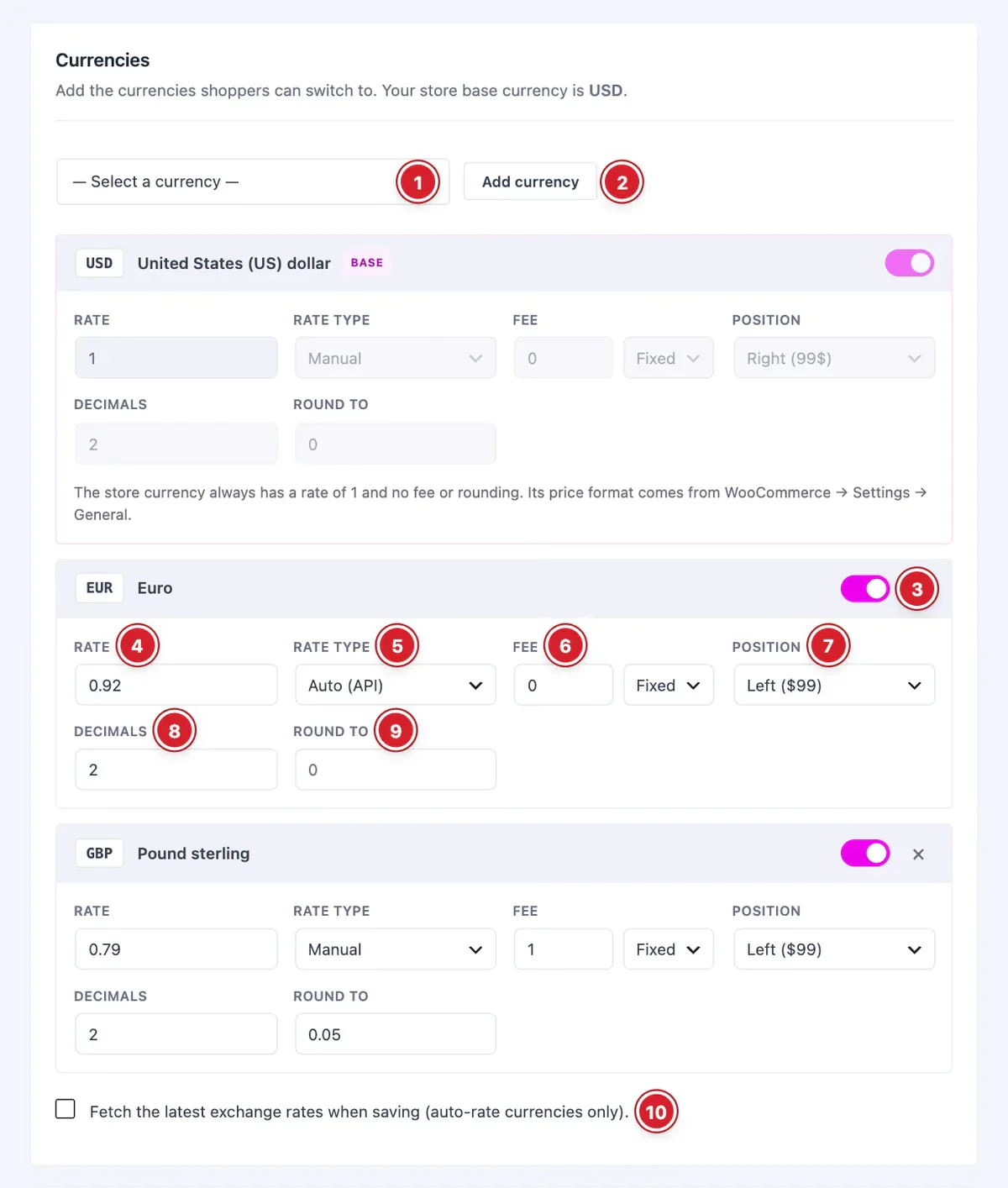
Your store's base currency, set in WooCommerce → Settings, is always listed first with a rate of 1. Its fee and rounding are off and its price format — symbol position, decimals and separators — comes from WooCommerce's own settings, so those fields are locked in its row.
- 1
Select a currency: Choose a currency to add.
- 2
Add currency: Adds it to the list.
- 3
Enabled: Switch a currency off to hide it from shoppers without deleting it.
- 4
Rate: How much one unit of your base currency is worth in this currency.
- 5
Rate type: Auto (API) keeps the rate updated from the rate provider; Manual uses the rate you type.
- 6
Fee: Raises the rate: a Fixed fee is added to the exchange rate, a % fee increases it by that percentage.
- 7
Position: Where the currency symbol goes, for example $99 or 99 $.
- 8
Decimals: How many decimals prices show in this currency.
- 9
Round to: Rounds converted prices to the nearest multiple, for example 0.05 or 1. Leave it empty for no rounding.
- 10
Fetch the latest exchange rates when saving: Tick to update every Auto (API) rate when you save.
A newly added currency starts at a rate of 1. Tick Fetch the latest exchange rates when saving, or switch it to Manual and type its rate.
Exchange Rates and Approximate Price
 (Open the full-size image in a new tab)
- 11
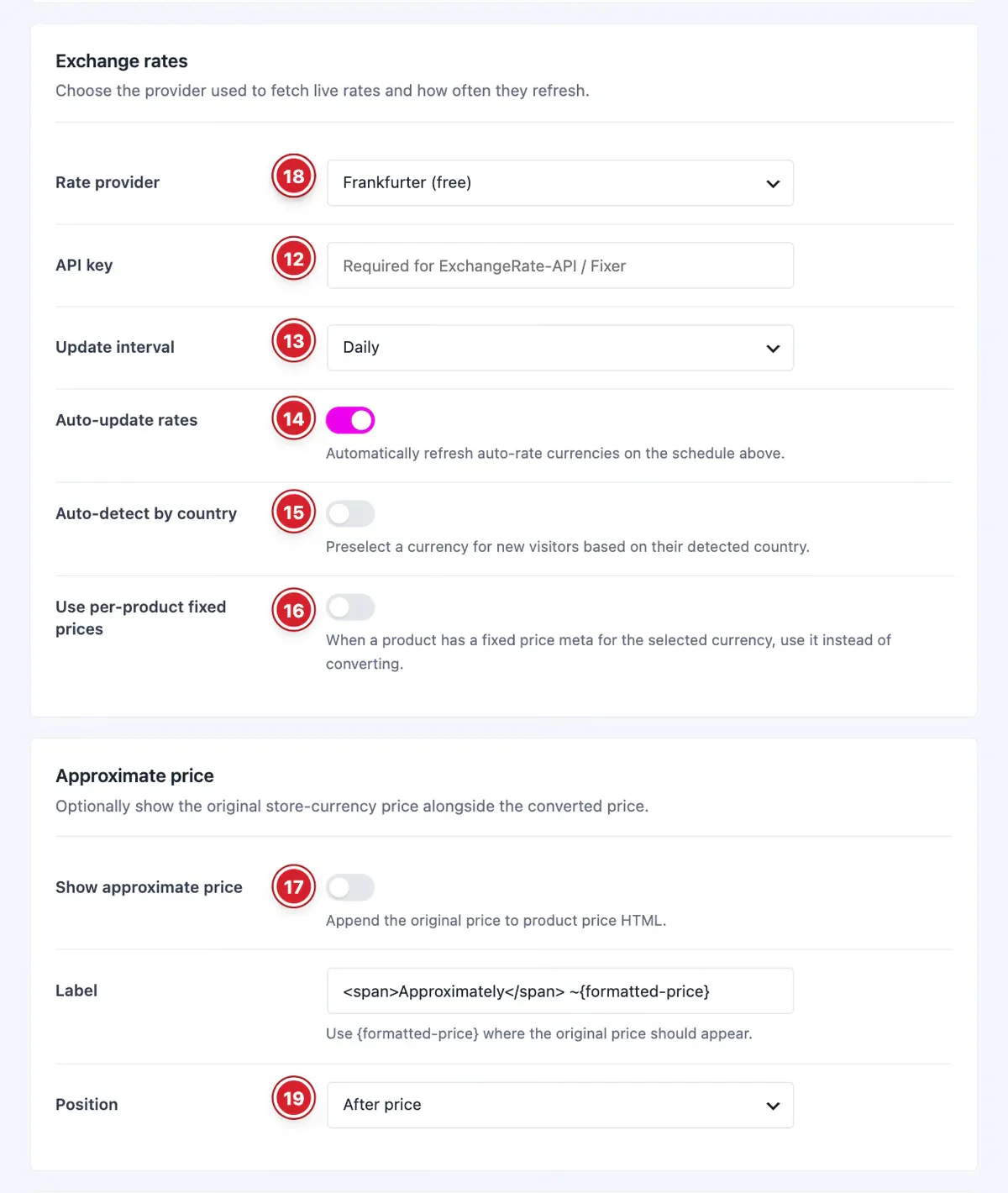
Rate provider: Frankfurter (free), Open Exchange Rates (free), ExchangeRate-API or Fixer.io.
- 12
API key: Required for ExchangeRate-API and Fixer.io.
- 13
Update interval: Hourly, Twice daily, Daily or Weekly.
- 14
Auto-update rates: Refreshes Auto (API) rates on that schedule.
- 15
Auto-detect by country: Preselects a currency for new visitors based on their country, when you've added that country's currency.
- 16
Use per-product fixed prices: Uses a fixed price saved on a product for the selected currency instead of converting. Fixed prices are saved as product custom fields named after the currency, such as
_atomel_cs_fixed_price_EUR. - 17
Show approximate price: Shows the price in your base currency next to the converted price.
- 18
Label: The text around that price;
{formatted-price}is replaced with it. - 19
Position: After price or Before price.
Show the Switcher and Choose the Checkout Currency
 (Open the full-size image in a new tab)
- 20
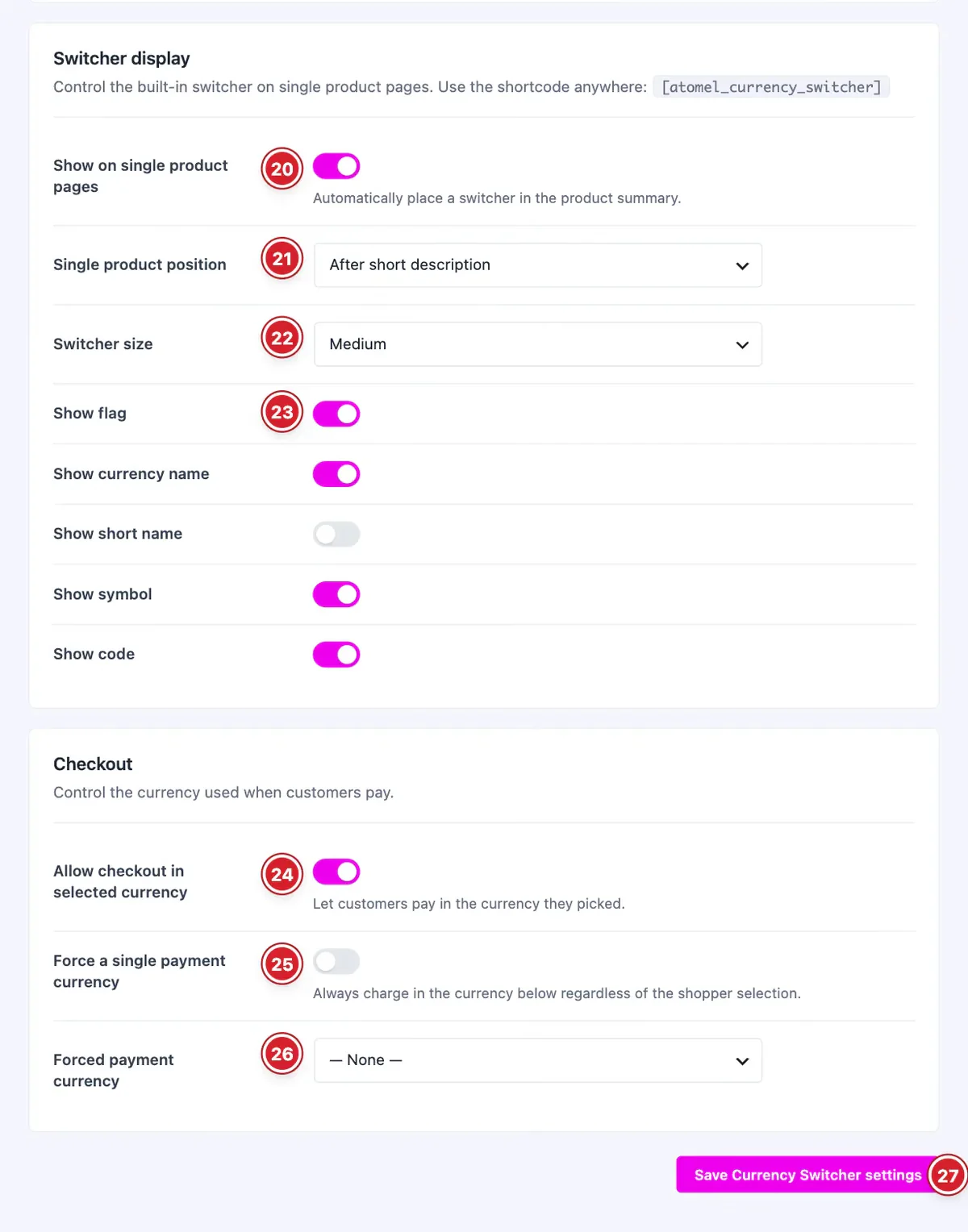
Show on single product pages: Adds a currency dropdown to the product summary.
- 21
Single product position: Before short description or After short description.
- 22
Switcher size: Small, Medium or Large.
- 23
Show flag: Together with the switches below it — currency name, short name, symbol and code — this chooses what each currency in the switcher shows.
- 24
Allow checkout in selected currency: On: orders are placed in the currency the shopper picked. Off: shoppers browse in their currency, but the checkout and the order use your store currency.
- 25
Force a single payment currency: Always charges in one currency, whatever the shopper picked.
- 26
Forced payment currency: The currency to charge in when the option above is on.
- 27
Save Currency Switcher settings: Click to save your changes.
To place the switcher anywhere else — a header, a sidebar or Elementor's Shortcode widget — use [atomel_currency_switcher]. Its optional attributes are layout (dropdown, inline or sidebar), size (small, medium or large) and show_flag, show_name, show_short_name, show_symbol and show_code (yes or no).
Product prices, shipping costs, free-shipping minimums and fixed-amount coupons (with their minimum and maximum spend) are converted; other fees added to the cart are not. Make sure your payment gateway accepts every currency you charge in. If you use page caching, exclude visitors who have the atomel_cs_selected_currency cookie, so each shopper sees prices in their own currency.
Final Preview
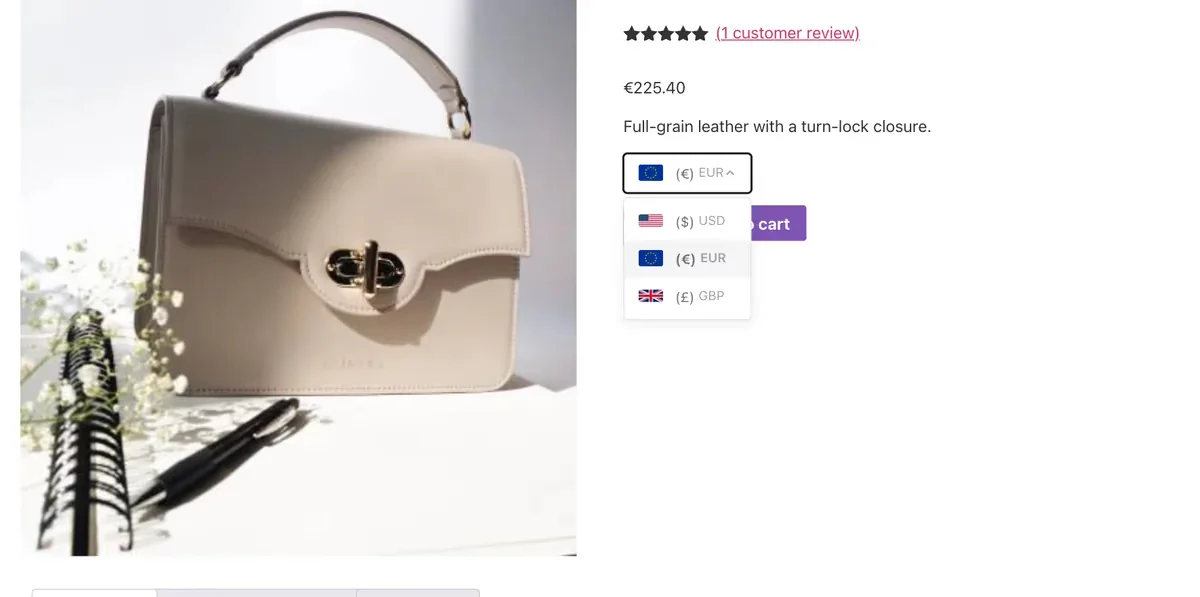 (Open the full-size image in a new tab)
Shoppers pick a currency from the switcher and the page reloads with every price converted. Their choice is remembered for 30 days.
All done! You have successfully set up the Currency Switcher extension on your store.
Thanks for being with us.
Can't find what you need?
Our support team can help with setup questions and anything the docs don't cover yet.