
The Dynamic Tags feature by Atomic Addons fills widget fields with live content from your site instead of fixed text: the current post's title or date, the site name, the logged-in user's details, custom fields, WooCommerce product data and more. Each tag updates by itself, so one design works for every post, product or visitor. It works with the free version of Elementor. This guide covers switching the feature on, inserting a tag, its settings and the tags you can use.
Enable the Dynamic Tags Feature
 (Open the full-size image in a new tab)
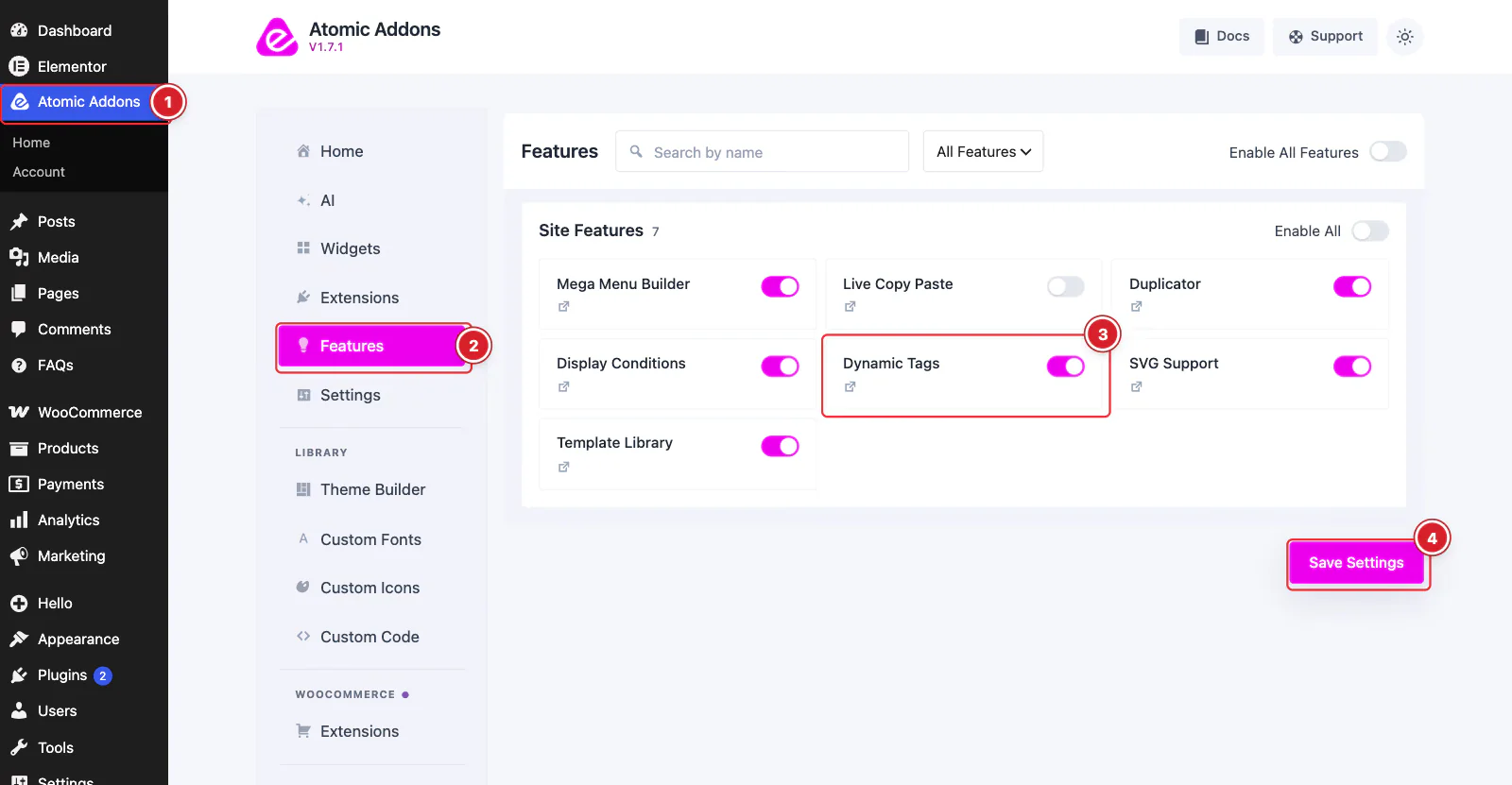
Dynamic Tags is a Pro feature, so it needs Atomic Addons Pro; without Pro its card is locked. Switch it on from the plugin dashboard:
- 1
Go to WordPress Dashboard → Atomic Addons.
- 2
Click Features.
- 3
Find the Dynamic Tags card and turn its switch On.
- 4
Click Save Settings.
Insert a Dynamic Tag
 (Open the full-size image in a new tab)
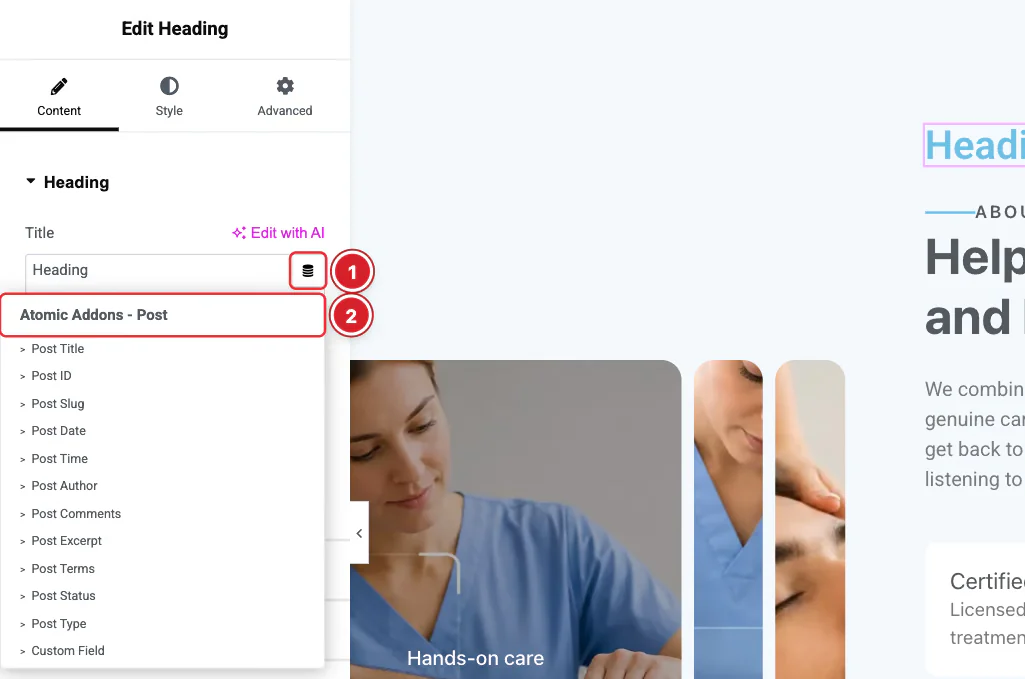
Select a widget in Elementor. Every field that accepts dynamic content has a Dynamic Tags icon — here, the Title field of a Heading widget.
- 1
Dynamic Tags icon: Click the icon next to the field.
- 2
Atomic Addons tags: Pick a tag from the list. The Atomic Addons tags are grouped under names that start with “Atomic Addons -”. Only tags that suit the field are listed: text tags for text fields, link tags for URL fields, image tags for image fields and so on.
Adjust the Tag's Settings
 (Open the full-size image in a new tab)
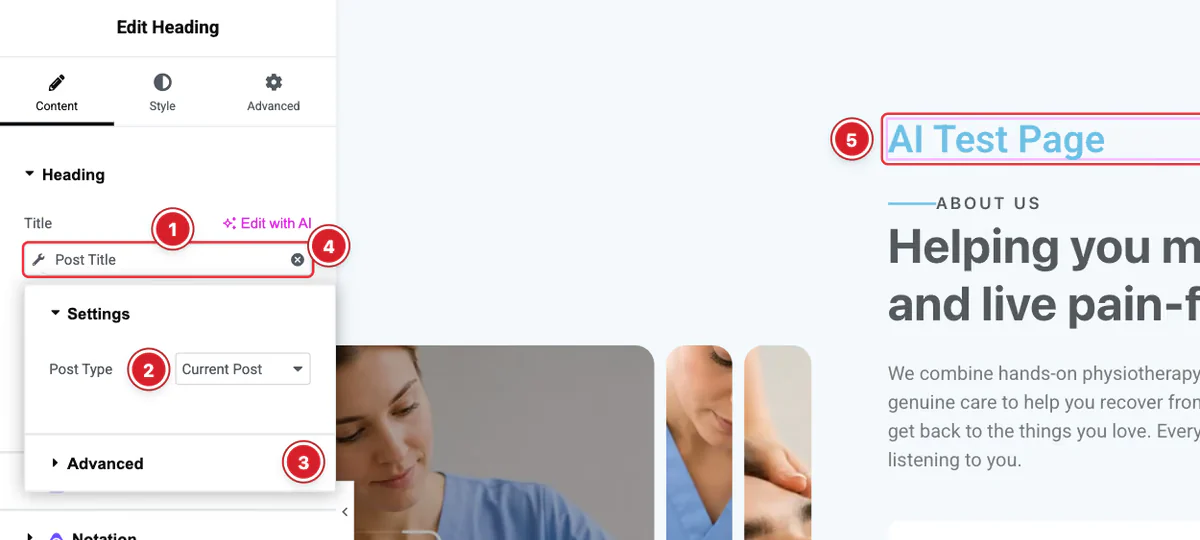
The field now shows the tag instead of text.
- 1
Tag: Click the tag (or its wrench icon) to open its settings.
- 2
Settings: The options depend on the tag. Post Title can show the Current Post or a Selected Post you search for.
- 3
Advanced: Text tags have Before and After text, added around the value, and a Fallback shown when the value is empty. Many also have a Word Limit (0 means no limit).
- 4
Remove: Click × to remove the tag and type plain text again.
- 5
Live value: The preview shows the result straight away — here the page's own title, “AI Test Page”.
Link tags have a Fallback address, and image tags such as Featured Image a Fallback image, used when there is nothing to show.
Available Tags
Atomic Addons - Post
- Text: Post Title, Post ID, Post Slug, Post Date, Post Time, Post Author, Post Comments, Post Excerpt, Post Terms, Post Status, Post Type and Custom Field.
- Links: Post URL, Post Terms URL, Post Author URL, Post Comments URL, Featured Image URL and Post Navigation URL (the previous, next, parent or child post).
- Images: Featured Image, Author Avatar and Custom Field.
Post Title, Post ID, Post URL and Featured Image can use the current post or one you select.
Atomic Addons - Site
- Text: Site Title, Site Tagline, Current Date Time, Request Parameter (a value from the page address or a submitted form) and Shortcode (the output of any shortcode).
- Links: Site URL — the home, site or admin address.
- Images: Site Logo and Site Icon.
Atomic Addons - Archive
- Archive Title, Archive Description, Archive Meta, Archive URL and Archive Meta Image, for archive templates such as category or author pages.
Atomic Addons - Term
- Term ID, Term Title, Term Description, Term Slug, Term Count, Term Meta and Term URL. Choose the term with Search & Select Term.
Atomic Addons - User
- User Info (name, email, role and more), User Meta, User URL and User Avatar. Leave the user empty to show the logged-in visitor.
- Login/Logout URL — a Login, Logout, Register or Lost Password link, with an optional redirect address. It doesn't switch between login and logout by itself.
Atomic Addons - Search
- Search Query and Search Results Count, for search results pages.
Atomic Addons - Media
- Attachment URL — the address of a file in your Media Library.
Atomic Addons - WooCommerce
These appear when WooCommerce is active. Each tag uses the current product, or the one you pick with Search & Select Product.
- Text: Product Title, Product Price, Product SKU, Product Stock, Product Description, Product Attribute, Product Rating, Product Sale, Product Shipping, Product Terms, Product Type and Product Purchase Note.
- Links: Product URL, Product Add to Cart URL, Product Term URL, Product Review URL, Product Checkout URL, Back to Shop URL and Terms Archive URL.
- Images: Product Featured Image, Product Gallery Image and Product Term Image.
Atomic Addons - ACF
These appear when Advanced Custom Fields is active: Text, URL, Image, Gallery and Date Time. Choose where the field is stored with Meta Source (Post, Taxonomy, User, Comment or Options Page), then the field with Key.
Tags are filled in on the server as the page loads. A page cache keeps the values from the first visit, so leave pages that show visitor-specific tags — such as User Info or Current Date Time — out of the cache.
All done! You have successfully set up the Dynamic Tags feature.
Thanks for being with us.
Can't find what you need?
Our support team can help with setup questions and anything the docs don't cover yet.