
The Product Wishlist extension by Atomic Addons lets shoppers save products for later with a wishlist button. Their wishlist can live in My Account, on a page of its own, or anywhere you place the shortcode or the Wishlist Products widget. This guide covers the button, the wishlist page and what shoppers see.
Enable the Product Wishlist Extension
 (Open the full-size image in a new tab)
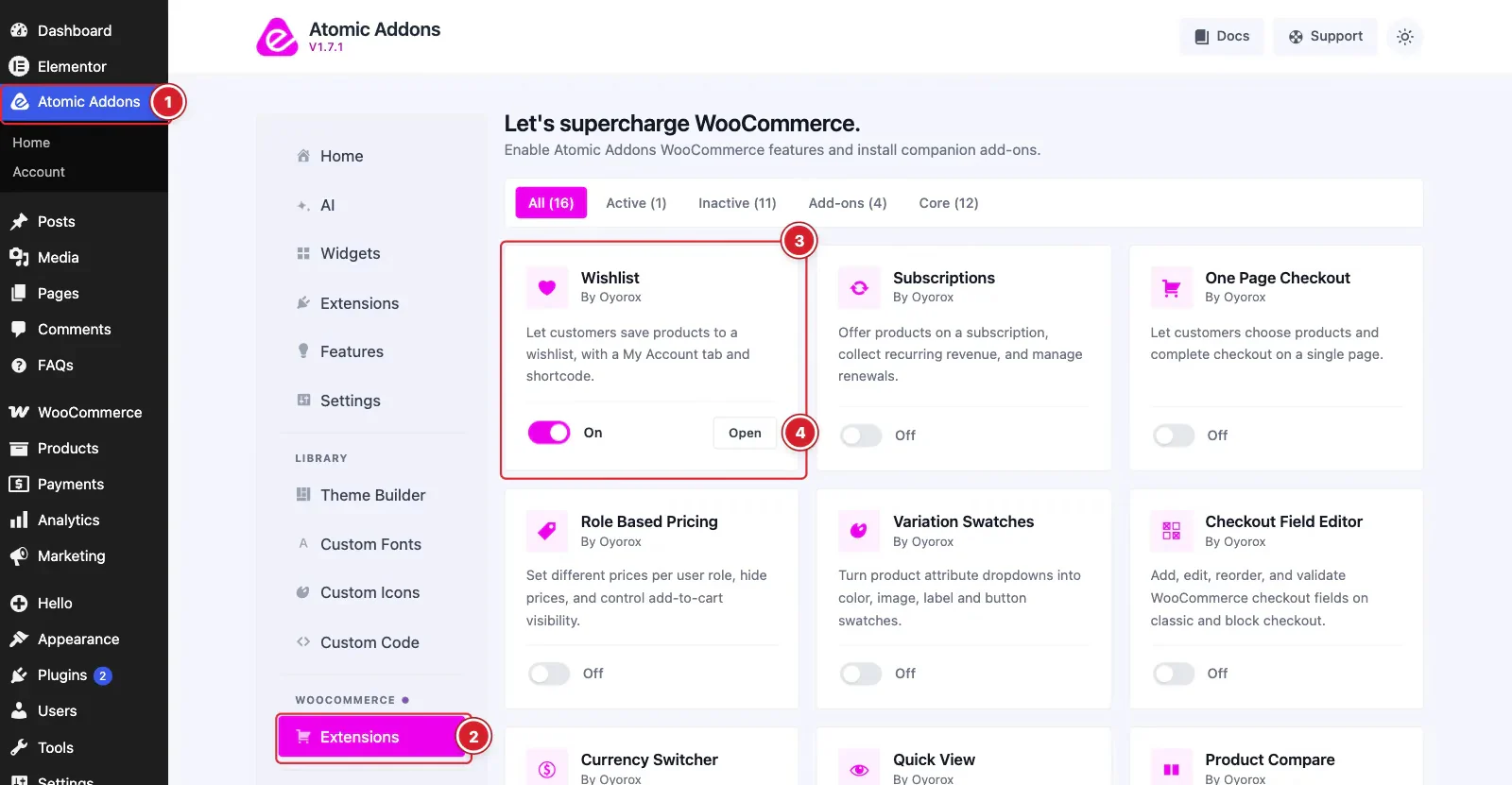
WooCommerce must be installed and active. Then switch the extension on from the Atomic Addons dashboard:
- 1
Go to WordPress Dashboard → Atomic Addons.
- 2
Under WooCommerce, click Extensions.
- 3
Find the Wishlist card and turn its switch On.
- 4
Click Open to open the extension's settings.
Configure the Wishlist Button
 (Open the full-size image in a new tab)
- 1
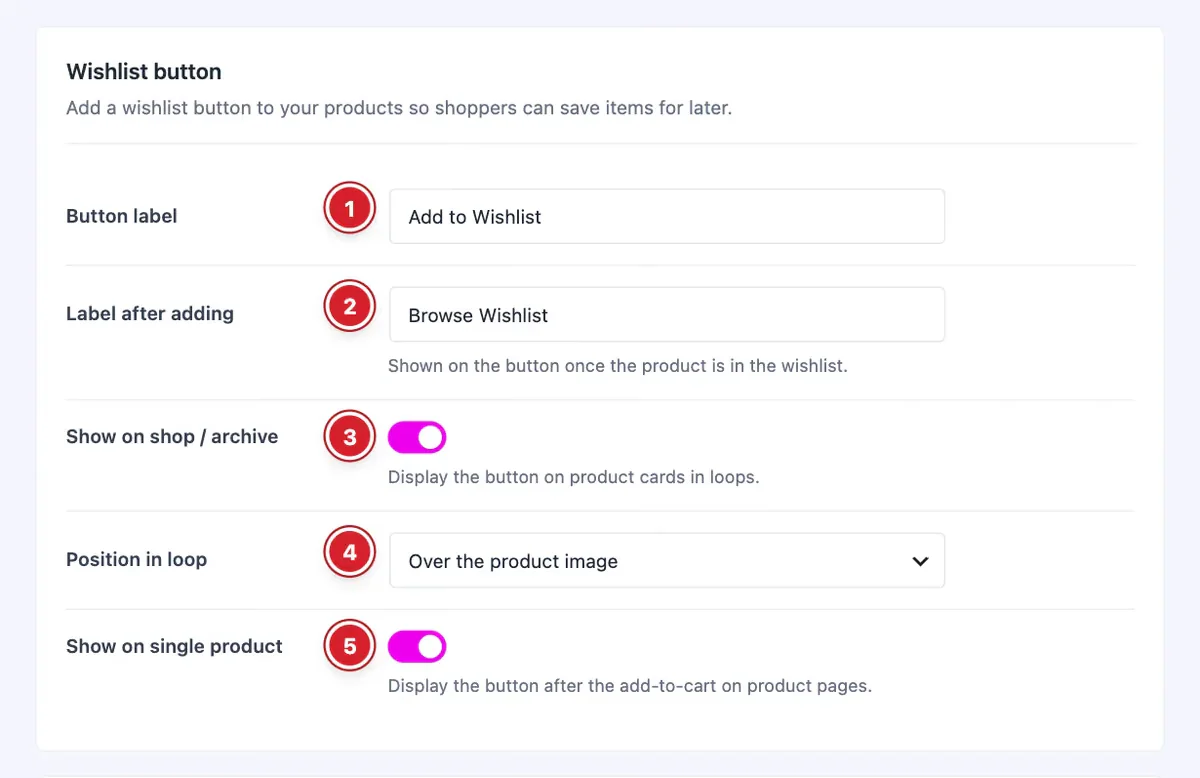
Button label: The button's text. The default is “Add to Wishlist”.
- 2
Label after adding: The text once the product is saved, “Browse Wishlist” by default. The button then links to the wishlist.
- 3
Show on shop / archive: Adds the button to product cards on shop and category pages.
- 4
Position in loop: After add-to-cart button, Before add-to-cart button or Over the product image.
- 5
Show on single product: Adds the button after the add-to-cart button on product pages.
Set Up the Wishlist Page
 (Open the full-size image in a new tab)
- 6
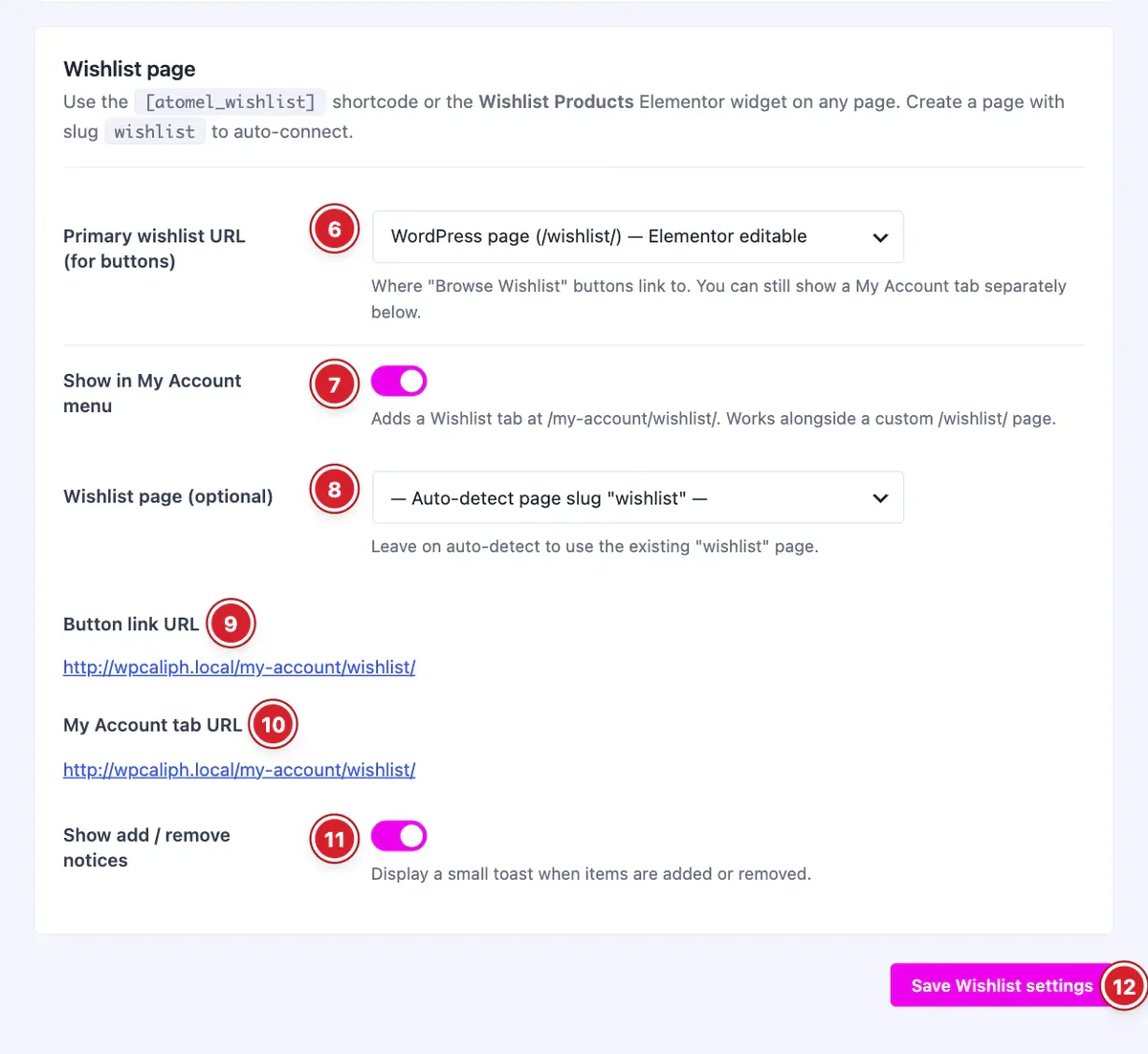
Primary wishlist URL (for buttons): Where Browse Wishlist links to: My Account tab, WordPress page (an Elementor-editable /wishlist/ page), or Shortcode / Elementor widget only.
- 7
Show in My Account menu: Adds a Wishlist tab to My Account.
- 8
Wishlist page (optional): The page to use. Leave it on auto-detect to use a page with the slug wishlist.
- 9
Button link URL: Shows where the buttons link to.
- 10
My Account tab URL: Shows the address of the My Account tab.
- 11
Show add / remove notices: Shows a short notice when a product is added to or removed from the wishlist.
- 12
Save Wishlist settings: Click to save your changes.
For a wishlist page, create a page with the slug wishlist and add the [atomel_wishlist] shortcode or the Wishlist Products widget to it. My Account pages ask visitors to log in, so choose a page if guests should be able to see their wishlist.
Use the Wishlist in Atomic Addons Widgets
 (Open the full-size image in a new tab)
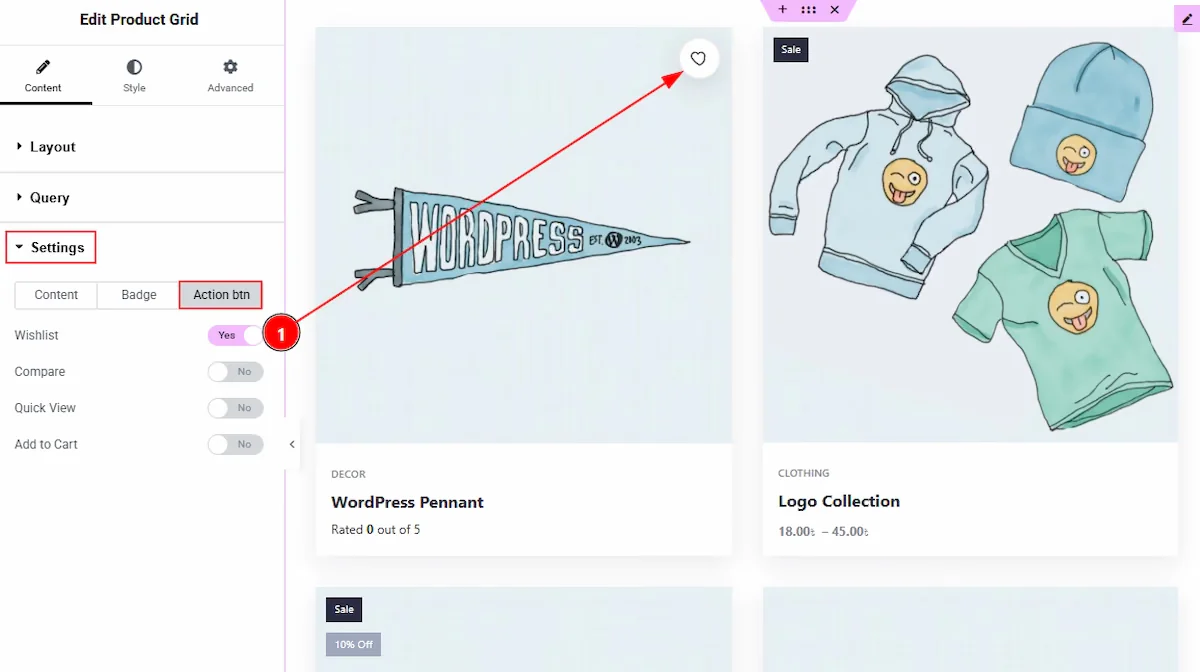
In the Product Grid, Product Carousel and Product List widgets, open Content → Settings (Additional in Product List), go to the Action btn tab and switch on Wishlist. The Wishlist Products widget shows the shopper's wishlist on any page, with style settings for the table and buttons.
Final Preview
 (Open the full-size image in a new tab)
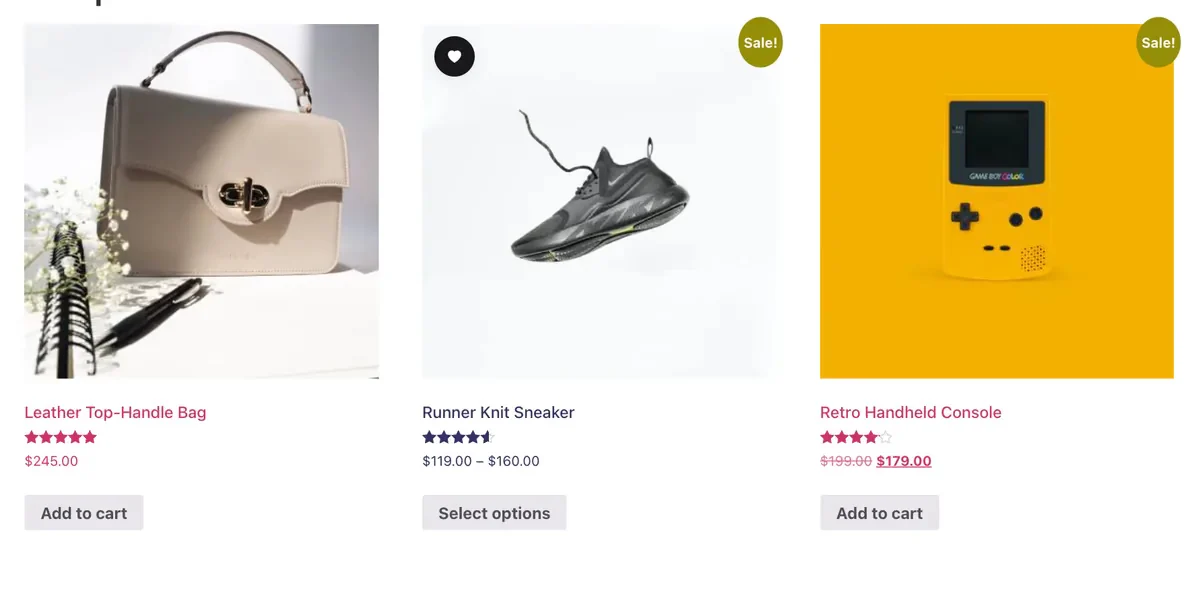
Shoppers save a product with the heart button. Once saved, it shows the Label after adding.
 (Open the full-size image in a new tab)
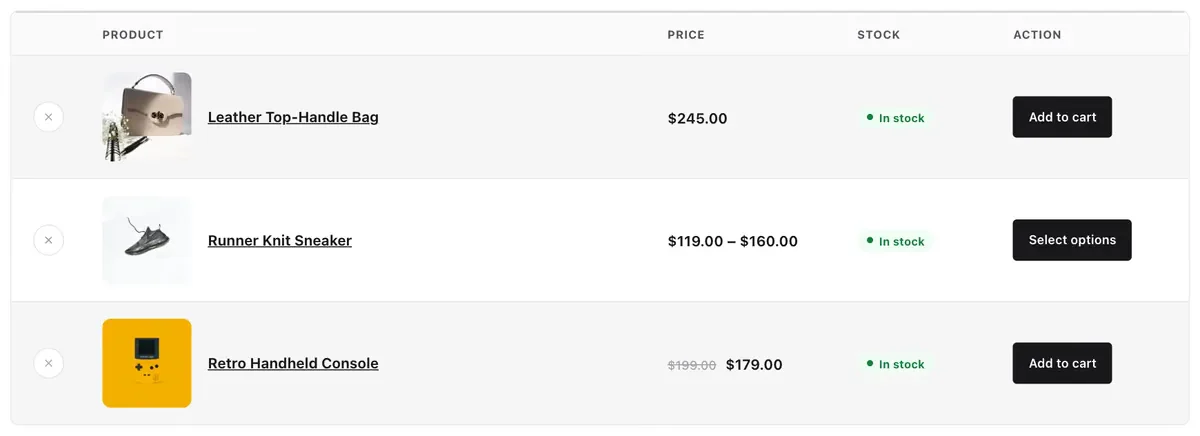
The wishlist lists each saved product with its price, stock status and an add-to-cart button. Shoppers remove items with the ×.
Logged-in customers' wishlists are saved to their account; guests' wishlists are kept in a browser cookie for 30 days.
All done! You have successfully set up the Product Wishlist extension on your store.
Thanks for being with us.
Can't find what you need?
Our support team can help with setup questions and anything the docs don't cover yet.