
The Product Recommendations extension by Atomic Addons shows upsells, cross-sells and “frequently bought together” products on product, cart, checkout, thank-you and shop pages, or in a popup right after a product is added to the cart. Each recommendation is a block: you choose where its products come from, where it appears and how it looks, and you can add as many blocks as you need. This guide covers creating blocks, the general settings and placing blocks by hand.
Enable the Product Recommendations Extension
 (Open the full-size image in a new tab)
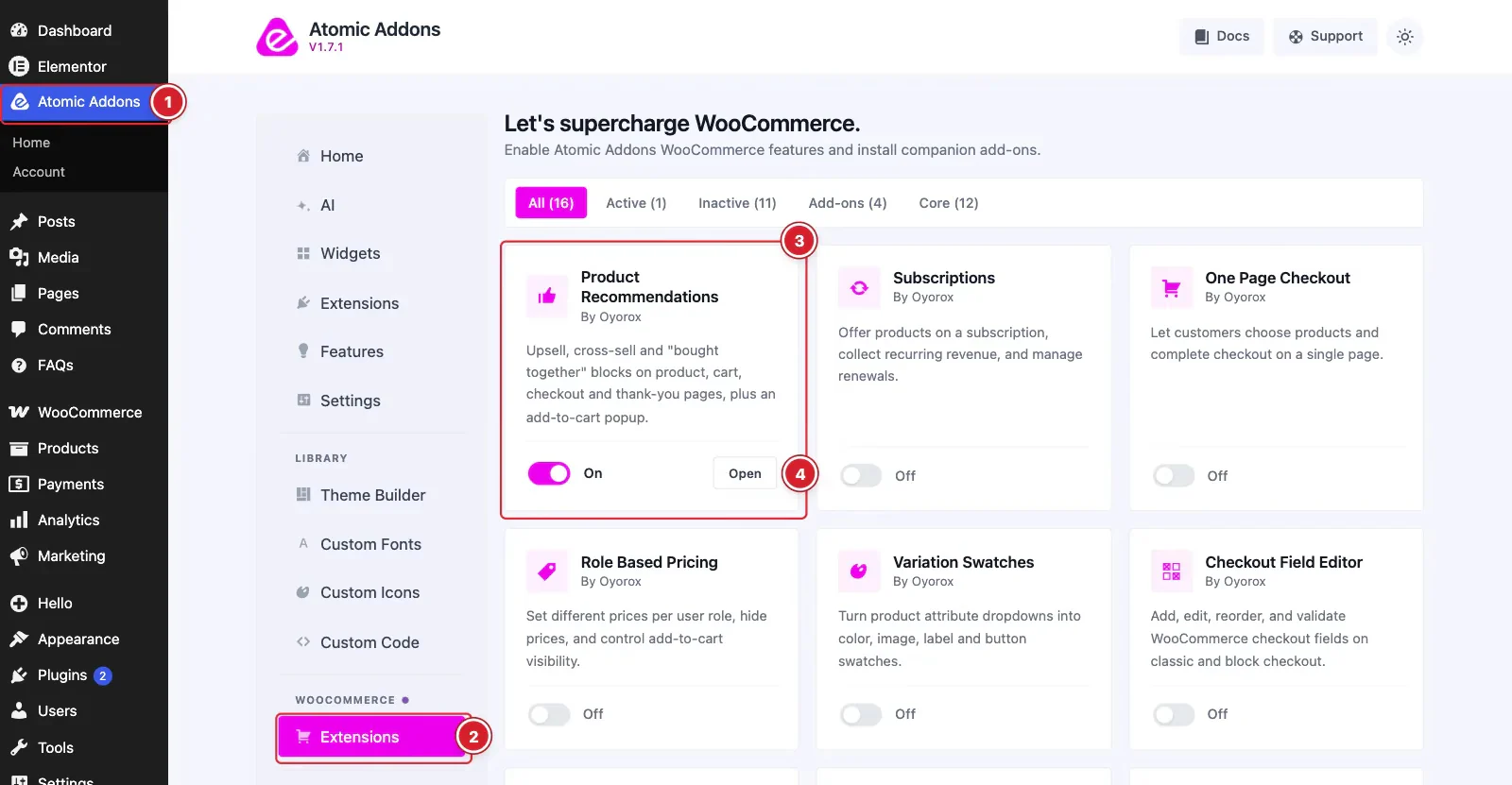
WooCommerce must be installed and active. Then switch the extension on from the Atomic Addons dashboard:
- 1
Go to WordPress Dashboard → Atomic Addons.
- 2
Under WooCommerce, click Extensions.
- 3
Find the Product Recommendations card and turn its switch On.
- 4
Click Open to open the extension's settings.
Manage Recommendation Blocks
 (Open the full-size image in a new tab)
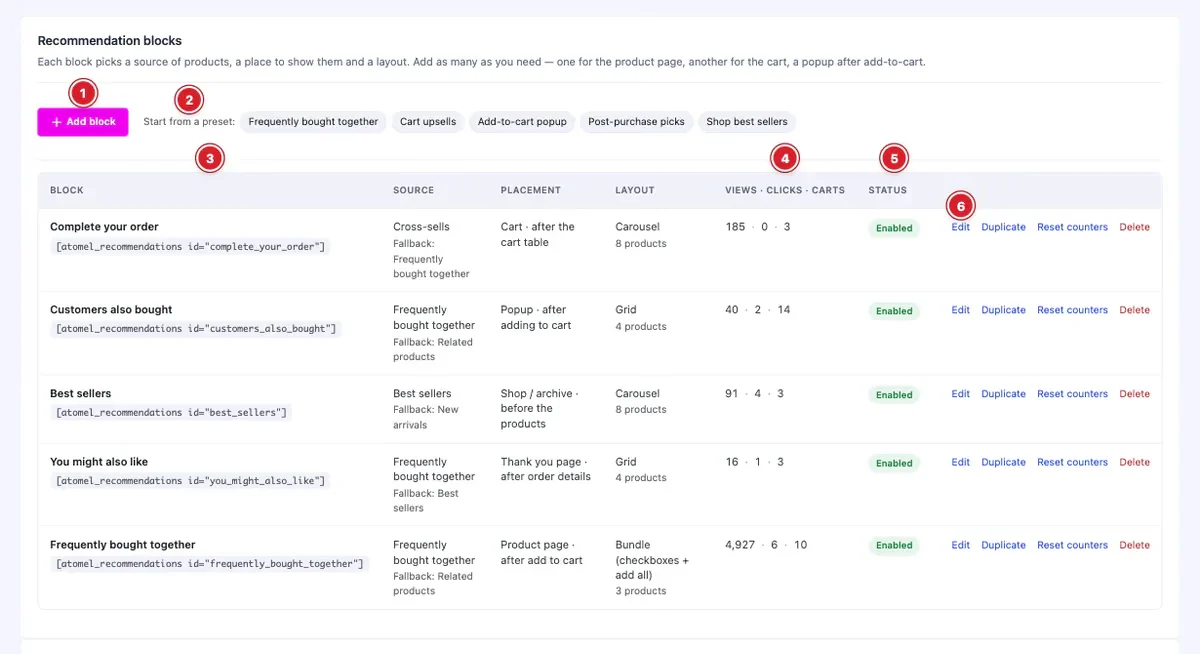
- 1
Add block: Creates a new block from scratch.
- 2
Start from a preset: Creates a block with ready-made settings, which you can change afterwards.
- 3
Block: The block's heading and its shortcode.
- 4
Views · Clicks · Carts: How often the block was shown, clicked and used to add to cart.
- 5
Status: Click Enabled or Disabled to switch the block on or off.
- 6
Actions: Edit, Duplicate, Reset counters or Delete the block.
The presets:
- Frequently bought together — a bundle with checkboxes and one add-all button, after the add-to-cart button on product pages.
- Cart upsells — a carousel of cross-sells under the cart table.
- Add-to-cart popup — related products in a popup right after something is added to the cart.
- Post-purchase picks — recommendations on the thank-you page based on what was just ordered.
- Shop best sellers — a best-sellers carousel at the top of the shop page.
Choose the Products
 (Open the full-size image in a new tab)
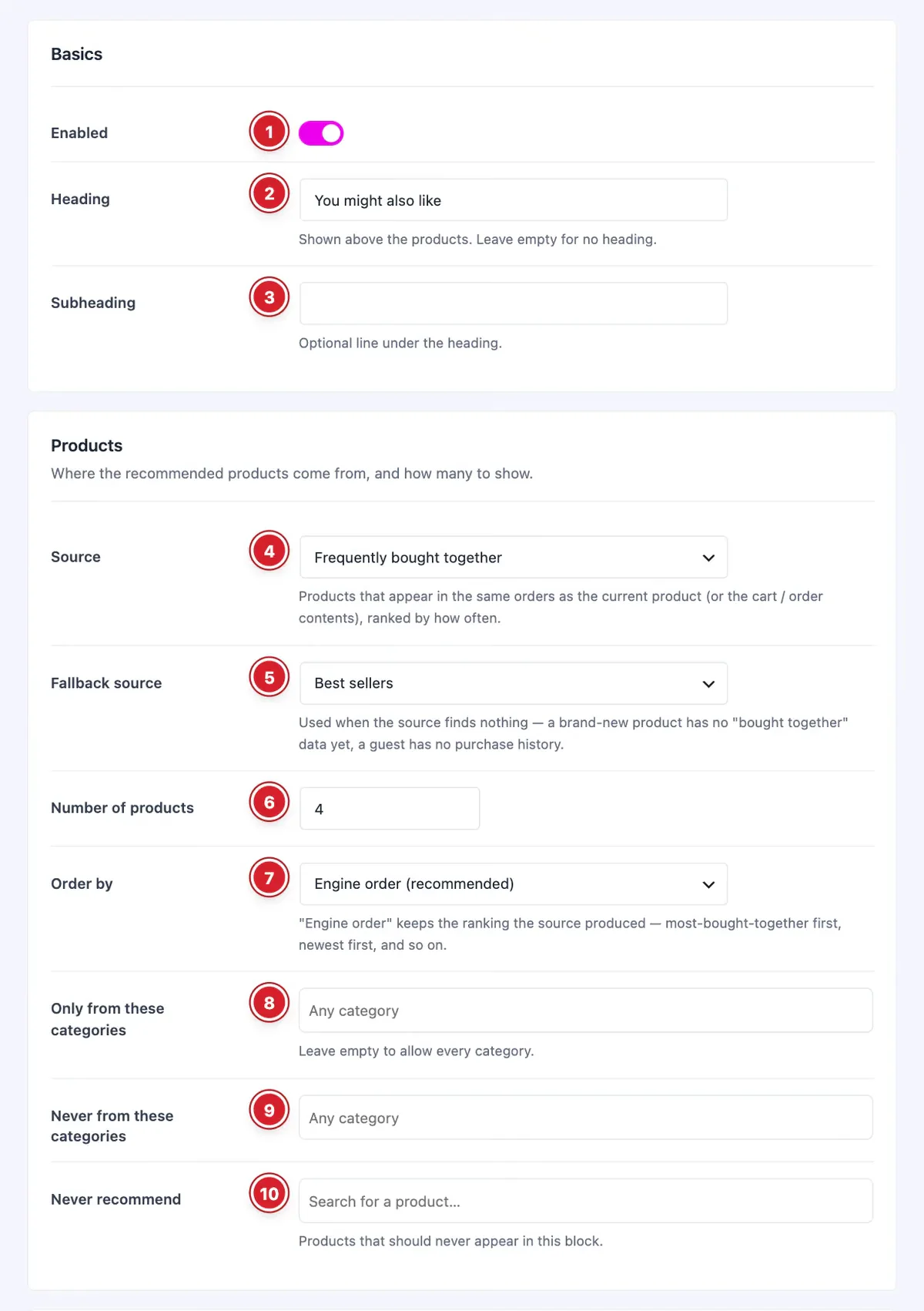
- 1
Enabled: Switches the block on or off.
- 2
Heading: The title shown above the products. Leave it empty for no heading.
- 3
Subheading: An optional line under the heading.
- 4
Source: Where the products come from (see the list below).
- 5
Fallback source: Used when the source finds nothing — a new product has no “bought together” data yet, and a guest has no purchase history.
- 6
Number of products: 1 to 24.
- 7
Order by: Engine order keeps the source's own ranking; you can also sort by popularity, rating, date, price, title or at random.
- 8
Only from these categories: Limits the block to these categories. Leave it empty for all.
- 9
Never from these categories: Categories to leave out.
- 10
Never recommend: Products that should never appear in this block.
The sources:
- Frequently bought together — products that appear in the same orders, ranked by how often (orders from the last year).
- Upsells, Cross-sells and Related products — from the product's Linked Products and WooCommerce's related products.
- Same category and Same tags — products that share a category or tag.
- Based on purchase history — products bought together with what the logged-in customer bought before.
- Recently viewed — products the shopper has looked at.
- Best sellers, Top rated, New arrivals, On sale and Featured — store-wide lists.
- Hand-picked products — the products you choose, in your order.
Choose Where It Appears and How It Looks
 (Open the full-size image in a new tab)
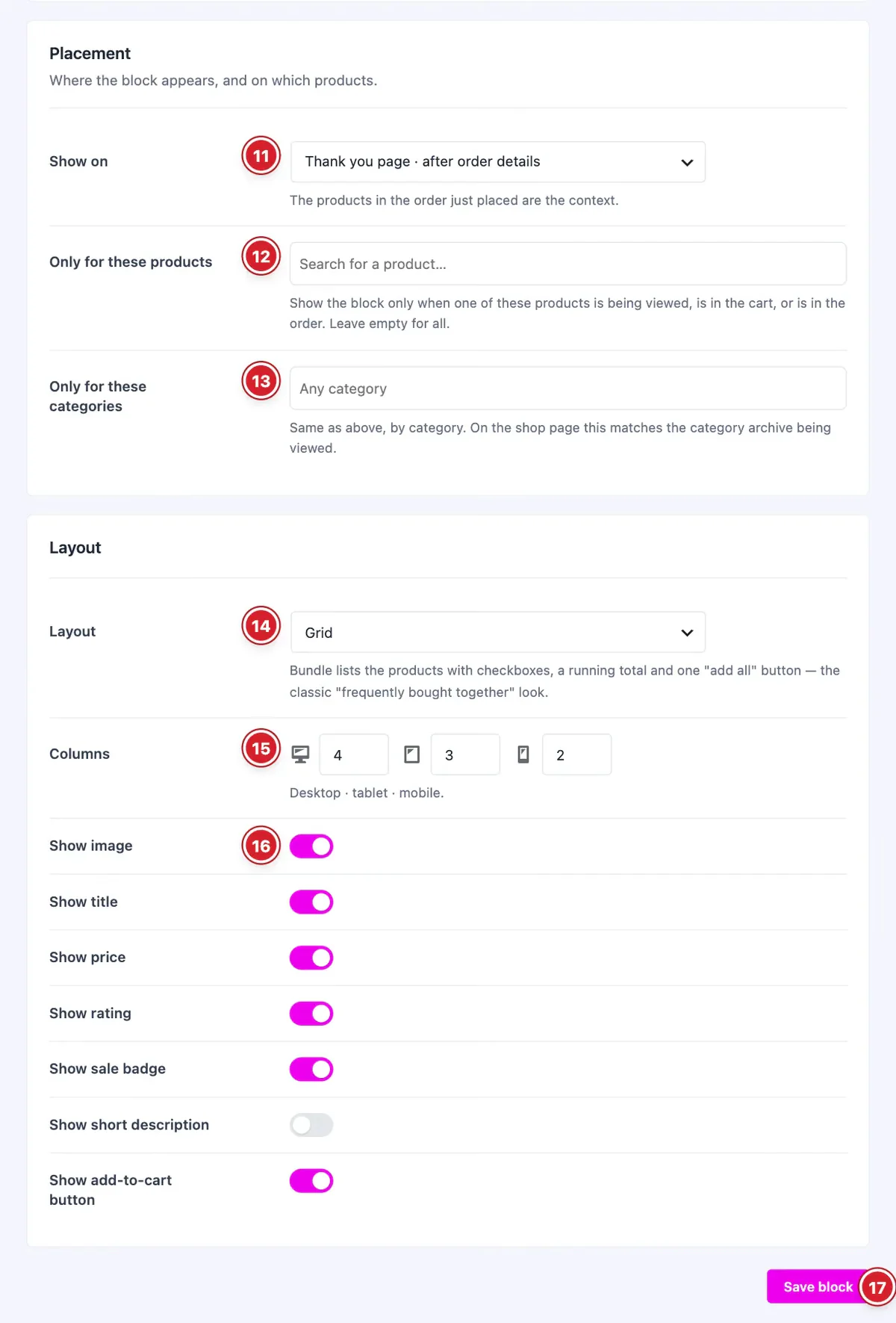
- 11
Show on: Where the block appears: on product pages (after add to cart, before or after the tabs, after related products), in the cart, on the checkout, on the thank-you page, on shop and category pages, in a popup after adding to cart, or Manual — only where you place it with the shortcode or the Elementor widget.
- 12
Only for these products: Shows the block only when one of these products is being viewed, is in the cart or is in the order. Leave it empty for all.
- 13
Only for these categories: The same, by category.
- 14
Layout: Grid, Carousel, List or Bundle (checkboxes + add all).
- 15
Columns: Columns on desktop, tablet and mobile.
- 16
Show image: With the switches below it, chooses what each product card shows: image, title, price, rating, sale badge, short description and add-to-cart button.
- 17
Save block: Saves the block (Create block for a new one).
The products a block is based on depend on where it is: the product being viewed on a product page, the cart contents in the cart and checkout, and the order on the thank-you page. On shop pages there is no product to start from, so product-based sources use the fallback.
General Settings
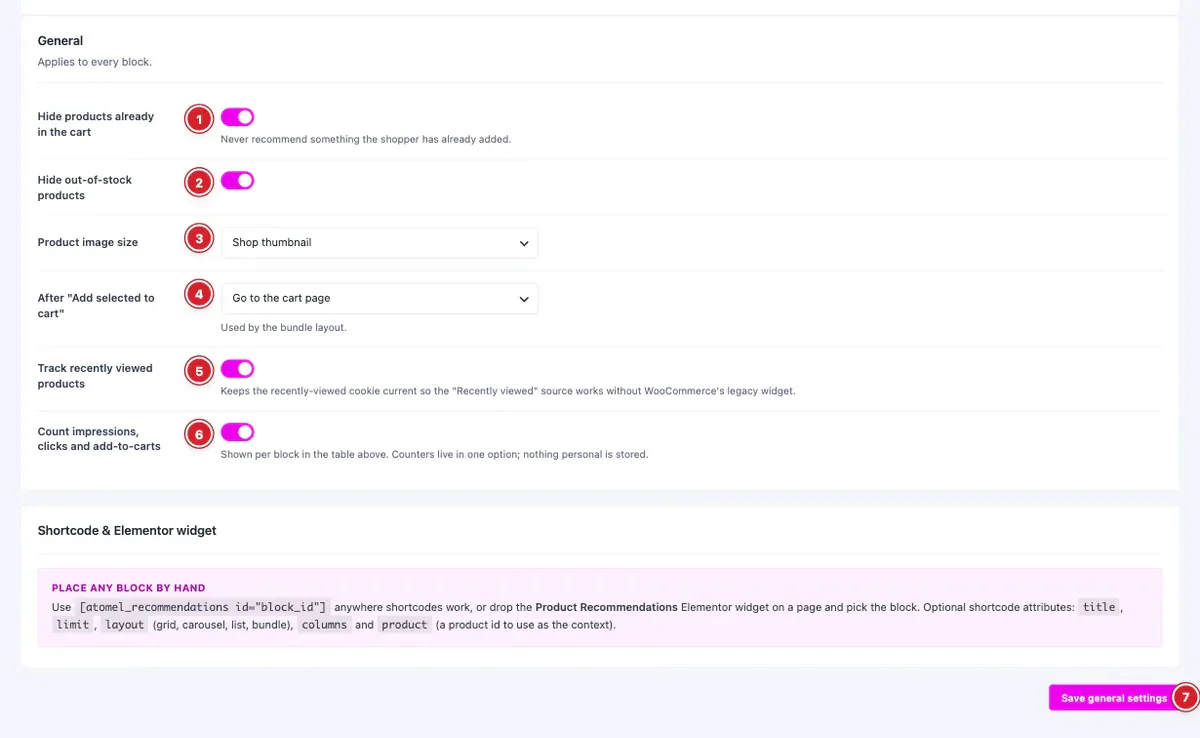 (Open the full-size image in a new tab)
These settings apply to every block:
- 1
Hide products already in the cart: Never recommends something the shopper has already added.
- 2
Hide out-of-stock products: Leaves out products that are out of stock.
- 3
Product image size: The image size used on the product cards.
- 4
After “Add selected to cart”: What happens after the bundle's button: stay on the page and refresh the mini cart, or go to the cart page.
- 5
Track recently viewed products: Keeps track of viewed products so the Recently viewed source works.
- 6
Count impressions, clicks and add-to-carts: Shows the Views · Clicks · Carts numbers in the blocks list. No personal data is stored.
- 7
Save general settings: Click to save your changes.
Place a Block by Hand
Use [atomel_recommendations id="block_id"] anywhere shortcodes work — copy the shortcode from the blocks list. Optional attributes: title, limit, layout (grid, carousel, list or bundle), columns and product (a product ID to base the recommendations on).
In Elementor, drop the Product Recommendations widget on a page and pick a block, or leave it on Automatic to use the best match for the page. The widget can change the heading, the number of products, the layout and the columns, and has style settings for the heading, cards, prices, buttons and carousel navigation.
Final Preview
 (Open the full-size image in a new tab)
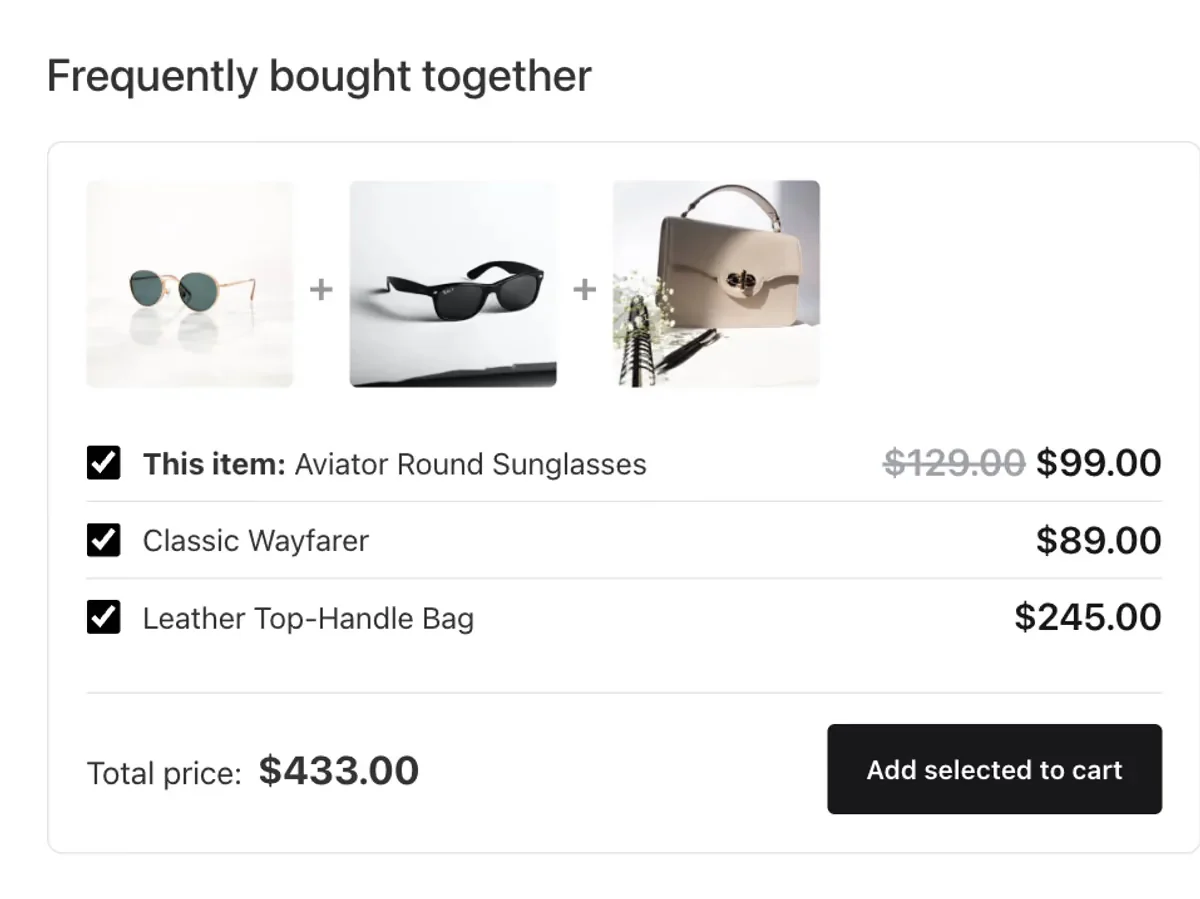
A Frequently bought together bundle on a product page: shoppers untick what they don't want and add the rest with one click. The total updates as they choose.
All done! You have successfully set up the Product Recommendations extension on your store.
Thanks for being with us.
Can't find what you need?
Our support team can help with setup questions and anything the docs don't cover yet.