
The Sales Notifications extension by Atomic Addons shows small popups such as “Someone in London purchased a Leather Tote 5 minutes ago” — social proof that builds trust and draws attention to your products. Popups can come from real orders or from products you choose, with your own wording, design and timing. This guide walks through every setting.
Enable the Sales Notifications Extension
 (Open the full-size image in a new tab)
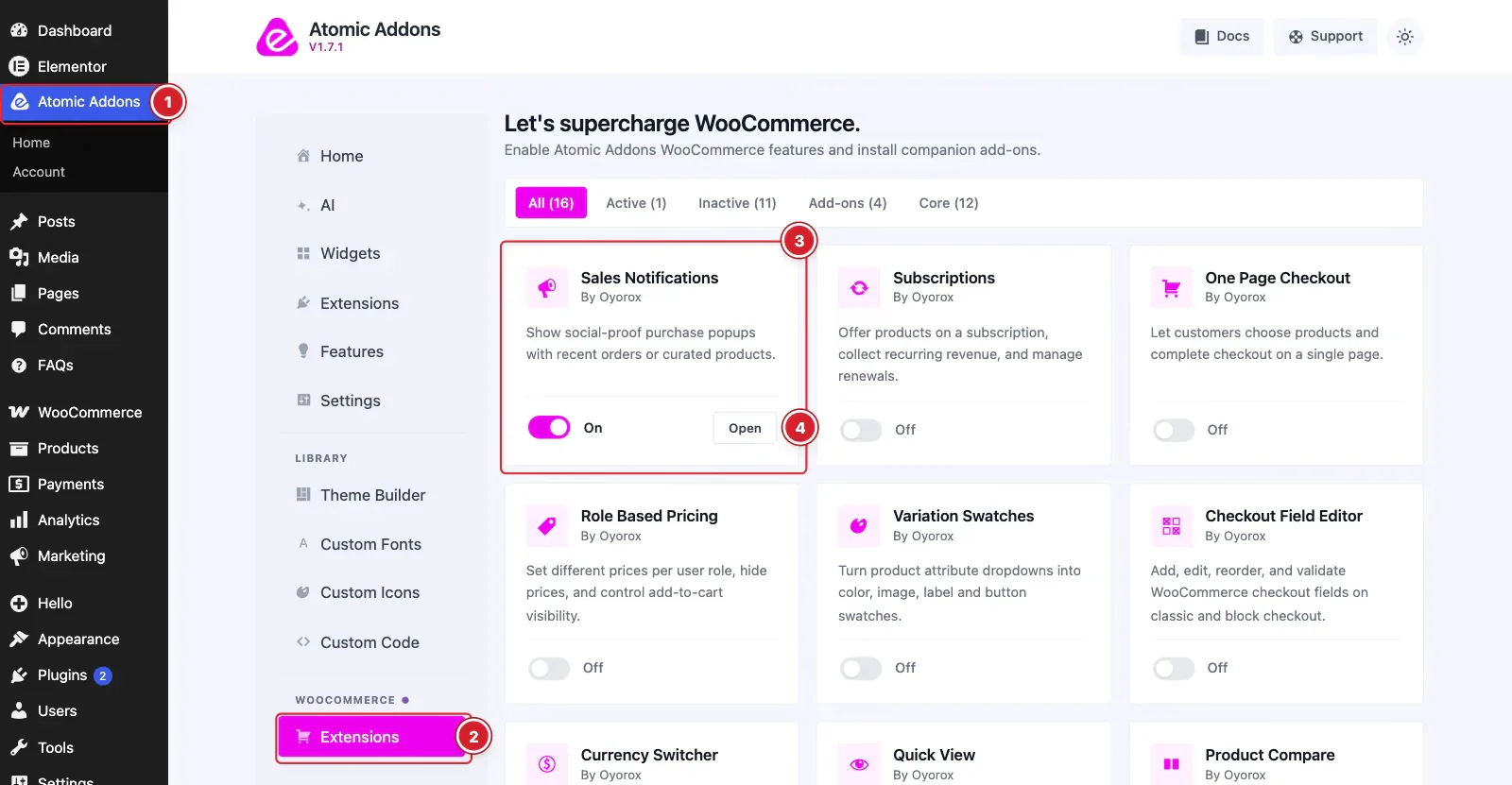
WooCommerce must be installed and active. Then switch the extension on from the Atomic Addons dashboard:
- 1
Go to WordPress Dashboard → Atomic Addons.
- 2
Under WooCommerce, click Extensions.
- 3
Find the Sales Notifications card and turn its switch On.
- 4
Click Open to open the extension's settings.
General Settings
 (Open the full-size image in a new tab)
- 1
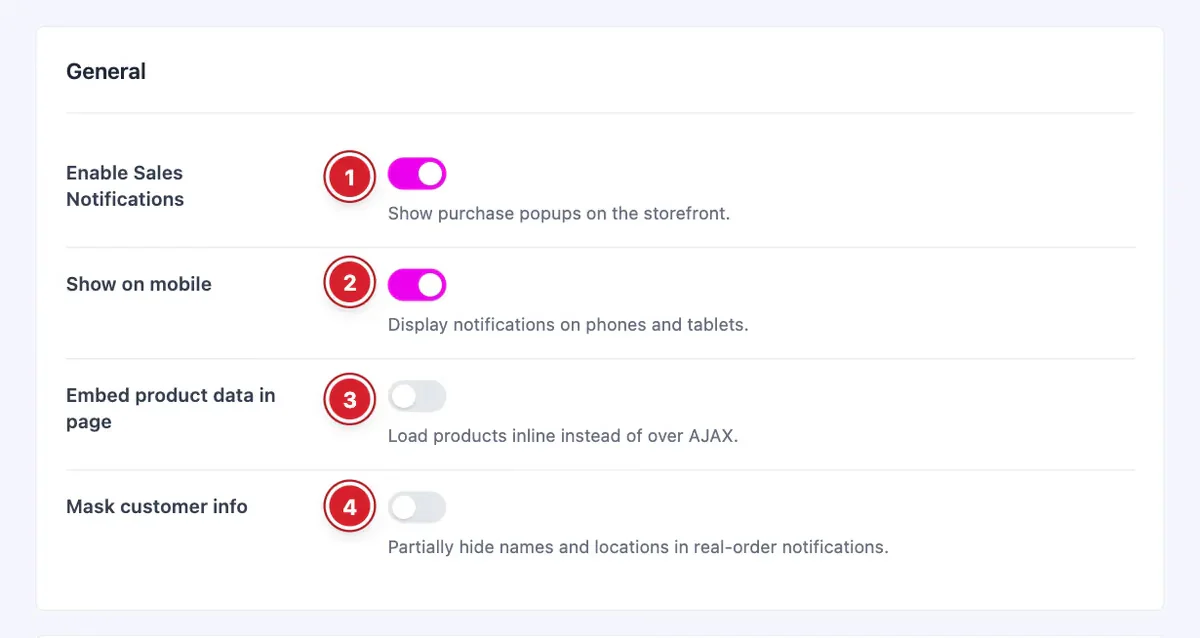
Enable Sales Notifications: Turns the popups on for your storefront.
- 2
Show on mobile: Also shows them on phones and tablets.
- 3
Embed product data in page: Loads the notification data with the page instead of fetching it in the background.
- 4
Mask customer info: Hides part of the names and places in real-order notifications — “Oliver” becomes “O****r”.
Choose the Products
 (Open the full-size image in a new tab)
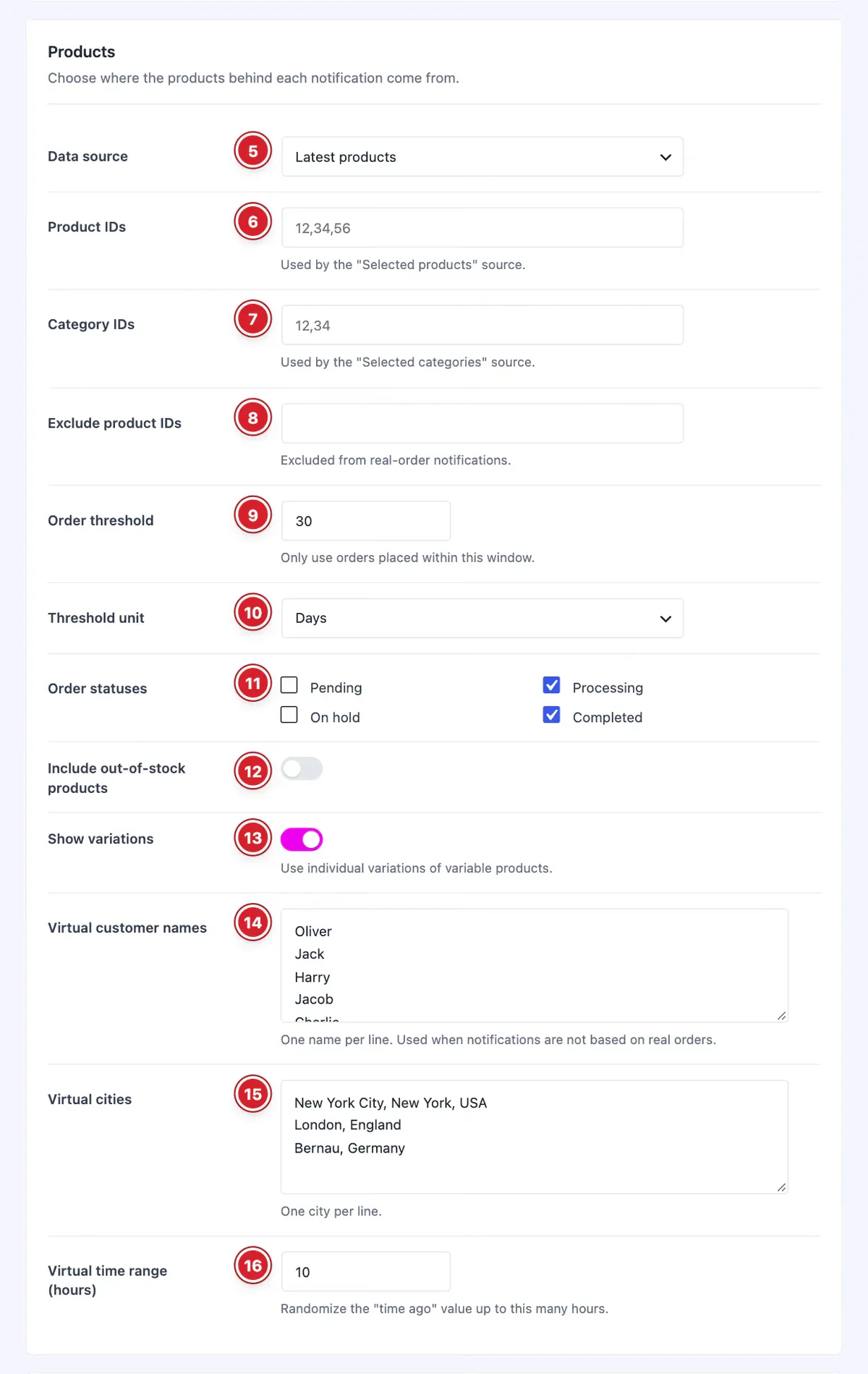
Data source decides where the products come from:
- Real orders — products from recent orders, with the buyer's first name, city and country.
- Latest products — your newest products. This is the default.
- Selected products — the products in Product IDs.
- Selected categories — products from the categories in Category IDs.
- Recently viewed — products the visitor has looked at.
- 5
Data source: One of the sources above.
- 6
Product IDs: Comma-separated product IDs for Selected products.
- 7
Category IDs: Comma-separated category IDs for Selected categories.
- 8
Exclude product IDs: Products never shown in real-order notifications.
- 9
Order threshold: Only orders placed within this time are used for Real orders.
- 10
Threshold unit: Hours, Days or Minutes.
- 11
Order statuses: Which order statuses count: Pending, Processing, On hold, Completed.
- 12
Include out-of-stock products: Also shows products that are out of stock.
- 13
Show variations: Uses the individual variations of variable products.
- 14
Virtual customer names: One name per line, picked at random for sources other than Real orders.
- 15
Virtual cities: One city per line, used the same way.
- 16
Virtual time range (hours): The “time ago” of those popups is a random time up to this many hours.
Write the Messages
 (Open the full-size image in a new tab)
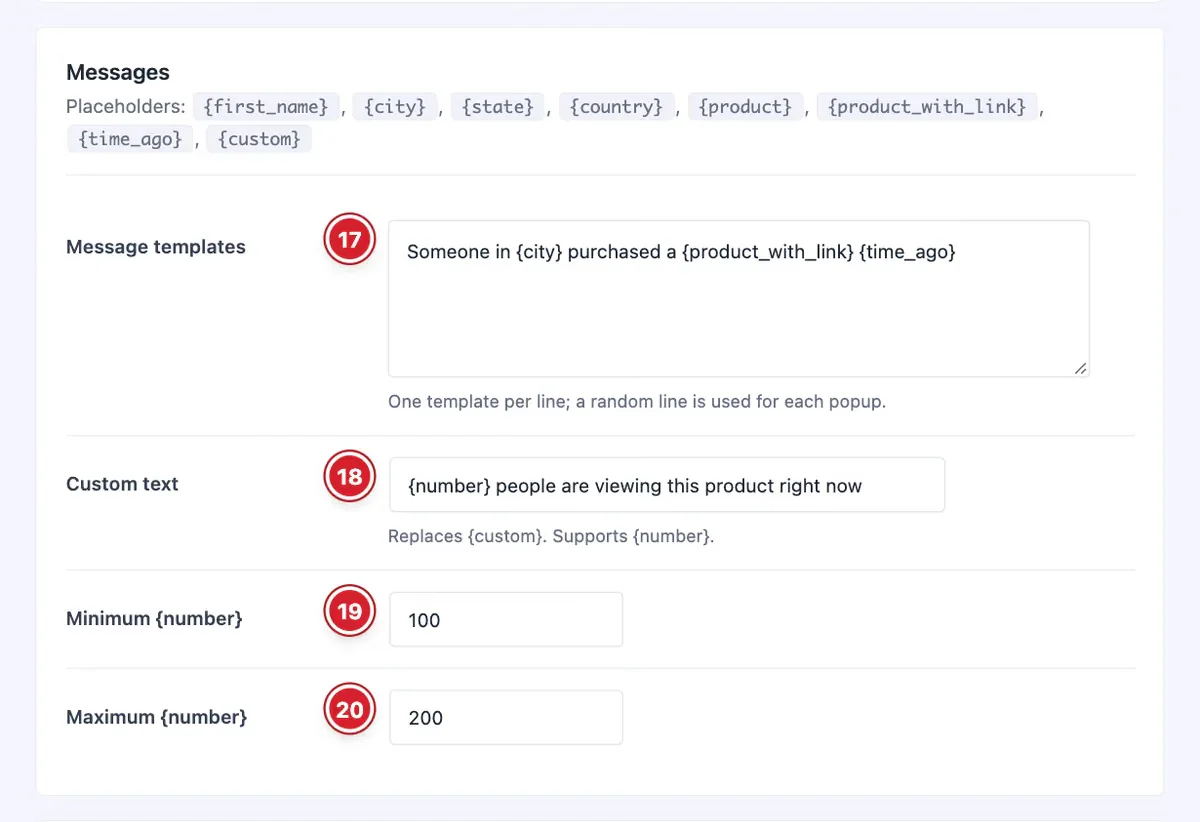
Messages can use these placeholders: {first_name}, {city}, {state}, {country}, {product}, {product_with_link} (the product name linked to its page), {time_ago} and {custom}.
- 17
Message templates: One message per line; each popup uses a random line.
- 18
Custom text: Replaces
{custom}. Use{number}inside it for a random number. - 19
Minimum {number}: The lowest random number.
- 20
Maximum {number}: The highest random number.
Design the Popup
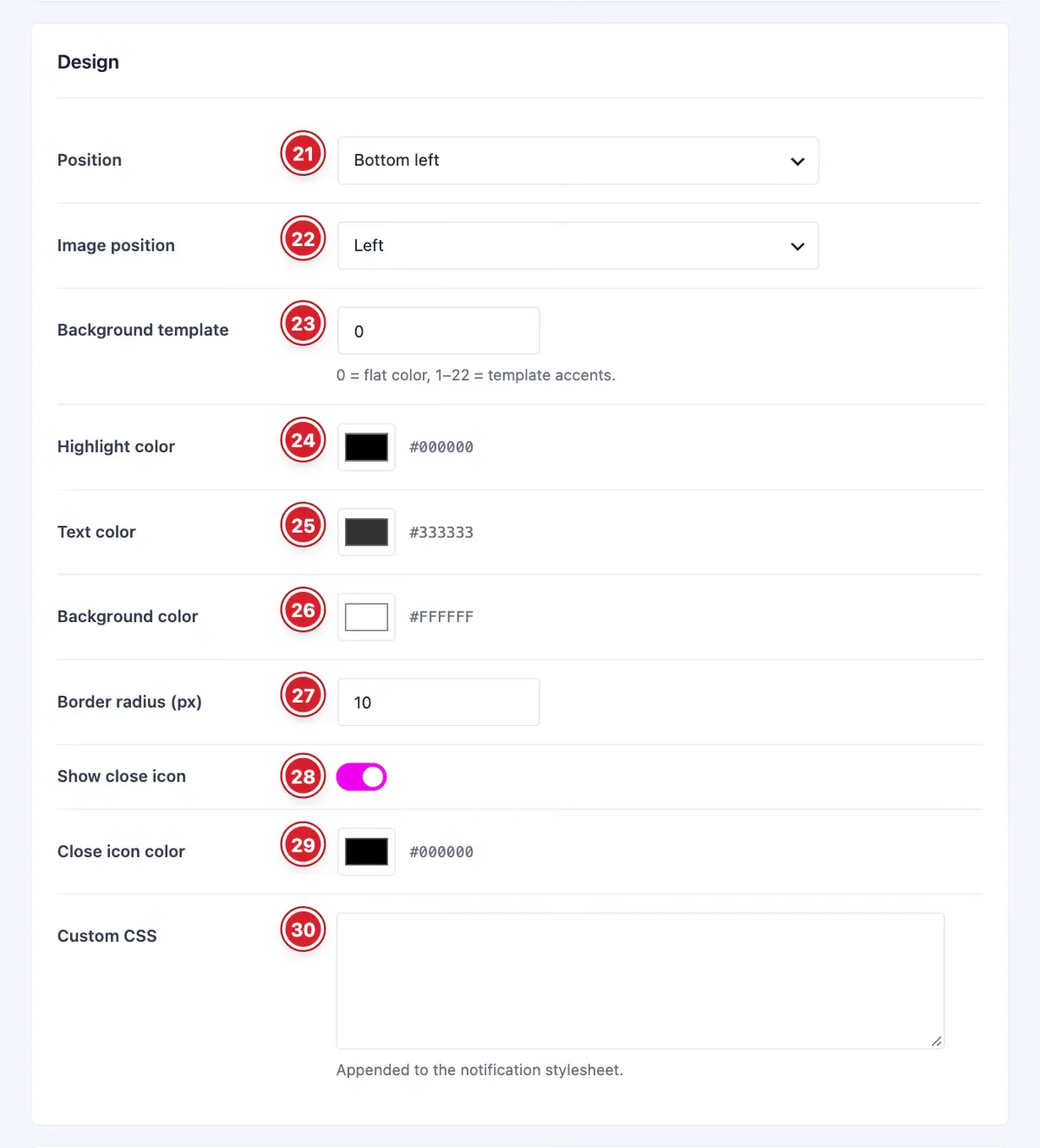 (Open the full-size image in a new tab)
- 21
Position: Bottom left, Bottom right, Top left or Top right.
- 22
Image position: Product image on the Left or Right.
- 23
Background template: 0 keeps a flat background color; 1 to 22 add a colored accent bar and a soft tint of that color.
- 24
Highlight color: The color of product names and links.
- 25
Text color: The message color.
- 26
Background color: The popup's background.
- 27
Border radius (px): How rounded the corners are.
- 28
Show close icon: Adds a × so visitors can close the popups.
- 29
Close icon color: The × color.
- 30
Custom CSS: Extra CSS for the popup.
Set the Timing and Product Pages
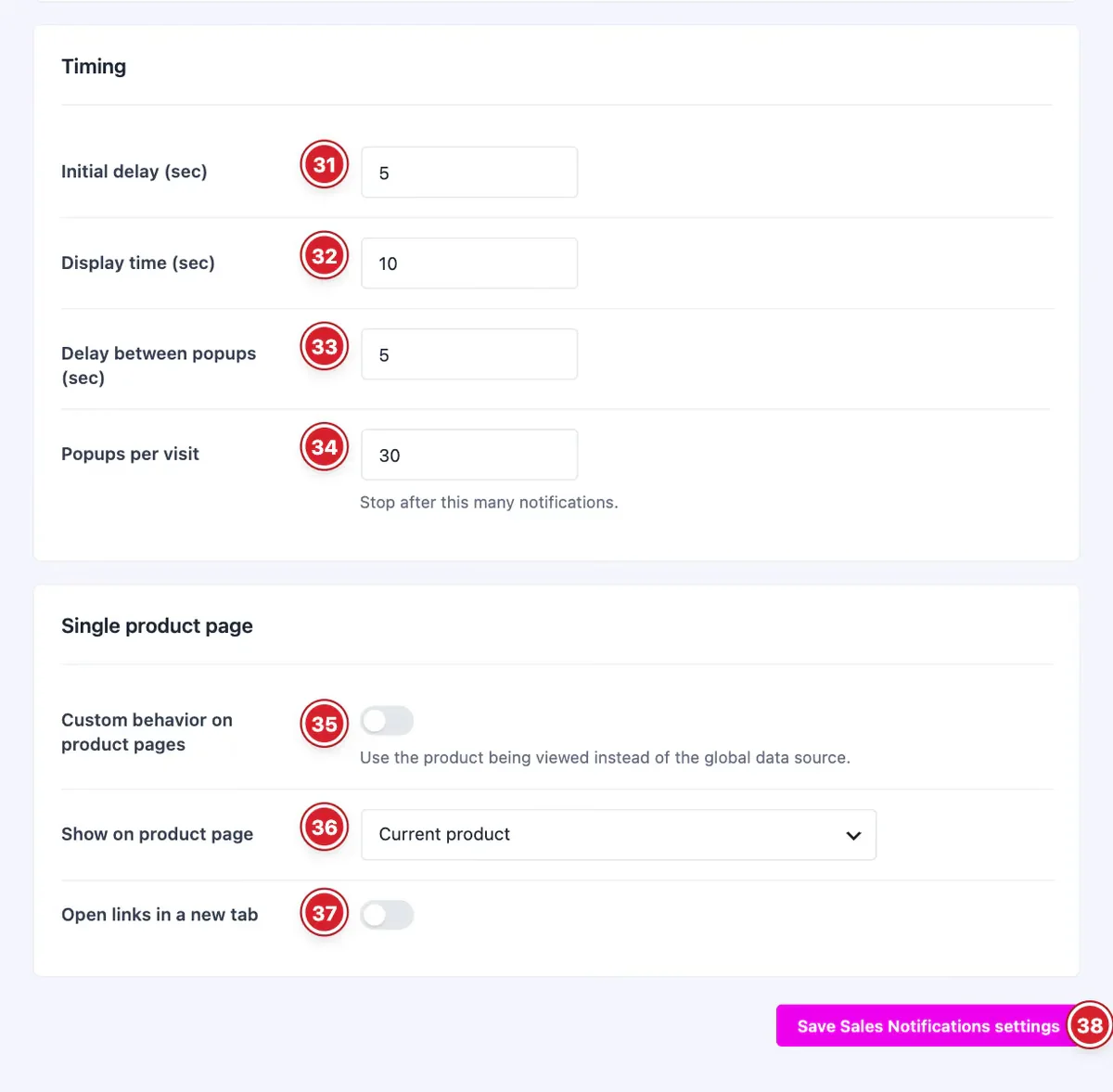 (Open the full-size image in a new tab)
- 31
Initial delay (sec): Seconds before the first popup.
- 32
Display time (sec): How long each popup stays. It stays open while the visitor hovers it.
- 33
Delay between popups (sec): The pause before the next popup.
- 34
Popups per visit: Stop after this many popups on a page.
- 35
Custom behavior on product pages: On product pages, uses the product being viewed instead of the data source above.
- 36
Show on product page: Current product, or Products from the same category.
- 37
Open links in a new tab: Opens product links in a new tab.
- 38
Save Sales Notifications settings: Click to save your changes.
When a visitor closes a popup with the ×, notifications stay hidden for them for 24 hours.
Final Preview
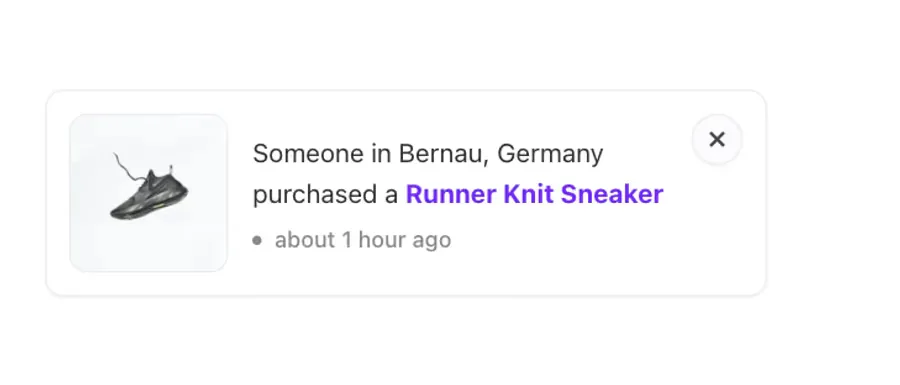 (Open the full-size image in a new tab)
The popup slides in at the position you chose, with the product image and your message.
All done! You have successfully set up the Sales Notifications extension on your store.
Thanks for being with us.
Can't find what you need?
Our support team can help with setup questions and anything the docs don't cover yet.