
The Single Product Page widget by Atomic Addons gives you a complete WooCommerce product page as one widget: the image gallery, title, price, short description, add to cart form, product tabs and related products. You drop it into a product template once and it fills itself in for every product. This guide covers adding the widget and styling each part of the page.
Enable the Single Product Page Widget
Single Product Page is a Pro widget and needs Atomic Addons Pro and WooCommerce. Switch it on from the plugin dashboard:
- 1
Go to WordPress Dashboard → Atomic Addons.
- 2
Click the Widgets tab.
- 3
Search for Single Product Page. You can also open the WooCommerce category.
- 4
Turn the Single Product Page widget on.
- 5
Click Save Settings.
Add the Single Product Page Widget
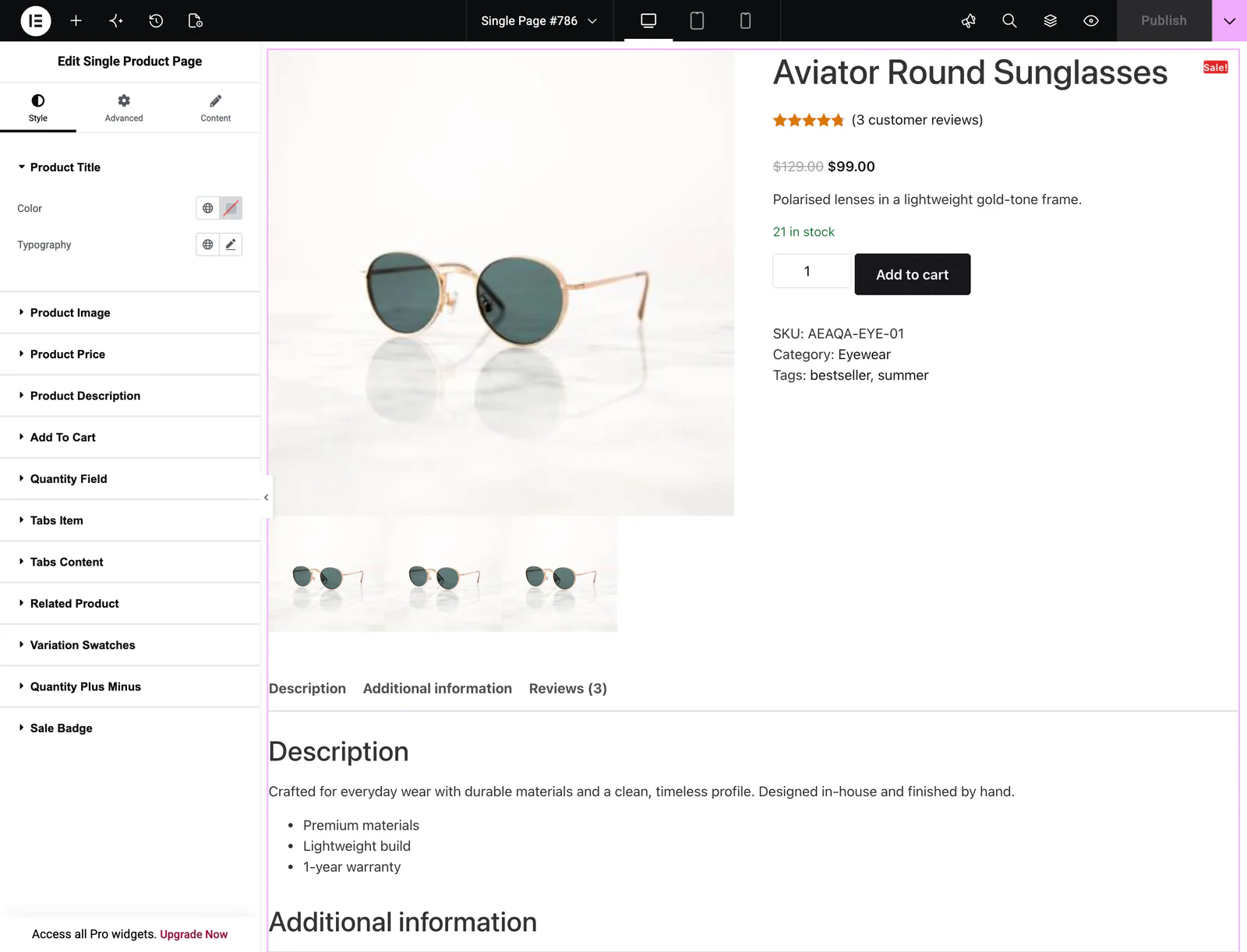 (Open the full-size image in a new tab)
Add it to a Theme Builder template for products:
- 1
Go to WordPress Dashboard → Atomic Addons → Theme Builder.
- 2
Click Add New and choose the Single Product card.
- 3
Give the template a name and open it in Elementor. Its display condition is already set to WooCommerce → Product. Edit the condition if you want the template to apply only to some products or categories.
- 4
In the widget panel, search for Single Product Page and drag it into the template. The widget sits in the Atomic Addons Pro category.
- 5
Design it with the controls below, then click Publish.
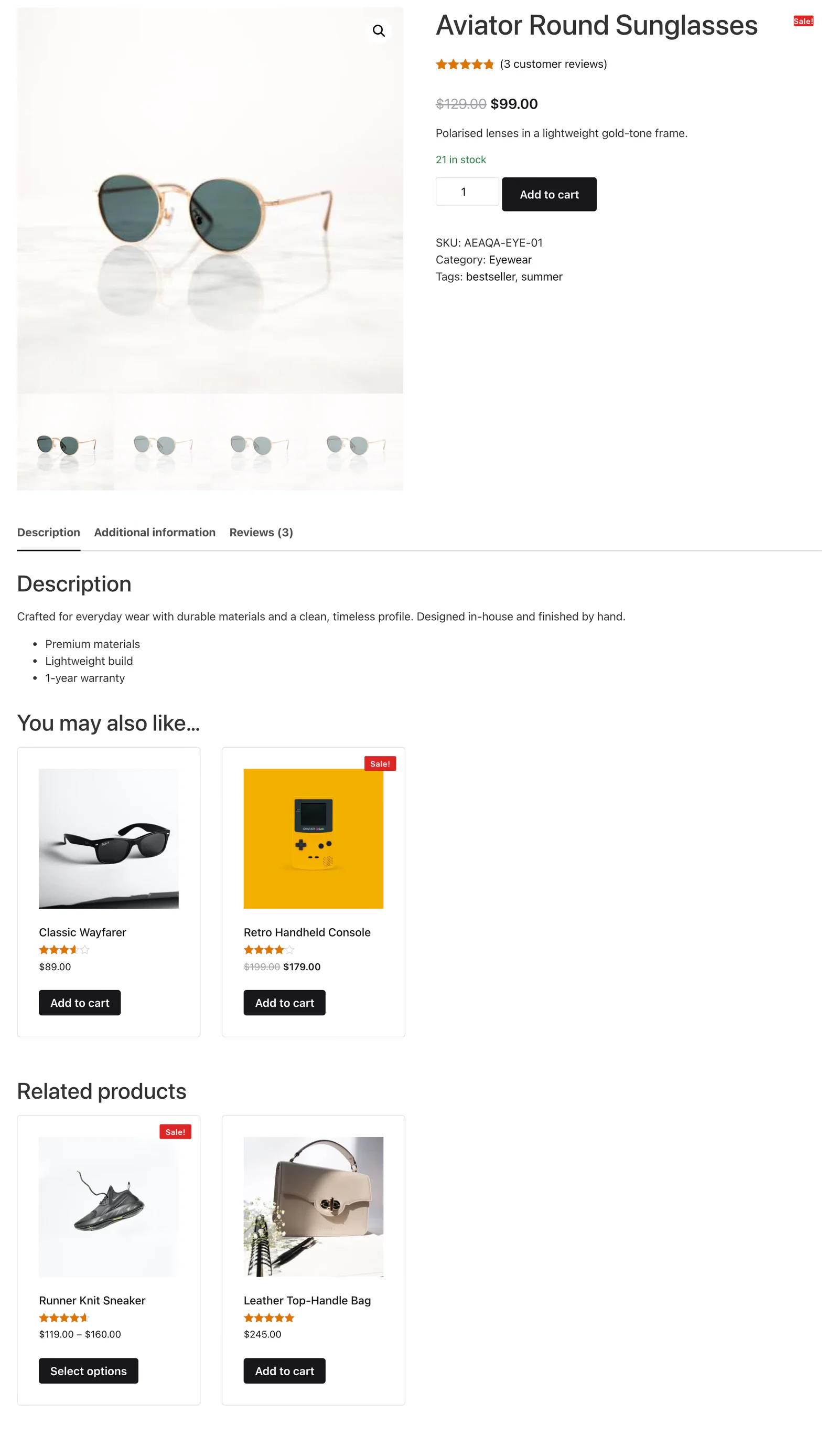
The widget shows the product the visitor is on. On a normal page that is not a product, it shows no product, so place it in a product template.
 (Open the full-size image in a new tab)
What the Widget Shows
The widget has no Content settings. It prints WooCommerce's own product page, so everything WooCommerce and its plugins add keeps working: the sale badge, the zoomable gallery, variation dropdowns, stock messages, grouped and external products, reviews and the extra product tabs another plugin might add. The sections below only change how it looks.
Style the Product Page
All of the widget's controls are on the Style tab.
Product Title
The color and typography of the product name.
Product Image
The gallery: Background, Border and Border Radius of the main image, the Spacing between it and the thumbnails, and a Thumbnails border.
Product Price
Regular Color and Sale Color, so the old and new price can look different, and the price typography.
Product Description
The short description under the price: color and typography.
Add To Cart
The Add to cart button in Normal and Hover states: color, background, border, border radius, padding, size, typography and box shadow.
Quantity Field
The number field beside the button: Width, Color, Background, Border, Border Radius, Padding, Margin, typography and shadow.
Tabs Item
The tab buttons (Description, Additional information, Reviews). Set their padding, margin, typography, border and radius, then style the Normal, Hover and Active states, including the active tab's line color.
Tabs Content
The panel under the tabs: color, background, padding, border radius, border and typography.
Related Product
The related products row at the bottom: the Heading (color, typography, margin), each product's Title and Price typography and color, and the Cart button's background, padding and typography.
Variation Swatches
For variable products, this styles the swatch buttons when the Variation Swatches extension is on. Set the label color, spacing and typography, then the swatch's shape (border radius, padding and gap) and its Normal, Hover and Active states, where Active is the selected option, and the Reset link's color, spacing and typography.
Quantity Plus Minus
The + and − buttons the Variation Swatches extension adds to the quantity field: color, background, border, radius, padding, shadow and icon size, in Normal and Hover states.
Sale Badge
The Sale! label: Color, Background (classic or gradient), Padding, Margin, Border Radius and Typography.
Can't find what you need?
Our support team can help with setup questions and anything the docs don't cover yet.