
The Ripple Effects extension in Atomic Addons lets you add dynamic ripple animations to images, buttons, and other Elementor elements without needing custom code. It creates smooth wave-like effects that can make your website elements more interactive and visually engaging. With easy-to-use settings and adjustable animation options, you can create attractive interactive effects that match your website design. This documentation will guide you through setting up and using the Ripple Effects extension in Atomic Addons.
Enabling the Ripple Effects Extension
 (Open the full-size image in a new tab)
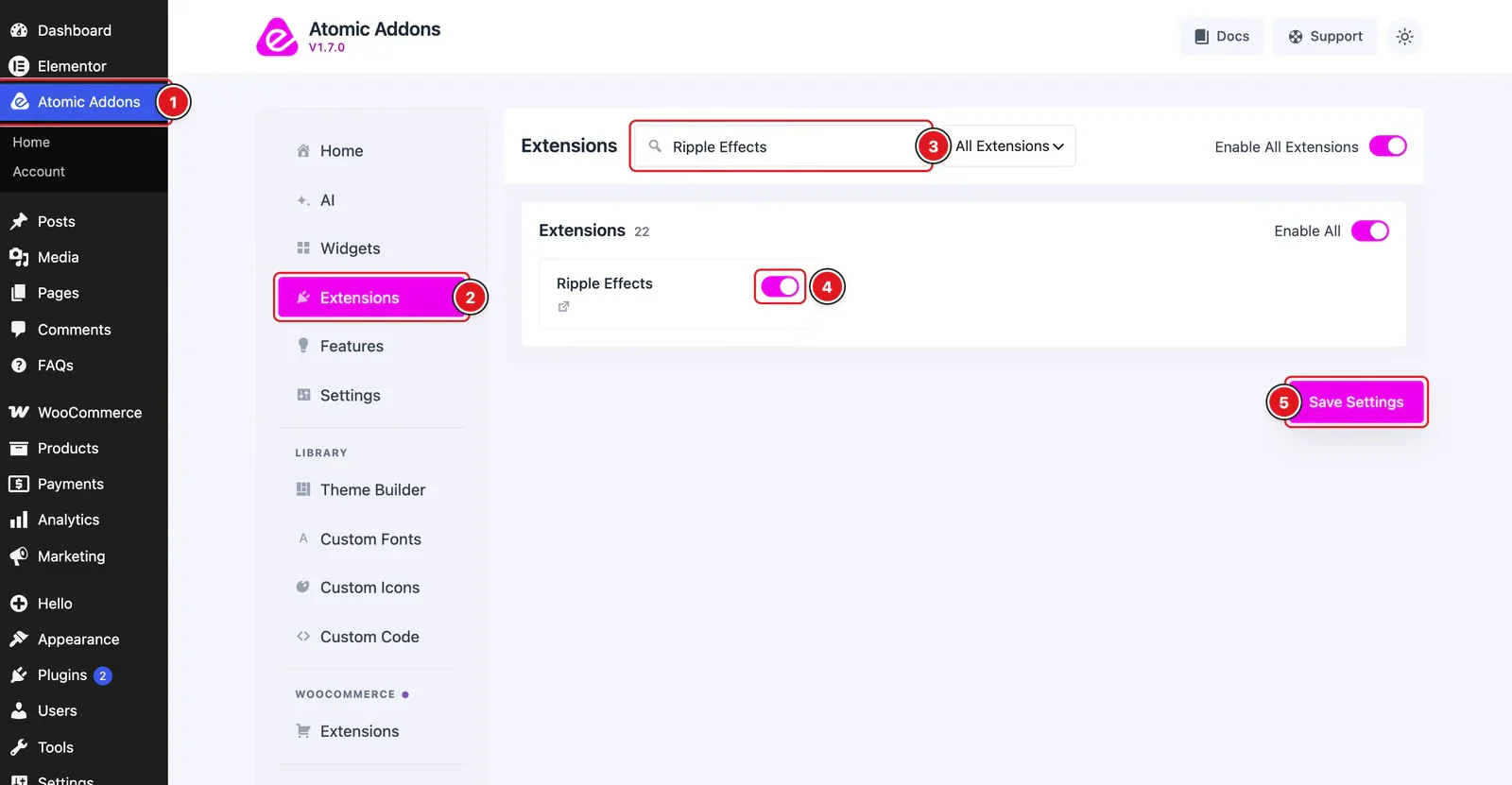
To use the Ripple Effects Extension from Atomic Addons, first, you have to enable the extension.
- 1
Go to WordPress dashboard → Atomic Addons Plugin dashboard.
- 2
Then, Click the Extensions Tab.
- 3
Search for the Ripple Effects Extension.
- 4
Enable the Ripple Effects Extension.
- 5
Hit the Save Settings Button.
Place To Find The Ripple Effects Extension
 (Open the full-size image in a new tab)
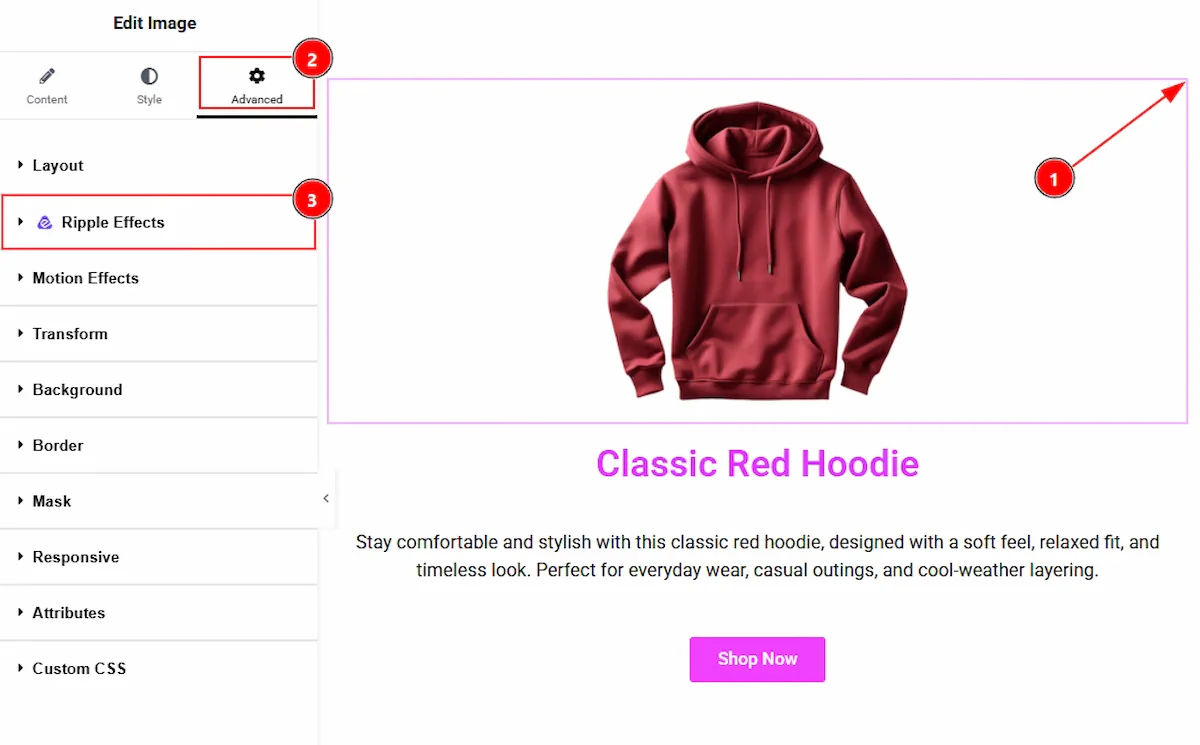
To find the Ripple Effects Extension, you must need to select the element where you want to use the extension. Let’s see the steps below –
- 1
Click to any elements which you want to configure by the Ripple Effects extension.
- 2
Now move to the Advanced tab.
- 3
You will find the Ripple Effects extension here along with the Atomic Addons logo.
Please note that this extension does not function inside Elementor Editor Mode. To see the final result properly, you need to preview the page on the frontend.
Using the Ripple Effects Extension
In this part, we will configure both image & button with the Ripple Effects Extension. Let’s see how the Ripple Effects Extension works on both Image & Button.
Ripple Effects Extension On Image
 (Open the full-size image in a new tab)
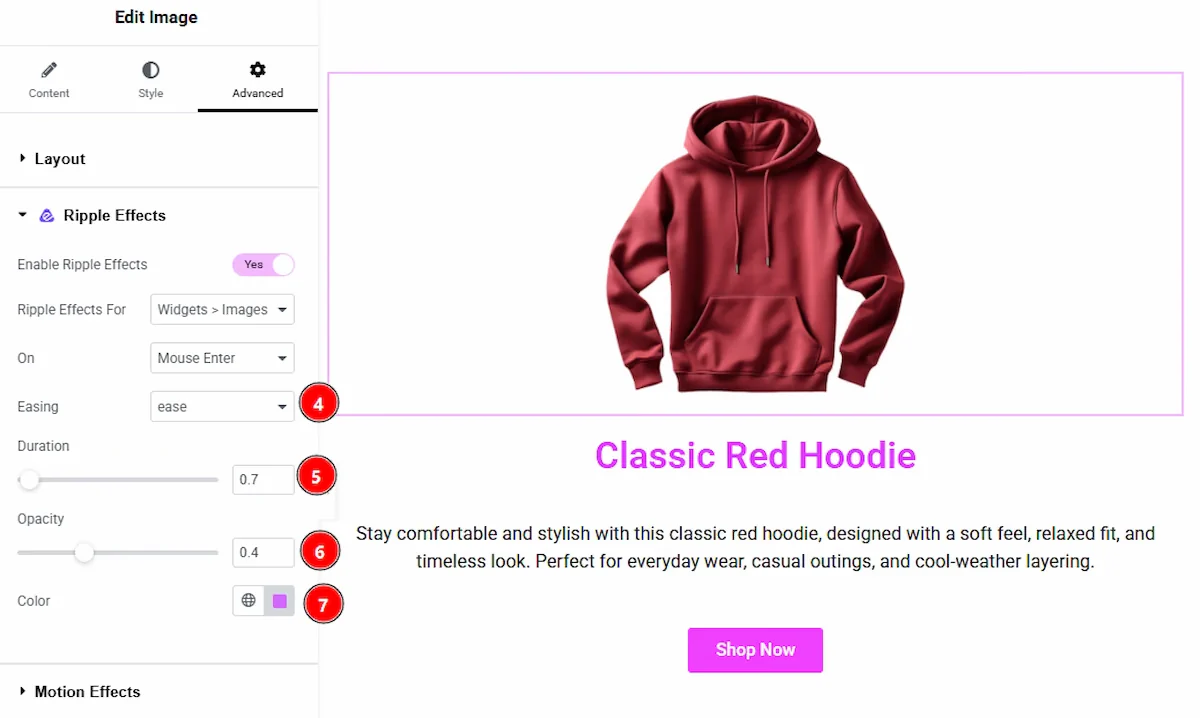
- 1
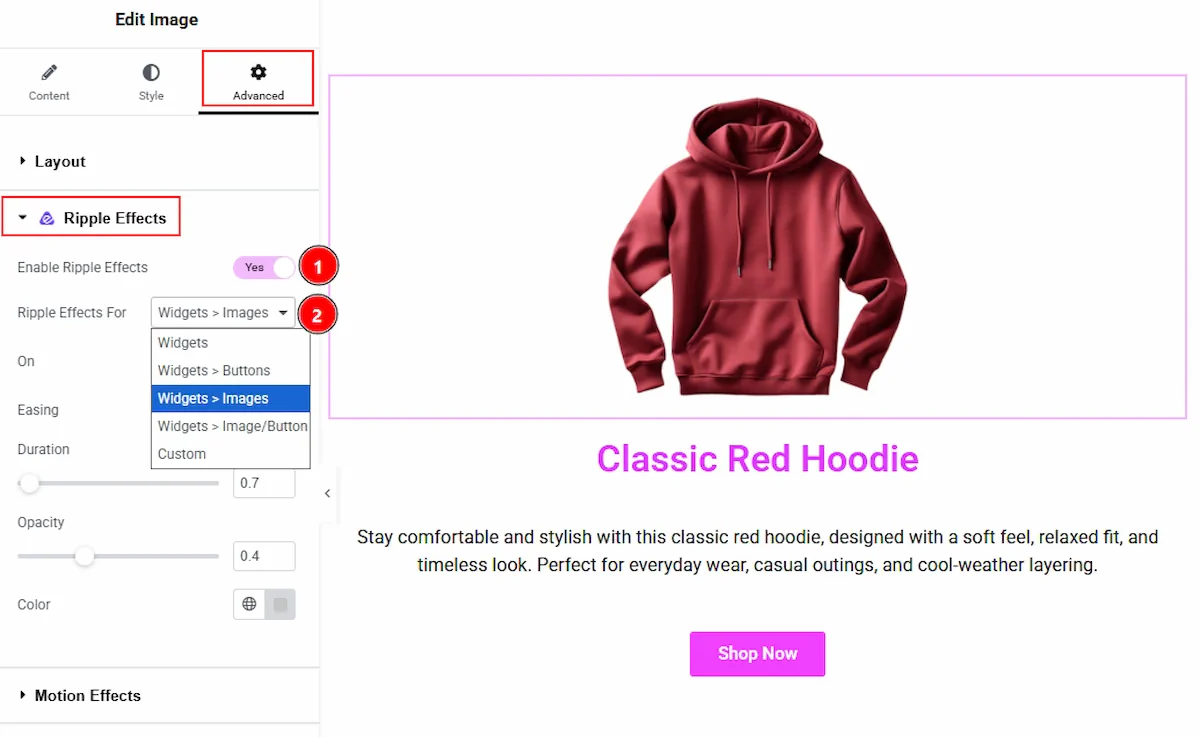
Enable Ripple Effects: Enable the switcher to turn on and get options to customize the Ripple Effects extension.
- 2
Ripple Effects For: You can set for which you are using the Ripple Effects here. The available options are widgets, widget>buttons, widgets>images, widgets>image/button & custom. Choose one that match your need.
 (Open the full-size image in a new tab)
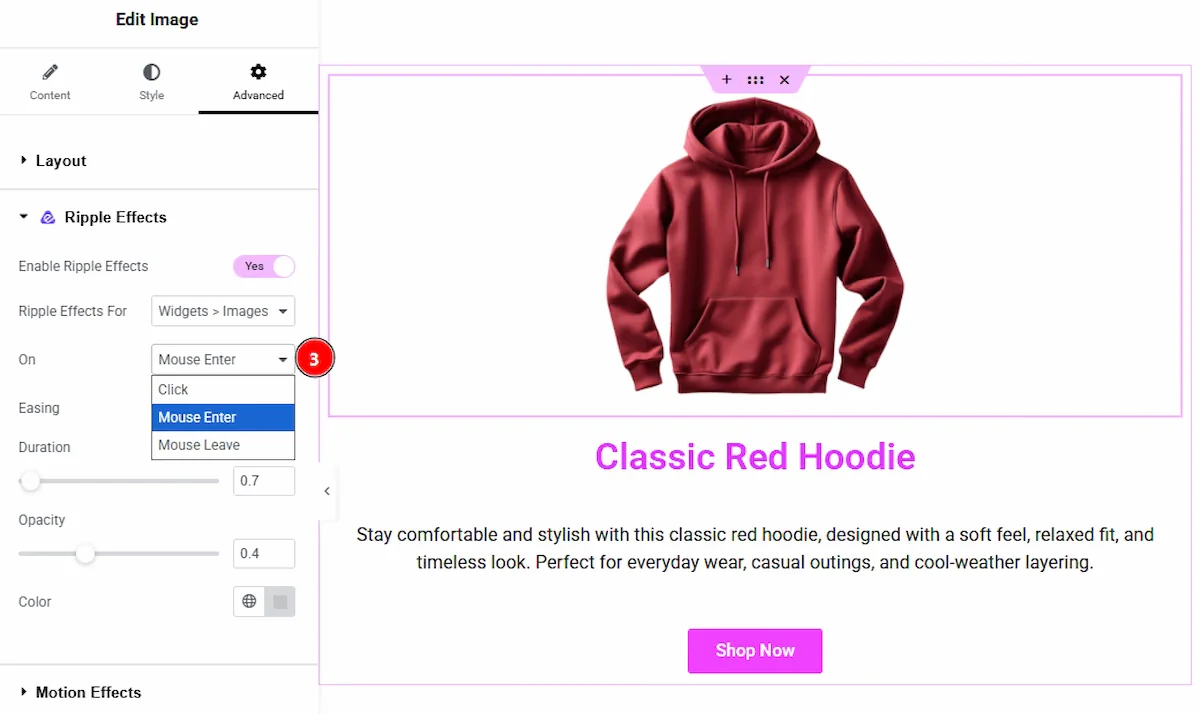
3. On: You can choose the trigger point of ripple effect in this field. You can choose between click, mouse enter and mouse out.
 (Open the full-size image in a new tab)
- 4
Easing: You can select the ripple effect animation type with this option.
- 5
Duration: You can set the animation running time with this option.
- 6
Opacity: You can adjust the bluriness of the ripple effects with this option.
- 7
Color: You can change the color which will show when animating the ripple with this option.
Preview of Ripple Effect on Image
 (Open the full-size image in a new tab)
As we have set the on as Mouse Enter so when & from which side the mouse will enter to the element, the ripple effect will be shown.
Ripple Effects Extension On Button
 (Open the full-size image in a new tab)
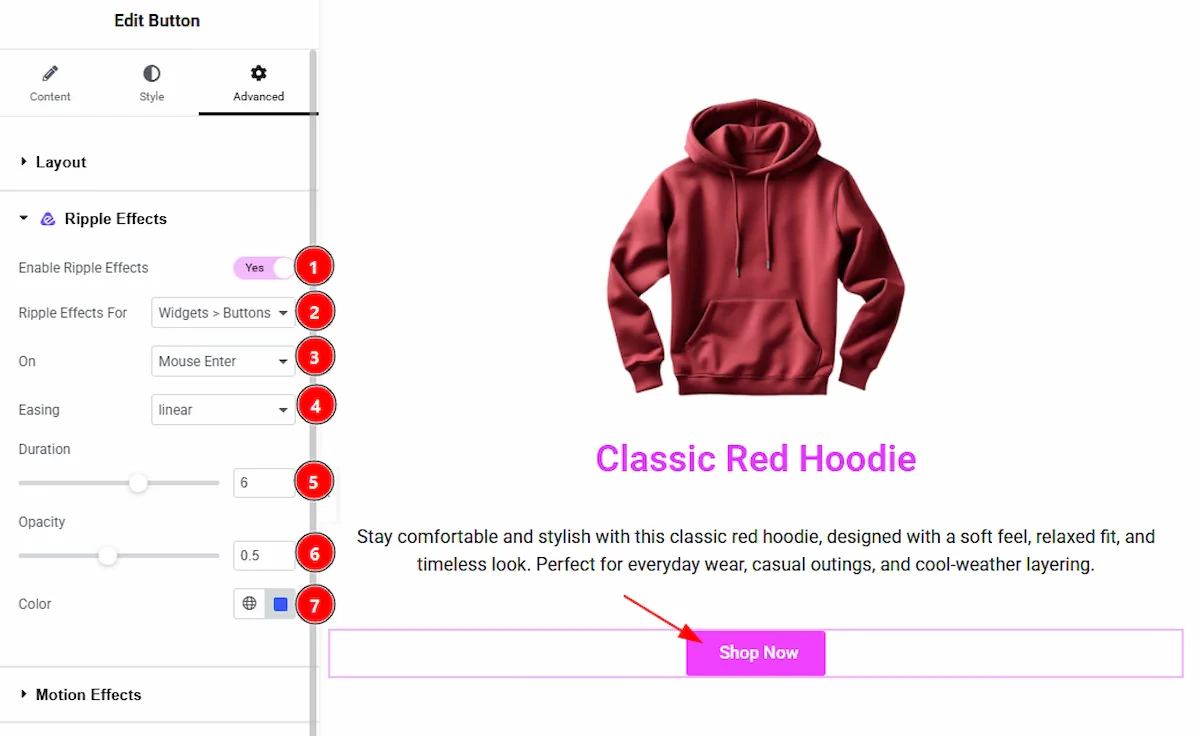
- 1
Enable Ripple Effects: Enable the switcher to turn on and get options to customize the Ripple Effects extension.
- 2
Ripple Effects For: You can set for which you are using the Ripple Effects here. The available options are widgets, widget>buttons, widgets>images, widgets>image/button & custom. Choose one that match your need.
- 3
On: You can choose the trigger point of ripple effect in this field. You can choose between click, mouse enter and mouse out.
- 4
Easing: You can select the ripple effect animation type with this option.
- 5
Duration: You can set the animation running time with this option.
- 6
Opacity: You can adjust the bluriness of the ripple effects with this option.
- 7
Color: You can change the color which will show when animating the ripple with this option.
Preview of Ripple Effect on Button
 (Open the full-size image in a new tab)
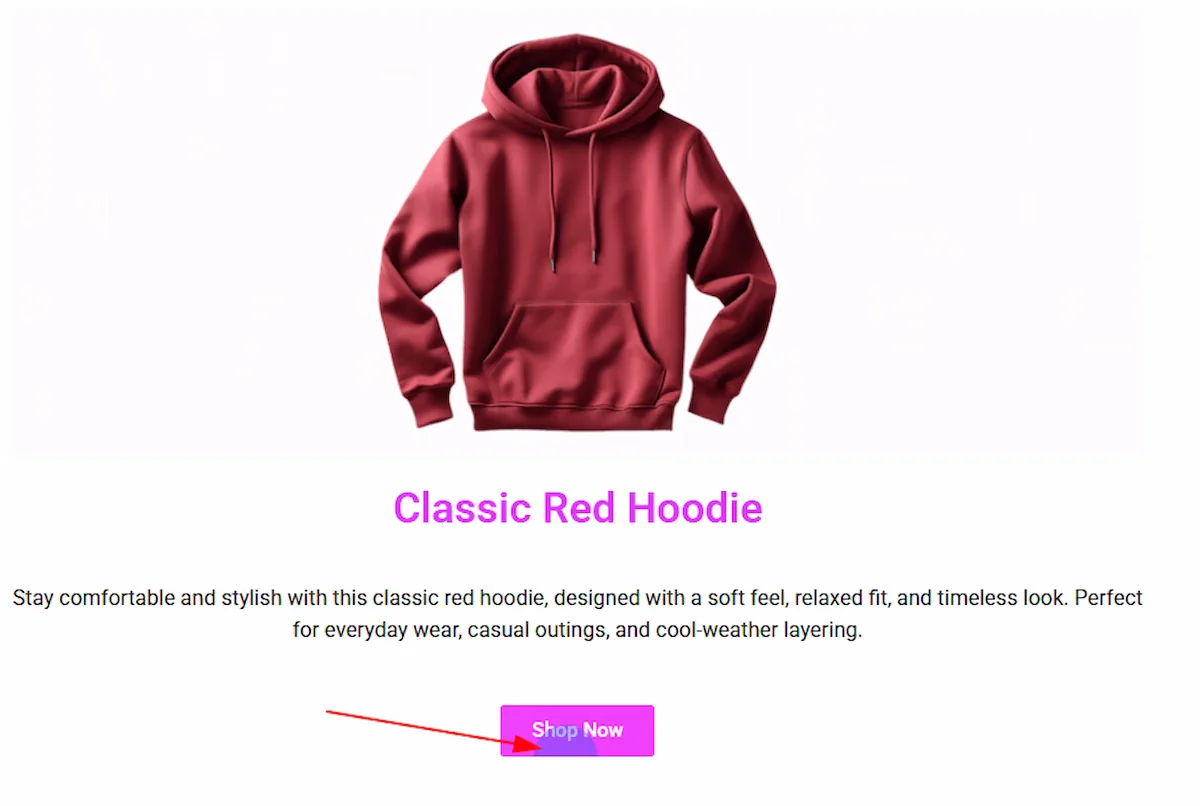
As we have set the on as Mouse Enter so when & from which side the mouse will enter to the element, the ripple effect will be shown.
All done, You have successfully customised the Ripple Effects Extension on your website element.
Thanks for being with us.
Can't find what you need?
Our support team can help with setup questions and anything the docs don't cover yet.