
The Quick View extension by Atomic Addons adds a Quick View button to the products in your shop and in Atomic Addons product widgets. It opens a popup with the product's gallery, price, description and add-to-cart form, so shoppers can check a product without leaving the page. This guide covers the button settings, the widgets and the popup.
Enable the Quick View Extension
 (Open the full-size image in a new tab)
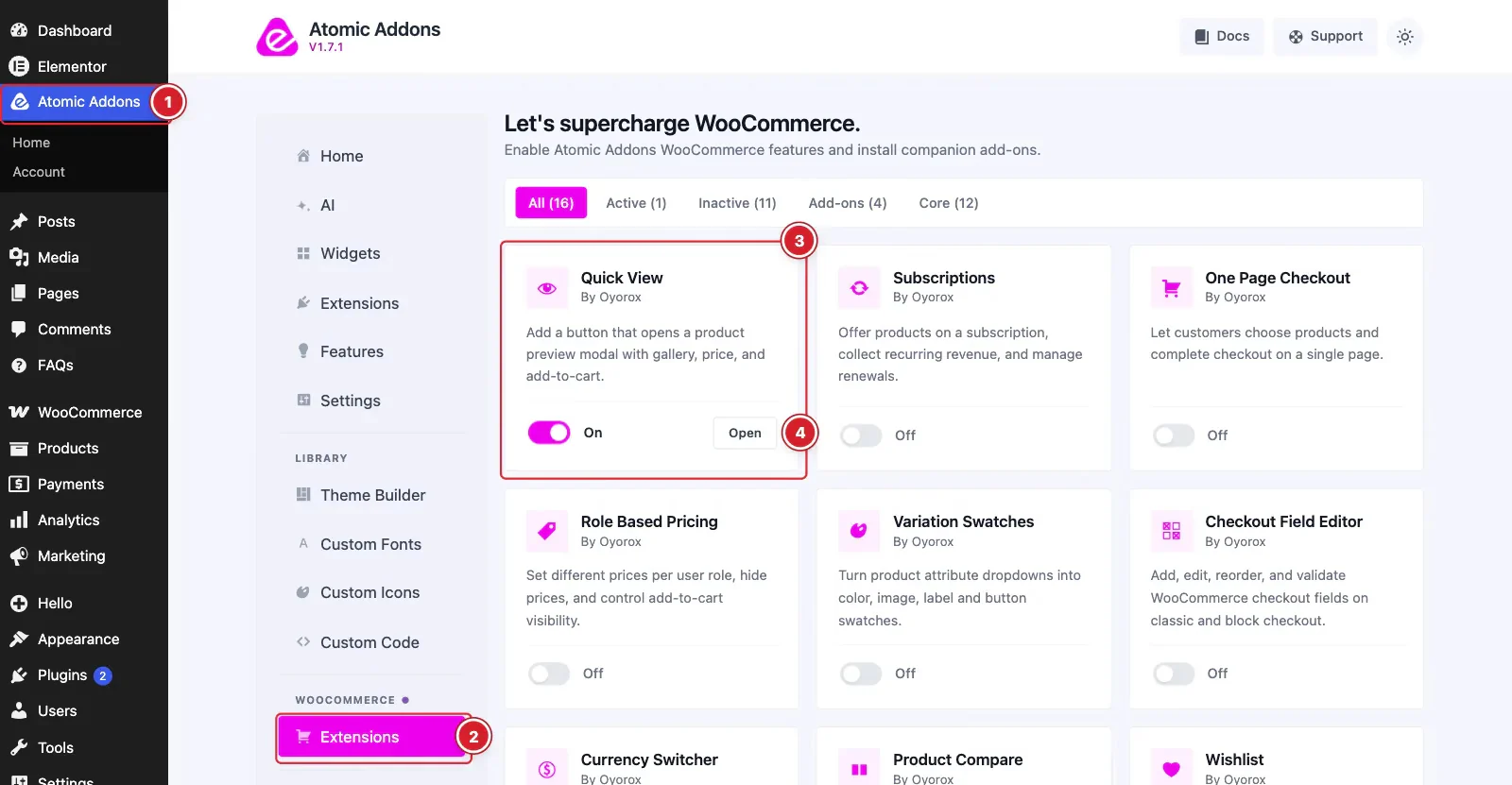
WooCommerce must be installed and active. Then switch the extension on from the Atomic Addons dashboard:
- 1
Go to WordPress Dashboard → Atomic Addons.
- 2
Under WooCommerce, click Extensions.
- 3
Find the Quick View card and turn its switch On.
- 4
Click Open to open the extension's settings.
Configure the Quick View Button
 (Open the full-size image in a new tab)
- 1
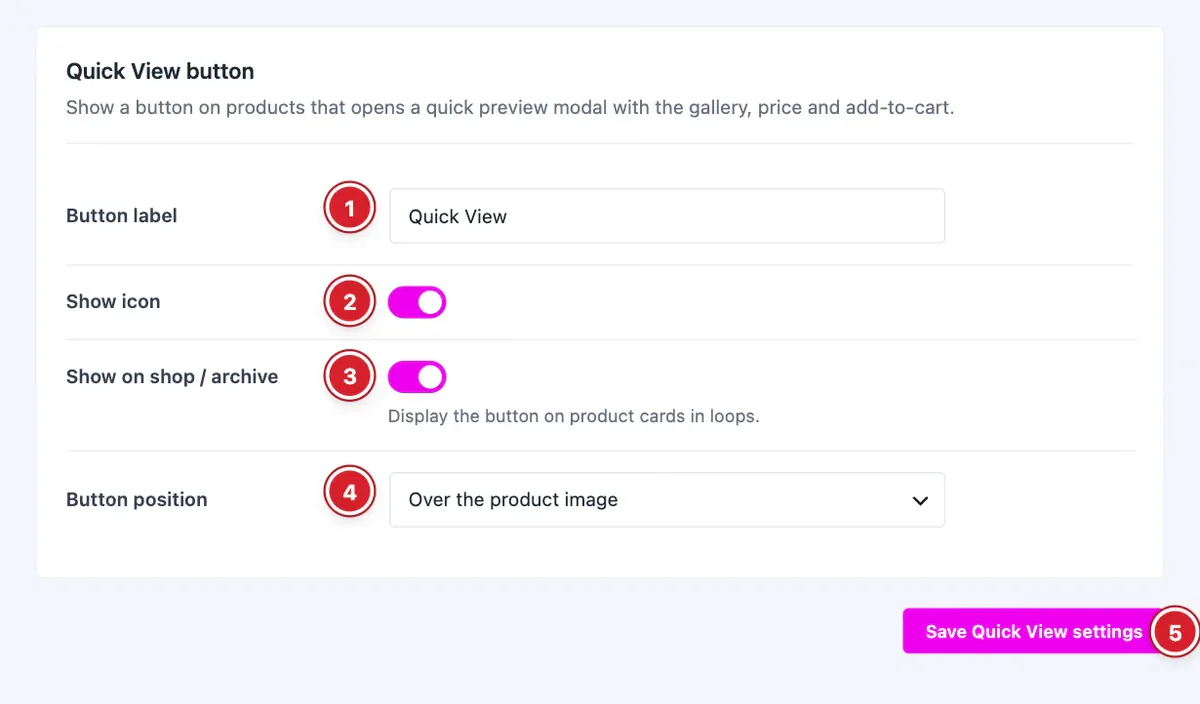
Button label: The button's text. The default is “Quick View”.
- 2
Show icon: Adds an eye icon to the button.
- 3
Show on shop / archive: Adds the button to product cards on the shop, category and tag pages and in WooCommerce product lists.
- 4
Button position: Over the product image, After add-to-cart button or Before add-to-cart button.
- 5
Save Quick View settings: Click to save your changes.
Use Quick View in Atomic Addons Widgets
 (Open the full-size image in a new tab)
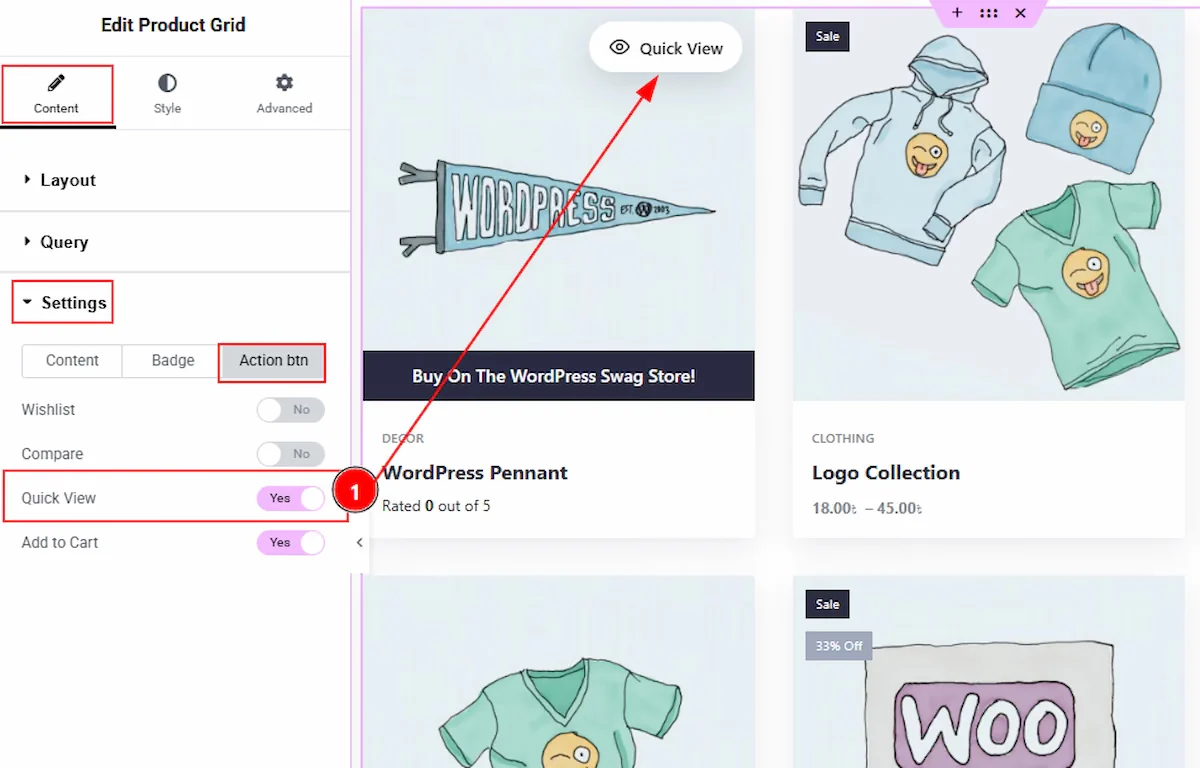
The Product Grid, Product Carousel and Product List widgets show the button too. Select the widget, open Content → Settings (Additional in Product List), go to the Action btn tab and switch on Quick View. Product Image Accordion has the same switch, and Product Table has a Quick View column under Additional Options.
Final Preview
 (Open the full-size image in a new tab)
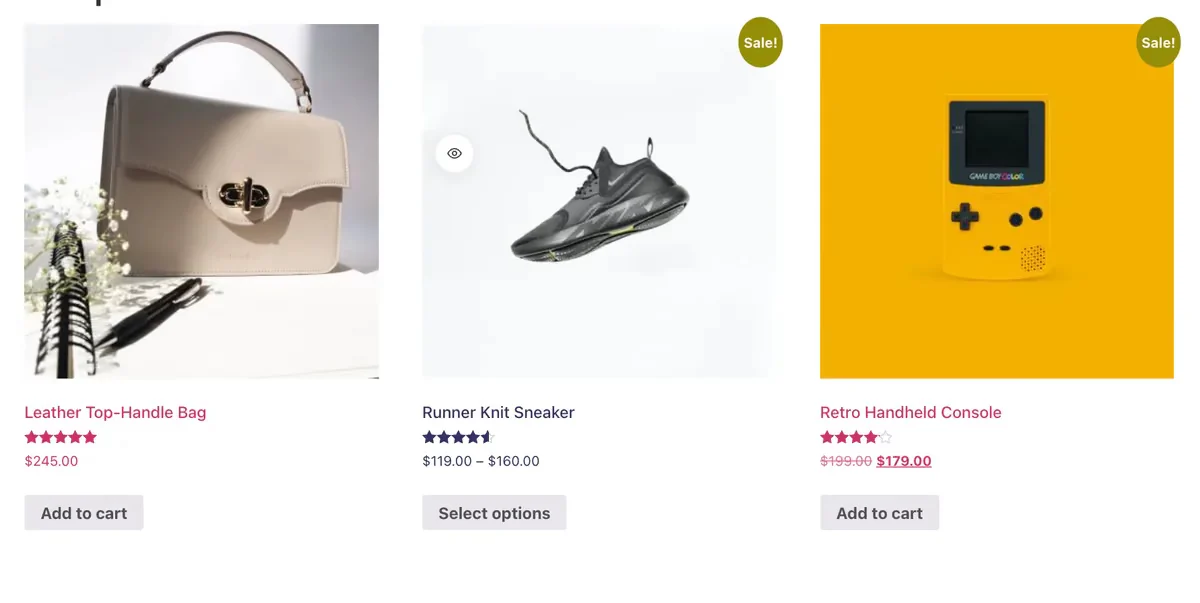
The button appears on each product card in the position you chose.
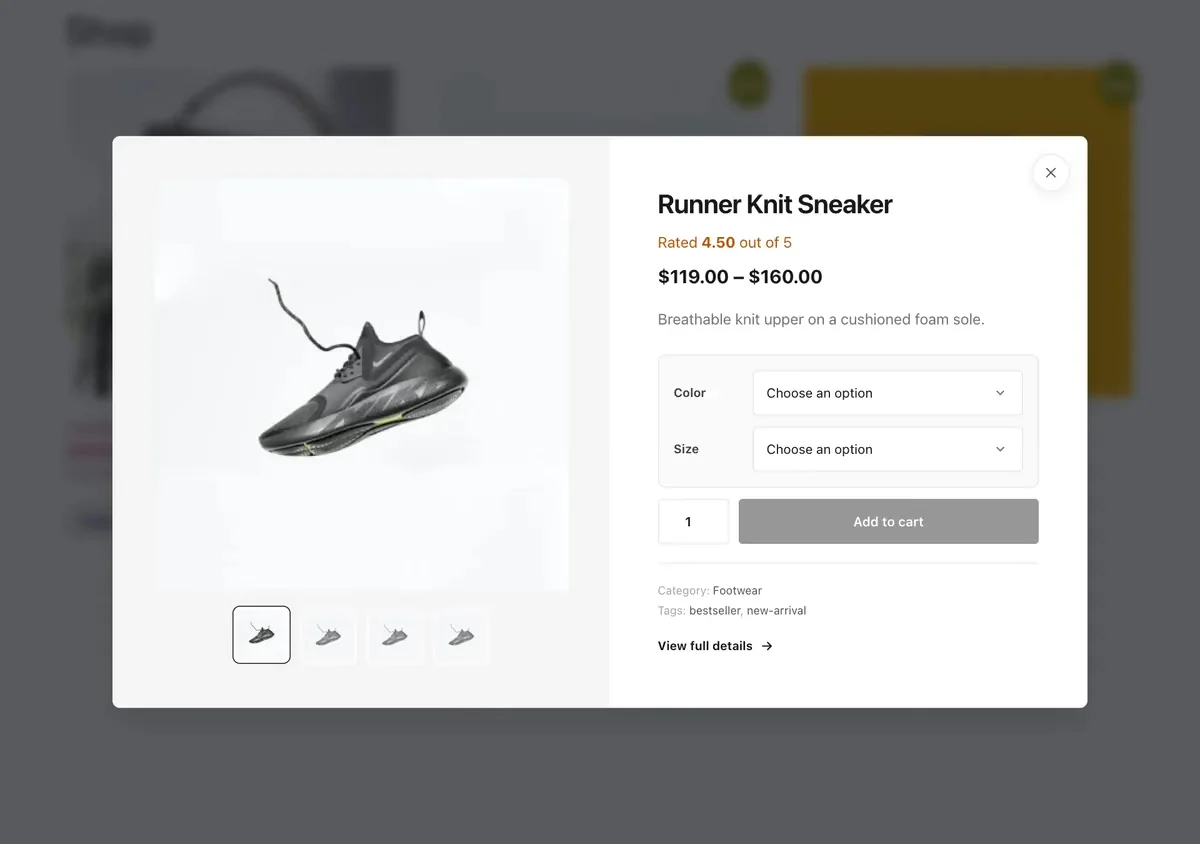 (Open the full-size image in a new tab)
Clicking it opens the popup with the product's gallery, rating, price, short description, add-to-cart form and a link to the full product page. Shoppers close it with the ×, by clicking outside it, or with Esc.
All done! You have successfully set up the Quick View extension on your store.
Thanks for being with us.
Can't find what you need?
Our support team can help with setup questions and anything the docs don't cover yet.