
The Call For Price widget by Atomic Addons adds a button that calls your store, for products whose price you give on request. Tapping it on a phone opens the dialer with your number filled in. You set the button's text, the phone number, an icon and the styles. This guide covers adding the widget, its settings and what it does and doesn't change on the product page.
Enable the Call For Price Widget
Call For Price is a Pro widget and needs Atomic Addons Pro and WooCommerce. Switch it on from the plugin dashboard:
- 1
Go to WordPress Dashboard → Atomic Addons.
- 2
Click the Widgets tab.
- 3
Search for Call For Price. You can also open the WooCommerce category.
- 4
Turn the Call For Price widget on.
- 5
Click Save Settings.
Add the Call For Price Widget
The widget belongs in a Theme Builder template for products, where the price and add to cart button would otherwise go:
- 1
Go to WordPress Dashboard → Atomic Addons → Theme Builder.
- 2
Click Add New and choose the Single Product card.
- 3
Give the template a name and open it in Elementor. Its display condition is already set to WooCommerce → Product, so it applies as soon as you publish it.
- 4
In the widget panel, search for Call For Price and drag it into the template. The widget sits in the Atomic Addons Pro (Single) category.
- 5
Design it with the controls below, then click Publish.
The button doesn't read anything from the product: it shows the same text and number on every product the template applies to. To use it only for some products, give those products their own Single Product template and edit its display condition to those products or their category. The widget appears in the panel only while you edit a Theme Builder template, a saved Elementor template or a product.
The widget only adds the button. It doesn't hide the product's price or its add to cart button, and it shows whether or not the product has a price. Leave the Product Price and Add To Cart widgets out of the template that uses it, or hide them from chosen user roles with Hide Add to Cart and Price.
Layout
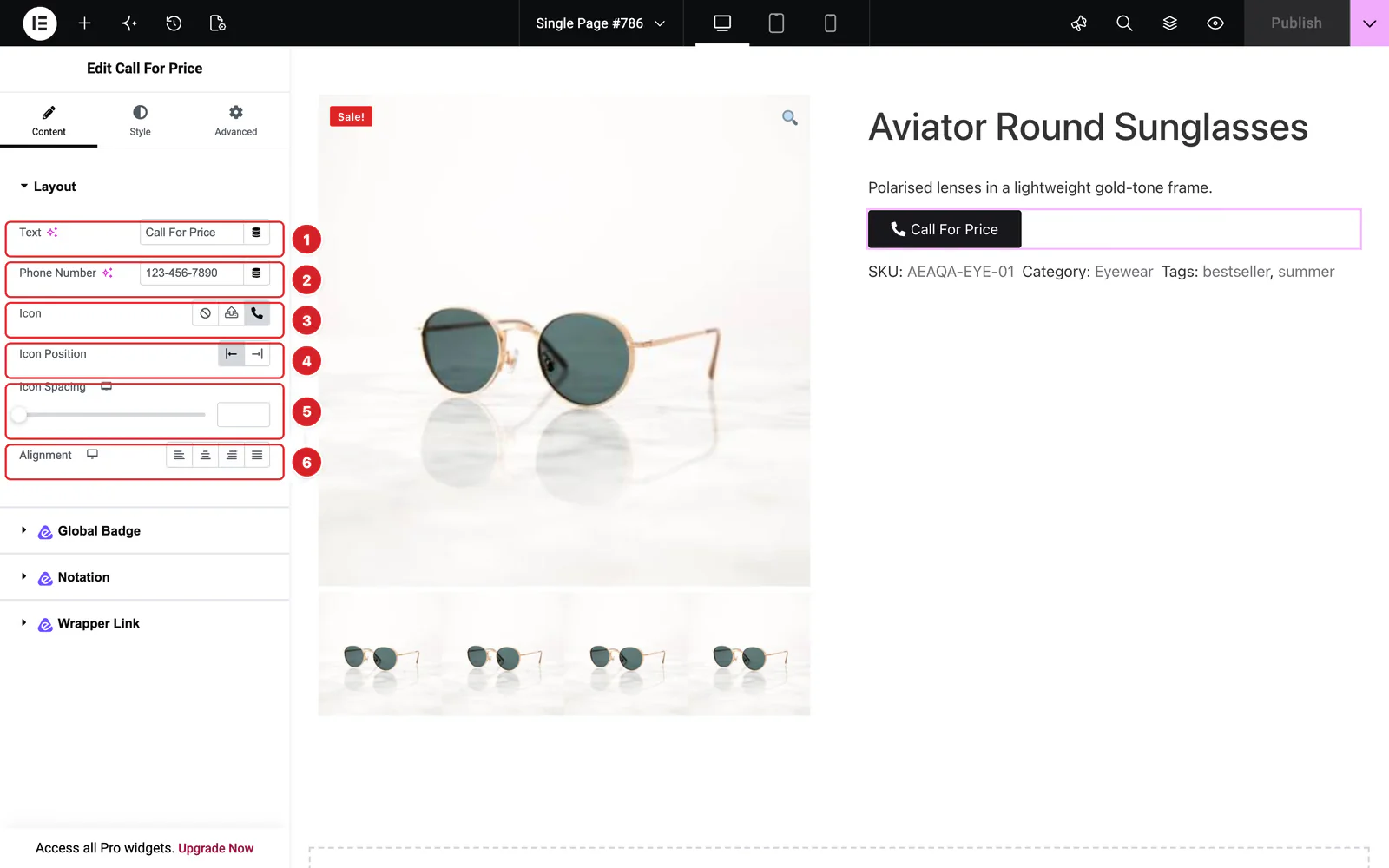 (Open the full-size image in a new tab)
Open the widget and go to Content → Layout:
- 1
Text: The button's text, “Call For Price” by default.
- 2
Phone Number: The number the button calls. It is “123-456-7890” by default, so replace it. Only digits and + are kept: “+1 (555) 010-0199” dials +15550100199. With the field empty the button does nothing. Like Text, it accepts dynamic tags.
- 3
Icon: An icon in the button, none by default. Choose one from the icon library or upload an SVG.
- 4
Icon Position: Start (the default) puts the icon before the text, End after it. Shown once an icon is set.
- 5
Icon Spacing: The gap between the icon and the text.
- 6
Alignment: Left, center, right or justified, where justified stretches the button across the column. Set it per device with the device icon.
 (Open the full-size image in a new tab)
On the store the button is a phone link. On a phone, tapping it starts a call to your number; on a computer, the browser hands the number to its calling app, if one is set up.
Style the Call For Price Button
The Style tab has one section, Call For Price, with two states:
- Normal — Color of the text and icon (white by default), Background (a near-black color by default), Border, Border Radius, Padding, Typography and Box Shadow.
- Hover — the text Color, Border Color and Background while the pointer is on the button, and a Hover Animation from Elementor's list.
Can't find what you need?
Our support team can help with setup questions and anything the docs don't cover yet.