
The Product Category Carousel widget by Atomic Addons shows your WooCommerce product categories as cards that slide past in a carousel. Each card has the category's thumbnail, name and product count, and links to the category's page. It has the same six card styles as the Product Category widget, plus arrows, dots and autoplay. This guide covers adding the widget, choosing the categories and setting up the carousel.
Enable the Product Category Carousel Widget
Product Category Carousel is a Pro widget and needs Atomic Addons Pro and WooCommerce. Switch it on from the plugin dashboard:
- 1
Go to WordPress Dashboard → Atomic Addons.
- 2
Click the Widgets tab.
- 3
Search for Product Category Carousel. You can also open the WooCommerce category.
- 4
Turn the Product Category Carousel widget on.
- 5
Click Save Settings.
Add the Product Category Carousel Widget
Product Category Carousel works on any page:
- 1
Open the page in Elementor (Edit with Elementor).
- 2
In the widget panel, search for Product Category Carousel. The widget sits in the Atomic Addons Pro category.
- 3
Drag it into the page and set it up with the controls below.
- 4
Click Publish (or Update).
The cards use the thumbnail set for each category under Products → Categories; a category without one shows a gray placeholder.
Layout
 (Open the full-size image in a new tab)
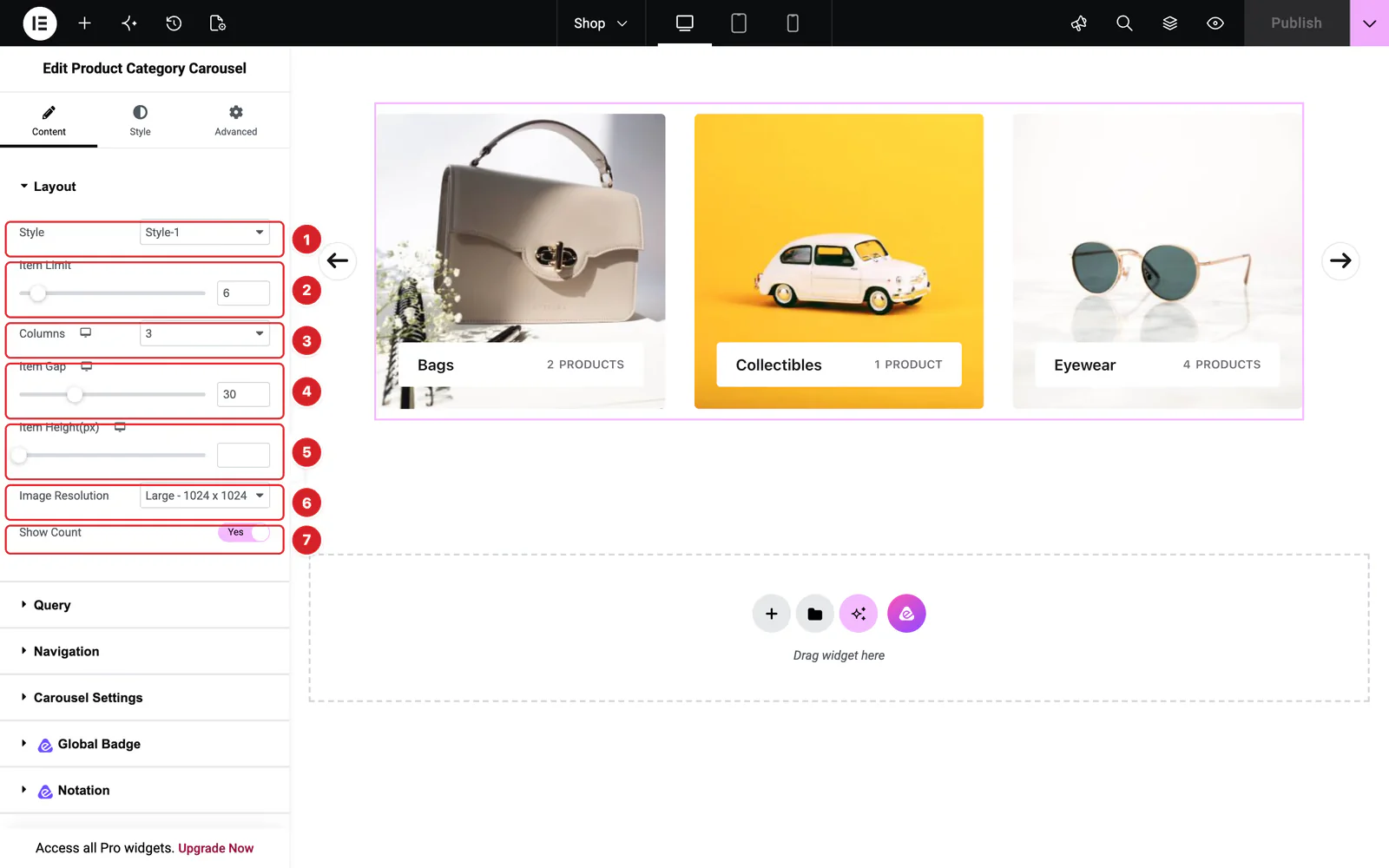
Open the widget and go to Content → Layout:
- 1
Style: Six looks for the cards, Style-1 by default. They match the Product Category styles.
- 2
Item Limit: How many categories go into the carousel, 6 by default and up to 50.
- 3
Columns: How many cards are visible at once: 3 by default, 2 on tablets and 1 on phones, up to 8.
- 4
Item Gap: The space between cards: 30px by default, 20px on tablets and phones.
- 5
Item Height(px): A fixed height for the cards. Empty by default, which lets the image decide.
- 6
Image Resolution: Which image size WordPress serves for the thumbnails, Large by default.
- 7
Show Count: The number of products in the category, including its subcategories. On by default.
With Style-6, the section adds Item Direction, Alignment and Show Image.
 (Open the full-size image in a new tab)
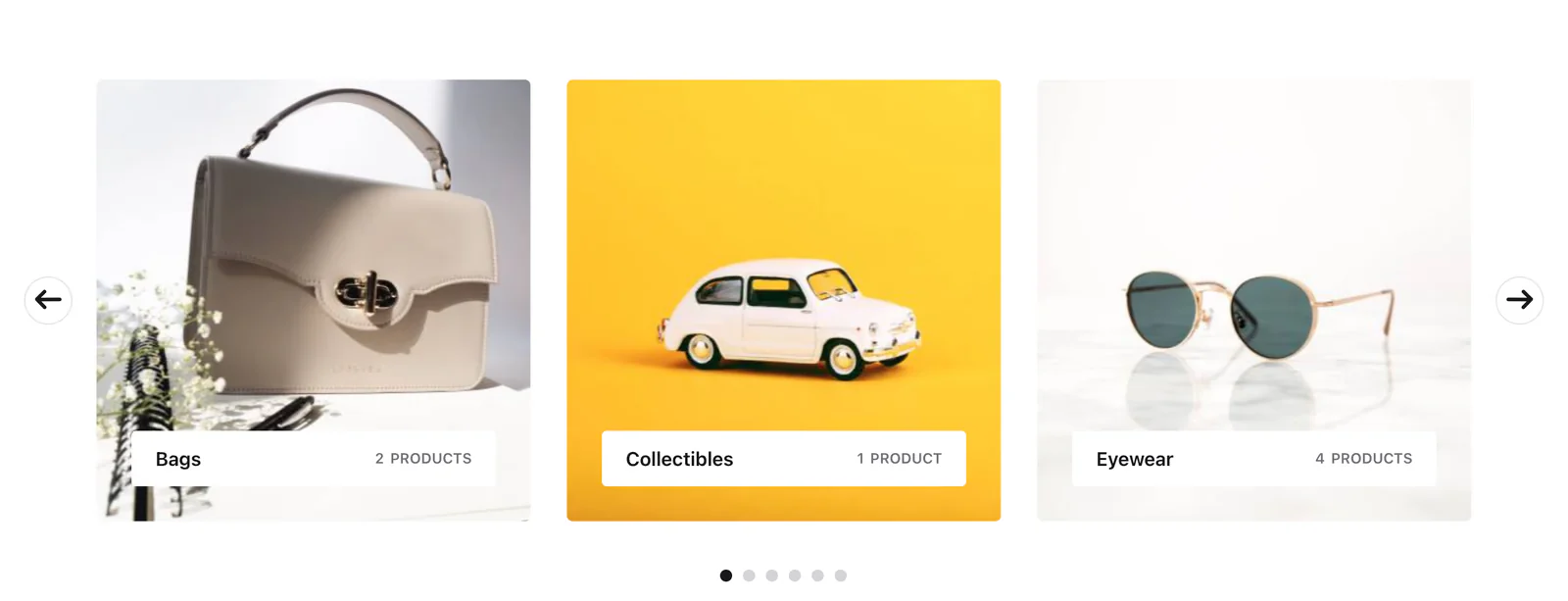
The carousel moves on its own every five seconds and starts over after the last card. The arrows sit just outside the cards, so leave some room at the sides of the column. Every card links to its category page.
Query
Content → Query works as in the Product Category widget:
- Type — All categories (the default), Only Parents, or Only Child with Child Categories of to show one category's subcategories.
- Include / Exclude — with the All type, show only the Categories you pick, or leave some out. Exclude Uncategorized unless you want it in the carousel.
- Order By Name, Count or Slug, in Ascending (the default) or Descending Order.
- Hide Empty — leaves out categories with no products. On by default.
The widget doesn't follow the category being viewed: in a Products Archive template it shows the same cards on every category page.
Navigation
 (Open the full-size image in a new tab)
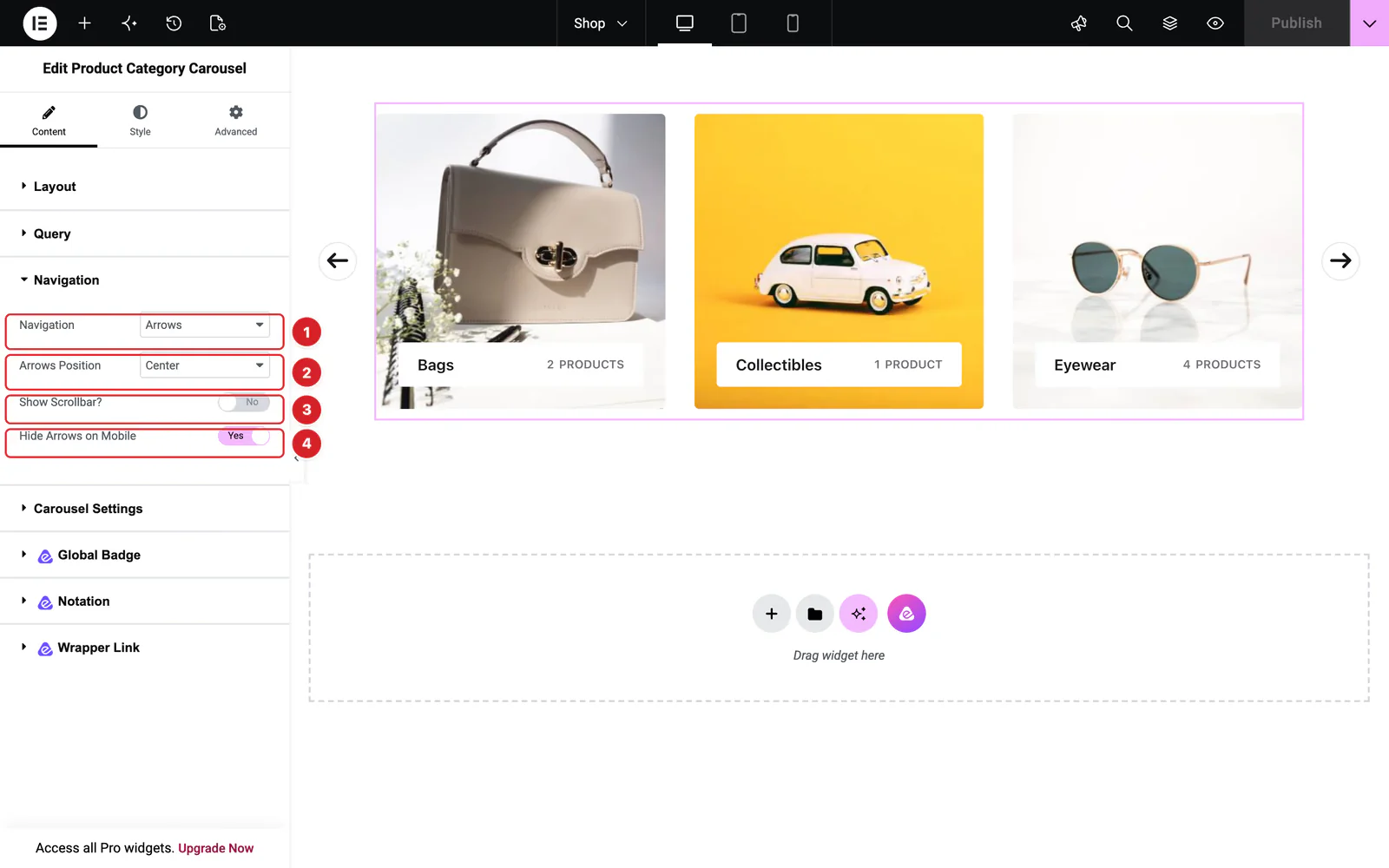
Content → Navigation sets the controls around the carousel:
- 1
Navigation: Arrows (the default), Arrows and Dots, Arrows and Fraction (such as “2 / 6”), Dots, Progress (a bar) or None.
- 2
Arrows Position: Where the arrows go: Center, at both sides, by default, or a corner or edge. Each navigation type has its own position control, such as Dots Position (Bottom Center by default). With dots, Dynamic Bullets? keeps only a few dots visible when there are many.
- 3
Show Scrollbar?: A thin bar under the cards that shoppers can drag. Off by default.
- 4
Hide Arrows on Mobile: Hides the arrows on screens narrower than 960px, where shoppers swipe. On by default.
The arrows and dots hide themselves when every card fits on screen at once.
Carousel Settings
 (Open the full-size image in a new tab)
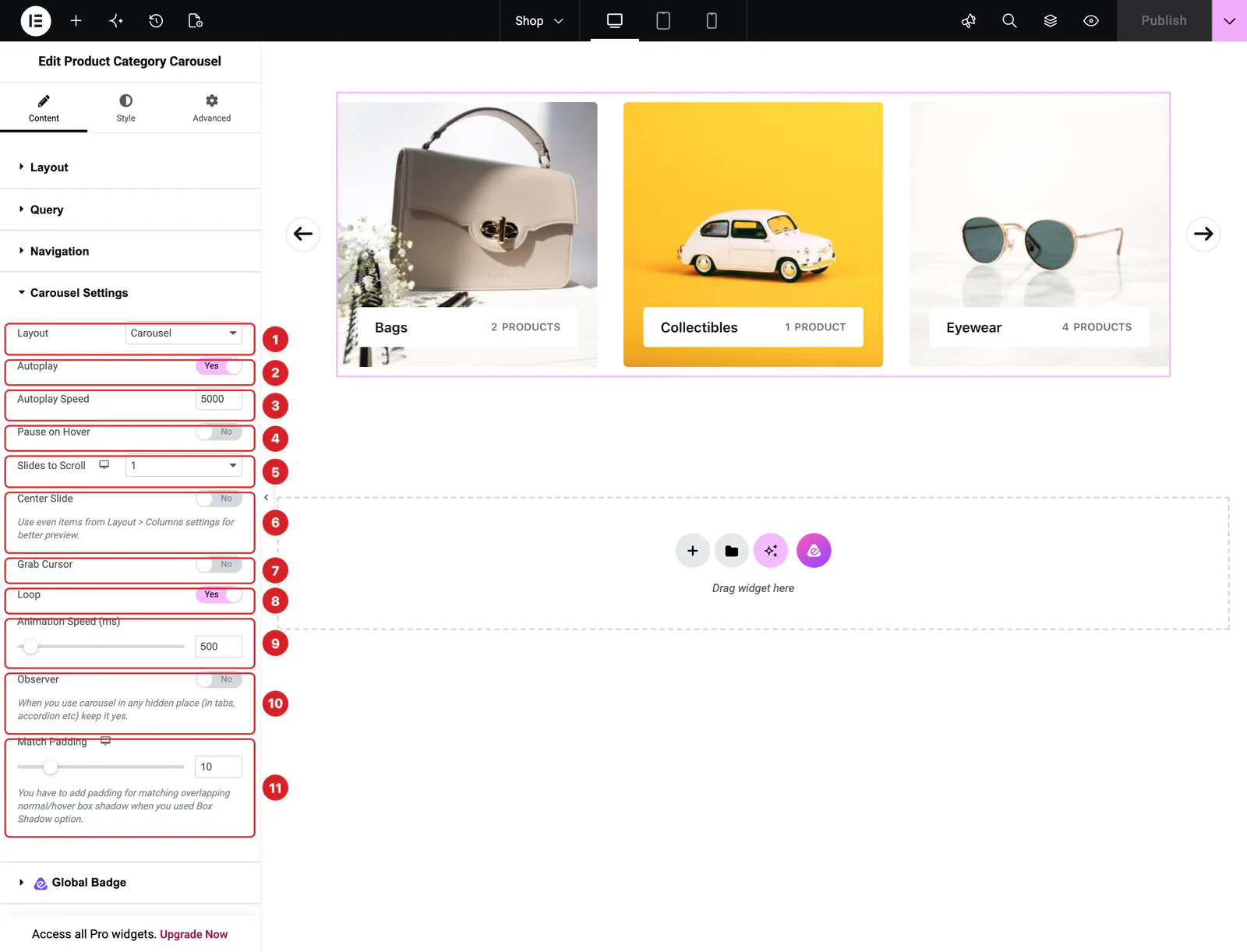
Content → Carousel Settings controls how the carousel moves:
- 1
Layout: Carousel, the default, or Coverflow, which tilts the side cards in 3D. With Coverflow, the Coverflow Effect pencil sets Rotate (50), Stretch, Modifier and Depth (100).
- 2
Autoplay: Moves the carousel on its own. On by default.
- 3
Autoplay Speed: The pause between moves, 5000 ms by default.
- 4
Pause on Hover: Stops autoplay while the pointer is over the carousel. Off by default.
- 5
Slides to Scroll: How many cards each move advances, 1 by default. Set it per device.
- 6
Center Slide: Keeps the current card in the middle, with parts of its neighbors at the sides. It looks best with an even number of Columns.
- 7
Grab Cursor: Shows a hand cursor over the cards, a hint that they can be dragged.
- 8
Loop: Starts over after the last card. On by default.
- 9
Animation Speed (ms): How long each move takes, 500 ms by default.
- 10
Observer: Turn it on when the carousel sits in a tab, accordion or popup, so it sizes itself when it becomes visible.
- 11
Match Padding: Space around the cards, 10px by default, so a box shadow on the cards isn't cut off.
The cards always take the height of the tallest one.
Style the Product Category Carousel
Everything below is on the Style tab.
- Item, Image, Content, Title and Count / Icon — the card, as in the Product Category widget. Content appears for Style-1, Style-2 and Style-5.
- Navigation — tabs for the Arrows (color, background, border, radius, padding, size and the space between them, with a Hover state), Dots (color, active color, width and height), Fraction, progress bar and Scrollbar colors, and Offset to nudge each control from its position.
Can't find what you need?
Our support team can help with setup questions and anything the docs don't cover yet.