
The My Account Page widget by Atomic Addons brings the WooCommerce customer account into Elementor. Logged-in customers see their account menu and the tab they have opened, such as the dashboard, orders, downloads, addresses and account details. Visitors who are logged out see the WooCommerce login and registration form. This guide covers adding the widget and styling the navigation and dashboard.
Enable the My Account Page Widget
My Account Page is a Pro widget and needs Atomic Addons Pro and WooCommerce. Switch it on from the plugin dashboard:
- 1
Go to WordPress Dashboard → Atomic Addons.
- 2
Click the Widgets tab.
- 3
Search for My Account Page. You can also open the WooCommerce category.
- 4
Turn the My Account Page widget on.
- 5
Click Save Settings.
Add the My Account Page Widget
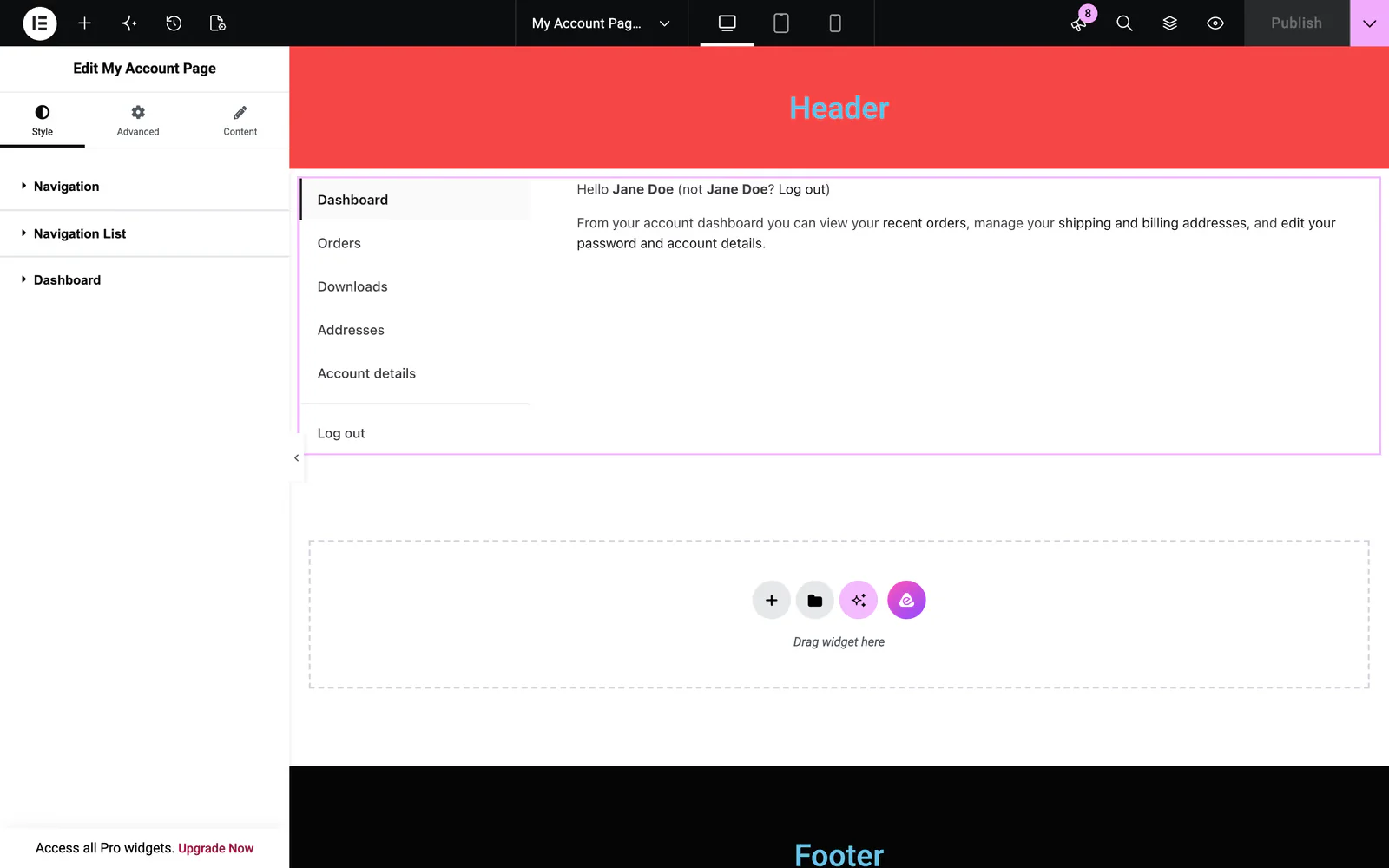 (Open the full-size image in a new tab)
The usual home for the widget is a Theme Builder template, which replaces the whole account page:
- 1
Go to WordPress Dashboard → Atomic Addons → Theme Builder.
- 2
Click Add New and choose the My Account Page card.
- 3
Give the template a name and open it in Elementor. Its display condition is already set to WooCommerce → My Account Page, so it applies as soon as you publish it.
- 4
In the widget panel, search for My Account Page and drag it into the template. The widget sits in the Atomic Addons Pro category.
- 5
Design it with the controls below, then click Publish.
You can also drag the widget onto the page you have set as My account in WooCommerce → Settings → Advanced.
 (Open the full-size image in a new tab)
What the Widget Shows
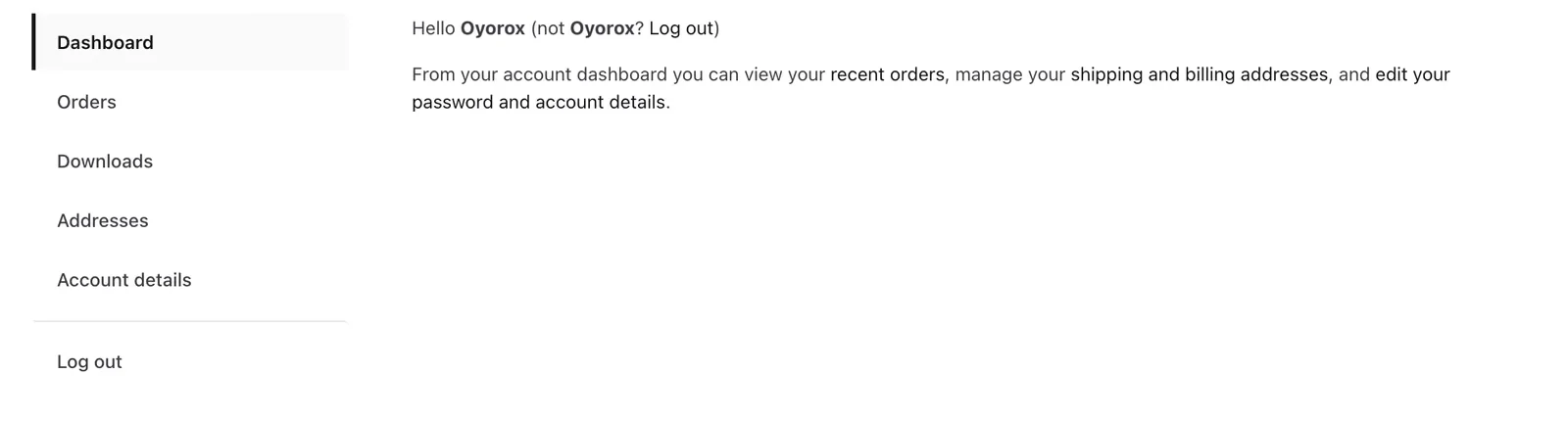
The widget has no Content settings. It shows what WooCommerce's account page shows, so every account tab works as usual: the dashboard, Orders, Downloads, Addresses, Account details and Log out, along with any tab another plugin adds. The tabs a customer sees follow your WooCommerce → Settings → Advanced → Account endpoints settings.
To give the orders tab its own design, add an Orders Page template in the Theme Builder with the Order Page widget in it.
Style the My Account Page
All of the widget's controls are on the Style tab.
Navigation
The account menu as a whole: Padding, Border, Border Radius and Typography of the menu links.
Navigation List
The menu items. Set the Style of the list, the text Color, Padding, Margin, Border, Border Radius and the Bottom Spacing between items. Then use the Normal, Active and Hover tabs to give each state its own background, color and border color, so the tab the customer is on stands out.
Dashboard
The welcome text on the dashboard tab. Text styles the paragraph, User styles the customer's name and Link styles the Log out and edit your account links, each with a color and typography.
Can't find what you need?
Our support team can help with setup questions and anything the docs don't cover yet.