
The Additional Information widget by Atomic Addons shows the table WooCommerce puts in its Additional information tab — the product's weight, dimensions and attributes such as color and size — anywhere in a product page design. This guide covers adding the widget, what goes in the table and its style settings.
Enable the Additional Information Widget
Additional Information is a Pro widget and needs Atomic Addons Pro and WooCommerce. Switch it on from the plugin dashboard:
- 1
Go to WordPress Dashboard → Atomic Addons.
- 2
Click the Widgets tab.
- 3
Search for Additional Information. You can also open the WooCommerce category.
- 4
Turn the Additional Information widget on.
- 5
Click Save Settings.
Add the Additional Information Widget
The widget belongs in a Theme Builder template for products, in the product summary or in a section below it:
- 1
Go to WordPress Dashboard → Atomic Addons → Theme Builder.
- 2
Click Add New and choose the Single Product card.
- 3
Give the template a name and open it in Elementor. Its display condition is already set to WooCommerce → Product, so it applies as soon as you publish it.
- 4
In the widget panel, search for Additional Information and drag it into the template. The widget sits in the Atomic Addons Pro (Single) category.
- 5
Design it with the controls below, then click Publish.
In the editor the template previews a sample product: the one picked under Builder Settings → Builder Post in the template's page settings (click Apply & Preview), or your newest product if none is picked. Pick a product with attributes to see the table while you design. On your store, each product page shows its own details; anywhere else the widget falls back to your newest product. The widget appears in the panel only while you edit a Theme Builder template, a saved Elementor template or a product.
What the Widget Shows
Under the heading “Additional information”, the table has a row for:
- Weight and Dimensions — when they are filled in on the product's Shipping tab.
- Each attribute with Visible on the product page checked on the product's Attributes tab — its values, comma-separated.
A product with none of these shows nothing on the store. In the editor the widget shows the notice “This product has no attributes, weight or dimensions to show.”
Style the Additional Information
 (Open the full-size image in a new tab)
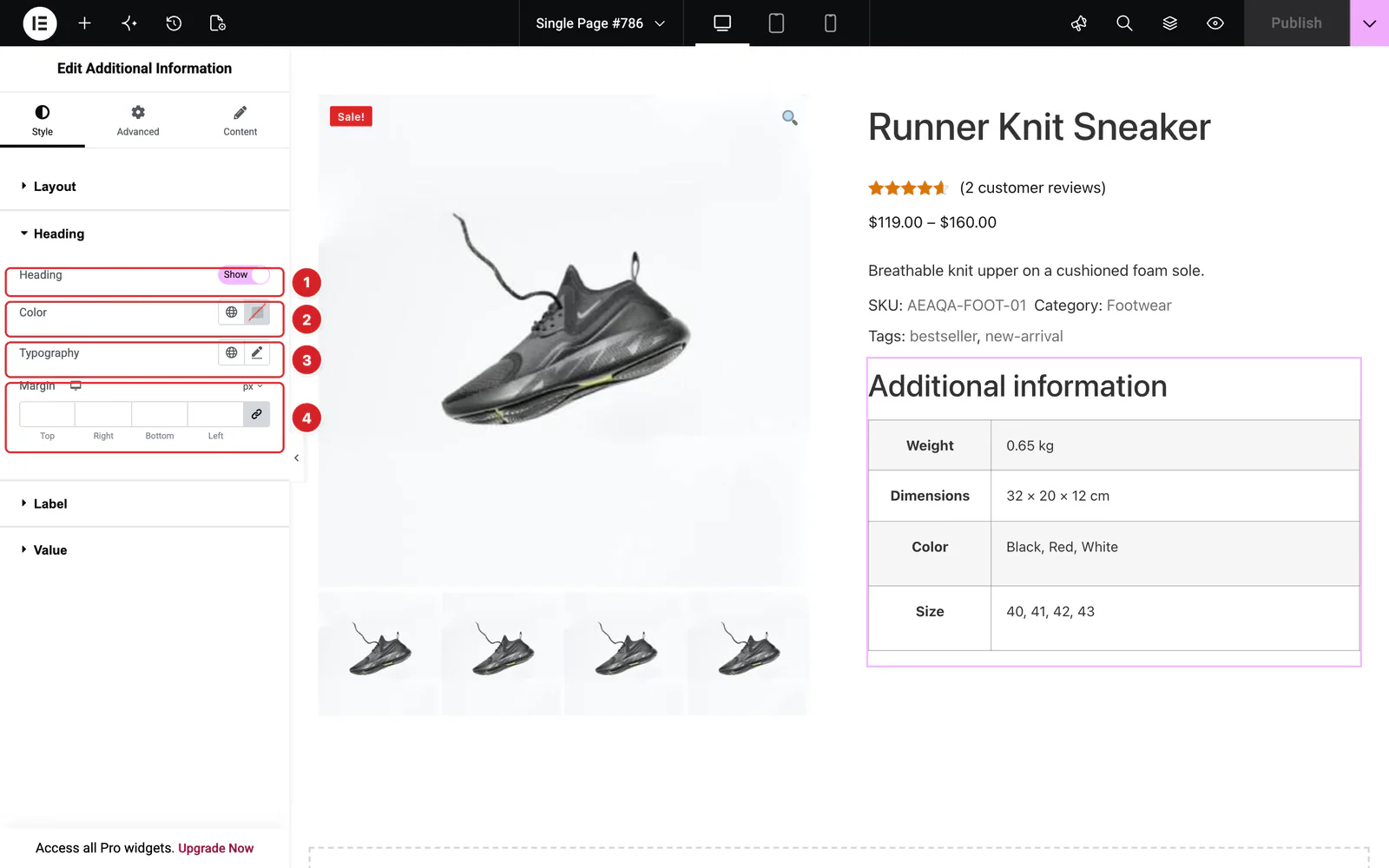
All of the widget's controls are on the Style tab, which opens first. The Heading section holds the one that changes what shows:
- 1
Heading: Show or hide the “Additional information” heading. Shown by default.
- 2
Color: The heading's color.
- 3
Typography: The heading's font, size and Elementor's other text settings.
- 4
Margin: Space around the heading, per screen size.
The heading's Color, Typography and Margin only apply on pages that WooCommerce marks as its own, such as your product pages, so the editor preview doesn't show them. Check them on a live product page.
The other sections style the table:
- Layout — Cell Padding for every cell and Separator Color for the table's borders.
- Label — the names in the first column: Color, Background, Width (25% by default) and Typography.
- Value — the second column: Color, Background and Typography.
Can't find what you need?
Our support team can help with setup questions and anything the docs don't cover yet.