Making your WordPress website mobile friendly involves more than stacking columns. Text, menus, forms, and product options can still become difficult to use on a smaller screen.
Clipped information, hover-only controls, or overlapping popups can prevent visitors from understanding the offer or finishing an enquiry or order. A responsive preview may not reveal every problem.
This guide helps you review real mobile tasks on WordPress. Check reading order, controls, media, and confirmations on a phone, then use the checklist to correct issues and retest the public page.
A Mobile-Friendly WordPress Website Checklist
- Read the main message without zooming or sideways scrolling.
- Open and close navigation with touch and keyboard.
- Identify buttons and links without relying on hover.
- Complete forms with visible labels and useful feedback.
- Check loading behavior and layout stability.
- Review real pages with actual content.
Start With Content Order
Decide what people need first. A multi-column desktop layout may place the key explanation beside a large image, but its mobile stacking order could show decoration before the offer. Inspect the resulting sequence and make sure it still answers the visitor's question.
Keep essential content available. Hiding long sections may make a screen look cleaner, but it can remove the details needed to choose a product or understand a service. Use clearer writing and appropriate grouping instead of treating mobile visitors as people who need less information.
Review Text and Spacing
Test long headings, links, product names, and buttons. Fixed widths and oversized type can cause clipping. Use a manageable typography system and allow content to wrap naturally. Avoid choosing an arbitrary breakpoint simply because the editor offers one.
Check enlarged text and zoom behavior. A layout that only works at one exact font size is fragile. Paragraphs, menus, and form fields should remain understandable when users adjust their reading experience.
Make Navigation and Controls Usable
A mobile menu should show its state clearly and provide understandable destinations. Do not depend on hover to reveal a required submenu. Confirm that people can open, follow, and close navigation without losing their place.
Give interactive controls sufficient room and avoid placing important actions where overlays obscure them. Check sticky headers, consent prompts, chat bubbles, and cart controls together. Each may seem reasonable alone but compete for space on a small screen.
Handle Images, Tables, and Video
Keep media within the available layout and inspect the actual downloaded files. Use responsive images and an appropriate format for the content. Reserve space so the layout does not move unexpectedly while media loads.
Tables may need a considered small-screen presentation. Preserve relationships between labels and values rather than cutting off columns. If horizontal scrolling is necessary for a genuine data table, make it understandable and do not let it affect the entire page. Caption meaningful video and avoid requiring autoplay to understand the offer.
Review Forms and Shopping Flows
Keep visible labels and explain expected formats where useful. Check field validation, keyboard behavior, error feedback, and confirmation. A form that fits the screen can still be difficult to complete.
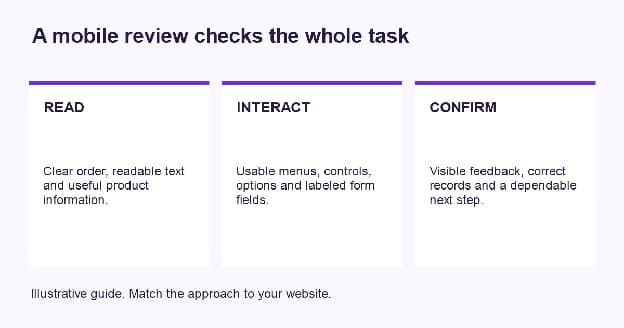
For stores, test selecting variations, changing quantities, reviewing shipping information, and using the supported payment test flow. Review the cart as well as the product page. A decorative mobile preview does not verify successful order processing.
Using Elementor Responsive Controls
Apply layout changes deliberately and inspect their effect on shared templates. Keep spacing and typography consistent instead of making isolated adjustments for every widget. Elementor addons may provide useful controls, but their presence does not prove the whole page is usable.
Review relevant Atomic Addons tools if you design with Elementor. Test the selected widgets with your theme and real content. Check that interactions remain usable without hover and that motion does not obscure essential information.
Test Beyond the Editor Preview
- Choose a homepage, detail page, form, and store page where relevant.
- Test narrow and wider screens plus portrait and landscape.
- Complete the main task on a real phone.
- Review keyboard focus and enlarged text.
- Inspect overlays, media, errors, and success states.
- Record the issue, correction, and retest result.
web.dev's responsive-design course provides implementation guidance; W3C's accessibility resources help review controls and content. Use these alongside actual task testing. Mobile friendliness is an ongoing property of the content and workflow, not a setting you enable once.
Frequently Asked Questions
1. How do I know my WordPress site is mobile friendly?
Open representative pages on a real phone and complete their main tasks. Check reading, navigation, forms, media, and overlays. Review different widths and enlarged text as well. A responsive theme or editor preview is helpful, but it does not establish that actual visitors can use every important feature.
2. Is a responsive theme enough?
Not by itself. Content, plugins, forms, embedded media, and custom layouts can introduce problems even when the theme responds correctly. Review the finished public pages with actual content. Keep a repeatable test list so future template changes or new widgets do not quietly damage the mobile experience.
3. Should I hide content on mobile?
Only when there is a justified purpose and the information remains available where needed. Do not remove essential product details or service conditions merely to shorten the screen. Improve organization and wording first. Mobile visitors still need enough information to understand the offer and make an informed decision.
4. Why does my mobile page scroll sideways?
Possible causes include fixed-width elements, oversized headings, wide media, or components that do not adapt to the available space. Identify the specific element rather than hiding all overflow blindly. Test the correction on real content and make sure important information or controls have not been clipped.
5. Can Elementor fix mobile layouts?
Elementor offers responsive design controls, but you still need to use them deliberately and test the public result. Review stacking order, typography, spacing, and interactive widgets. Avoid assuming that a mobile preview covers every device, keyboard interaction, or form state in the actual website.
6. What button size should I use?
Use applicable accessibility guidance and verify that controls can be activated comfortably with adequate separation. Requirements include context-specific exceptions, so do not rely on one informal size rule. Check surrounding targets, text wrapping, and overlays. A button should remain usable when the interface changes or text is enlarged.
7. Should mobile and desktop content be identical?
The core information should remain consistent, but presentation can adapt. Reorder or regroup sections when that improves understanding, while preserving meaningful reading and interaction order. Avoid hiding conditions or creating contradictory offers. Test that both layouts support the same essential visitor task.
8. How do I test WooCommerce on mobile?
Select a product, choose options, change quantities, inspect the cart, and use a supported payment test setup. Check shipping information, validation, and order confirmation. Verify the resulting record or email. Keep tests safe and do not charge a real customer simply to see whether checkout works.
9. Do smaller images make a site mobile friendly?
Appropriately delivered images can help performance, but mobile usability also depends on layout, navigation, text, and controls. Check actual image downloads rather than visual size alone. Preserve useful detail and alternative text. A lightweight page can still be difficult to use if its essential workflow is broken.
10. How often should I review mobile usability?
Review after significant theme, template, plugin, or content changes, and include representative mobile tasks in maintenance. Long titles or new overlays can create issues without a full redesign. Record repeatable checks rather than relying on an occasional look at the homepage in a responsive preview.
Your Next Step
A responsive layout can still fail the visitor's mobile task.
If controls overlap or important details disappear, smaller columns do not resolve the underlying problem.
Review the complete reading, interaction, and confirmation sequence on a real phone. For Elementor projects, explore Atomic Addons and select suitable Elementor widgets, then test their content and controls with your theme. Repeat the checks after meaningful layout changes.