Planning a website redesign can be difficult when your current site mixes useful content with outdated layouts. You need to know what to change without losing the pages, URLs, and visitor journeys that already serve your business.
Replacing everything at once can create new problems: familiar routes disappear, useful information gets removed, and forms or checkout may stop working. A fresh appearance does not resolve those risks if the redesign has no clear priorities.
This website redesign checklist helps WordPress owners and web creators decide what to keep, update, and remove. Follow the audit, content, SEO, and testing steps before rebuilding the design, then review the results after launch.
Website Redesign Checklist at a Glance
Start by defining your goals, recording current performance, and backing up your website. Keep useful content and working URLs. Update weak navigation, outdated information, and layouts that fail on mobile. Test search access, forms, checkout, and key pages before launch, then monitor results against your baseline.
- Before design: define goals, audit pages, record performance, and create a tested backup.
- During design: improve content, navigation, responsive layouts, accessibility, and reusable templates.
- Before launch: check URLs, indexing settings, links, tracking, forms, and store transactions.
- After launch: watch errors, search visibility, customer actions, and performance.
Do You Need a Website Redesign or a Website Refresh?
A redesign changes how a website is organized or presented across multiple pages. A refresh usually improves selected elements within the existing structure, such as copy, images, spacing, or a contact form. Choosing the right scope matters because a larger project introduces more decisions, dependencies, and testing.
Consider a redesign when your navigation no longer reflects your services, important tasks are difficult on mobile, or different pages have become inconsistent. A business change can also justify one. For example, a company moving from a single service to several distinct offerings may need a clearer page hierarchy.
Choose a smaller refresh when the structure works but individual pages need attention. An unclear headline does not automatically require a new theme. A slow page does not automatically require rebuilding every template. Identify the problem first, then select the smallest change that addresses it.
Turn a visual complaint into a practical goal
Instead of saying “the site looks old,” describe what visitors should be able to do more easily. Examples include finding a service, understanding a pricing plan, submitting an enquiry, or comparing products. This gives the redesign a purpose beyond personal taste.
Illustrative example: a consulting website has a long homepage but its contact link is buried near the bottom. The project goal could be to make the service proposition and enquiry path clear on the homepage and relevant service pages. That is more useful than simply requesting a more modern layout.
Before You Redesign: Audit the Website You Already Have
1. Set goals and record your baseline
Write a short project brief covering the audience, the problems you want to solve, the pages in scope, and the actions that matter to the business. Assign an owner to each part of the work. Agree on what must be finished for launch and what can wait.
Record current organic clicks, important landing pages, enquiries, purchases, and page performance where data is available. Choose a comparison period that fits your traffic and seasonality. Label gaps in your data so you do not later mistake a tracking change for a real improvement.
Pick a small set of measures tied to your goals. For a service business, that might be completed enquiries and visits to key service pages. For an online store, it might include completed purchases and checkout errors. A redesigned site can look better while still making a valuable task harder.
2. Create a page and content inventory
List the pages you have, including pages reached through search rather than the main menu. Add each page’s purpose, audience, main action, and current URL. Record useful assets such as downloadable guides, product imagery, and documentation.
A simple spreadsheet can use these columns: current URL, page purpose, evidence of value, decision, planned URL, owner, and testing status. The decision should be keep, update, merge, or remove. This turns a vague redesign into a set of reviewable choices.
Do not judge a page only by how old it is. An older tutorial may answer a useful question, while a recently published landing page may duplicate another page. Review usefulness, accuracy, visitor needs, and business relevance together.
3. Back up files and the database
Create a complete backup before development and another suitable recovery point before launch. WordPress content and settings live in the database, while themes, plugins, and uploads are part of the files. The official WordPress backup guidance explains why both are needed.
Check that you can recover from the backup, rather than assuming the presence of a download means recovery will work. Record where it is stored, who can restore it, and which version it represents. For a store, also plan how orders arriving during the project will be preserved.
4. Prepare a separate working environment
Use a staging environment for the new design and give access to the people who need to review it. Keep development content out of public search and avoid treating a staging copy as the place to process real customer purchases.
Agree on how the final changes will move to production. A content site and an active WooCommerce store may need different deployment plans. Replacing an entire database with an older staging copy can overwrite recent orders, users, or edits, so discuss the deployment method with your developer or host.
What to Keep During a Website Redesign
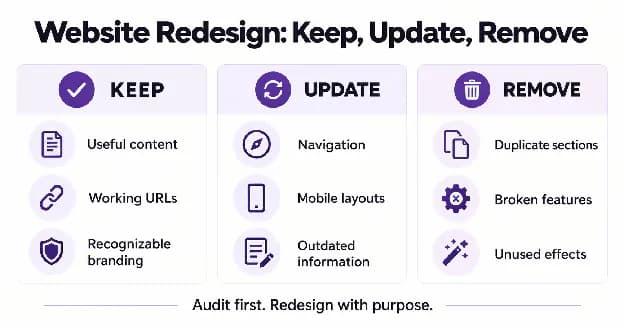
A useful redesign preserves continuity. Visitors should still recognize the business and find the information they came for, even when the presentation changes. Use your audit to identify assets worth carrying forward.
Keep useful content and the purpose of successful pages
Preserve accurate explanations, useful tutorials, relevant product details, and content that helps visitors make decisions. If a page serves a clear need, improve its presentation without removing the substance that makes it useful.
Review page performance alongside the content itself. Low traffic does not necessarily mean a page has no value: a support page may help existing customers, and a specialist service page may attract fewer but more relevant visitors. Identify its role before deciding its future.
Keep working URLs where a change is unnecessary
Changing a layout does not require changing its address. If the existing URL still describes the page, keeping it can simplify the project. Record any planned address changes in your inventory so they can be handled deliberately.
Review bookmarks, links from other websites, and downloadable resources when making these decisions. A cleaner visual design is not a reason to break access to a useful document or tutorial.
Keep recognizable brand elements
Retain brand elements that customers recognize, such as a familiar logo, a consistent tone, or a distinctive color. Adjust their use where necessary for clarity and readability, but do not assume everything needs to change at once.
A redesign can introduce better typography and spacing while retaining the same identity. Write simple design rules for headings, buttons, links, and images so that future pages stay consistent.
Keep customer journeys and integrations that work
Map the important paths through your website: enquiry, booking, signup, account access, or purchase. Preserve the information and steps visitors depend on unless there is a clear reason to improve them.
List integrations such as analytics, payment gateways, email delivery, CRM connections, and embedded tools. Each needs an owner and a test case. A familiar-looking form is not enough if submissions stop arriving.
What to Update in Your Website Redesign
5. Improve page structure and navigation
Group pages around visitor needs rather than internal team names. Use menu labels that explain their destination and make key information easy to reach. Important pages should not depend on a visitor knowing your company’s terminology.
For each main page, define one primary action and make supporting information easy to scan. Place the core message early, then answer the questions visitors need resolved before acting. Remove repetitive sections that interrupt this sequence.
On larger sites, test navigation with a few realistic tasks. Ask someone unfamiliar with the layout to find a service, locate contact information, or access a product guide. Watch where they hesitate instead of only asking whether they like the design.
6. Rewrite outdated or unclear content
Update old product details, discontinued offers, inaccurate contact information, and claims that no longer match the business. Explain services in concrete language, including who they are for and what the next step involves.
Give each page a distinct purpose. When several pages answer the same question, decide whether each genuinely serves a different audience or whether consolidation would make the site clearer. Keep important qualifications and practical details when shortening text.
Write descriptive titles and headings that match the page. Google’s title-link guidance recommends concise, descriptive titles and warns against keyword stuffing. Use search terms where they explain the subject; do not force the same phrase into every heading.
7. Make mobile layouts part of the design process
Review the site on small screens as you work, not only after the desktop design is approved. Check heading wraps, image cropping, menu behavior, form fields, and how far visitors must scroll before reaching useful information.
Use flexible layouts and deliberate spacing. Test long product names, large text settings, and pages with more content than your design sample. These conditions often reveal problems hidden by short placeholder copy.
For an initial review, you might check widths around 360, 768, and 1440 pixels as practical examples, then test actual devices relevant to your audience. These are review points, not universal breakpoint rules. Confirm that content remains usable between them.
8. Review accessibility and readability
Use a meaningful heading hierarchy, descriptive links, readable text, and controls with clear labels. Check the site with a keyboard and confirm that focus is visible when moving through menus, buttons, and forms.
W3C’s page-structure tutorial explains how headings and meaningful page regions help people navigate. Apply that structure to your templates rather than choosing heading levels only for their visual size. Check informative images for useful text alternatives and ensure errors explain how to fix a form submission.
Do not rely on an automated score alone. Combine automated checks with manual reviews of real tasks, including menu access, reading order, and form completion. When issues are complex, involve someone experienced in accessibility testing.
9. Improve performance with real measurements
Compare representative pages before and after the redesign. Include a content page, a landing page, and a product or checkout page where relevant. A lightweight homepage does not tell you how the rest of the site behaves.
Core Web Vitals cover loading performance, responsiveness, and visual stability. web.dev defines good targets as LCP at or below 2.5 seconds, INP at or below 200 milliseconds, and CLS at or below 0.1, assessed at the 75th percentile of page views.
Use field data where available and lab tools to investigate problems. Compress images, reserve space for media, limit unnecessary third-party scripts, and review unused features. A laboratory score is useful for debugging, but it is not a guarantee of every visitor’s experience.
Choose animations with a purpose and check reduced-motion behavior. If an effect makes a task slower or hides essential information, simplify it. Good design includes deciding which visual features a page does not need.
Website Redesign SEO Checklist
Treat SEO as part of the project plan. Your new templates should retain the information search visitors need and allow important pages to be accessed and understood. A visual improvement alone does not guarantee higher rankings.
- Keep a record of important landing pages and their current search performance.
- Retain useful content and page intent when changing layouts.
- Review titles, descriptions, headings, canonical tags, and internal links.
- Check public pages for accidental noindex settings or crawl restrictions.
- Create a URL map for any changed addresses and test each destination.
- Review the sitemap and monitor important URLs after launch.
If URLs change, Google’s site-move guidance recommends mapping old addresses to their new equivalents, using permanent server-side redirects where possible, and updating internal links. Send visitors to the relevant replacement page instead of redirecting unrelated pages to the homepage. Significant changes can cause temporary ranking fluctuations.
For development pages, understand that robots.txt and noindex serve different purposes. Google’s noindex documentation says the crawler must be able to access a page to see its noindex instruction. Review the live site’s indexing settings carefully before launch, including settings inherited from staging.
Example: preserving a service page
Imagine a page at /website-maintenance/ already explains your maintenance service clearly. You can change its layout, improve its enquiry form, and refresh outdated copy while keeping the same address and purpose. If you move it to /services/website-maintenance/, record that change and test the redirect and internal links.
Keep an explicit review step for this example in your checklist: can someone using the old address still reach the correct service page, and can someone reading the new page still understand what the service includes?
WordPress Website Redesign with Elementor and Atomic Addons
Reusable templates can make a WordPress redesign easier to maintain. Set shared design rules first, then create representative pages before applying the pattern across the site. This helps you catch layout issues without repeating the same changes manually.
Atomic Addons provides Elementor widgets, templates, Theme Builder, and dynamic content features. You can use its Theme Builder for shared headers, footers, and content templates, while dynamic layouts can present posts or products consistently. Choose features based on the page’s purpose and your installed edition.
Start with Elementor widgets suited to your actual content. Use ready-made Elementor templates as a starting point, then adjust the copy, structure, and styling for your visitors. A template should support the message rather than determine it.
For stores, review WooCommerce extensions only where they address a defined need, such as product choices or checkout fields. Confirm plan requirements and test interactions with your existing store setup before launch.
Atomic Addons also includes controls for unused widgets and assets. Review those settings during performance testing. No addon can replace a backup plan, a URL inventory, or a complete review of forms and customer journeys.
Before Launch: Your Website Redesign Testing Checklist
Test the finished website as a visitor would use it. Review representative page types rather than assuming a successful homepage review means every template is ready. Record the outcome, owner, and any remaining issue for each test.
Content and design checks
- Check the homepage, service pages, blog posts, archives, search results, and error page.
- Review real headlines, long text, images, and empty-content states.
- Confirm navigation, footer links, buttons, and downloadable files.
- Check mobile layouts, keyboard access, and visible focus.
Functionality and store checks
- Submit each important form and verify delivery and confirmation messages.
- Test account login, registration, password recovery, and relevant permissions.
- For stores, test product variations, cart changes, checkout, and order emails.
- Use a payment gateway’s test environment first; confirm the approved production configuration before launch.
Technical and SEO checks
- Review page status codes, redirects, internal links, and canonical tags.
- Confirm intended public pages can be indexed and development pages remain protected.
- Test analytics and the specific actions you measure.
- Check backups, launch responsibilities, and the recovery procedure.
Create a short launch decision record: what passed, what remains, who accepts the remaining issues, and when the team will review the site next. Give critical failures, such as broken checkout or missing enquiries, priority over small visual adjustments.
After Launch: Measure Whether the Redesign Worked
Check important pages and customer actions immediately after launch. Look for broken links, missing content, submission failures, and errors affecting purchases. Review tracking before drawing conclusions from a change in recorded activity.
Over the following weeks, compare search visibility, enquiries, sales, and page performance with your baseline. Consider seasonality, campaign activity, and changes to measurement. A short period with few visits may not provide enough evidence to judge the project.
Keep a focused improvement log. Record the issue, the pages affected, the change made, and what you will observe afterward. This makes follow-up work easier to assess and prevents the redesign from becoming an endless series of personal design preferences.
Common Website Redesign Mistakes to Avoid
- Starting with a theme choice before defining the problem.
- Deleting useful content because its layout looks dated.
- Changing URLs without a mapping and testing plan.
- Approving desktop pages without checking real mobile tasks.
- Keeping staging indexing settings on the public website.
- Overwriting recent orders or edits during deployment.
- Adding effects and plugins without reviewing their purpose.
- Judging success by appearance without checking customer actions.
Your Practical Website Redesign Action Plan
Copy this short plan into your project tracker and add an owner and status beside each item. Use it to connect the detailed checklist to your actual launch work.
- Plan: agree on audience, goals, scope, and success measures.
- Audit: inventory pages and decide what to keep, update, merge, or remove.
- Protect: create recoverable backups and document changed URLs.
- Design: improve navigation, content, reusable templates, and responsive layouts.
- Test: verify accessibility, performance, SEO, integrations, and customer tasks.
- Launch: deploy through an agreed process and check the live site.
- Review: compare outcomes, fix issues, and document the next improvement.
Frequently Asked Questions
1. What should a website redesign checklist include?
Include goals, a page inventory, baseline performance, backups, content decisions, design requirements, SEO checks, and functional testing. Add a launch owner and a post-launch review plan. The checklist should explain what to preserve as well as what to change, so useful pages and customer journeys remain accounted for.
2. What should I keep when redesigning my website?
Keep accurate, useful content, relevant URLs, recognizable brand elements, and working customer journeys. Review their value using visitor needs and available performance data. You can improve a page’s layout without removing its purpose. Record the reason for each decision instead of treating the entire old site as disposable.
3. How often should I redesign a website?
There is no fixed schedule that suits every website. Review your site when business needs change, visitors struggle with important tasks, or maintenance becomes difficult. Regular content and usability improvements may be enough. Choose a redesign when the problems affect the wider structure or several shared templates.
4. Can a website redesign affect SEO?
Yes. Changes to content, URLs, links, templates, and indexing settings can affect search visibility. Record important pages before the project and review their equivalents before launch. If addresses change, test the relevant redirects and destinations. Monitor results afterward rather than assuming a new design will improve rankings.
5. Should I change my URLs during a redesign?
Only when there is a clear reason, such as an inaccurate address or a necessary structure change. A visual redesign can usually keep existing URLs. Where an address must change, document the old and new locations, arrange the appropriate redirect, and update links that still point to the old address.
6. Can I redesign a WordPress site without taking it offline?
You can prepare and test a redesign on staging while the public site remains available. The final deployment still needs planning, especially for stores or sites with frequent edits. Agree on how to transfer changes while preserving recent data, and keep a recovery plan for the launch.
7. Do I need to change my WordPress theme?
Not necessarily. If your theme supports the layouts and features you need, a content refresh or template update may be sufficient. Change the theme when its limitations prevent the planned improvements or make maintenance impractical. Test any replacement against your content, plugins, and important website functions.
8. How much does a website redesign cost?
Cost depends on scope, page types, content work, integrations, and the amount of development and testing required. A few template updates differ from rebuilding a large store. Prepare a clear brief and request an itemized proposal so you can compare the actual work rather than an unsupported price estimate.
9. How can Atomic Addons help with a website redesign?
Atomic Addons can support Elementor layouts through widgets, templates, Theme Builder, and dynamic content features. Select the tools that suit your pages and confirm edition requirements. Use them within a wider redesign process that includes content decisions, SEO checks, backups, performance reviews, and testing.
10. How do I know whether my website redesign was successful?
Compare the results with goals agreed before the project. Check whether visitors can complete important tasks, forms and checkout work, performance is acceptable, and search visibility is stable. Review enquiries or purchases alongside tracking accuracy and seasonality. Use those findings to prioritize further improvements.
A Better Website Starts with Better Redesign Decisions
A redesign can leave you with a newer-looking website that still contains the same unclear content or broken visitor tasks.
Without a record of what works and a plan for checking changes, you may spend time rebuilding useful sections while introducing avoidable URL, layout, or workflow problems.
Use this website redesign checklist to protect useful content, prioritize real issues, and test one representative page first. If you use Elementor, explore Atomic Addons and choose Elementor widgets or ready-made templates that fit that plan, then verify the finished experience.