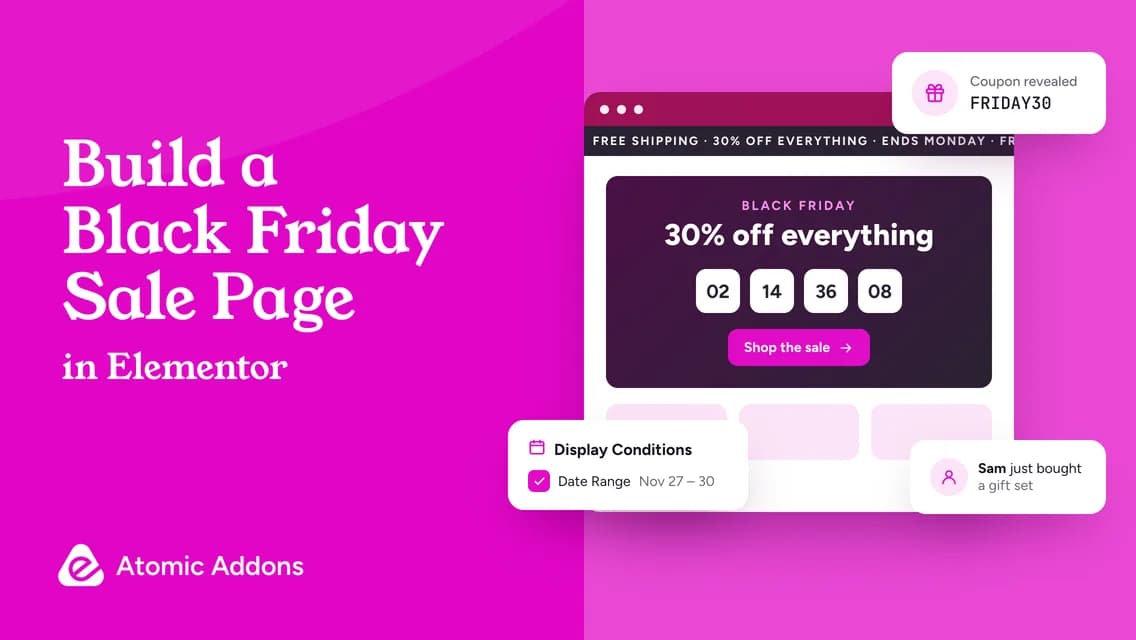
A Black Friday page has one job: make the offer obvious and make buying easy. Everything else — the animation, the gradients, the clever copy — only helps if it serves that job. Here is how to build a sale page in Elementor that does it, using widgets you may already have, plus two tricks most stores miss: a coupon that reveals itself when the sale starts, and banners that switch on and off by date.
Quick answer: Build seven sections: an announcement bar, a hero with the offer and one button, a countdown to your real end time, the offer cards, reviews, an FAQ and a final call to action. Atomic Addons’ free Countdown widget can reveal a coupon or redirect when time is up, and Atomic Addons Pro’s Display Conditions can show a banner only between two dates. Set your site’s timezone first, and purge your page cache when the sale starts and ends.
The anatomy of a sale page that sells
| Section | Atomic Addons widget | Edition |
|---|---|---|
| Announcement bar | Marquee or Call Out | Free |
| Hero with the offer | Creative Button or Dual Button, with Elementor’s Heading | Free |
| Countdown | Countdown | Free |
| Coupon | The Countdown’s Reveal Coupon Code end action, or a Call Out | Free |
| Offer cards | Price Grid and Price Carousel, or Price Table and Product Grid | Free or Pro |
| Reviews and proof | Review Card Grid, Google Reviews and Social Proof | Free |
| FAQ | Accordion | Free |
| Scheduled banners | Display Conditions: Date Range, Time Range and more | Pro |
| Faster buying | One Page Checkout and Sales Notifications | Pro |
Step 1: Set your site’s timezone first
Both the Countdown widget and Display Conditions read dates in the timezone under Settings → General → Timezone. If your store is in New York but WordPress is set to UTC, your sale will start and end five hours off. Fix this before you set a single date.
Step 2: Build the hero
Lead with the offer in plain numbers — “30% off everything” or “Buy one, get one free” — then one sentence on what’s included and when it ends. Use a single primary button that goes straight to the products or to checkout. A second, quieter button for “See all deals” is fine, and Dual Button handles that pairing neatly.
Want the glassy look everyone is using this year? Put the offer on a semi-transparent card over a photo or gradient and apply the free Backdrop Filter extension or the Pro Liquid Glass Effects. Our Liquid Glass guide shows both.
Step 3: Add a countdown that tells the truth
Drag in the Countdown widget and set the Due Date to the real end of your sale. Choose which units to show, add labels and style the boxes. Then pick an End Action for when time runs out:
- Message: replace the countdown with text such as “This deal has ended. See today’s prices.”
- Redirection Link: send visitors to another page, such as your regular shop, after a short delay.
- Reveal Coupon Code: show an element that stayed hidden until the end.
- Click an Element: click a button on the page, for example one that opens a popup.
Skip the Loop Time option for a fixed-date sale. It turns the widget into an evergreen timer that restarts for each visitor, which suits rolling offers, not a Black Friday deadline.
Step 4: Reveal the coupon when the sale starts
Here is a trick that builds anticipation without fake urgency. Before the sale, show a countdown to the start time and set its End Action to Reveal Coupon Code. Give the element that holds your code a CSS ID under Advanced → CSS ID, such as coupon, and enter the same ID in the widget’s ID for Coupon Code field. Visitors who arrive early see the countdown; when it reaches zero, the code appears.
Once the sale is live, a visible code with a short instruction — “Use this code at checkout” — works best. Put it next to the main button, not at the bottom of the page.
Step 5: Make banners switch on and off by themselves
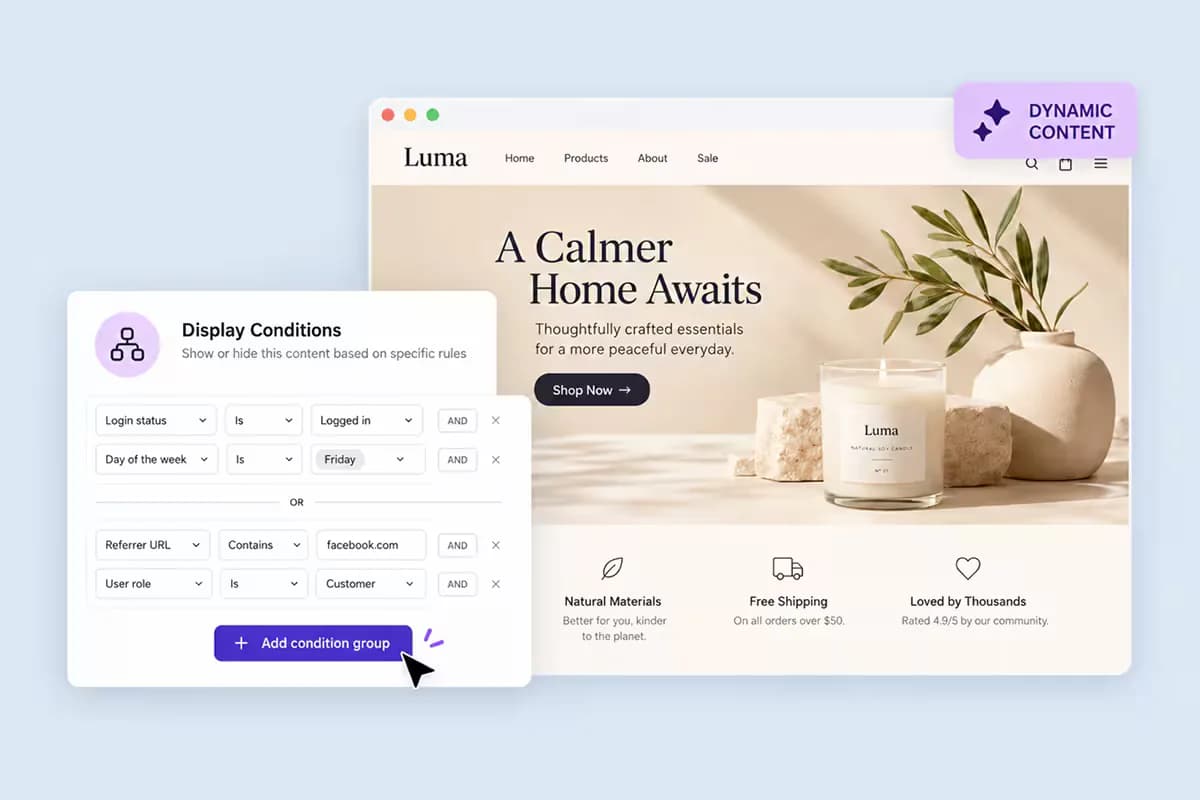
With Atomic Addons Pro’s Display Conditions, any widget, container or section can appear only when its rules are met. The rules that matter for a sale:
- Date Range: show the Black Friday banner from November 27 to November 30, both days included.
- Time Range: run a daily flash deal between two times.
- URL Parameters: show an email-only offer when the link contains a parameter such as offer=vip.
- Login Status and User Role: give members or wholesale customers early access.
- Cart: Subtotal Price: show “You’ve unlocked free shipping” once the cart passes your threshold.
Three things to know. In the Elementor editor every element stays visible whatever its rules, so test on the live page. Hidden elements are left out of the page’s HTML altogether, not just hidden with CSS. And a page cache stores the page as the first visitor saw it, so purge it when the sale starts and ends, and leave pages with visitor-based rules out of the cache.
Step 6: Add proof and answers
Reviews near the offer do more than reviews at the bottom of the page. Use Review Card Grid for hand-picked testimonials or Google Reviews for your Google rating, then an Accordion FAQ that answers the questions that stop people buying: shipping cut-off dates for holiday delivery, returns, whether codes stack and when the sale ends.
Step 7: Shorten the path to checkout
For a single hero product or bundle, One Page Checkout lets shoppers order on the sale page itself, and Sales Notifications can add recent-purchase popups from real orders. Our Black Friday WooCommerce playbook covers the rest of the store.
Shortcut: let an AI agent draft the page
If you use Claude, Cursor or Codex, connect it to the free Atomic Addons MCP server and ask for a first draft:
Build a draft Black Friday sale page: an announcement bar, a hero with our 30% offer and a Shop the sale button, a countdown to November 30 at 11:59 PM, three offer cards, customer reviews, an FAQ with five questions and a final call to action. Use our kit colors.
The agent builds the layout as a normal Elementor draft. You then set the countdown’s End Action, add Display Conditions and polish the copy. Our MCP guide shows how to connect.
Pre-launch checklist
- The site’s timezone matches your business.
- The countdown’s Due Date and End Action are set and tested in a private window.
- The coupon works at checkout, and the rules for combining it with sale prices are clear.
- Display Conditions are tested on the live page, logged in and logged out.
- The page cache is purged at the start and end of the sale.
- The page loads quickly on a phone, and the main button is visible without scrolling.
- Every claim on the page is true: prices, dates, stock and reviews.
Frequently asked questions
How do I add a countdown timer in Elementor for free?
Install the free Atomic Addons plugin, make sure the Countdown widget is switched on under Atomic Addons → Widgets, then drag it onto your page and set the Due Date. It counts down days, hours, minutes and seconds in your site’s timezone.
How do I show a banner only during Black Friday?
Use Atomic Addons Pro’s Display Conditions with a Date Range rule set to your sale dates. The banner appears and disappears on its own; purge your page cache when the sale starts and ends.
Can a countdown reveal a coupon code?
Yes. Set the Countdown widget’s End Action to Reveal Coupon Code and enter the CSS ID of the element that holds the code. It stays hidden until the countdown ends.
Why doesn’t my scheduled banner appear?
Check three things: the timezone under Settings → General, whether you are looking at the live page rather than the editor, and whether a page cache is serving an older copy of the page.
Should I use an evergreen countdown for Black Friday?
No. An evergreen timer restarts for each visitor, which doesn’t match a fixed-date sale and can mislead shoppers. Count down to the real deadline.
Launch it this week
A clear sale page beats a clever one. Build the seven sections, schedule the banners, test like a customer and launch before your emails go out.
Countdown, Price Grid, Review Card Grid and Accordion are in the free plugin. Display Conditions, Price Table, Product Grid, One Page Checkout and Sales Notifications are in Atomic Addons Pro, 50% off with code OYOROXBF50 until November 30, 2026.