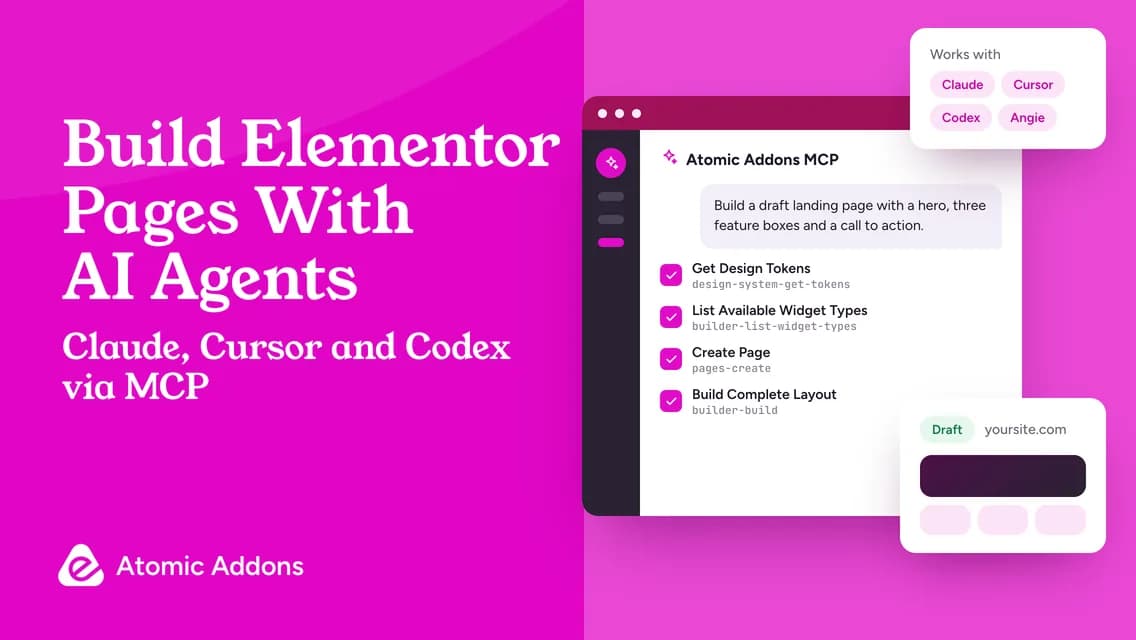
For years, an “AI website builder” meant a chat box that produced a generic template you couldn’t really edit. In 2026 that changed. AI agents now work inside the tools you already use, and the Model Context Protocol (MCP) is how they get there. Connect Claude, Cursor or Codex to your WordPress site and the agent can read your Elementor kit, pick the right widgets and build a real draft page — one you open in Elementor and keep editing like any other.
Quick answer: Install the free Atomic Addons plugin on WordPress 6.9 or later. Open Atomic Addons → AI, enable MCP access, choose Read only or Read & write, select your AI client and copy the ready-made setup. Then ask your agent for a page, such as “Build a draft landing page for our consulting service with a hero, three feature boxes, client logos and a call to action.” The agent builds it with Elementor and Atomic Addons widgets in your site’s colors and fonts, and saves it as a draft.
What is MCP, in one paragraph?
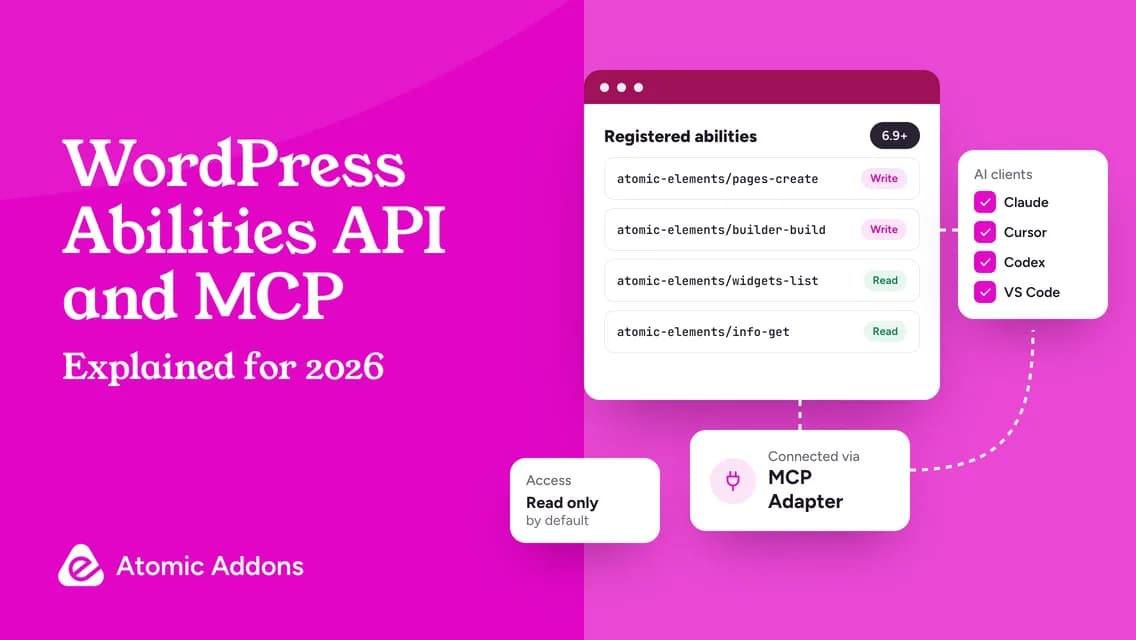
The Model Context Protocol is an open standard that lets AI assistants use tools offered by other software. A website or app runs an MCP server that describes what it can do. An MCP client — Claude Code, Claude Desktop, Cursor, Codex, VS Code and many more — discovers those tools and calls them when your request needs them. WordPress made this practical in version 6.9 with the Abilities API, a standard way for plugins to declare their actions, and the official MCP Adapter plugin already reports more than 50,000 active installs.
What the Atomic Addons MCP server can do
Atomic Addons registers 31 abilities through the WordPress Abilities API and serves them from its own MCP endpoint. They come in seven groups:
| Group | What a connected agent can do |
|---|---|
| Page Building | Read a page’s element structure, build a complete layout in one step, add sections, columns and containers, insert Elementor and Atomic Addons widgets, change their settings, move or remove elements, undo the last change and regenerate Elementor CSS |
| Page Management | Create Elementor pages and posts (drafts by default), list content, update titles, templates and featured images, publish or return a page to draft, and move pages to the trash or restore them |
| Design System | Read your Elementor kit’s global colors, fonts and spacing so new layouts match the rest of the site |
| Widget Management | List widgets, extensions and features, switch them on or off, count how often each widget is used and switch off widgets no page uses |
| Plugin Information | Report the installed edition and the WordPress, Elementor, PHP and WooCommerce environment |
| Integrations | Review and update API settings used by widgets, such as Google Maps, reCAPTCHA and Mailchimp, with secret values masked |
| Maintenance | Clear Elementor’s generated CSS and the plugin’s cached widget data |
The result is never a screenshot or a block of pasted HTML. It is a normal Elementor layout made of Elementor and Atomic Addons widgets, so your team can edit every element by hand afterwards.
What you need before you start
- WordPress 6.9 or later, with Elementor active. The AI features use the Abilities API that arrived in 6.9.
- The free Atomic Addons plugin, version 1.9.0 at the time of writing.
- For external clients, an active MCP Adapter (the WordPress MCP Adapter plugin, or a copy included with another active plugin) and application passwords, which WordPress offers on HTTPS or local sites. The AI screen tells you if anything is missing.
- An MCP client such as Claude Code, Claude Desktop, Cursor, Codex or VS Code. Atomic Addons does not include an AI model or AI credits; you use the client you already have.
- An administrator account to switch the feature on, and ideally a staging copy of your site for the first tests.
Step 1: Turn on agent access
- In your WordPress dashboard, open Atomic Addons → AI and select Enable MCP access.
- Choose Read only or Read & write. Read only is the default: the agent can look at pages and settings, but every ability that changes your site stays unavailable.
- Select Turn on agent access.
Step 2: Connect your AI client
Select your client on the AI screen. Generate a setup prompt for the agent to follow, or copy a ready-made configuration: a terminal command for Claude Code, a configuration file entry for Claude Desktop, Cursor, Codex or VS Code, or a standard server configuration for other MCP clients. Each client receives its own WordPress application password, which you can revoke at any time.
Step 3: Check the connection
Run the test prompt from the AI screen in your client, then paste the agent’s answer back on the screen. When it matches, the connection works and you are ready to build.
Step 4: Ask for a page
Start with a clear brief. For example:
Build a draft landing page for our consulting service with a hero, three feature boxes, client logos and a call to action. Use our site colors.
Behind the scenes, the agent works in a predictable order:
- Get Design Tokens: it reads your kit’s colors, fonts and spacing.
- List Available Widget Types: it checks which Elementor and Atomic Addons widgets are switched on.
- Create Page: it creates the page as a draft.
- Build Complete Layout: it builds every section in one call.
- Regenerate CSS: it gets the styles ready for the front end.
When it finishes, the agent hands you the draft. Open it in Elementor, adjust anything you like and publish when you are happy.
10 prompts that work well
- “Build a draft Black Friday landing page: a hero with our 30% offer, a countdown to November 30, three featured products, customer reviews and an FAQ. Use our kit colors.”
- “List the colors, fonts and spacing in our Elementor kit.”
- “Read the structure of our Pricing page and summarize each section and widget.”
- “Add an FAQ section with five accordion items above the footer of the Services draft.”
- “Make every button on the Spring Sale draft use our accent color, and make them full width on mobile.”
- “Move the testimonials section above the pricing table on the Landing v2 draft.”
- “Undo your last layout change on the Home v3 draft.”
- “Which Atomic Addons widgets are switched on but not used on any page? Switch them off.”
- “Create a draft Holiday Gift Guide page with a product grid of our Christmas category and a newsletter signup.”
- “Publish the Black Friday 2026 draft.”
Prompts that change your site need Read & write access, and page management and site-wide tasks need an administrator account. Product grids and other Pro widgets need Atomic Addons Pro.
How safe is it?
Giving an AI agent access to a live website deserves care, and the defaults are built around that:
- MCP access, the MCP endpoint and the Angie integration are all off by default.
- Access starts read-only. Abilities that change your site stay unavailable until you choose Read & write.
- An agent acts as the WordPress user it connected with, so it can only do what that account is allowed to do.
- Every ability is labelled Read, Write or Destructive, and any of them can be switched off.
- Turning off agent access revokes the application passwords created on the AI screen.
- Pages that were not built with Elementor are never overwritten by a generated layout.
- Removed pages go to the trash, and the most recent AI change on a page can be undone.
Atomic Addons does not send your content to an AI service itself; your AI client does, under its provider’s terms, when the agent reads pages or settings. Good practice still applies: try new workflows on staging, review drafts before publishing and keep backups.
Prefer Elementor’s Angie? That works too
Elementor’s own agent, Angie, reports more than 100,000 active installs on WordPress.org. Install the Angie plugin and switch on the Angie integration under Settings on the Atomic Addons AI screen. Angie can then use Atomic Addons tools inside the Elementor editor, with no external client or configuration file.
Tips for better AI-built pages
- Set up your Elementor kit first. The agent reads your global colors and fonts, so a tidy kit gives you on-brand pages.
- Name the sections you want and the order you want them in. Specific briefs beat vague ones.
- Work in drafts and refine section by section instead of regenerating the whole page.
- Check the tablet and mobile views. The agent sets responsive values, but your eyes are the final check.
- Write or carefully edit the final copy yourself. Prices, claims and legal text need a human.
Frequently asked questions
Can AI build Elementor pages?
Yes. With an MCP server such as the one in Atomic Addons, an AI agent can create a draft page and build a complete Elementor layout from a plain-language brief. The page is a normal Elementor layout you can keep editing by hand.
Which Elementor addon has a built-in MCP server?
Atomic Addons includes its own MCP server in the free WordPress.org plugin, with 31 abilities for building, managing and reading Elementor pages. It works with Claude Code, Claude Desktop, Cursor, Codex, VS Code, other MCP clients and Elementor’s Angie.
Is the Atomic Addons MCP server free?
Yes. The MCP server, the Angie integration and all 31 abilities are part of the free plugin. You use the AI client you already have, so there are no AI credits to buy. With Atomic Addons Pro active, the agent can also insert the Pro widgets.
Which AI clients are supported?
Claude Code, Claude Desktop, Cursor, Codex and VS Code get ready-made setups on the AI screen, and other MCP clients that support remote servers can use the standard server configuration. Elementor’s Angie connects through its own integration.
Will the agent publish pages without asking?
Not by default. Access starts read-only, new pages are saved as drafts, and publishing needs Read & write access and a request from you.
What WordPress version do I need?
WordPress 6.9 or later for the AI features. The rest of Atomic Addons runs on WordPress 6.5 or later.
Start with one page
The fastest way to understand agentic page building is to try it on one draft. Install the free plugin, connect your client and ask for a page you would otherwise spend an hour building.
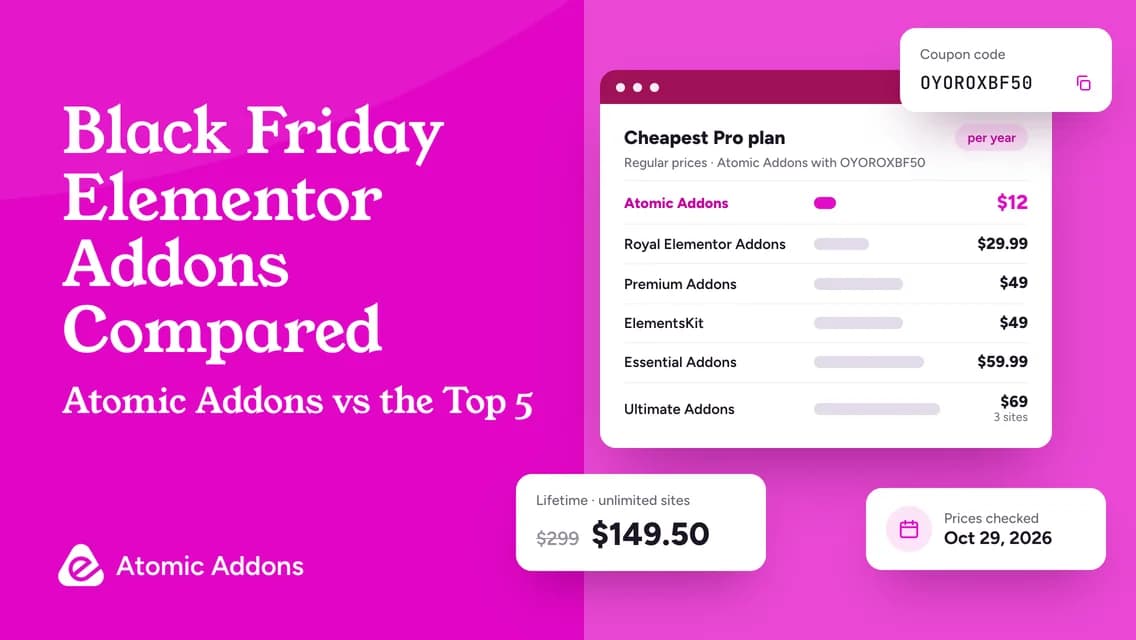
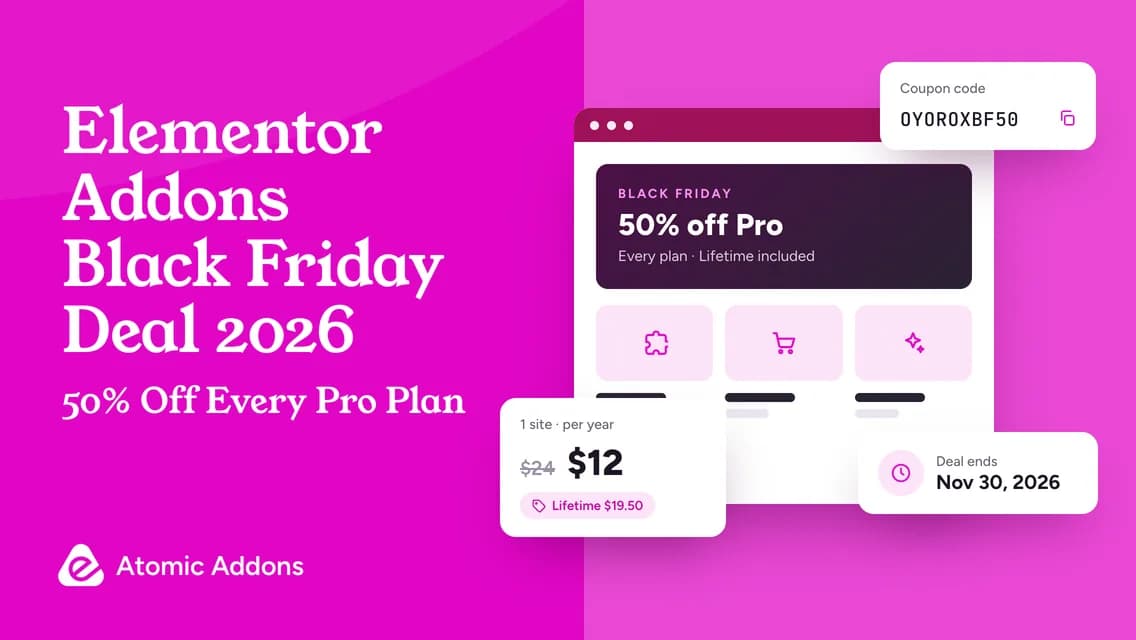
When you want the agent to use product grids, post layouts, mega menus and the rest of the Pro widgets, Atomic Addons Pro is 50% off with code OYOROXBF50 until November 30, 2026.