Common WordPress mistakes are easy to miss when you are building your first website. A page can look finished while its forms, backups, search settings, or mobile controls still need attention.
Those overlooked details can turn a routine change into lost work or leave visitors unable to complete the task that brought them to your site. Adding more design features does not repair an untested foundation.
This guide explains 15 WordPress mistakes beginners should avoid and the practical fixes for each. Start with recovery, security, and essential visitor tasks, then improve the design with a clearer understanding of what your website needs.
Quick Answer: What Are the Biggest WordPress Beginner Mistakes?
The biggest beginner mistakes are launching without a clear purpose, choosing unsuitable themes, installing overlapping plugins, skipping tested backups, ignoring updates, and forgetting to check search visibility. Large images, confusing navigation, broken forms, and untested live changes can also make a site harder to use and maintain.
A practical approach is to work in this order: protect the website, make its main tasks work, check that important content can be found, and then refine the design. This avoids polishing pages that still have more serious problems underneath.
1. Starting Without a Clear Website Purpose
WordPress makes it easy to add pages, but more pages do not automatically make a better website. If you begin with a template instead of a goal, you can end up with a polished site that never clearly tells visitors what you offer or what they should do next.
Write one sentence describing the website's job. For a local service business, that might be generating qualified enquiries. For a store, it might be helping shoppers find and purchase suitable products. A blog might focus on answering specific questions and attracting returning readers.
Then map the shortest route from arrival to that outcome. Identify the essential pages, the information each page needs, and the main action visitors should take. Remove sections that serve no useful purpose.
- Fix: Give each important page one primary goal and a clear next step.
- Check: Ask someone unfamiliar with the business to explain what you offer after reading the homepage.
2. Choosing a Theme Only Because the Demo Looks Good
A theme demo is a presentation, not a guarantee that the theme fits your content. Its appearance may depend on specific photographs, premium plugins, imported settings, or features you do not actually need. Recreating the demo can become more work than designing a simpler layout.
Before choosing a WordPress theme, check how it handles navigation, blog posts, mobile layouts, and the editor you plan to use. Review its documentation and update history. If you use Elementor, confirm compatibility rather than assuming that every design setting will behave exactly as expected.
Try your own text and images on a staging site. A layout that works with a short headline may break with a longer product name. Prioritize a dependable structure you can maintain over a feature list you will rarely use.
- Fix: Choose a theme around your content, editor, and essential functionality.
- Check: Test a real page on a phone before committing to the design.
3. Installing Several Plugins for the Same Job
Installing another plugin can feel like the fastest way to solve a problem. Over time, however, multiple tools may handle the same task. Two SEO plugins, several caching systems, or overlapping Elementor addons can create confusing settings and make troubleshooting harder.
There is no universal safe plugin count. What matters is the quality of each plugin, the work it performs, the assets it loads, and whether it conflicts with other tools. A small plugin list can still perform poorly, while a carefully chosen larger list can work well.
Create a simple plugin inventory with a purpose and owner for every entry. For an Elementor website, select widgets and extensions around actual page requirements. Atomic Addons provides Elementor addons and WooCommerce tools, but you should still review which features your site needs rather than adding every available effect.
- Fix: Keep one primary tool for each overlapping responsibility unless there is a tested reason for more.
- Check: Test before removing plugins that store content, process orders, or supply active layouts.
4. Downloading Themes or Plugins From Untrusted Sources
A discounted premium plugin from an unfamiliar download site may look tempting. The problem is that you cannot confidently establish what has been changed or how future updates will arrive. Saving money at installation is not useful if the website later becomes difficult to secure or support.
Use the official WordPress directories or a verified developer's website. Confirm the product identity, licensing terms, support options, and update method. Avoid files described as nulled or modified to bypass licensing.
This is not a claim that every free product is unsafe or every paid product is safe. A trustworthy free plugin can be a good choice. The important distinction is a traceable source and a maintained product, not the price. WordPress's official hardening guidance also emphasizes obtaining releases from trusted sources.
- Fix: Download from a source you can verify and retain purchase or installation records.
- Check: Make sure you know how the product receives security and compatibility updates.
5. Assuming a Backup Exists Without Testing Recovery
One of the most costly WordPress mistakes is discovering your backup is incomplete only after something goes wrong. A folder of uploaded images is not a full site backup. A database export alone also leaves out files needed to recreate a typical installation.
WordPress's backup documentation explains that a typical full recovery needs both the database and site files. Confirm what your host or backup service includes, how long copies are retained, and how you can access them if your dashboard is unavailable.
Choose a schedule based on how much recent data you can afford to lose. A store receiving orders needs a different recovery plan from a brochure site that changes occasionally. Keep copies separate from the live site and test restoration in a safe environment.
- Fix: Document the restore process and take a fresh backup before significant changes.
- Check: Restore a backup to staging and confirm pages, images, logins, and essential data are present.
6. Ignoring Updates or Applying Them Without a Plan
Leaving WordPress, themes, and plugins outdated can increase avoidable risk. However, clicking every update button immediately before an important campaign is not a thoughtful maintenance routine either. Updates deserve a process, especially when a site handles payments or business enquiries.
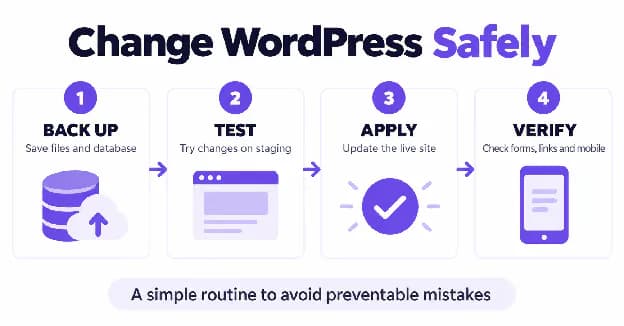
Review update notices and release information. Maintain recoverable backups and use staging to check substantial changes. After an update, inspect the main pages and complete the website's essential tasks. Looking only at the dashboard is not enough to confirm that visitors have a working experience.
Decide how automatic updates fit your site and hosting setup. They can reduce maintenance work, but they do not replace recovery planning or functional checks. If you find a compatibility problem, investigate the cause and plan a safe resolution rather than treating an indefinite rollback as the final answer.
- Fix: Establish an update routine with a backup, a test, and a post-update check.
- Check: Confirm forms, navigation, editor access, and checkout where relevant.
7. Sharing Administrator Accounts and Excessive Permissions
Giving every contributor administrator access is convenient until someone changes settings they did not need to touch. Shared accounts also make it harder to remove access cleanly or identify who made a change.
Create separate accounts and assign the permissions required for each person's job. WordPress provides different roles and capabilities, so a writer does not automatically need control of plugins, themes, or users. Custom roles may be appropriate when your workflow needs more precise access.
Use unique passwords stored in a password manager, enable supported multifactor authentication, and review accounts when a team member or contractor leaves. Protect the hosting account and recovery email too, because dashboard security alone does not cover every way someone could gain control.
- Fix: Use individual accounts and the least access needed for the task.
- Check: Remove unnecessary administrator permissions and review dormant accounts.
8. Changing Published URLs Without Redirects
Changing a page slug or permalink structure can break links from other pages, search results, emails, and external websites. A cleaner-looking address is not automatically worth disrupting an established URL.
Choose a sensible structure before launch. For an existing site, record the current URL before changing it and identify where it is linked. If a permanent move is necessary, map the old address to the most relevant new page using an appropriate redirect. Avoid sending every removed page to the homepage regardless of its topic.
Update internal links and check the final destination. A chain of several redirects is harder to manage than a direct move. Keep a migration list so future edits do not accidentally remove redirects that visitors still need.
- Fix: Treat URL changes as a small migration, not a cosmetic edit.
- Check: Open the old URL and confirm it reaches the correct new page without an error.
9. Leaving Search Visibility Blocked After Launch
A site under construction may intentionally discourage search engines. Forgetting to review that setting when the site goes public is a common WordPress SEO mistake. Pages can also be affected by other noindex settings, access restrictions, or conflicting configuration.
In WordPress, review Settings > Reading and the option to discourage search engines from indexing the site. WordPress documents this setting, but it is not a privacy control. Use proper authentication for private development sites rather than relying on a search visibility checkbox.
For the public website, inspect important pages and check their indexing status in Google Search Console. Make sure your SEO tool does not accidentally mark key pages noindex. A discoverable website is a prerequisite, not a guarantee of indexing or higher rankings. Useful content and appropriate technical configuration still matter.
- Fix: Include a search visibility review in the launch checklist.
- Check: Keep staging private while ensuring the intended public pages are accessible to crawlers.
10. Uploading Oversized Images Without Checking Performance
A photograph that looks good on your laptop may be far larger than the space it occupies on the page. Uploading large originals for every card, banner, and product image can increase transferred data and make browsing less comfortable, particularly on slower connections.
Resize images for their intended use, compress them without unacceptable quality loss, and consider suitable modern formats. WordPress responsive image handling helps, but it does not make every uploaded asset an ideal choice. Inspect what the browser actually downloads on a representative page.
Use descriptive alternative text when an image conveys information. Decorative images should not receive keyword-filled descriptions. Also check whether performance problems come from scripts, hosting, fonts, or third-party embeds. Images are important, but they are not the only reason a WordPress website can feel slow.
- Fix: Optimize media before upload and test representative pages on mobile.
- Check: Compare the page before and after a change instead of relying only on a single speed score.
11. Designing Only for Desktop
A layout can look excellent on a wide screen and still be difficult to use on a phone. Common problems include clipped headings, tiny buttons, overlapping content, and navigation that works with a mouse but not with touch or a keyboard.
Test the actual page at different widths and on a real mobile device. Check whether visitors can read the content, open the menu, follow links, and complete forms without zooming or sideways scrolling. Responsive previews are helpful, but they should not be your only check.
Accessibility belongs in the same review. Use meaningful headings, visible keyboard focus, labeled form fields, and readable contrast. Avoid relying on color alone to communicate important states. If you add motion, make sure the page remains usable without unnecessary animation and consider visitors who prefer reduced motion.
- Fix: Review the page as a visitor, not only as its designer.
- Check: Complete the main task using a phone and then using only a keyboard.
12. Publishing Confusing Navigation and Placeholder Content
Demo text, empty categories, sample posts, and vague menu labels make a website feel unfinished. Even a technically healthy site can lose visitors if they cannot tell where to find pricing, services, product details, or support.
Use menu labels that match the information visitors are seeking. Keep important pages reachable through sensible navigation and contextual links. A creative label may sound attractive internally while making the website harder for a first-time visitor to understand.
Review every imported template before publishing. Replace placeholder testimonials with real, authorized feedback or remove the section. Do not keep invented numbers simply because the template looks better with them. Check contact details, social links, button destinations, and footer content as carefully as the hero section.
- Fix: Run a page-by-page content cleanup with a checklist.
- Check: Search for demo names, sample text, empty links, and claims you cannot substantiate.
13. Assuming Forms and Checkout Work
A form can look complete without delivering messages. A checkout can appear normal until a particular shipping option, payment method, or mobile interaction fails. Visual inspection alone does not verify business-critical functionality.
Submit each important form and confirm the message reaches the intended destination. Check validation, error messages, confirmation text, and any connected automation. Test with a realistic enquiry rather than a one-word submission so you can see whether the information arrives clearly.
For WooCommerce, use the supported test environment for your payment setup and review the purchasing path. Verify product options, cart behavior, shipping, taxes where applicable, order confirmation, and transactional emails. Avoid charging a real customer as an experiment. Keep test data separate and know which checks are safe on the live site.
- Fix: Maintain a short visitor-task test list for launches and important updates.
- Check: Confirm the outcome, such as an email or order record, not just the success message.
14. Making Major Changes Directly on the Live Site
Changing a theme, importing a template, or troubleshooting several plugins on the public site can interrupt visitors. Editing core files or a parent theme directly also creates maintenance problems when later updates replace those files.
Use staging for changes that affect many pages or essential workflows. Create a backup and record what you plan to change. Where custom code is required, use an appropriate maintained approach, such as a child theme or a purpose-built integration, and get qualified help when the change exceeds your experience.
Be careful when moving staging changes back to a live store. Copying an older database over production can overwrite newer orders or enquiries. The deployment method must account for data created while you were testing. A backup is useful, but it is not a reason to treat live customer data casually.
- Fix: Separate experimentation from production and define a rollback plan.
- Check: Verify exactly which files and database changes will be deployed.
15. Treating Launch Day as the Finish Line
A WordPress website needs ongoing attention. Contact details change, links stop working, plugins evolve, and the content that helped visitors last year may no longer answer their questions. Small problems are easier to address when somebody owns the review routine.
Create a manageable maintenance calendar. Check updates, backup status, important forms, and high-value pages regularly. Review mobile behavior and performance after significant design changes. Record issues in one place so recurring problems are not repeatedly forgotten.
Use relevant measurements rather than collecting numbers without a purpose. A service business may track qualified enquiries, while a store may monitor successful purchases and checkout errors. Configure analytics with appropriate privacy choices for your audience. Traffic is useful context, but it does not tell you by itself whether the website is helping the business.
- Fix: Assign an owner to maintenance and schedule repeatable checks.
- Check: Keep a simple change log with the date, change, test result, and recovery notes.
A Practical WordPress Fix Plan for Beginners
You do not need to repair every detail in one afternoon. Prioritize according to the consequence of failure. A missing restore plan or broken checkout should come before a new animation or a more decorative footer.
First: Protect the website
- Confirm you have a recoverable backup of the files and database.
- Review administrator accounts, passwords, and update status.
- Check that plugins and themes came from verified sources.
Next: Make essential tasks work
- Test forms and relevant shopping or booking flows.
- Check navigation, mobile layouts, and keyboard access.
- Fix broken links and replace misleading placeholder content.
Then: Improve discovery and presentation
- Review public search visibility and important page URLs.
- Optimize large images and investigate avoidable loading work.
- Clarify page titles, headings, content, and calls to action.
After each meaningful change, repeat the relevant test. This makes troubleshooting easier because you can connect a result to a specific edit. If you change several systems at once, it becomes much harder to understand which one helped or caused a problem.
Using Elementor Addons Without Creating More Work
Elementor addons can extend your design options, but they work best when they support a clear requirement. Begin with the page you need, then select the widget that solves that need. Do not start by activating every feature and searching for places to use it.
For example, a product comparison or organized FAQ may help visitors make a decision. Several competing sliders and animated backgrounds may simply distract them. Keep typography, spacing, colors, and interaction patterns consistent across templates.
Atomic Addons offers tools for Elementor and WooCommerce design. Review the available features and use the ones that fit your project. Test the finished page with your theme, other plugins, and actual content. An addon is a design tool, not a substitute for backups, security, accessible content, or a functioning checkout.
Frequently Asked Questions
1. What are the most common WordPress mistakes beginners make?
Common mistakes include skipping backups, installing overlapping plugins, ignoring updates, choosing unsuitable themes, and forgetting search visibility settings. Beginners also frequently miss mobile problems and broken forms. Prioritize issues that affect recovery, security, or the website's main task before spending time on smaller design improvements.
2. How many WordPress plugins should I install?
There is no single plugin count that suits every website. Choose plugins according to their purpose, quality, compatibility, and maintenance requirements. Avoid unnecessary overlap and test performance with your actual setup. A plugin that provides essential functionality can be more useful than a smaller list assembled only to meet an arbitrary limit.
3. Do WordPress websites need backups if the host provides them?
You still need to understand and verify the host's backup service. Check whether it covers both files and the database, how long copies are retained, and how restoration works. Consider a separate copy and test recovery safely. Do not assume that a hosting plan includes the retention or access your business needs.
4. Can changing WordPress permalinks affect SEO?
Changing existing URLs can break links and affect how visitors and search engines reach your content. If a permanent change is necessary, map old addresses to relevant new destinations, implement appropriate redirects, and update internal links. Avoid changing established URLs only to insert an extra keyword.
5. Why is my WordPress website not appearing on Google?
Possible causes include search visibility settings, noindex directives, access restrictions, or a site that has not yet been indexed. Review important URLs in Google Search Console and check the public site's configuration. Even when a page is crawlable, indexing and rankings are not guaranteed, so examine content usefulness as well.
6. Can too many Elementor addons slow down a website?
Overlapping Elementor addons can add loading work or complicate maintenance, but the effect depends on the specific tools and enabled features. Review scripts, styles, and the finished page rather than judging only by addon count. Keep necessary functionality and remove redundancy through controlled testing.
7. Should I enable automatic WordPress updates?
Automatic updates can help keep a site maintained, but the right approach depends on its risk, hosting environment, and recovery process. Keep backups and post-update checks in place. For important stores or complex integrations, use staging and a documented update routine rather than assuming automation alone verifies compatibility.
8. What should I test before launching a WordPress site?
Test navigation, forms, mobile layouts, keyboard use, important links, and the main conversion task. Review public search visibility, contact information, backups, and user access. For a store, check the supported payment test flow and order emails. Remove sample content and ensure every important button reaches its intended destination.
9. Is a staging website necessary for beginners?
Staging is especially useful for theme changes, template imports, complex updates, and troubleshooting. It lets you test without interrupting visitors. A simple site may not need staging for every text edit, but significant changes benefit from a separate environment. Keep staging private and deploy carefully so newer live data is not overwritten.
10. Can fixing WordPress mistakes guarantee first-page rankings?
No. Fixing mistakes can make your site easier to access, use, and maintain, but search rankings depend on multiple factors, including relevance, competition, content quality, and other signals. Focus on useful answers and a technically sound website. Measure progress over time instead of expecting a guaranteed position from a checklist.
Final Checklist: Keep WordPress Simple and Dependable
An attractive WordPress website can still be difficult to use or maintain when basic mistakes remain unresolved.
Each unchecked backup, unclear setting, or untested form adds uncertainty to your next update and your visitors' experience. Installing another plugin without a purpose can make the setup harder to understand.
Use this checklist to fix one consequential issue today and verify the result. For Elementor layouts, review Atomic Addons for relevant Elementor widgets and WooCommerce extensions, choose only what supports your pages, and keep testing the complete website.