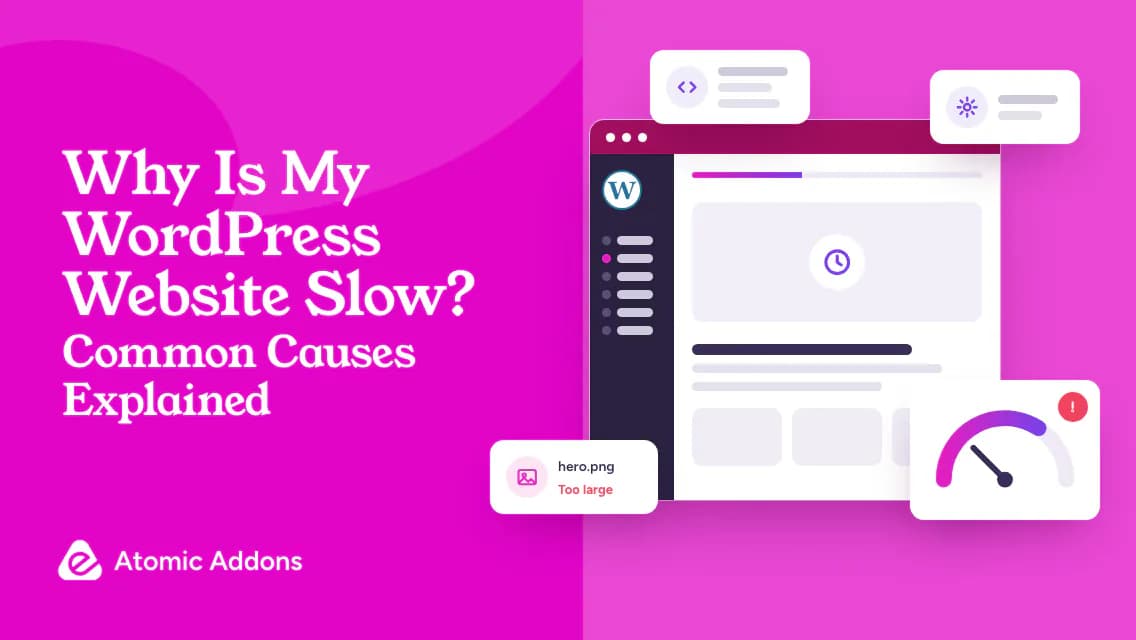
Wondering why your WordPress website is slow can lead you to change hosting or install optimization plugins before you know the cause. The delay may involve server response, images, scripts, interaction, or unstable layouts.
Changing several settings at once makes it harder to identify what helped and can disrupt menus, forms, or checkout. A higher score is not a useful outcome if an essential task stops working.
This guide helps you investigate a slow WordPress website with evidence. Compare representative pages, identify the type of delay, and test one focused change at a time while preserving recovery options and functionality.
Why Is My WordPress Website Slow? Start With Evidence
- Select representative pages rather than testing only the homepage.
- Compare mobile and desktop under similar conditions.
- Distinguish laboratory tests from measurements collected from real visits.
- Check the public page outside your logged-in session.
- Record the baseline and change one major variable at a time.
Slow Server Response
If the browser waits before receiving the page, investigate the hosting environment and server-side work. Dynamic queries, external requests, caching behavior, and resource limits can all contribute. A larger hosting plan is not a guaranteed fix for inefficient work.
Compare representative pages and ask the host for relevant evidence. An administrator session may bypass caching, while anonymous visitors receive a cached page. Stores and account areas may intentionally behave differently. Avoid caching personalized or transactional content without an appropriate configuration.
Oversized Images and Media
Review the actual image files downloaded by the browser. Resize and compress images for their intended use without making product details unreadable. Confirm responsive delivery rather than assuming a smaller visual display means a smaller downloaded file.
Use lazy loading where appropriate for off-screen images, but do not blindly defer the primary image visible when the page opens. web.dev's image-performance guidance explains this distinction. Background video and large embeds also deserve review; removing unnecessary media may be more useful than adding another optimization plugin.
Scripts, Addons, and Third Parties
Inspect what the page loads and why. Chat tools, trackers, maps, video players, and design effects can add requests or processing work. Decide which services support a necessary visitor task, then investigate their loading behavior.
Plugin count alone is not a diagnosis. A single heavy integration can matter more than several focused plugins. Review overlapping Elementor addons, unused effects, and nested layouts. Atomic Addons is one option for Elementor tools; use relevant features selectively and verify the completed page rather than assuming any product guarantees speed.
Fonts and Layout Instability
Loading many font families and weights can complicate delivery. Use a manageable typography system and check how fallback text behaves while fonts load. The best setup depends on design requirements and actual browser behavior.
Reserve appropriate space for images, advertisements, and other dynamic content. A page that loads quickly but moves buttons during interaction is still frustrating. Check visible stability alongside loading and responsiveness.
Understand the Metrics Without Chasing a Score
Core Web Vitals describe loading, responsiveness, and visual stability through Largest Contentful Paint, Interaction to Next Paint, and Cumulative Layout Shift. Use them to identify the type of problem, not as a substitute for testing a contact form or checkout.
A laboratory result reflects the test's device and network assumptions. Real-user data reflects collected visits and may not be available for every page. Do not declare a universal speed improvement from one run. Compare repeatable conditions and inspect the visitor experience.
A Safe WordPress Speed Investigation
- Record affected pages and the symptoms visitors experience.
- Save a baseline result and note test conditions.
- Confirm recovery options and create a staging copy when needed.
- Investigate media, scripts, server response, and layout separately.
- Apply one focused change and repeat the relevant tests.
- Verify forms, search, menus, and checkout before deployment.
Avoid turning on every caching, minification, and script-delay option at once. A setting that improves a score can break a menu or payment integration. If a change fails, document the symptom and investigate compatibility instead of piling on another tool.
Frequently Asked Questions
1. Why is WordPress slow on mobile?
Mobile visits may expose heavier pages, slower networks, limited device resources, or awkward layouts. Compare representative pages and inspect what they load. A desktop score does not explain every mobile issue. Check the browser's actual requests and interactions before assuming the problem is WordPress itself.
2. Do too many plugins slow down WordPress?
They can, but count alone is not enough evidence. Performance depends on the work plugins perform, their assets, compatibility, and configuration. Investigate redundant or expensive behavior and test changes safely. Keep necessary functionality rather than removing tools only to achieve an arbitrary plugin limit.
3. Will better hosting fix my slow website?
It may help when server resources or response times are a demonstrated constraint. It will not automatically fix oversized media or heavy browser-side scripts. Collect evidence and discuss it with the host. Compare relevant pages before and after a change rather than relying on a plan's marketing description.
4. Should I lazy load every image?
No. Off-screen images may benefit from deferred loading, but delaying an important image visible immediately can hurt its appearance timing. Review placement and browser behavior. Use image-performance guidance and test actual pages instead of applying one setting to every asset without considering its role.
5. Can Elementor addons affect speed?
Yes, depending on enabled features, scripts, styles, and page structure. Review overlapping tools and unnecessary effects, but do not assume every addon has the same impact. Test representative layouts with actual content. Keep required functionality while investigating loading work that provides little value to visitors.
6. Why is my dashboard slow but the public site fast?
The dashboard performs different work and may not use the same caching as public pages. Investigate administrator-specific tasks, external requests, and hosting resources separately. A fast cached homepage does not prove the editor has no problem, and a slow dashboard does not establish every visitor experiences the same delay.
7. Does a perfect PageSpeed score mean the site works well?
No. A score is one diagnostic view, not proof of clear content, accessible navigation, or successful checkout. Inspect the underlying findings and test real tasks. Avoid sacrificing functional reliability just to improve a number, especially when aggressive script changes affect forms or payment behavior.
8. Can caching break WooCommerce?
An inappropriate setup can interfere with personalized or transactional behavior. Use configurations compatible with your store and payment tools, then test cart and checkout safely. Do not cache every page indiscriminately. Seek qualified help when you are unsure which requests or pages require special handling.
9. What should I optimize first?
Start with the largest demonstrated problem on an important page. That may be server response, media, scripts, or layout instability. Record a baseline and change one major variable at a time. Prioritize changes that improve the visitor experience without introducing functional or recovery risks.
10. How do I measure an improvement?
Compare the same representative pages under similar conditions and repeat the test. Record what changed and verify visitor tasks. Use available real-user data alongside laboratory diagnostics. Avoid claiming a universal percentage improvement from a single run, because traffic, devices, caching, and networks can affect results.
Your Next Step
A slow WordPress website is difficult to improve when the actual bottleneck remains unknown.
Unfocused optimization can add complexity or improve a test result while damaging the visitor's workflow.
Record a baseline, investigate one cause, and retest the same pages and essential tasks. If you use Atomic Addons, review its relevant widget and asset settings through the documentation and keep only the features your layouts need. Evaluate the finished site, not a speed promise.